
Appearance
Shapes
Shape draws background panels, title blocks, dividers, arrows and callouts. It replaces the separate Rectangle, Line and Ellipse components.
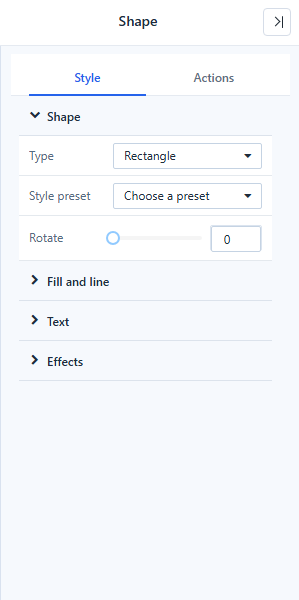
Style → Shape
| Setting | Options |
|---|---|
| Type | Rectangle (default), Rounded rectangle, Ellipse, Line, Arrow, Double arrow, Triangle, Right triangle, Diamond, Pentagon, Hexagon, Star, Callout |
| Style preset | Card background, Divider, Title block, Accent bar: sets type, fill and line in one step |
| Direction | Lines and arrows: Horizontal, Vertical, Top left to bottom right, Bottom left to top right |
| Pointer | Callouts: Top, Bottom (default), Left, Right |
| Corner radius | Rounded rectangle and callout, 0–100 px |
| Rotate | 0–360° |
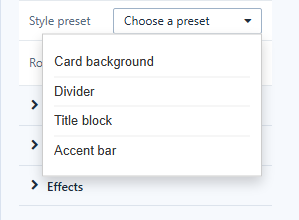
Common shapes
Add a shape with Components → Assists → Shape and a click on the canvas, then:
| Shape | Steps |
|---|---|
| Line or arrow | Type → Line, Arrow or Double arrow (the Divider preset gives a thin grey line), then a Direction. Resize the component to change the length and angle. |
| Circle or ellipse | Type → Ellipse. Give the component the same width and height for a circle. |
| Panel or card | Type → Rectangle or Rounded rectangle, or the Card background or Title block preset. Put it behind the charts with Move layer → Move to bottom in the toolbar or the right-click menu. |
Style → Fill and line
Fill: None, Solid (default) or Gradient, with Fill color and End color. Line width (0 = no outline), Line color, Line style (Solid, Dashed, Dotted), Line ends for lines (Flat, Round, Square) and Shadow.
Style → Text
Type a Text to show inside the shape; it wraps inside the shape. Set Font, Align, Vertical alignment and Padding. Insert dynamic value adds a value such as {{filter.Region}} at the end of the text. See Dynamic Values.
Style → Effects has Opacity and Hover effect.
Actions
- Click action turns the shape into a button: Go to report, Open link, Switch tab, Reset filters, Clear filters, Refresh data, Export PDF, Full screen, Open AI insight.
- Visibility and a Click script under Events.
- A shape with no action and no script lets clicks through to the components below, so a background panel does not block the charts on it.
See Click Actions and Visibility.
Convert old shapes
Rectangle, Line and Ellipse components from earlier versions still work. Select one and click Style → Shape → Convert to shape → Convert to replace it with a Shape that keeps its position, size, style, click action and visibility.
Related: Assist Components