
Appearance
Configuring MySQL Data Source
Create a MySQL datasource when you want to build analysis models from existing MySQL tables or views. The connection stores the database address, credentials, and JDBC settings used by Datafor. Saving it does not create the MySQL database or an analysis model.
The workflow is choose MySQL → enter connection details → review JDBC options → Test → Save → verify table access.
Before you connect
Have the following ready:
- Datafor access: an account that can create or edit datasources. If the Datasource entry or a required action is unavailable, ask your Datafor administrator for access.
- Database details: the MySQL hostname, port, database name, and the version of MySQL you are connecting to.
- A database account: use a dedicated reporting account with
SELECTaccess to the required tables and views. Ask your DBA to grant any additional metadata privileges your setup needs and allow connections from the Datafor server. The MySQL username and password are separate from your Datafor login. - Network and TLS configuration: the Datafor server must be able to resolve the hostname and reach the database port. For encrypted connections, obtain the database hostname and certificate trust requirements from your DBA.
- A compatible JDBC driver: the installed Connector/J version must support both your MySQL version and the Java version used by Datafor. See JDBC Driver Management if a driver needs to be added or updated.
Which machine does Host refer to?
Datafor opens the database connection from its server, not from your web browser. A database tool working on your laptop does not prove that the Datafor server can connect.
- Use the database hostname that is reachable from the Datafor server.
localhostand127.0.0.1refer to the machine running Datafor. If Datafor runs in a container, they refer to that container, not automatically to the physical host or another container.- Enter a hostname or IP address only. Do not enter
http://, the Datafor console URL, or a complete JDBC URL in Host.
1. Open the MySQL connection form
- In the left navigation, select Datasource.
- Open Database sources.
- Under Choose a database type, select MySQL. You can search for
MySQLand press Enter to locate the connector. - If an existing connection is open, click New beside Connections to return to the connector selector.

The form contains four collapsible sections: Basic, Advanced, Option, and Pooling. Scroll inside the form to reach the lower sections. Test, Cancel, and Save remain at the bottom.
2. Enter the Basic settings
The example below uses placeholder values. Replace them with your database details; mysql.example.com is not a working demonstration server.

| Field | What to enter | Example or guidance |
|---|---|---|
| Connection | A name that identifies this datasource in Datafor. | Sales MySQL. Include an environment or purpose when helpful, such as Sales MySQL - Production. This is not the database name. |
| Driver | An installed JDBC driver for this MySQL server. | mysql8 is the driver name shown in the example installation. It is a configured name, not a guarantee that every MySQL 8 or later release is compatible. Confirm the underlying Connector/J version with your administrator. |
| Host | The database hostname or IP reachable from Datafor. | mysql.example.com. For certificate hostname verification, use the hostname covered by the server certificate. |
| Database | The existing MySQL database containing the required tables or views. | sales. Do not enter a table name here. |
| Port number | The database listener port. | The form starts with 3306; use your actual port if different. |
| User | The MySQL account used by this connection. | datafor_reader. Prefer a read-only reporting account over root. |
| Password | The password for that MySQL account. | Enter the database password. The field is masked; avoid revealing it in screenshots or support requests. |
3. Review the JDBC options
Expand Option. Each row contains a JDBC property name and its value. Edit an existing row, use + New to add one, or use the minus icon to remove one. Enter one property per row, without a leading ? or an & separator. Avoid duplicate property names.

These are the values shown by the example installation, not universal Connector/J defaults or production recommendations:
| Property | Value shown | What to check |
|---|---|---|
databaseTerm | schema | Controls how Connector/J exposes MySQL databases through JDBC metadata. Keep this setting unless your administrator has a specific compatibility reason to change it. Changing it can affect schema and table discovery. |
useSSL | false | Disables TLS when used without an overriding sslMode. Review this before connecting to a production or remote database; see below. |
useUnicode | true | Leave it unless the installed driver's guidance requires a different configuration. |
characterEncoding | utf8 | Controls the connection encoding, not the encoding of existing stored data. Confirm the appropriate value for your driver and database. |
serverTimezone | Asia/Shanghai in this screenshot | The new-connection form derives its initial value from the browser's detected timezone. Check it against the database connection's time semantics; your own form may show a different zone. |
databaseTerm affects JDBC schema/catalog behavior, not the physical organization of MySQL data. See the Connector/J connection properties for driver-specific details.
Configure TLS for production
For Connector/J versions that support sslMode (8.0.13 and later), use your organization's approved TLS configuration. A configuration that verifies both the certificate chain and the database hostname uses:
| Property | Value |
|---|---|
sslMode | VERIFY_IDENTITY |
Replace the existing useSSL row with sslMode and its value, rather than leaving contradictory settings in the form. Before testing, have your administrator ensure that:
- MySQL accepts TLS connections.
- Host matches the certificate's hostname.
- The Java runtime used by Datafor trusts the issuing CA, or the connection has the required truststore configuration.
Use + New for additional driver properties required by your administrator. Certificate and truststore files must be available to the Datafor server process, not just to your browser's computer.
REQUIRED encrypts the connection but does not verify the server's identity. A certificate error should be resolved by correcting the hostname, certificate chain, or trust configuration. See Connector/J TLS settings and server authentication.
Check timezone and text handling
Choose the connection timezone with your DBA. For example, use UTC only when it matches the intended handling of your timestamps. Do not copy the screenshot's timezone just because the connection test passes: connectivity does not verify the meaning of date and time values. Compare a known timestamp with the value returned in a model preview. See Connector/J date and time properties.
For text, use the driver's encoding settings. Do not add SET NAMES to the Advanced SQL field: Connector/J warns that it does not detect a character-set change made this way. If text is incorrect, check the stored data, connection encoding, and column charset together. See Connector/J character sets and Unicode.
4. Use Advanced SQL only when needed
Advanced → SQL sentence accepts connection-initialization SQL, with multiple statements separated by semicolons. Leave it empty for a normal connection unless your DBA requires session initialization.
This field is not the place to write a report query, create reporting tables, or load data. Use only approved, repeatable session settings. An invalid statement or a missing privilege can prevent a connection from being usable. Do not replace the server's SQL mode or disable SQL validation just to make a query run.
For a reusable query over source tables, create a SQL View in an analysis model instead.
5. Review connection pooling
Pooling → Enable Connection Pooling lets Datafor reuse database connections. There are two controls to distinguish:
- The section's main switch enables pooling for this datasource.
- Each row's Enable switch decides whether that parameter is saved with the connection. A row that is switched off shows the server default in grey; the connection uses that default.
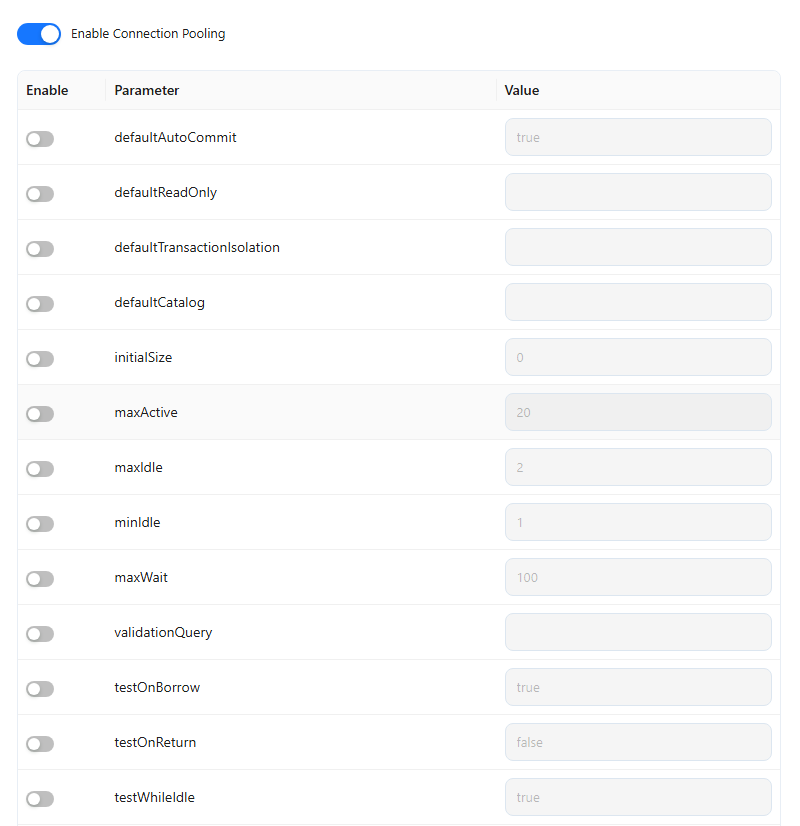
A new connection starts with every row switched off, so it runs on the server defaults. The defaults come from dbcp-defaults in pentaho-solutions/system/pentaho.xml; a standard installation has:
| Parameter | Server default | Meaning |
|---|---|---|
initialSize | 0 | Connections opened when the pool starts. |
maxActive | 20 | Upper limit for active connections from this pool. Review against the database's connection budget. |
maxIdle | 2 | Maximum idle connections kept open. |
minIdle | 1 | Minimum idle connections kept open. |
maxWait | 100 | Milliseconds to wait for a free pooled connection. This is not a query timeout. |
validationQuery | none | A lightweight query, such as select 1, used to check a connection. |
testOnBorrow | true | Checks a connection before it is used. |
To override a value, switch its row on and enter the value; only rows that are switched on are saved. A datasource that serves many concurrent users, for example a production reporting database, usually needs a larger maxActive than 20: agree the number with your DBA, because several datasources, Datafor servers and other applications can share the same MySQL connection limit. A larger pool does not make slow queries faster.
Connections saved before 10.00 keep the values they saved (in 9.04 the form saved maxActive 200, maxIdle 20, minIdle 5, initialSize 5 and select 1); rows they never set now show the server default. To change the defaults for every connection that does not override them, edit dbcp-defaults and restart Datafor.
Change idle validation, abandoned-connection cleanup, and prepared-statement pooling only when investigating a specific operational need. Then Test and Save. Database privileges, rather than a pool's read-only setting alone, should enforce read-only access.
6. Test, save, and verify table access
- Click Test. It uses the values currently entered in the form; you do not have to save first.
- Wait for the result. Resolve any failure before using the connection for analysis. If the message is too brief, ask your administrator to inspect the server log at the time of the test.
- Click Save to persist the connection. Confirm that its name appears under Connections.
- Select the saved connection to reopen it and check its settings. Save confirms that the configuration was stored; it does not replace a successful connectivity test.
- Select the connection's Actions menu, then New model. In the modeler, select the datasource and schema, and verify that the expected tables are listed. Add a representative table and inspect its data preview.
- Check a known text value, timestamp, and numeric value. A successful connection test alone does not prove that all required tables are readable or that their data is interpreted correctly.
Continue with Creating an Analysis Model to define relationships, dimensions, and measures.
Make the connection usable by the right people
The saved connection's Actions menu includes Permissions, Data security, New model, and View item lineage.
- Permissions controls access to the datasource object in Datafor.
- Data security configures row- and object-level restrictions. See Data Security.
- View item lineage helps you inspect dependencies before changing or removing a connection.
Datafor permissions do not grant privileges inside MySQL. The database account must be able to read the required objects, and Datafor users must have the appropriate access within Datafor. Verify access with a representative non-administrator account before handing the datasource over to a team.
Troubleshooting
| Symptom | What to check next |
|---|---|
| Driver is missing, or a driver-class error occurs | Ask the administrator to check the installed JAR, driver class, and compatibility with MySQL and Java in JDBC Driver Management. Selecting a name such as mysql8 does not install a driver. |
| Connection refused, communications link failure, or a network timeout | Check hostname resolution, port, MySQL listener, firewall, and network allowlist from the Datafor server. Recheck the meaning of localhost for container deployments. |
| Access denied for user | Check the database username/password, allowed client host, account status, authentication method, and database privileges with your DBA. The host MySQL sees is the Datafor server or its network egress address. |
| Unknown database | Verify Database against the existing MySQL database name. Saving a datasource does not create that database. |
| TLS handshake, certificate, or hostname verification failure | Check driver/Java compatibility, certificate validity and chain, trusted CA, and the hostname used in Host. Changing browser HTTPS settings does not fix JDBC TLS. |
| Public Key Retrieval is not allowed | Ask the DBA to review the account's authentication method and configure verified TLS or an approved server RSA public key. Do not enable public-key retrieval as a blanket fix. See Connector/J security properties. |
| Test succeeds, but schemas or tables are missing | Check the selected database/schema, MySQL read privileges, databaseTerm, and Datafor object-level security. Test the expected table, not only the connection. |
| Text is garbled or timestamps are shifted | Compare a known row with the database result. Check connection encoding, source column types/charsets, and timezone semantics. Do not add SET NAMES or change timezone values at random. |
| Too many connections, or waiting for a pooled connection | Review pool capacity across datasources and server instances, the MySQL connection limit, and long-running queries. Distinguish a pool wait from a network or query timeout. |
| Failures start after adding Advanced SQL | Recheck the initialization statements and their required privileges. In a test connection, remove the added statements and retest to isolate the cause. |
When requesting support, provide the datasource name, approximate test time, error text, MySQL version, JDBC driver name/version, and whether the failure occurs during Test, model table discovery, or query execution. Share logs through your approved support channel and remove passwords, tokens, and unrelated data.
Update an existing connection
Select its name under Connections, edit the relevant fields, click Test, and then Save. After a credential rotation or a host, database, driver, TLS, or timezone change, verify an existing model and a representative report as well as the connection itself.
Use View item lineage to assess dependencies before a disruptive change or deletion. Do not delete a connection that existing models still need. If you only want to abandon unsaved edits, use Cancel and follow the unsaved-changes prompt if one appears.