
Appearance
Radar
Compare profiles across a small set of dimensions arranged around a circle. Use comparable scales, such as scores from 0 to 100. A large polygon does not by itself establish a better result.
Build a comparison profile
- Add Components → Charts → Other → Radar (a new radar is 400 × 300 px) and choose an Analysis model in Data.
- Put the dimension naming the criteria in Radial axes. Each member becomes a spoke.
- Put the score or other comparable value in Measures.
- Use Legend to separate the entities you want to compare, such as Store or Team. Alternatively, compare compatible measures; check the available bindings after adding them.
- Apply Filters so every profile uses the same period and criteria. Add supporting detail to Tooltips if needed.
Do not put currency, headcount and percentage values on a shared profile without a meaningful normalization. Prepare normalized scores in the model and explain what a high score means.
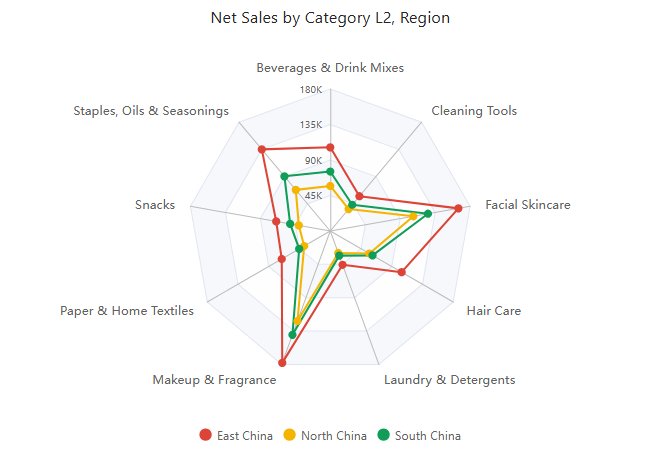
Format the profiles
| Option (Style) | Effect | Default |
|---|---|---|
| Position → Horizontal, Vertical | Position of the radar's center in the component, in percent. | 50%, 50% |
| Plot area → Diameter | Diameter as a percentage (10–100) of the component's shorter side. Leave room for the axis labels. | 75% for new radars; 60% in reports from earlier versions |
| Plot area → Fill color | Fills the polygons. | Off |
| Axis labels → Show | Shows the category names at the end of each spoke. | On |
| Axis labels → Value scale | Shows value ticks on the top axis. | On for new radars; off in reports from earlier versions |
| Axis labels → Font | Font of the category names. | 12 px |
| Legend | Show, font, pagination and position; see Legends. Legend markers are dots. | |
| Tooltip → Show Tooltip | Hover tooltip, in the same style as other charts; see Tooltips. | On |
Value scale labels only the top axis, which is the first category in the data. All axes share one range, split into 4 divisions on whole numbers, so the labels apply to every spoke. The unit (K, M or B) is chosen from the tick interval and the maximum. The minimum at the center is not labelled.
On a small radar, where the component's shorter side is under 220 px, the category names are not drawn and the radar uses the space instead. Hover a point to see its category. The Show setting is not changed, and the names return when you enlarge the component.
With overlapping profiles, use a small number of series so users can follow each outline. The order of the radial categories affects the polygon shape: keep the same criteria order and scale across charts you expect readers to compare.
Interaction
Clicking a radar does not filter other components, drill, or open a data point menu. Actions therefore has no Linked components or View details settings; Data refresh and Events (such as Plot area click) remain. The radar still responds to filters and to clicks on other components; see Cross-filtering.
Read the profiles
Hover individual criteria rather than relying only on polygon area. Confirm that a missing score is not being interpreted as poor performance, and check whether every criterion has the same desirable direction.
If labels overlap, shorten names, reduce the number of criteria or enlarge the component. For many entities, close numeric comparisons, or mixed units, use a table or a Clustered bar instead.
Opening reports made before 10.00
- Legend markers are dots instead of map pins, and the tooltip has the common chart style and obeys Show Tooltip.