
Appearance
Mail Server Configuration
Datafor sends all its email through the SMTP server configured on the Email page:
- alert notifications;
- verification codes for a forgotten password;
- verification codes for self-registration, when registration is allowed;
- the result of a data upload approval, sent to the user who uploaded the file.
Without a working mail server, these emails are not sent. Only administrators can open the page.
1. Open the Email page
Go to Settings › General › Email.
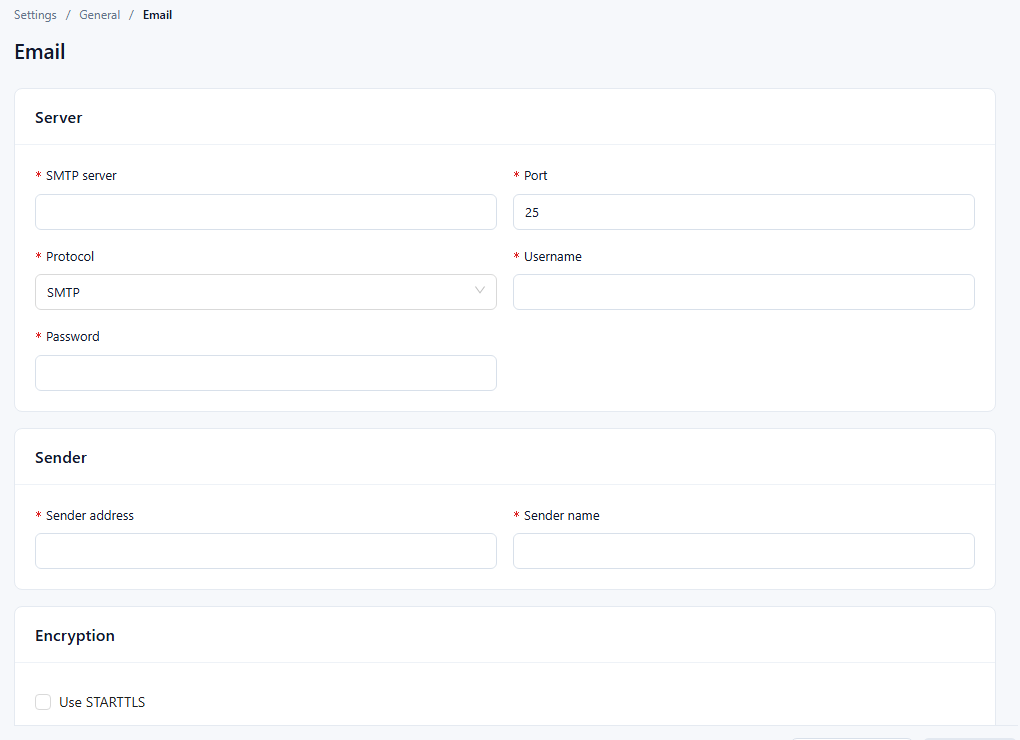
2. Fill in the settings
All fields in Server and Sender are required.
| Section | Field | What to enter | Notes |
|---|---|---|---|
| Server | SMTP server | Host name of the SMTP server, e.g. smtp.example.com. | |
| Server | Port | SMTP port. Common values: 25 (unencrypted), 465 (SSL), 587 (STARTTLS). | The form starts with 25. |
| Server | Protocol | SMTP or SMTPS. | Use the one your mail provider requires. |
| Server | Username | Account used to sign in to the SMTP server. | |
| Server | Password | Password of that account. | Some providers require an app password instead of the mailbox password. |
| Sender | Sender address | Address that appears as the sender, usually the same mailbox as Username. | Must be a valid email address ("Enter a valid email address"). |
| Sender | Sender name | Display name of the sender. | |
| Encryption | Use STARTTLS | Select to upgrade the connection with STARTTLS. | Optional. |
| Encryption | Use SSL/TLS | Select to connect over SSL/TLS. | Optional. |
3. Test the connection
Click Test connection at the bottom of the page.
- The test uses the values currently in the form, including changes you have not saved, so you can try settings before saving them.
- All required fields must be filled in before the test runs.
- The server sends a test message with those values to the Sender address. The result appears as Test passed, or as Test failed with the reason returned by the mail server.
4. Save
Click Save. The button is available once you have changed something. If you leave the page with unsaved changes, Datafor asks you to keep editing, discard the changes, or save and leave.
5. Troubleshooting
| Problem | Likely cause | What to do |
|---|---|---|
| Test failed with an authentication error | Wrong Username or Password, or the provider requires an app password | Check the account, and generate an app password if the provider uses them. |
| Test failed with a connection or timeout error | Wrong SMTP server or Port, or a firewall blocks the port | Check the host and port with your provider, and allow outbound traffic to that port. |
| SSL/TLS errors | Encryption options do not match the port | Match Use SSL/TLS or Use STARTTLS and Protocol to what the provider requires for that port. |
| Emails are blocked or never arrive | Provider security policy | Allow SMTP or third-party access for the account, and check the recipient's spam folder. |