
Appearance
Viewing an Item's Lineage
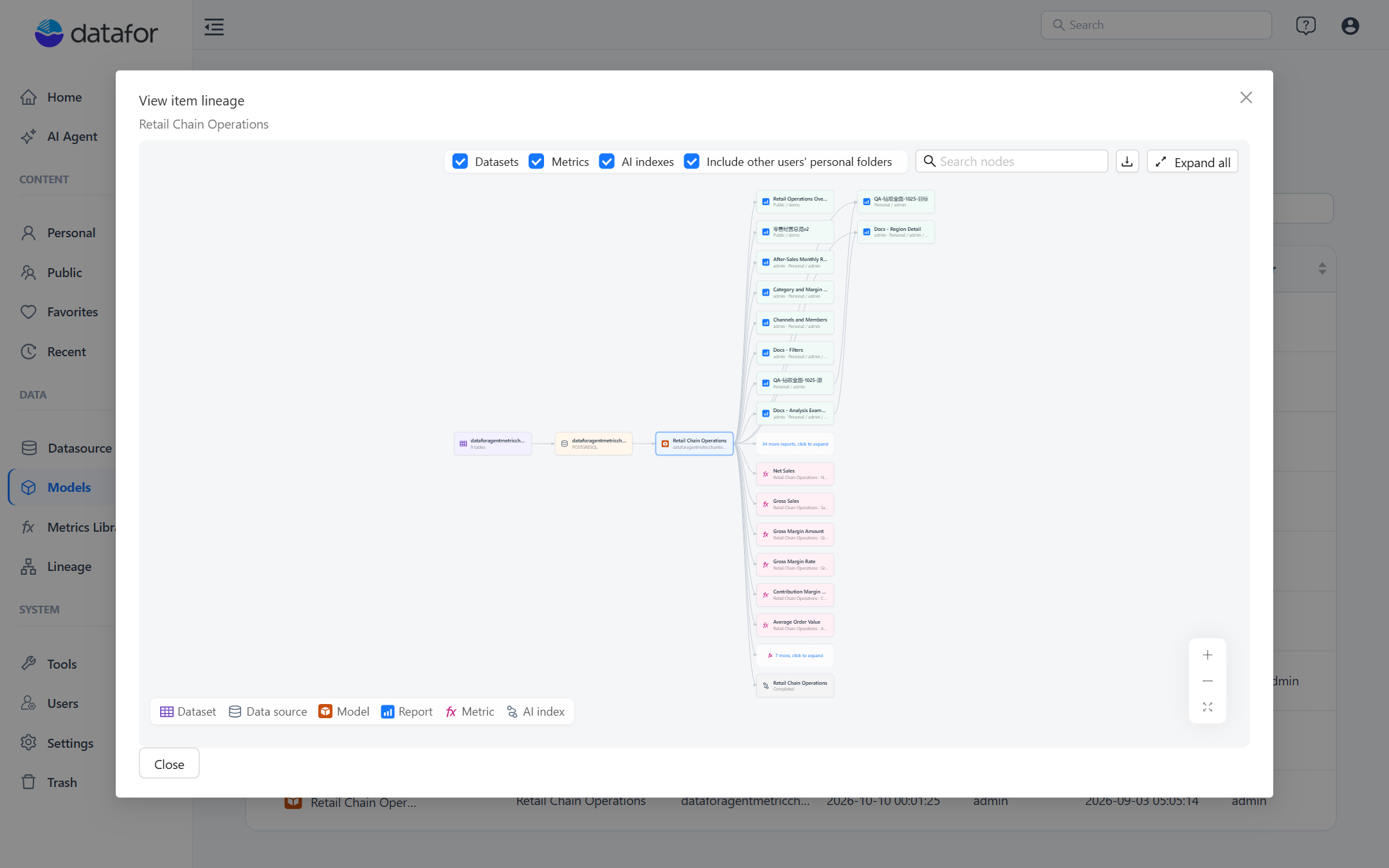
View item lineage draws the chain around one object: for a report, the models it queries and their data sources, plus the reports it opens; for a model, its data source and every report that uses it; for a data source, its models and their reports. Use it to find the model behind a chart, or the reports affected before you change or delete a model or a connection.
Open it
| Starting point | Where | Graph centred on |
|---|---|---|
| A report you are editing or viewing | Report toolbar menu › Report lineage (disabled until a new report is saved) | The report |
| A report in a folder | The file's actions menu › View item lineage (not offered on folders) | The report |
| An analysis model | Models › the model's actions menu › View item lineage | The model |
| A data source | Datasource › the connection's Actions menu › View item lineage | The data source |
| Any object | Data › Lineage, select it | The object, in the page's focus graph |
Read the graph
The graph flows left to right in the order of the data: Dataset → Data source → Model → Report → Linked report, with Metric and AI index nodes under the model. Each node has the icon and colour of its type (see the legend at the bottom left); the object you started from has a highlighted border.
- Hover a node for its details: path and owner of a report, database type of a data source, tables and files of a dataset, status and version of a metric, vectors of an AI index.
- Double-click a node to open it: the report, the model in the modeler, or the Datasource, Metrics Library or Datasets page.
- Groups. When a model has many reports, the column shows the first few and a n more reports, click to expand tile; click it to expand and Collapse n reports to fold them again. Expand all opens every group.
- Labels. Deleted marks an object that no longer exists (the model of an orphaned report, or the target of a broken link). No permission marks a model or data source you cannot read; the node stays in the graph so you can see the dependency, but its details are hidden. Previously <path> on a linked report means the link still points to the report's old path; it heals when the source report is saved again.
- Linked reports are the reports this report opens through drill-through or embeds as a page. They sit in an extra column to the right, so a chain of drill-throughs reads left to right.
Toolbar
| Control | What it does |
|---|---|
| Datasets, Metrics, AI indexes | Show or hide those node types. The choice is remembered in your browser. |
| Include other users' personal folders | Administrators only: include reports in every user's personal folder, not only Public and your own. Also remembered. |
| Search nodes | Highlights the nodes whose name or path contains the text. |
| Fit to view, +, − | Zoom; the graph fits the window when it opens and when the window is resized. |
| Export image (PNG) | Saves the whole graph, including collapsed groups as they are, as a PNG named after the object. |
| Expand all / Collapse all | Opens or folds every report group. |
What the graph includes
- Reports from Public and your own personal folder; administrators can include all personal folders. A model or data source can therefore be used by more reports than a non-administrator sees.
- Models you can read, plus models a visible report uses even when you cannot read them (No permission) or they were deleted (Deleted).
- Datasets whose connection you can read.
- Only components that run a query link a report to a model. A report that only contains text, images or buttons has no model and no lineage of its own.