
Appearance
Image
Image shows a fixed picture, such as a logo. To show a picture from query data, for example a product photo per row, use Dynamic image in Charts → Other.
Add an image
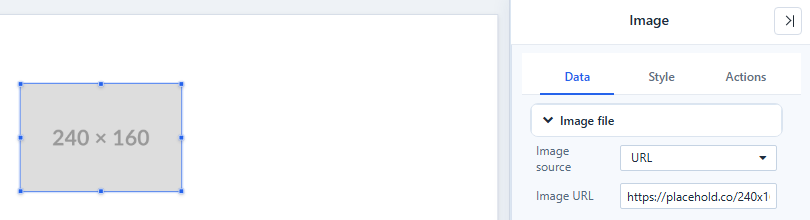
- In Components → Assists, click Image, then click the canvas.
- In Data → Image file, choose Image source:
- Upload → Select file: the image is saved inside the report. Large files make the report larger.
- URL → Image URL: an
httporhttpsaddress, loaded each time the report opens. It can contain dynamic values, for examplehttps://cdn.example.com/logos/{{param.Brand}}.png.
- Set Style → Image.
Style → Image
| Setting | Options |
|---|---|
| Fit | Original size, Fit (show whole image) (default for new images), Stretch, Fill (crop edges), Tile |
| Position | Where the image sits when it does not fill the frame (nine positions) |
| Clip to border | Cuts off anything outside the frame and rounds the image with the corner radius. On for new images. |
| Alt text | Text for screen readers |
Style → Border sets the frame, corner radius, background and effects. If a URL cannot be loaded, the component shows Loading error; check that readers can reach the address.
Actions
Click action (for example Go to report or Switch tab), Visibility and a click script under Events. See Click Actions and Visibility.