
Appearance
Pie
Show how a small number of categories contribute to a whole. Use non-negative, additive values such as sales or units. A bar chart is easier to read when there are many categories or their values are similar.
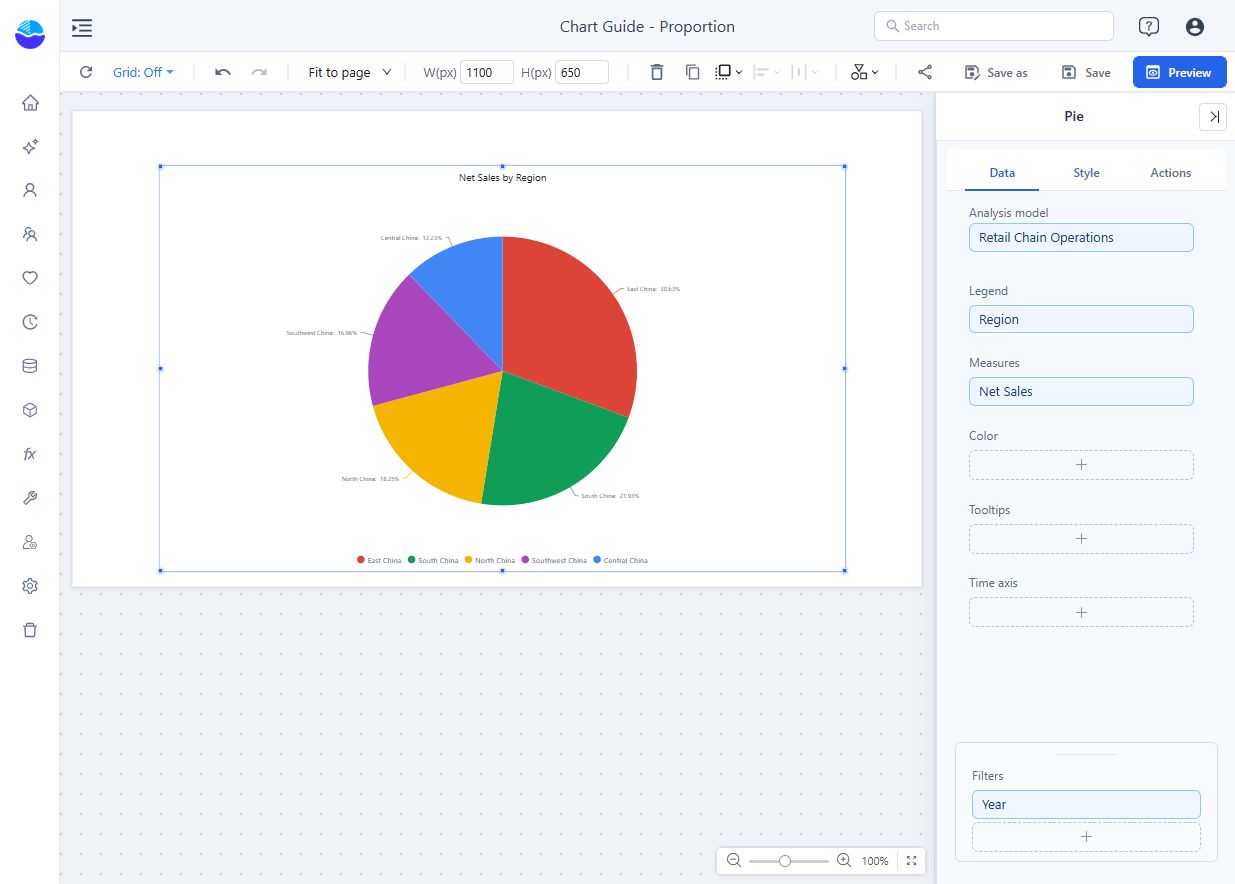
Build sales share by region
- In Components → Charts → Proportion, add Pie and select an Analysis model in Data.
- Put Region in Legend and Net Sales in Measures. Each region becomes one slice.
- Set Filters, for example Year = 2025. Add supporting values to Tooltips if needed.
- Check the slice names and values before styling.
There are two data arrangements:
| Arrangement | What becomes a slice |
|---|---|
| A Legend field and one measure | Each member of the Legend field. |
| No Legend field and several measures | Each measure. Use only measures that are distinct parts of the same whole. |
With a Legend field the chart accepts one measure. Do not add revenue and profit as slices of one total: they overlap. To colour slices through Color, put the same category field there.
A new pie is placed at 400 × 300 px with Label contents Name & percentage, Sort slices by value and Merge small slices on, and data-label Display units set to Auto. Pies in reports from earlier versions keep Name, no sorting, no merging and Follow measure format.
Settings that matter
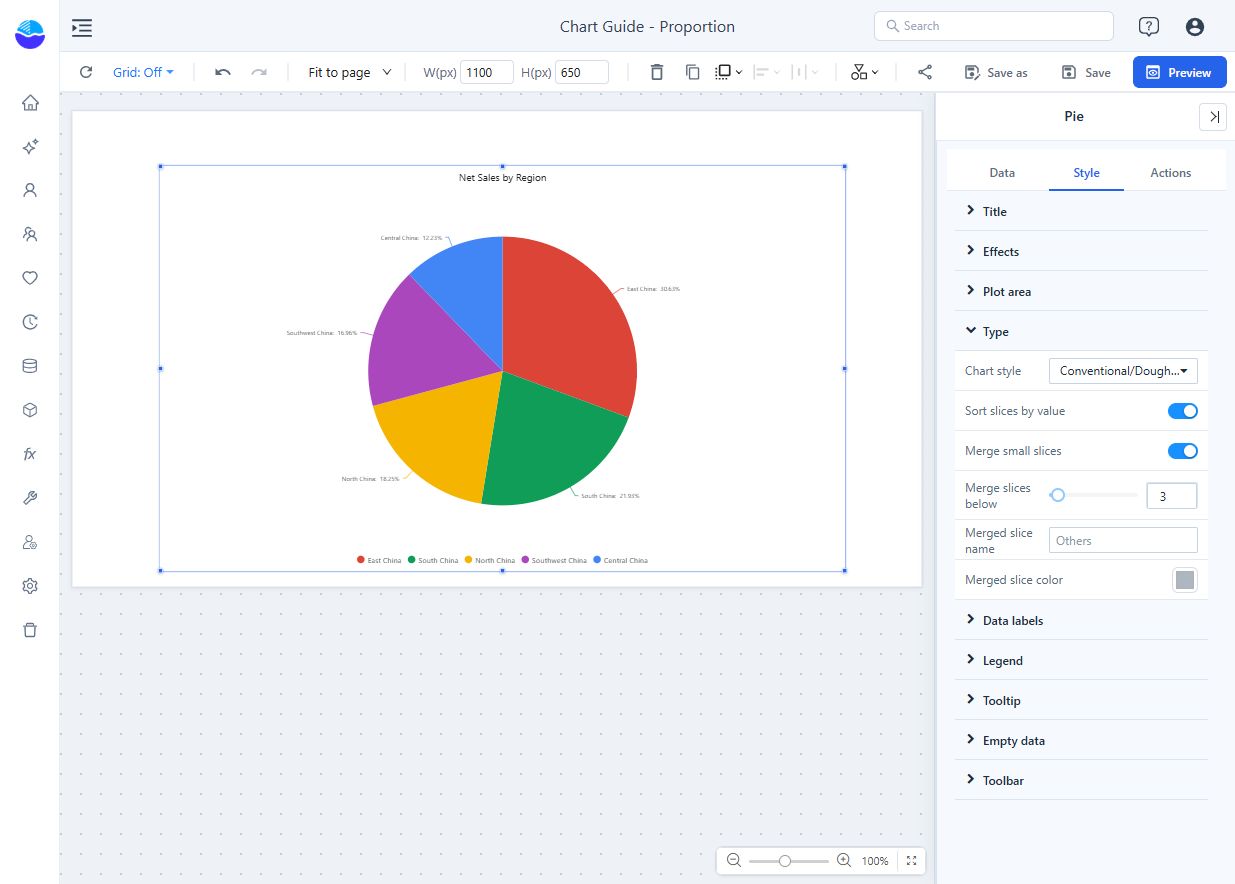
All in the Style tab.
| Setting | Effect | Default |
|---|---|---|
| Plot area → Diameter | Pie size as a percentage of the component's shorter side, 10–100%. | 75% |
| Plot area → Ring width | Ring width as a percentage of the radius, 5–100%. Smaller values make a thinner doughnut; 100% is a solid pie. | 100% |
| Type → Chart style | Conventional/Doughnut, Radius rose or Area rose. Rose styles also vary the radius, so do not read them like equal-radius slices. | Conventional/Doughnut |
| Type → Sort slices by value | Largest slice first. A sort order or row limit set in the Data panel takes precedence; the merged slice is always last. Off = query order. | On for new pies |
| Type → Merge small slices | Combines slices below the threshold into one slice at the end. | On for new pies |
| Type → Merge slices below | Threshold share, 1–20%. | 3% |
| Type → Merged slice name | Name of the merged slice. Empty = Others. | Others |
| Type → Merged slice color | Colour of the merged slice. | Neutral grey |
| Data labels → Show, Font | Labels on or beside the slices. | On |
| Data labels → Position | Outer or Inner. Inner labels are white unless you set a font colour. | Outer |
| Data labels → Label contents | Name, Value, Percentage, Name & value, Name & percentage, Value & percentage, Name & value & percentage. | Name & percentage for new pies, otherwise Name |
| Data labels → Display units, Decimal places | Format of the value. See Display Units and Decimal Places. | Auto for new pies |
| Data labels → Percentage decimal places | Auto (2) or 0–4. Applies to labels and tooltips. | Auto |
| Data labels → Min. proportion | Slices below this share, 0–30%, get no label. The slice itself stays. | 1% |
Merging small slices
- Slices are compared by their share of the absolute total. The merged slice takes the merged slice colour; kept slices keep their colours.
- Its tooltip shows Others (N items), the total, the share and Largest 5 with up to five member names and values.
- The merged slice cannot cross-filter or drill.
- Nothing is merged when only one slice is below the threshold, when there is no Legend field (slices are measures), when every value is 0, or when the measure cannot be added up (aggregation other than sum or count, such as average, distinct count, max or min). In the last case the switch still shows on.
- Merging affects the drawing only; data preview and cross-filtering use the original members.
Merging combines visible contributions; a row limit with Group the rest as "Others" combines the members beyond the limit in the query instead. See Top/Bottom N.
Labels and legend
- Outer labels never break inside a number or cover the legend. When they do not fit, the pie shrinks (down to 40% of its radius), then long labels are cut with "…" (full text in the tooltip). If not even three characters fit, no labels are drawn; enlarge the component to bring them back.
- Long legend names are shortened to fit (about 30% of the component width) and shown in full in the tooltip. With legend Pagination off, the legend still pages if wrapping would take more than half of the chart. See Legends.
- Member names that contain "~", such as 18~25, are shown in full.
Understand the denominator
The tooltip share is the share of the slices in the result. It says so when that differs from an ordinary share:
| Tooltip text | When |
|---|---|
| -50 (25% of the absolute total) | Negative values are present. Slices are drawn by absolute value; data labels do not carry the note. |
| 4.93% of the slices shown | Legend items are hidden, or a row limit is set without Group the rest as "Others". |
Without a Legend field, each measure's tooltip also shows its share, for example 3,007,229.54 (34.64%).
If every value is 0, the pie is a light grey ring with All values are 0 in the centre. If every value is empty, the empty-data message is shown; a mix of empty and 0 counts as all zero. See Empty Data and Error Messages.
In the example, East China accounts for 30.63% of the displayed 2025 sales. Hover a slice to see which percentage basis applies. Filters remove contributions from the whole; label the scope clearly. With negative values, do not present an absolute-total share as an ordinary revenue share; use a bar or waterfall chart instead.
Opening reports made before 10.00
- Min. proportion is now exact: slices between 1.00% and 1.11% that lost their label with the 1% setting show it again.
- A pie whose values are all 0 now shows the grey ring instead of a blank area.
Related: Grouped donuts for composition across groups · Treemap and Sunburst for nested categories · Colors · Tooltips