
Appearance
Clustered column
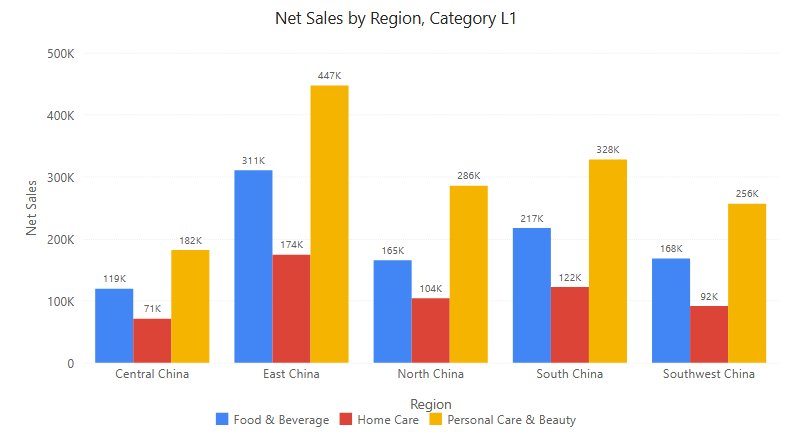
Vertical columns, side by side, measured from a common zero baseline. Use it to compare a measure across a handful of categories or periods, for example net sales by region, optionally split into series such as product category.
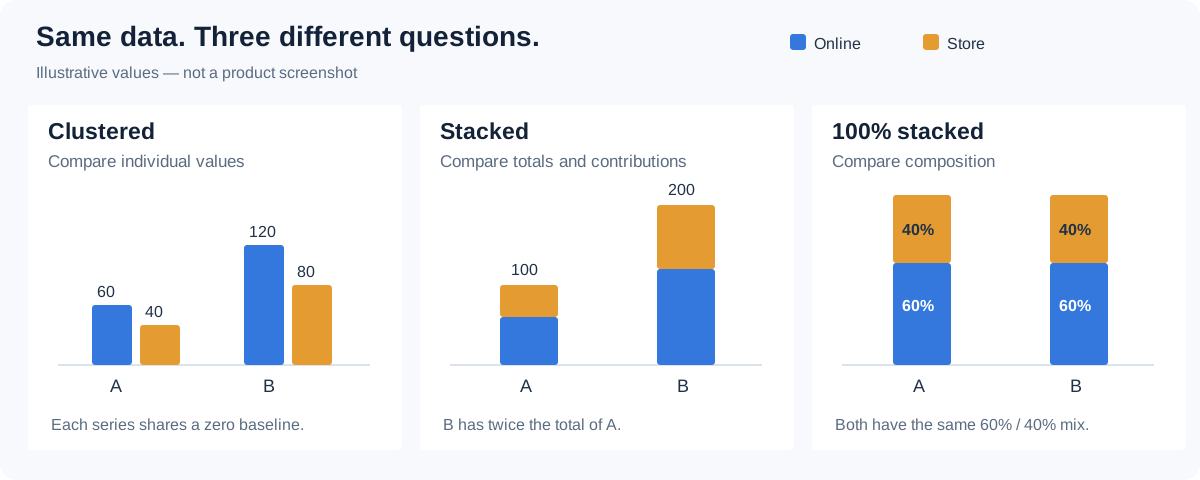
Use a Clustered bar when category names are long or there are many categories, a Stacked column when the total matters, and a Line for a trend over many periods.
This page also describes the behaviour that all six column and bar charts share: value axis, data labels and switching between column and bar charts.
Build a sales comparison
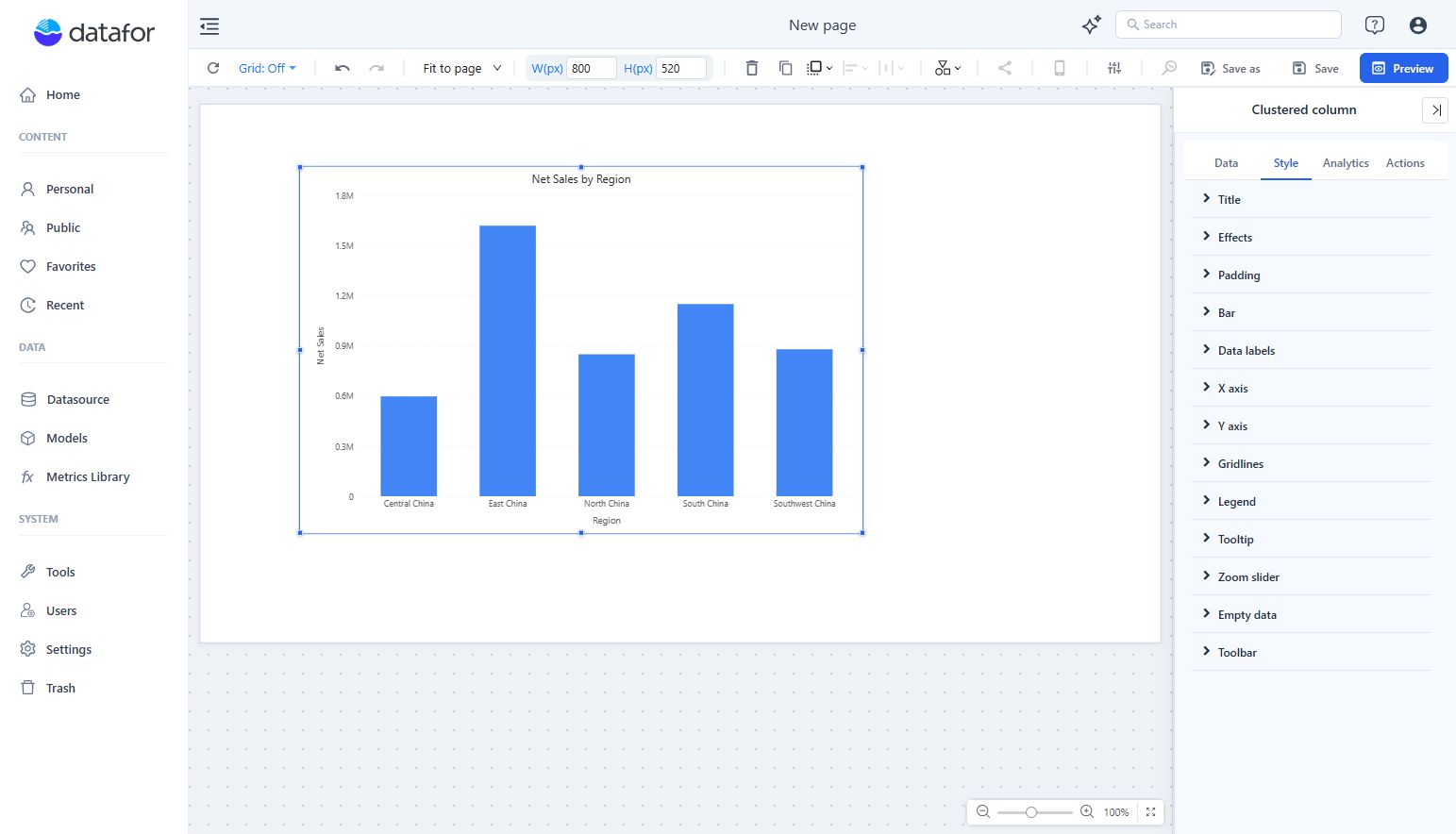
- In Components → Charts → Column & bar, click Clustered column, then click the canvas. A new chart is 400 × 300 px.
- In Data, choose an Analysis model. Click + under each field group, choose fields and click Back.
- Set Filters to a defined period, such as Year = 2025.
| Field group | Example | Purpose |
|---|---|---|
| X-axis | Region | One group of columns per member. A hierarchy can be drilled down. |
| Legend | Product Category | Optional. One column per member inside each group. |
| Measures | Net Sales | One or more measures to compare. |
| Tooltips | Order Count | Extra values in the tooltip; not drawn. |
| Color | Optional field | Colours the columns by a dimension or measure; single measure only. |
- With several measures, Legend and Color are not available: each measure is a series with its own colour, set in the measure's Color menu. Keep the units compatible; use a Combo for an amount and a rate.
- Measures without an X-axis field give one column per measure, each in its own palette colour.
- Drag a field between X-axis and Legend to swap the roles; see Adding Components.
- The automatic title reads Net Sales by Region, Product Category (X-axis field before Legend). After a drill-down it names only the current level.
- The X-axis name defaults to the X-axis field, at the current drill level. It appears as grey placeholder text in X-axis name until you type your own.
- To rank, sort with the X-axis field's More function menu; see Sorting.
Style settings
| Group → option | Effect | Default |
|---|---|---|
| Bar → Space (%) | Gap between column groups, as a share of the category width (0–90). | 20 |
| Bar → Round corners | None, 2px … 64px. All four corners of each column. | None |
| Data labels → Show | Values on the columns. | Off |
| Data labels → Position | Top, Inside top, Center, Inside bottom. | Top |
| Data labels → Font | Size, colour, bold, italic. | – |
| Data labels → Display units, Decimal places | Label number format, for example 1.85M. See Display Units. | Auto for new charts; Follow measure format in older reports |
| X axis → Type | Categorical or Continuous for a date or numeric field. See X axis type. | Depends on the field |
| X axis → Rotate labels | Angle of the category labels. When never set, labels that do not fit are rotated 30°, 45° or 60° (the first that leaves a gap), otherwise 90°; the slider shows the applied angle. | Automatic |
| X axis → Show axis name, X-axis name | Axis title. Empty = the X-axis field. | On |
| Y axis → Scale | Tick unit: Auto, K, M, B, T, %. | Auto |
| Y axis → Y-axis min value, Y-axis max value | Fixed bounds. Empty = automatic. | Empty |
| Y axis → Show axis name, Axis name | Axis title. Empty = the measure names. | On |
| Tooltip | Show Tooltip, Sort, Show total, Show percentage, Highlight hovered series. See Tooltips. | Show Tooltip on |
| Zoom slider → Zoom | Sliders for zooming into a continuous axis (a date or numeric X axis, the value axis). | Off |
Legend options (Show, Pagination, position) are described in Legends; colours in Colors and Conditional colors.
Value axis
These rules apply to Clustered column, Stacked column, Clustered bar and Stacked bar. The 100% charts keep a 0–100% axis; see their pages.
- The automatic range always includes 0. Column length encodes the value, so all-positive data starts at 0, all-negative data ends at 0, and mixed data spans both. An axis that started near the smallest value would make a 2.8× difference look like 18×.
- Fixed bounds in Y-axis min value / Y-axis max value (on bar charts X-axis min value / X-axis max value) override the automatic range. If the minimum is not less than the maximum, both are ignored and the axis stays automatic.
- Scale → Auto picks the unit from the tick interval: an axis from 0 to 2 million in 500K steps reads 0, 0.5M, 1.0M, 1.5M, 2.0M. A fixed unit gives every tick the same number of decimals. See Value axis units.
- Percent axis only for percentages. The axis shows % only when every measure on it is formatted as a percentage. An amount and a rate on one axis show plain numbers, and the rate stays close to zero: use a Combo with two axes instead.
- Hiding a series in the legend rescales the automatic axis to the remaining series (still from 0). Fixed bounds are kept. Showing all series restores the original range.
Data labels
Turn on Style → Data labels → Show. The Position options depend on the chart; the first one is the default:
| Chart | Position options |
|---|---|
| Clustered column | Top, Inside top, Center, Inside bottom |
| Stacked column, 100% stacked column | Inside top, Center, Inside bottom |
| Clustered bar | Inside left, Center, Inside right, Right |
| Stacked bar, 100% stacked bar | Inside left, Center, Inside right |
- Labels that do not fit are hidden. A label inside a column or segment (every position except Top and Right) is not drawn when its text is wider or taller than the column. It reappears when the chart is enlarged. Use Display units for shorter numbers, or Top / Right to place labels outside.
- Automatic contrast (new charts). Labels inside columns get dark or light text to suit the column colour, as long as the label colour in Font is unchanged. Pick a colour in Font to fix it. There is no switch for this; older reports keep their fixed colour.
- Units per measure. Display units picks one unit per measure. With a unit and Decimal places = Auto, labels get about three significant digits (1.85M, 0.97M, 0.50M).
- Stacked column and Stacked bar add Show total and Hide labels below (%); see Stacked column.
- 100% stacked charts show shares and have no Display units; see 100% stacked column.
Switch between column and bar charts
Switching with Chart switch in the toolbar between a vertical chart (Clustered, Stacked or 100% stacked column, Line, Area, Stacked area, 100% stacked area) and a bar chart (Clustered, Stacked or 100% stacked bar) moves the axis settings by role, not by letter:
- The category-axis name, axis line, Show scale labels, label font and label width, Show axis name, value-axis minimum and maximum, Scale and gridlines move between X axis and Y axis.
- Data label Position maps Top ↔ Right, Inside top ↔ Inside right, Inside bottom ↔ Inside left, Center ↔ Center.
- Settings that exist on only one side are kept for switching back.
Switching to Combo or to other chart types, or within the same orientation, is unchanged.
Interaction
- Tooltip: rest the pointer on a column. Sort, Show total and Show percentage list all series of the category; see Tooltips.
- Legend: click to hide a series, double-click to show only that series; see Legends.
- Click a column to cross-filter other components (Actions → Interactions) or drill down. Right-click for the data point menu; Actions → View details adds a detail table to it.
- Analytics adds target and average lines and bands; see Reference lines.
Common symptoms
| Symptom | Check |
|---|---|
| Some labels are missing | Inside labels that do not fit are hidden. Enlarge the chart, set Display units, or use Top. |
| Differences look small | The axis starts at 0 by design. A fixed Y-axis min value zooms in, but tell readers the axis does not start at 0. |
| Fixed bounds have no effect | The minimum must be less than the maximum; otherwise both are ignored. |
| The axis shows plain numbers for a percentage | Another measure on the same axis is not a percentage. |
| Categories are missing | Check filters and any row limit; see also Empty data and errors. |
| Legend or Color is missing | Several measures are assigned. |
If the values themselves look wrong, see Resolve common data problems.
Opening reports made before 10.00
- Automatic value axes now include 0, so a chart whose axis started near the smallest value is redrawn from 0 when opened. Charts where the old Zero align switch (no longer in the panel) was saved off keep the data range.
- Labels inside columns that do not fit are now hidden.
- The default X-axis name is now always the X-axis field at the current drill level. Before, it could show the Legend field or the top drill level.
Related: Stacked column and bar · 100% stacked column and bar · Clustered bar · Component filters