
Appearance
GeoJSON Map
Tools › GeoJSON maintains the maps that the GeoJSON Filled map and Marker map components draw. Here you can:
- add maps and sub-maps for drill-down (for example World → United States → California);
- upload the GeoJSON file of each map;
- set aliases for a map and for its regions so that the names in your data match;
- set the centre (latitude and longitude) of each region, where marker maps place their points.
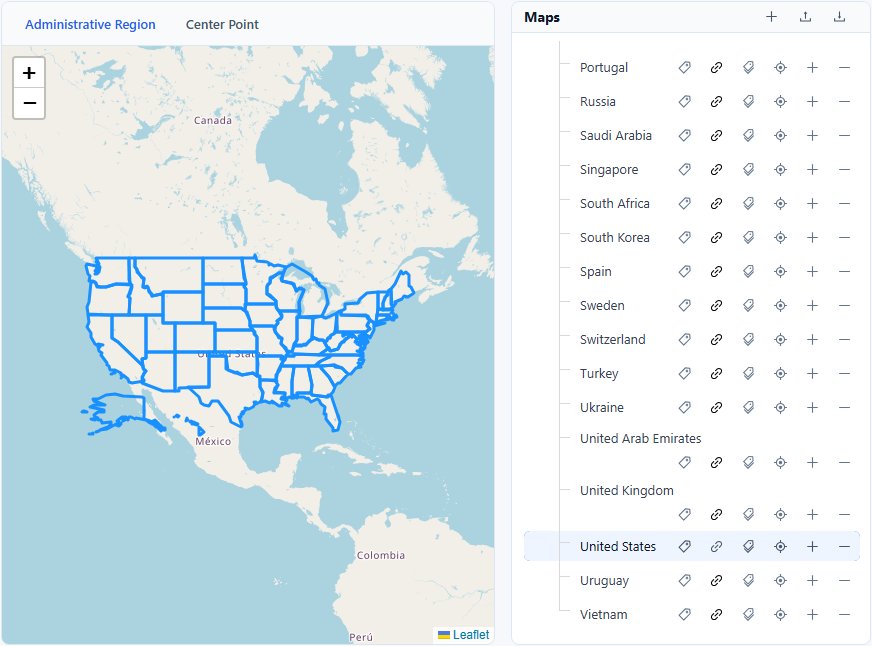
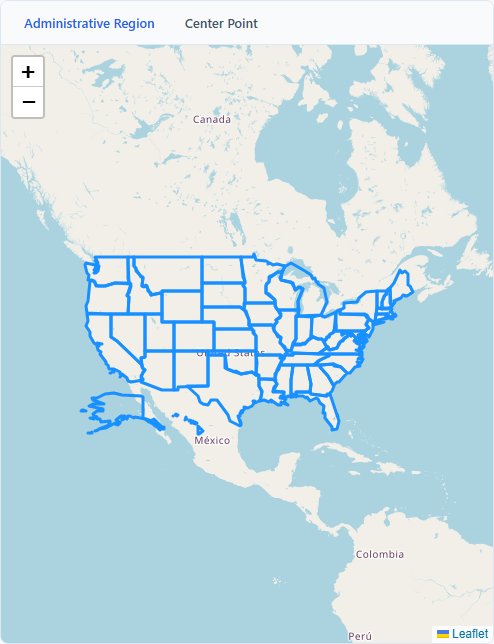
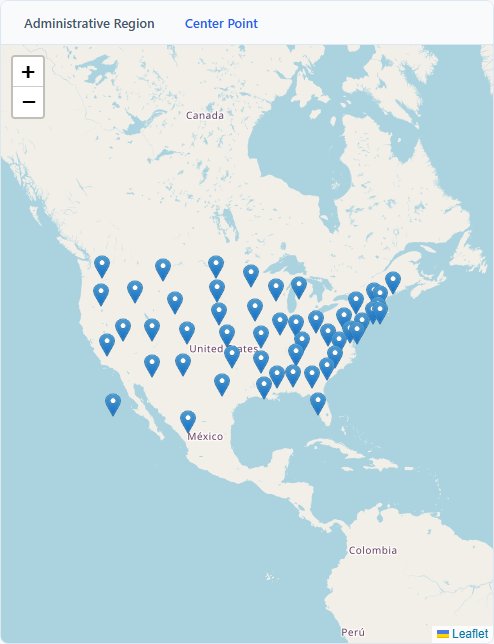
The map view on the left has two tabs: Administrative Region shows the region boundaries of the selected map, Center Point shows each region's centre as a point.
The Maps tree
The buttons at the top of the Maps panel act on all maps:
| Button | Action |
|---|---|
| Add Map (+) | Add a new top-level map by name. |
| Import | Upload a .zip exported from this tool. Maps in the archive replace maps with the same name; other maps are kept. |
| Export | Download all maps as a .zip, for example to copy them to another server. |
Each map in the tree has these buttons (hover for the name):
| Button | Action |
|---|---|
| Set Map Alias | Other names of the map, separated by /. |
| Set GeoJSON File | Upload the map's GeoJSON file. The icon is red while no file is bound. |
| Set Region Alias | Other names for each region of the map. |
| Set Region Center | Latitude and longitude of each region's centre. |
| Add Map (+) | Add a sub-map, chosen from the regions of this map. |
| Delete Map (−) | Delete the map and all its sub-maps, after confirmation. |
Add a map or sub-map
On the parent map (for example World), click Add Map (+).
In Add Sub-map, search for and select the region, for example United States, and click Save.
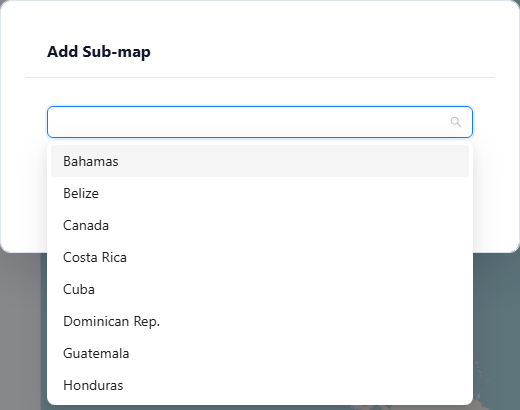
The new map appears under its parent. Bind its GeoJSON file (next section) before using it in a report.
The list in Add Sub-map comes from the parent's GeoJSON file, so a parent needs its file before you can add sub-maps to it. On United States, for example, it lists the states:
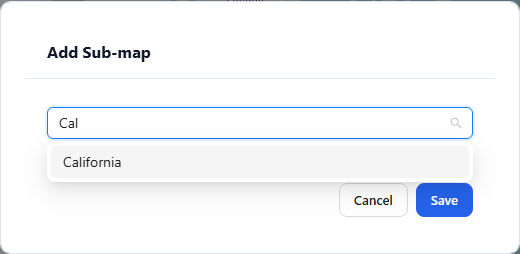
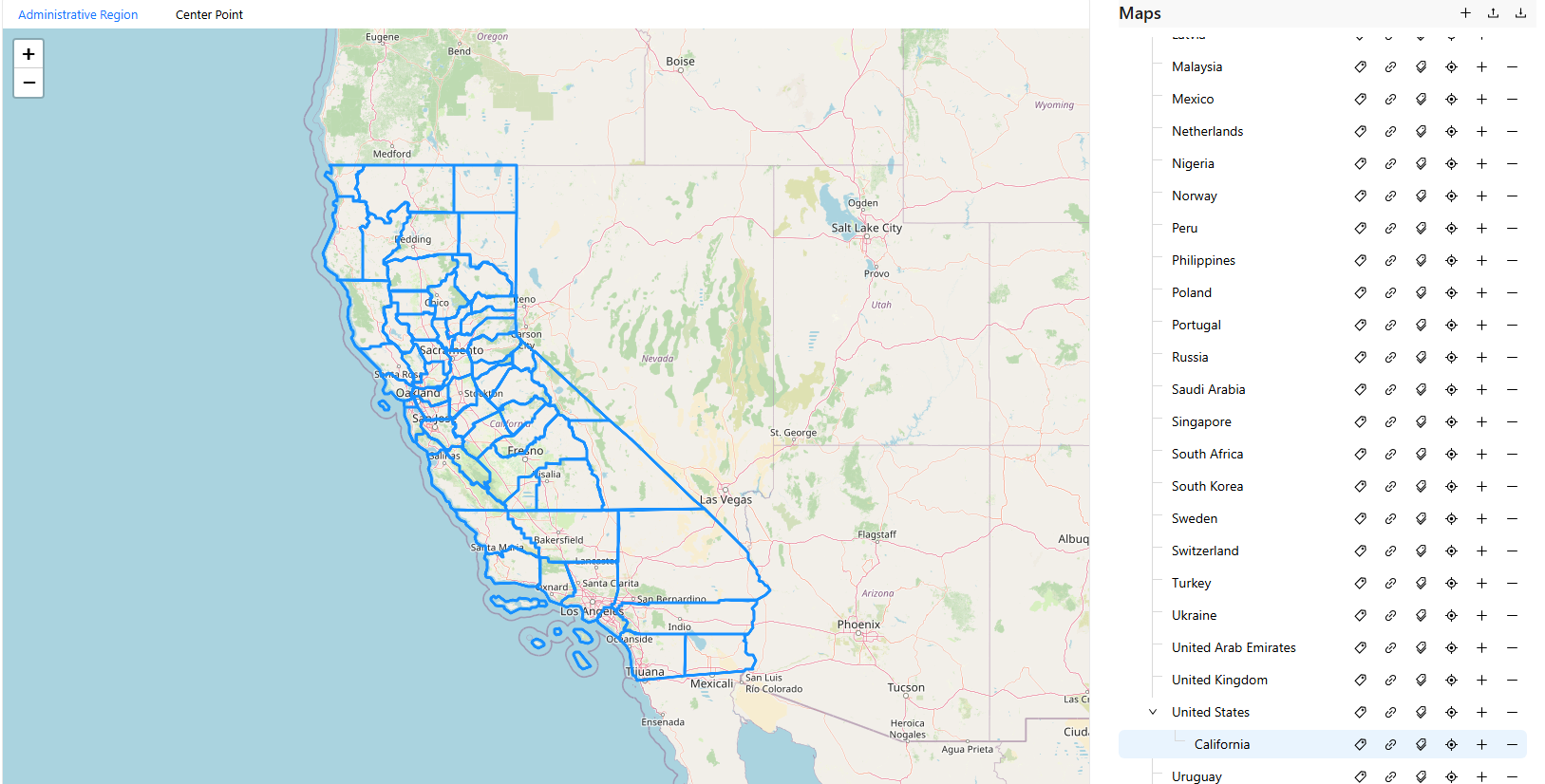
Sub-maps are what a GeoJSON map drills down to when a user clicks a region.
Upload the GeoJSON file
Click Set GeoJSON File on the map.
Click Upload File and choose a
.jsonor.geojsonfile. The file must not exceed 1 MB.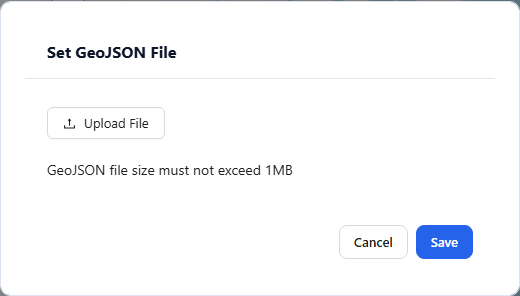
Click Save. The map view shows the boundaries of the uploaded file.
Set aliases
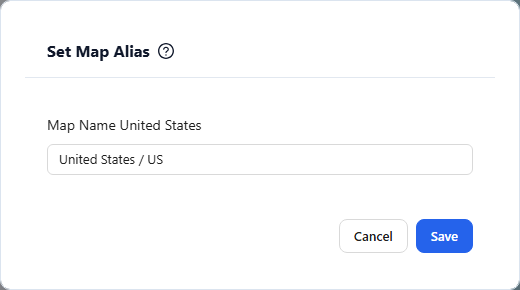
Set Map Alias takes other names of the map separated by /, for example USA/United States/America.
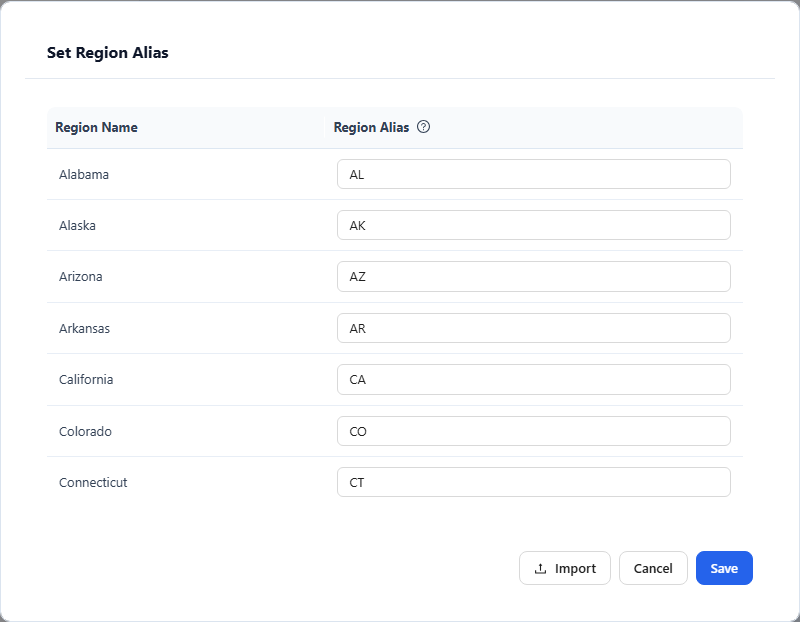
Set Region Alias lists every region of the map by Region Name. Enter the other spellings your data uses in Region Alias, separated by /, for example CA/06 for California, and click Save.
How report values are matched against region names, codes and aliases is described in GeoJSON Filled Map. Do not give a region an alias that equals another region's name or code; that alias is never used, because the other region matches first.
Set region centres
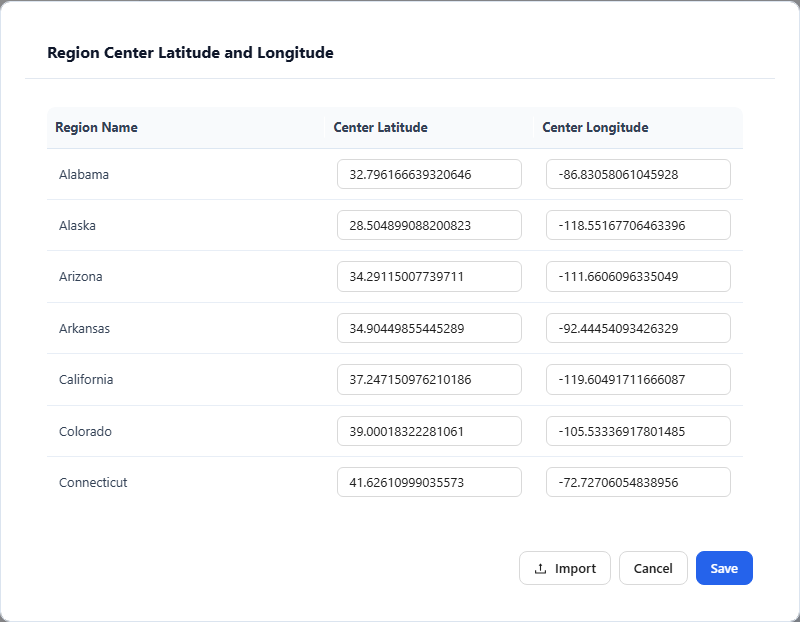
Click Set Region Center on the map and enter Center Latitude and Center Longitude for each region, then click Save. Switch the map view to Center Point to check the positions.
Import aliases or centres from a file
Both region dialogs have an Import button that reads a .xlsx, .xls or .csv file:
- Only the first sheet is read.
- Column A is the region name. It must equal the Region Name shown in the dialog exactly; rows that match no region are ignored.
- For Set Region Alias, column B holds the aliases, separated by
/. They are added to the aliases already entered; duplicates are dropped. - For Set Region Center, column B is the latitude and column C the longitude. They replace the current values.
| A | B | C |
|---|---|---|
| California | CA/06 | |
| Texas | TX/48 |
Importing only fills the dialog. Click Save to keep the result.
GeoJSON file format
Uploaded map data must be a standard GeoJSON FeatureCollection:
{
  "type": "FeatureCollection",
  "features": [
    {
      "type": "Feature",
      "properties": {
        "name": "California",
        "aliases": ["CA", "California"],
        "center": [-119.4179, 36.7783]
      },
      "geometry": {
        "type": "Polygon",
        "coordinates": [...]
      }
    }
  ]
}| Field | Description |
|---|---|
name | Region name (system identifier) |
adcode | Optional administrative code, such as the 6-digit code of a Chinese administrative division (110000 for Beijing) |
aliases | Region aliases for matching business data |
center | Center coordinates of the region [longitude, latitude] |
geometry | Region boundary; supports Polygon / MultiPolygon |