
Appearance
Tree table
A Tree table puts the levels of a hierarchy into one indented column that readers expand level by level, with measures or other fields in the columns next to it. Each level is queried when it is expanded, so large hierarchies stay fast.
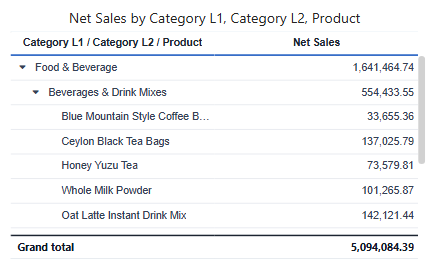
Build a tree table
- In Components → Charts → Tables, click Tree table, then click the canvas.
- On Data, choose the Analysis model.
- Add the levels to Hierarchy fields, from the broadest to the most detailed, for example Category L1, Category L2, Product.
- Add measures or other fields to Fields.
- Set Style → Content → Default expand level to choose how many levels are open when the report loads.
The tree column header lists the levels, such as Category L1 / Category L2 / Product.
Style
Tree tables use the same Table Styles, Grid, Header and Grand total settings as the Table. Fit columns to width is on for new tree tables. Most style changes keep expanded nodes open; settings that re-query the data, such as turning on Grand total, collapse the tree again.
Not available on Tree tables: Font color, Background color, Data bars, Icons and Empty values as on measures, Freeze columns, Row number and Column size. Use a Table or Pivot table when you need them.
Export
Export as Excel writes one indented tree column with Excel outline groups, so readers can collapse levels in Excel. See Export.
Tree table or parent-child table
| Your data | Use |
|---|---|
| Separate level columns: category, subcategory, product | Tree table |
| One ID column and one parent ID column: employee and manager, account and parent account | Parent-child table |
The two data shapes, and how each table shows a parent row, are compared in Tree table or parent-child table.
To let readers filter other components by picking nodes of a hierarchy, use the Hierarchy table filter.
Related: Table · Creating Hierarchies