
Appearance
Data Security
Data Security is configured on a database datasource and controls what an authorized subject can query.
To understand how these policies combine with User Types, Business Roles, and file/folder permissions, read Permission Evaluation Overview. It includes conflict rules, access designs, troubleshooting, and permission-change audit guidance.
| Requirement | Use |
|---|---|
| Return only permitted records | Row access (row-level security, or RLS) |
| Hide tables, views, or columns | Table & column access (object-level security, or OLS) |
| Check the combined result for a user, role, or user type | Test access |
| Control who can open or manage a datasource, model, or report | Access Control List (ACL), not Data Security |
Policies belong to one datasource. They do not grant access to content, and an enabled policy on one datasource does not protect another datasource.
Default access: If no enabled policy restricts the selected subject and object, Data Security does not add a restriction: row access is All rows and unexcluded fields remain visible. Build complete policy coverage instead of treating an unmatched subject as denied.
Before you start
- You need Full control on the datasource to manage its policies.
- Create or identify the users, roles, or user types that the policies will target. Prefer roles for shared business rules.
- Use an ordinary user for validation. Built-in SuperUser and Administrator roles bypass Data Security.
Open Data Security
- Open Datasource → Database sources.
- Select the datasource, open Actions, and choose Data security.
- Use Row access, Table & column access, or Test access.

Configure row access
A row policy applies to exactly one schema and one table or view.
- On Row access, click New policy.
- Enter a Policy name that identifies both the audience and scope, such as
US customers - sales team. - Under Applies to, select one or more users, roles, or user types.
- Select the Schema and Table or view.
- Choose the access rule:
- Return matching rows: build one or more conditions.
- Return all rows: create an explicit full-row exception for the selected subjects and table.
- For matching rows, select a field, operator, and value. Available operators depend on the field type. Type the value directly, pick one of the field's existing values from the list, or pick a system variable (see Use system variables in a condition). Use All (AND) or Any (OR) and add groups when the rule needs nested logic.
- Review Effective condition, then click Validate expression.
- Click Save draft to keep the policy inactive, or Save & enable to apply it.
Choose the scope before building conditions. Changing the schema or table clears the current conditions.

Use system variables in a condition
A condition value can be a system variable instead of a fixed value. The variable is bound to the user who runs the query, so one policy such as OWNER = Current user name covers every user it applies to, and it keeps working when people join or leave a role.
| Variable | Token stored in the condition | Value when the query runs | Operators |
|---|---|---|---|
| Current user name | #{system.username} | The login name of the signed-in user | =, !=, in, not in |
| Current user's roles | #{system.business-roles-array} | The user's business roles. User types (Administrator, SYS_Reader, SYS_Creator) and the platform roles Authenticated and Anonymous are not included | in, not in |
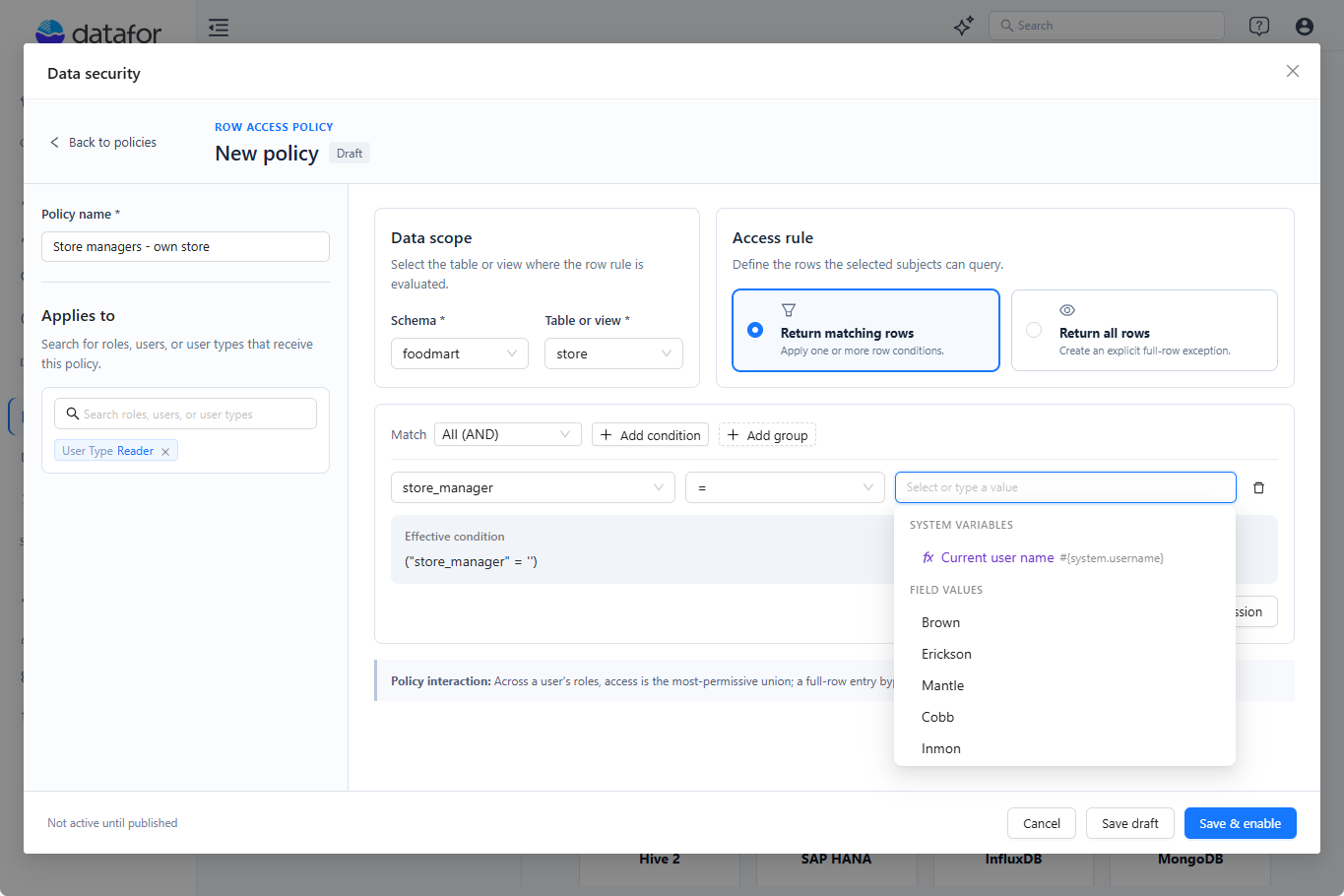
To use one, open the value list of a condition and choose an entry under System variables. The list offers only the variables that fit the selected operator; the field's existing values follow under Field values. Typing the token is also accepted; the older ${system.…} spelling is converted to #{system.…}.
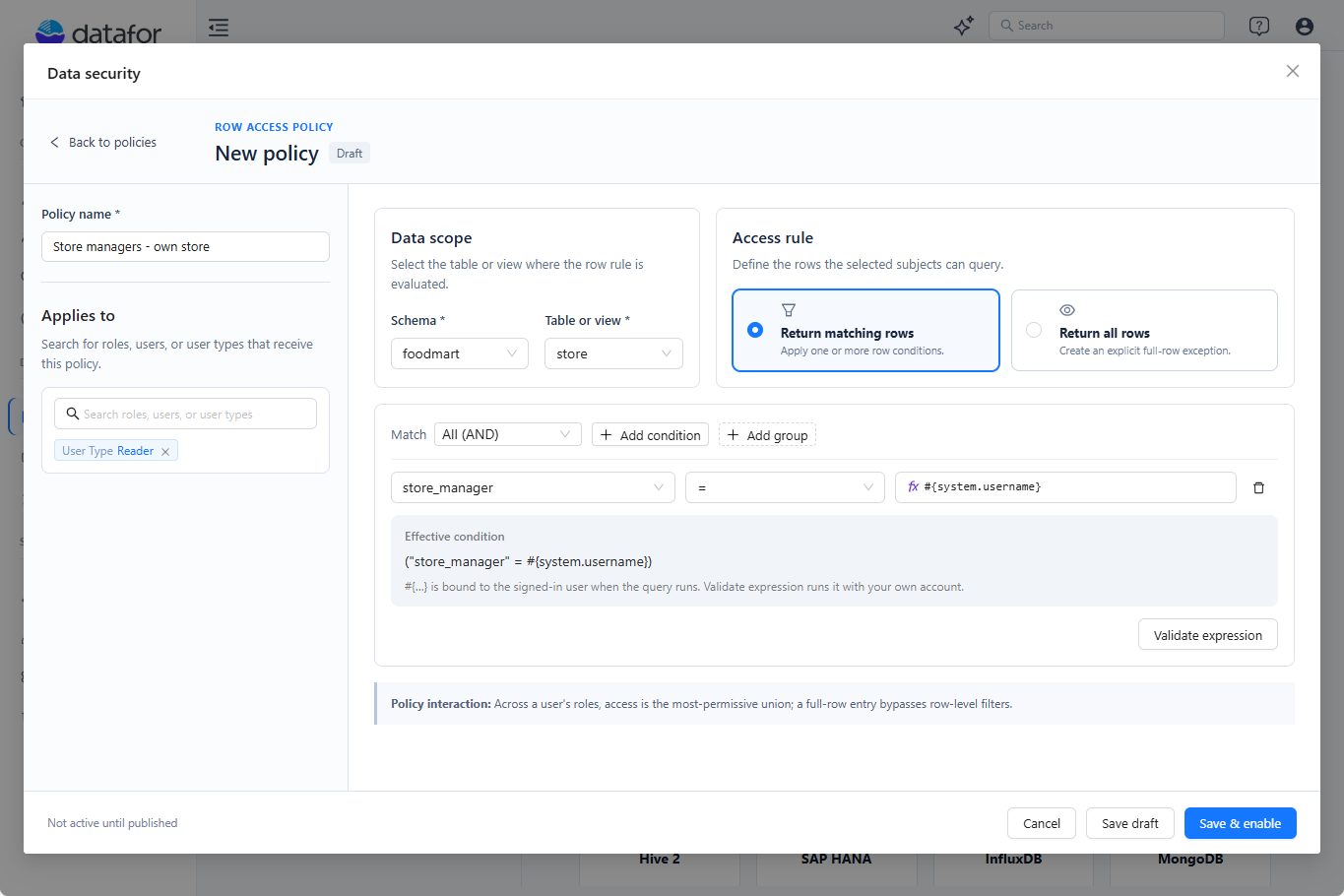
A selected variable is shown with an ƒ marker so that it is not mistaken for a fixed text. Effective condition shows the stored token, here ("store_manager" = #{system.username}), with a note that the token is bound to the signed-in user when the query runs.
Rules and limits:
- Variables apply to text fields and to the operators listed above. The editor offers them only where they apply and flags any other combination before the policy can be saved.
- A fixed value cannot contain the character sequences
#{,${,$?{or@{. The query engine replaces tokens by text substitution, so such a value would be rewritten when the query runs. - Validate expression runs the condition with your own account substituted. The server rejects unknown variables, tokens placed inside quotes, and the
${…}spelling. - Test access shows the condition resolved for the simulated subject and the stored expression underneath. When the subject is a role or a user type, the user-name variable stays unresolved and Preview data is unavailable; simulate a user to preview rows.
- Values are bound when the query runs, not when the policy is saved. Renaming a user or changing role memberships changes the rows a policy returns.
How row policies combine
- Conditions inside one policy follow the selected AND/OR structure.
- Enabled row policies that match the same subject and physical table are combined with OR. The result is the most-permissive union.
- A matching Return all rows policy removes row filtering for that table. It does not make an object hidden by a table or column policy visible.
- With no matching enabled row policy, the subject receives All rows.
Before adding a full-row exception, check every role held by the target users. One permissive policy can override more restrictive row policies on the same table.
Configure table and column access
A table and column policy applies to one schema and can contain multiple tables, views, or individual columns.
- On Table & column access, click New policy.
- Enter a Policy name and select the users, roles, or user types under Applies to.
- Select the Schema.
- Choose the access rule shown by the editor:
- Selected subjects cannot view: exclude explicitly selected users. Role and User Type selections have the multi-role behavior described below; do not assume that matching any selected role hides the object.
- Only selected subjects can view: within this policy, selected users and users matching a selected role/User Type remain eligible to view the objects; everyone else is excluded. Another policy can still exclude the same object.
- Select whole tables or views, or expand them and select individual columns. For the same table, whole-table and individual-column selections are mutually exclusive. Confirm the result under Selected objects.
- Click Save draft or Save & enable.
- Run Test access for both an intended subject and an unintended subject before relying on the policy.
Changing the schema clears the current object selection.

When several object policies apply, exclusions accumulate across policies. Do not assume that an allow rule in one policy cancels an exclusion in another; verify the final field count and hidden-field list in Test access.
Role-based exclusion caveat: In a deny-only Selected subjects cannot view policy, the current evaluator excludes through roles only when the subject has a nonempty resolved role list and all of those roles are selected for exclusion. That list includes the User Type. An unselected role or User Type can leave an object visible under this policy. Prefer Only selected subjects can view for sensitive-object allow-lists, and test actual users rather than only individual roles. See OLS evaluation for an example.
Hidden tables in a model join path
An analysis model often reaches one table through another. In a snowflake model, the fact table sales_fact joins to product, and product joins to product_class. When a policy hides the whole middle table from a subject:
- The hidden table's own fields are removed, and its dimension no longer appears in the model that subject queries. A chart built on those fields shows the error Level or measure required not found!
- The join path is kept, so tables reached through the hidden table stay available. A chart grouped by
product_classstill returns data, and the query still joins throughproduct. - The hidden table serves only the join. Its fields are not listed in the model, and a row policy on the same table still restricts the rows that the join contributes. The join key columns remain referenceable in hand-written MDX, so do not rely on hiding a table to protect its key values.
- A hidden table that is not on any path, such as the
storetable that onlysales_factjoins, is also kept as a hidden join when the subject has a row policy on it. The row condition keeps restricting the fact data, while the table's dimension and attributes are removed as above. Before 10.00 hiding such a table dropped the join and with it the row filter, so the subject saw all rows.
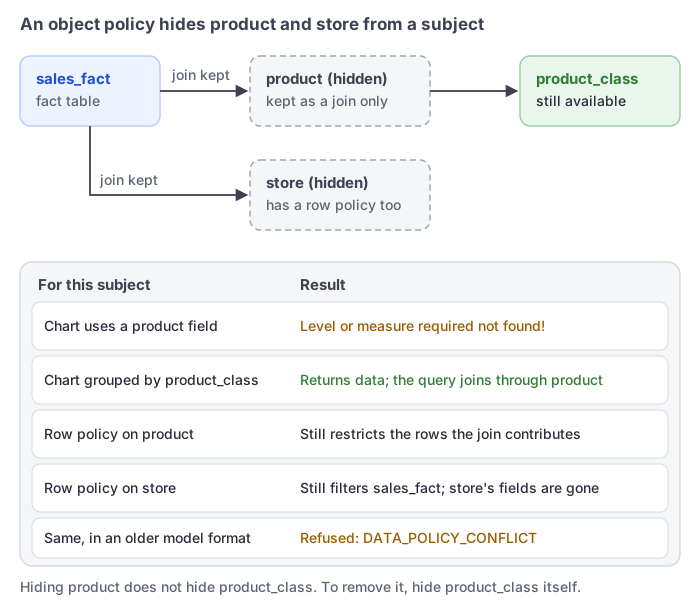
Hiding a table on the path is therefore not a way to hide the tables behind it. To remove a dimension from the model for a subject, hide that dimension's own table.
This applies to analysis models saved by the current modeler. A model in an older format cannot keep a hidden table for its row policy. Instead of returning unfiltered data, it refuses the query with:
DATA_POLICY_CONFLICT: tables … are hidden by an object policy but also carry a row policy for the current user; this model format cannot apply both. Remove one of the policies or resave the model in the current format.Open the model in the modeler and save it, or remove one of the two policies. If an older model fails in another way after a table is hidden, also open it in the modeler and save it again.
Test effective access
Use Test access after every enabled policy change. It evaluates enabled policies without changing them; unsaved changes and inactive drafts are excluded.
- Select one Simulated subject. A user test also resolves that user's effective roles and user type.
- Select a Schema and at least one Table or view.
- Click Run test.
- Review:
- Resolved subject, effective roles, and user type.
- Row access and the generated Effective condition.
- Field visibility, including the visible/total count and hidden fields.
- Policies in effect.
- Use Preview data to inspect a sample of up to 50 rows. Preview uses the simulated effective decision but is not a full sign-in impersonation; validate the final workflow with the actual user. Preview is unavailable when the table itself is blocked.

The message The selected tables are not affected by any enabled policy means Data Security is not restricting that selection. It is not confirmation that the table is protected.
Drafts and existing policies
- Save draft stores an inactive policy. Drafts do not affect queries.
- Save & enable stores and activates a new policy. Row expressions are validated before they are saved or enabled.
- The Enable switch on the list activates or deactivates an existing policy. Disabling keeps the policy but removes it from effective access.
- Use the policy name to edit it. Use the row action menu to delete it; deletion is permanent after confirmation.
- Search and filter by policy state, schema, or subject when auditing a large list.
Data Security and the AI Agent
For current analysis models, when the AI Agent runs a query, Data Security is applied through the user's authenticated query and metadata context if Apply data security is enabled in the model settings.
- Keep Apply data security enabled for governed models.
- Test with the same non-administrator user who will use the Agent.
- The selected LLM profile does not grant data access and cannot relax RLS or OLS.
- If an Agent result differs from a report, confirm that both use the same model, datasource, user, and current enabled policies.
Troubleshooting
| Symptom | Check |
|---|---|
| A user sees too many rows | Enabled state, subject assignment, all effective roles, table scope, and any matching Return all rows policy |
| A user sees no rows | Field, operator, value type, generated condition, and expression validation |
| A condition with a system variable returns no rows | Compare the column values with the exact login name or role names (case and spelling). Run Test access with a user subject to see the resolved condition |
| Validate expression rejects a variable | Pick the variable from the System variables list so that the #{system.…} token is written without quotes; do not embed it in a longer text or use the ${…} spelling |
| A table or column is missing | Every enabled table and column policy; exclusions from separate policies accumulate |
| A chart shows Level or measure required not found! for some users | The chart uses a field from a table or column hidden by an object policy. Run Test access for that user and compare Field visibility with the fields the chart needs |
A query fails with DATA_POLICY_CONFLICT | The model is in an older format, and a table hidden from the user also has a row policy for that user. Save the model in the modeler, or remove one of the policies. See Hidden tables in a model join path |
| A saved policy has no effect | Confirm that it is enabled and appears under Policies in effect in Test access |
| An administrator still sees everything | Validate with a non-administrator account; administrator and SuperUser roles bypass Data Security |
| Agent access differs from the test | Check Apply data security, model and datasource selection, user identity, and enabled policy state |