
Appearance
Image map
Plot data at positions on your own image, such as a floor plan, a warehouse layout or an equipment diagram. It needs no map service.
Add the image and bind positions
- Add Components → Charts → Maps → Image map (480 × 360 px) and choose an Analysis model.
- In Style → Map settings → Background image, select a PNG or SVG file.
- Bind X coordinate and Y coordinate (both required). The bottom-left corner is (0, 0).
- Optionally bind Marker size (a measure), Color, Tooltips and Icon (each member of the Icon field can get its own marker icon).
- Verify several known positions against the image before publishing the report.
Coordinates
| Option (Style → Map settings) | Effect | Default |
|---|---|---|
| X-axis minimum / Y-axis minimum | Coordinate at the left / bottom edge. | 0 |
| X-axis maximum / Y-axis maximum | Coordinate at the right / top edge. Empty uses the image size, for example 0–1008 and 0–816 for a 1008 × 816 px image. | Empty |
| Cursor positioning | Shows the X and Y of the pointer while you edit, so you can read the coordinates of a spot on the image. | Off |
With the defaults, coordinates are image pixels counted from the bottom-left corner (Y grows upwards). To use your own unit, such as metres on a floor plan, set the minimum and maximum to the values at the image edges. Image editors count pixels from the top-left corner, so a pixel position (x, y) taken from an editor becomes (x, image height − y).
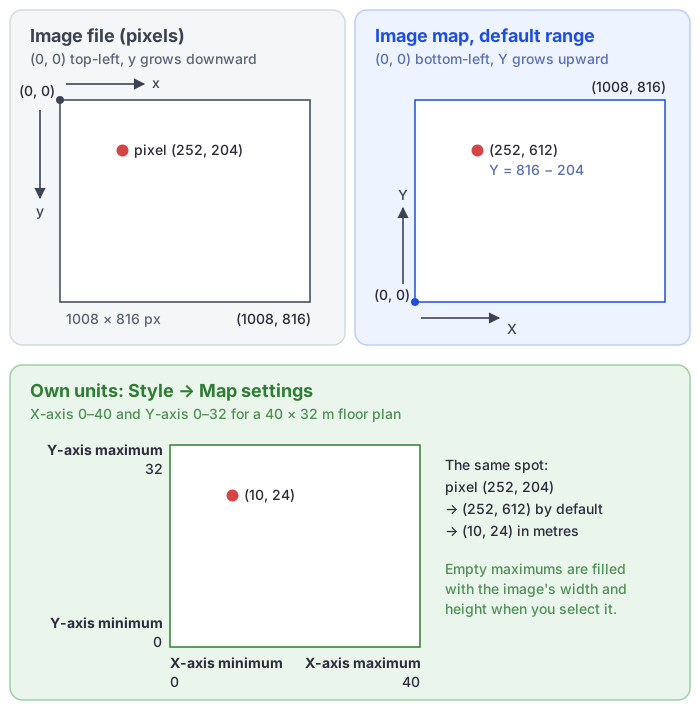
Coordinates must use the same reference and scale as the displayed image. Keep the image dimensions with the dataset; replacing or cropping the image may require new coordinates. An empty X or Y counts as 0, so such rows pile up at the origin.
Markers, labels and tooltip
| Option | Effect | Default |
|---|---|---|
| Marker settings → Minimum size | Size of the smallest marker, 5–50. | 20 |
| Marker settings → Maximum size | Size of the largest marker, 30–200. | 50 |
| Marker settings → Marker shadow | Shadow under the markers. | Off |
| Data labels | Labels on the markers. | Off in new Image maps; earlier reports keep them on |
| Tooltip → Show Tooltip | Data tooltip on hover, in the same style as other charts (Tooltips). | On |
With Marker size bound, markers scale between the minimum and maximum size by value.
Limits
- The map does not zoom or pan; the mouse wheel has no effect on it.
- An image export of the component does not include the background image.
- Chart switch does not pair the Image map with another map, because its fields differ from theirs.