
Appearance
Component-Level Filtering
Use a component filter to restrict one chart or table without adding a control to the page. Readers cannot change it.
Apply a condition
- Select the component and open Data.
- Click + in the Filters area at the bottom.
- Find and select the dimension or measure to filter.
- Choose the Filter type and configure its condition.
- Click Apply, then Back. The field is listed under Filters.
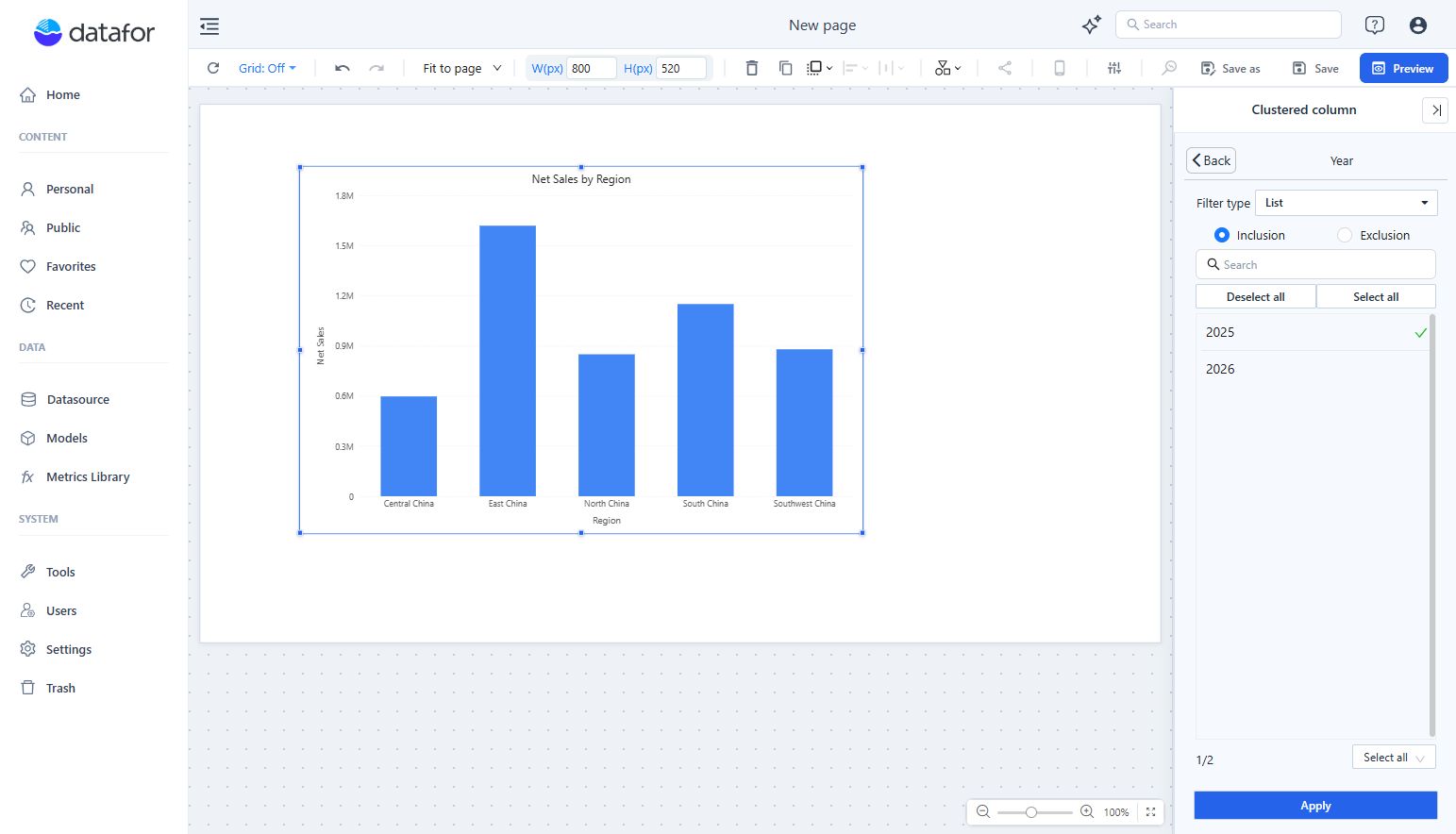
Filter types
The Filter type list depends on the field:
| Field | Filter types |
|---|---|
| Text dimension | List, Advanced |
| Numeric dimension | List, Advanced, Numeric |
| Date or time level | List, Relative, Advanced |
| Measure | A value condition (no type list) |
List shows the field's members. Inclusion keeps the selected members and Exclusion removes them. Search narrows the member list; Select all and Deselect all help with a large selection.
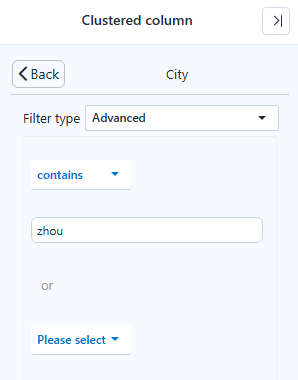
Advanced on a text or numeric dimension matches members by a rule: Equal, Is in, contains, does not contain, starts with or ends with, for example Product contains "Organic". A second condition can be added, joined with or. Use it when the members that should pass change over time, so a fixed list would go stale.
Numeric filters a numeric dimension by value: is less than, is less than or equal to, is, is not, is greater than or equal to, is greater than, a range such as is greater than or equal to & less than, is blank or is not blank.
Relative keeps a period relative to today; see Relative dates below.
Advanced on a date or time level compares the dates with before, before or equal to, equal to, after or after or equal to, and can combine conditions with and or or, for example after 2025-01-01 and before 2025-07-01.
Relative dates
Relative keeps a period relative to today, such as this year or the last 3 months, and is recalculated every time the report opens or refreshes. It is offered only when the field's date format starts with the year (for example yyyy-MM); a level such as Month name without the year offers List and Advanced only.
- Select the chart and open Data → Filters → +.
- Select a date field or a time level.
- Set Filter type → Relative, then choose Reference time, the Relative time condition, the number of periods and the unit.
- Click Apply.
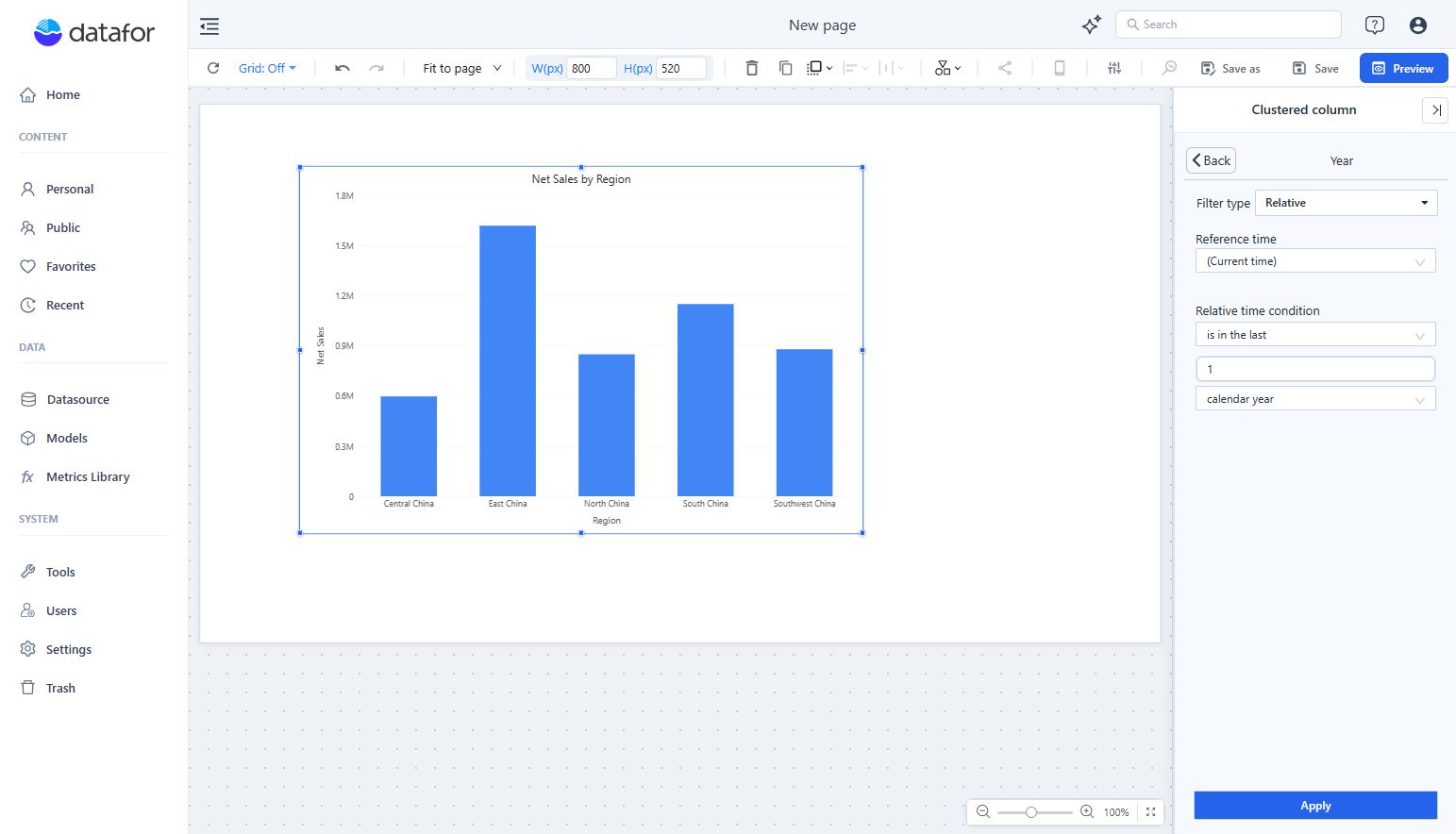
Presets and custom rules are described in Relative Date Filtering.
Filter by a measure value
Selecting a measure under Filters opens a value condition with the same operators as Numeric. It keeps the categories whose measure value meets the condition, for example only the regions with Net Sales greater than 1,000,000. The value tested is the one the component shows for that category, with the other filters applied.
Change or remove a filter
Click its field under Filters to edit it. Hover the field and use its remove control to remove the condition.
The component's own filters are listed under Own in the toolbar's Conditions button, next to filter components, clicks on other charts and URL values. If a result is unexpectedly empty, open Conditions first: the empty component says No data under the current filters and offers View conditions.
For a condition readers can change on the canvas, add a filter component and configure its linked components.