
Appearance
Grouped donuts
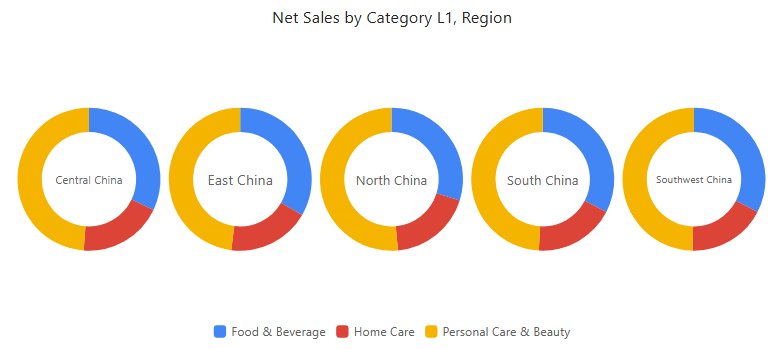
Compare the composition of several groups using one donut per group, for example the product-category mix of each region. A slice's percentage belongs to its own donut, not to all groups combined.
Build regional product mix
- In Components → Charts → Proportion, add Grouped donuts and select an Analysis model in Data.
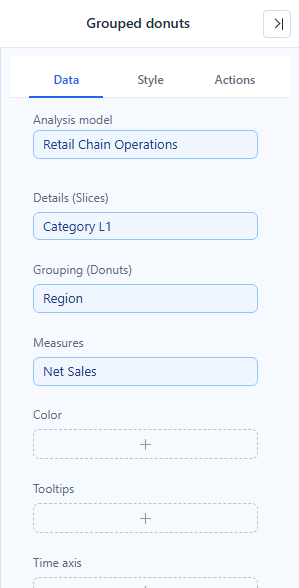
- Set the following fields using +, then Back:
| Slot | Example | Meaning |
|---|---|---|
| Grouping (Donuts) | Region | One donut per member. Not drillable. |
| Details (Slices) | Product Category | Slices repeated within each donut. |
| Measures | Net Sales | Size of the slices. One measure. |
| Color | Optional | Custom colour mapping. |
| Tooltips | Optional quantity or order count | Supporting detail. |
- Restrict Filters to one comparable period, such as Year = 2025.
- Check that each donut represents the intended group. Swapping the two dimension slots changes the question the chart answers.
Use additive, non-negative measures; a rate is not a meaningful slice weight. Limit the number of groups and categories so each donut stays readable.
A new Grouped donuts component is placed at 480 × 300 px.
Settings that matter
All in the Style tab.
| Setting | Effect | Default |
|---|---|---|
| Plot area → Center radius | Hole size as a percentage of the donut radius, 0–90%. | 66% |
| Plot area → Spacing | Space between donuts, 0–100 px. | 3 px |
| Plot area → Merge small slices, Merge slices below, Merged slice name, Merged slice color | Combines small slices into one slice at the end of each donut, as on Pie. A member is merged only if it is below the threshold in every donut, so all donuts keep the same slices. | Off; 3%; Others; neutral grey |
| Grouping labels → Show, Font | Group name in the centre of each donut. | On |
| Data labels → Show | Slice labels. | Off |
| Data labels → Label contents | Same options as Pie, from Name to Name & value & percentage. | Value |
| Data labels → Position | Outer or Inner. | Outer |
| Data labels → Font, Display units, Decimal places | See Display Units and Decimal Places. | — |
| Data labels → Min. proportion | Slices below this share, 0–30%, get no label. | 1% |
| Tooltip → Show Tooltip | Turns the hover tooltip on or off. | On |
Grouped donuts have no Sort slices by value and no Percentage decimal places. There is no Sunburst mode: for a multi-level hierarchy, use the Sunburst chart.
How it behaves
- Colours follow the slice. With Consistent member colors on (the default for new reports), slices are coloured by their Details member, so a category has the same colour in every donut. See Colors.
- Group names. Each name is drawn once in its donut's centre, and stays when filters leave only one group. In new components whose grouping-label font size was never changed, the name grows with the hole (up to 24 px). Setting a font size fixes it.
- All-zero groups. A donut whose values are all 0 is a light grey ring with All values are 0 under the group name, and gets no labels. Missing values are not zero: a group with no values draws no ring. Positive and negative values that cancel out are not treated as zero.
- Shares, not amounts. Two equal-looking slices in different donuts can stand for very different amounts, because their group totals differ. Compare the tooltip values, or pair the donuts with a total-sales chart when volume matters.
- Negative values. The tooltip share reads, for example, 25% of the absolute total.
- Label fitting. Each donut lays out its outer labels within its own area, so they never overlap the neighbours. All donuts shrink equally to make room (down to 40% of the radius), then long labels are cut with "…". If not even three characters fit, no labels are drawn. At the default 480 × 300 px with about five groups this means labels may not appear at all; enlarge the component or reduce the groups.
Opening reports made before 10.00
- A donut whose values are all 0 shows the grey ring instead of equal slices labelled 0 (0%).
- Min. proportion is now exact, so a few labels of slices just above the threshold reappear.
Related: Pie · 100% stacked bar when there are many groups or precise side-by-side comparison matters · Legends · Tooltips