
Appearance
Conditional Formatting
Conditional formatting changes how a cell looks based on its value. On Table and Pivot table measures there are four kinds, all in the measure's field menu (Data → Fields → ⋮):
| Item | Result |
|---|---|
| Font color | Colours the text. |
| Background color | Fills the cell, or the whole row. |
| Data bars | Draws a bar under the number, proportional to the value. |
| Icons | Shows an arrow, flag, star or other icon chosen by rules. |
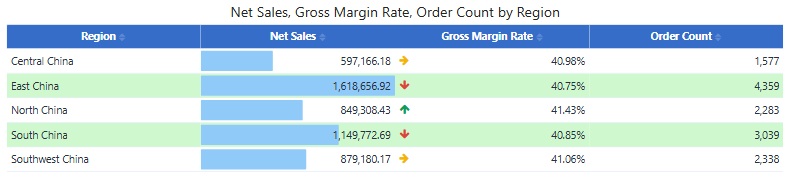
Tree tables and parent-child tables do not have conditional formatting. Charts, maps, the decomposition tree and KPI cards colour data with the same rules editor in their Style panel.
All four dialogs start with Enable and end with Apply, OK and Cancel. Cancel after Apply restores the settings you had when you opened the dialog.
Font color and Background color
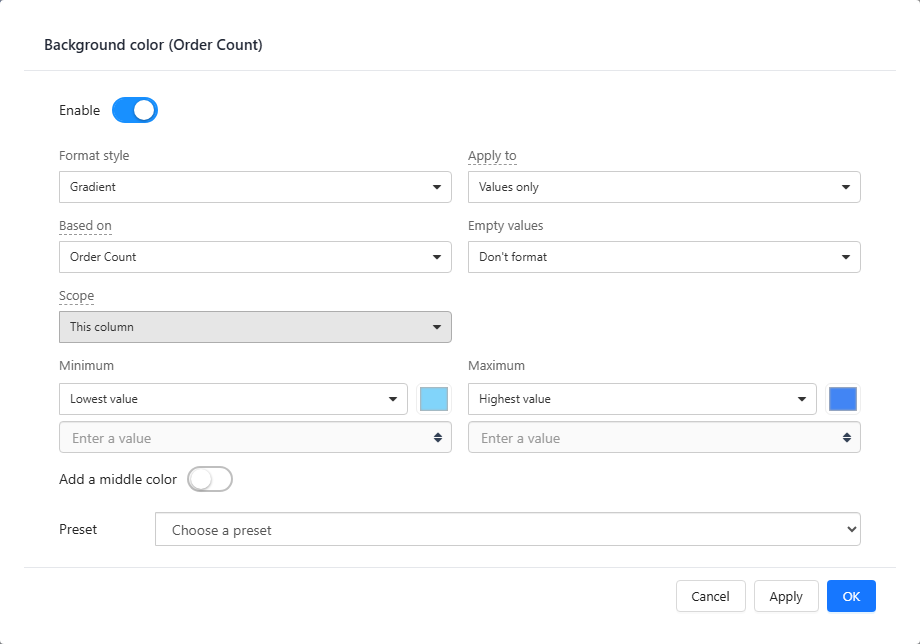
| Setting | Options |
|---|---|
| Format style | Gradient: colours along a scale. Rules: one colour per value range. |
| Apply to | Values only (default), Values and totals, Totals only. Gradients always apply to values only. |
| Based on | The measure that decides the colour. Defaults to the column's own measure; choose another measure to colour this column by it. |
| Empty values | Don't format (default), As zero, or Specific color. |
| Scope (rules only) | This column or Whole row. |
Gradient
- Set Minimum and Maximum: Lowest value / Highest value (from the data), a fixed Number, or a Percent of the range. Each end has its own colour.
- Turn on Add a middle color for a three-colour scale; the midpoint defaults to halfway.
- Preset fills the colours: sequential Blues, Greens, Oranges, Purples, or diverging Red–blue, Orange–purple, Brown–teal, Pink–green (with a middle colour).
With data-based ends, the colours stretch to whatever data the filters leave, so the same colour can mean different values on different selections. Use fixed numbers when a colour must always mean the same value. Values beyond a fixed end get the end colour.
Rules
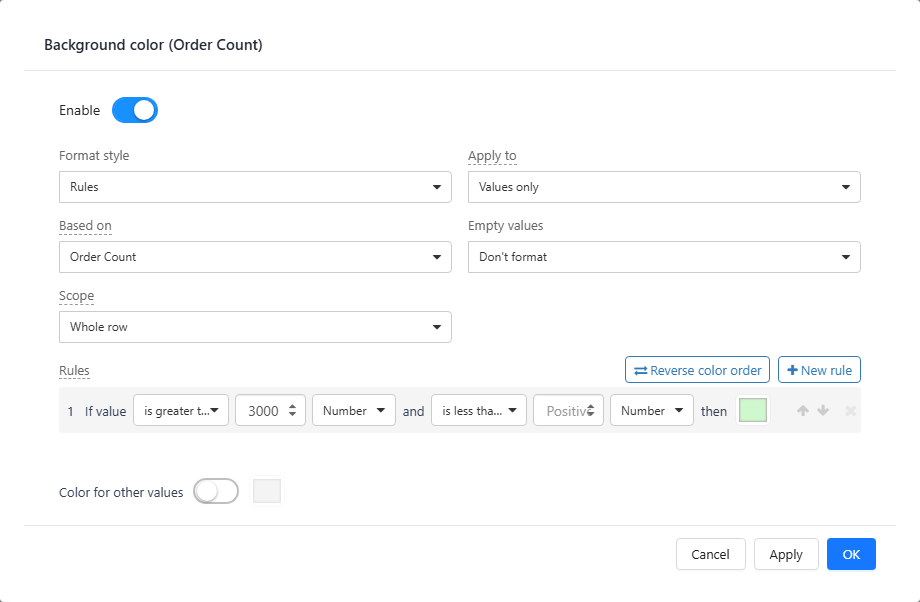
- Click New rule. Each rule reads If value [is greater than] [3000] [Number] and [is less than] [ ] then [colour]. Each boundary is a Number or a Percent of the range between the lowest and highest value.
- When rules overlap, the first rule wins. A warning icon marks a rule that overlaps an earlier one; use the arrows to reorder. Reverse color order swaps the colours top to bottom.
- Color for other values (off by default) colours values that match no rule.
- A boundary of 0 is a real boundary: greater than 0 does not match negative values.
Whole row colours every cell of the row, including the dimension columns, when the rule matches. A cell's own This column rule wins over a whole-row rule. Whole-row colours apply to detail rows, not to subtotals and totals.
On a coloured background without a font rule, the text turns white when that reads better.
Data bars
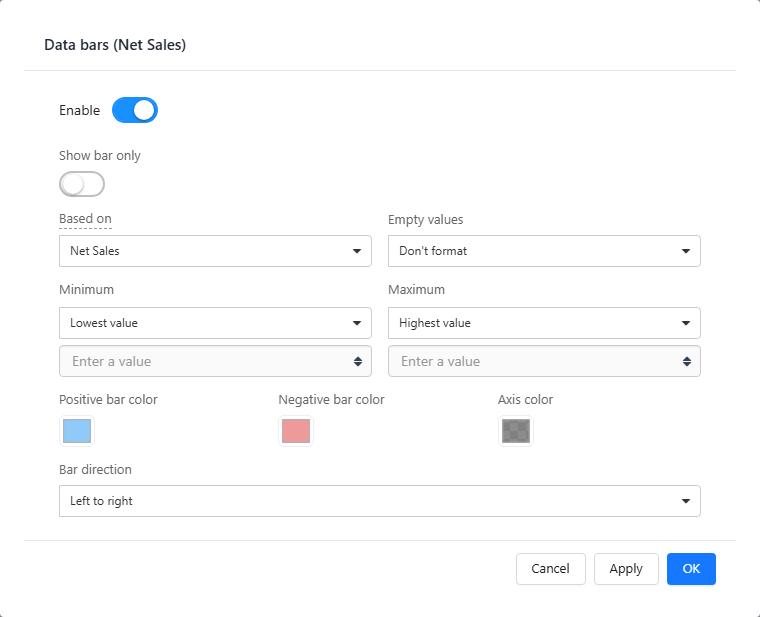
- Minimum and Maximum: Lowest value / Highest value or a fixed Number or Percent.
- When all values have the same sign, bars start at 0. With positive and negative values, 0 becomes the axis: positive bars go right, negative bars left, in Positive bar color and Negative bar color.
- Show bar only hides the number; the tooltip still shows it.
- Bar direction: Left to right or Right to left.
Bars are drawn on detail rows only.
Icons
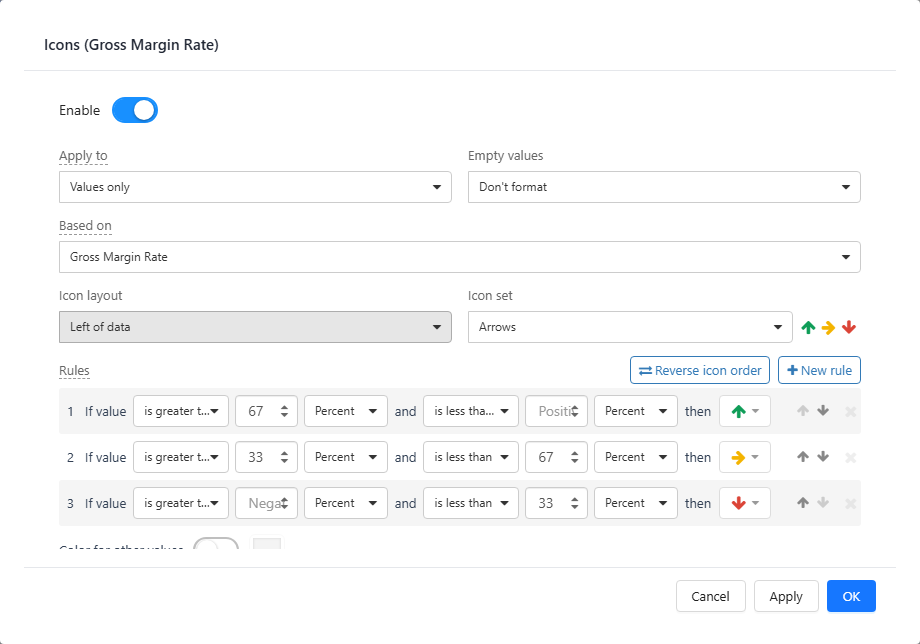
- Icon set: Arrows, Triangles, Circles, Check marks, Flags or Stars.
- Icon layout: Left of data, Right of data, or Icon only.
- The default rules split the range into thirds: top third green up arrow, middle yellow right arrow, bottom third red down arrow. Click a rule's icon to choose another icon or colour. Reverse icon order swaps them.
Performance
Lowest value, Highest value, a middle point and any Percent boundary need the overall minimum and maximum, so the table runs two extra queries. Fixed Number ends avoid them. Changing only colours or the bar direction redraws without querying again.
In exports
Export as Excel writes font and background colours as fixed cell colours, and data bars as Excel data bars when Based on is the measure itself. Icons are not exported. See Export.
Related: Table · Pivot table · Table Styles