
Appearance
JSON Web Token (JWT)
Embed tokens let an external system, such as an ERP or CRM, pass a signed JSON Web Token to Datafor so that its users are signed in without entering a Datafor password. Each embed token configuration defines how Datafor reads and verifies the token and which Datafor user it maps to.
1. Open the embed token list
Go to Settings › Access & Integration › Embed tokens (JWT). The list shows:
| Column | Meaning |
|---|---|
| Name | Name of the configuration. Click it to edit the configuration. |
| Enabled | Yes or No. |
| Last modified date | Time of the last save. |
| Creator | User who created the configuration. |
Use the search box above the list to filter it.
2. Create or edit an embed token
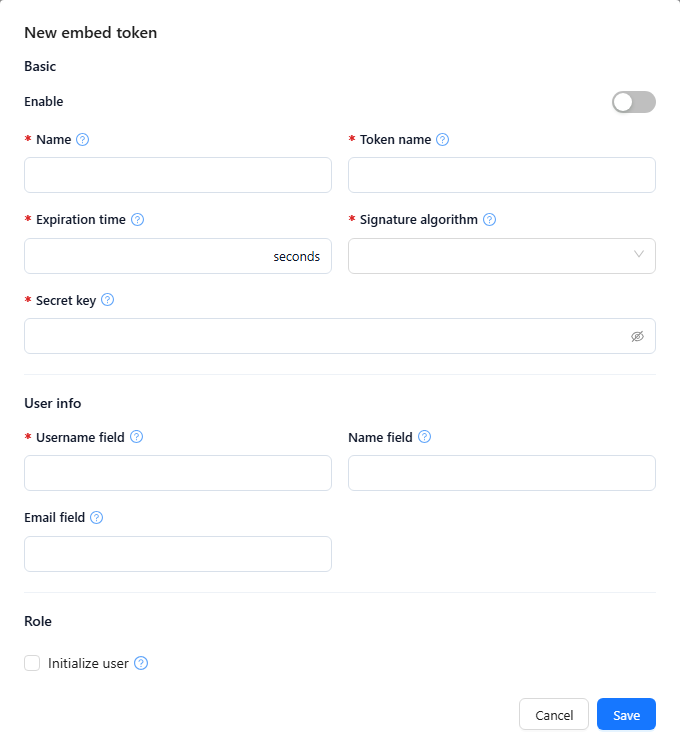
- Click New embed token at the left of the table toolbar, or click a configuration's Name to edit it (the dialog title is then Edit followed by the name).
- Fill in the fields below. Fields marked * are required.
- Click Save. A name that is already used shows "Name already exists".
Basic
| Field | What to enter | Notes |
|---|---|---|
| Enable | Turn on to accept tokens for this configuration. | While it is off, the dialog shows "Token access is disabled. Enable token authentication before configuring this setting." |
| Name * | Unique name of the configuration, e.g. ERP. | |
| Token name * | Name of the URL parameter that carries the JWT, e.g. token. | Defaults to token. See Send a token. |
| Expiration time * | Validity period, in seconds, of tokens that Datafor itself issues for this configuration, e.g. 86400 (24 hours). | Has no effect on tokens issued by the external system: their own exp claim decides when they expire. |
| Signature algorithm * | Algorithm used to sign and verify the token: HS256, HS384, HS512, RS256, RS384, RS512, ES256, ES384 or ES512. | Must match the external system. |
| Secret key * | For HS256/HS384/HS512: the shared secret used to sign and verify tokens. For RS* and ES* algorithms: the external system's public key, Base64-encoded (the body of a PEM PUBLIC KEY without the -----BEGIN/-----END lines). | Keep an HS secret confidential. With RS*/ES*, the private key stays with the issuer and is never entered here. |
User info
| Field | What to enter | Notes |
|---|---|---|
| Username field * | Token field that holds the Datafor username, e.g. loginname. | |
| Name field | Token field that holds the user's full name, e.g. name. | |
| Email field | Token field that holds the email address, e.g. email. |
Role
| Field | What to enter | Notes |
|---|---|---|
| Initialize user | Select to create user accounts automatically from the token. | User type and Initialization role appear only while this is selected. |
| User type | User type given to users created this way, e.g. Reader. | |
| Initialization role | One or more roles given to users created this way. | Applies only when a user is created. A user who already exists signs in with the user type and roles they have in Datafor. |
When you edit an existing configuration and Enable is off, Save stores it without checking the required fields.
3. Send a token
The external system signs a JWT whose payload contains at least the claim named in Username field, with the Datafor login name as its value. Datafor verifies the signature with each enabled configuration's Secret key and Signature algorithm. If the token has an exp claim, an expired token is rejected, so give every token an exp.
Send the token in either form:
- HTTP header:
Authorization: Bearer your-jwt-token - URL parameter named by Token name, appended to the Datafor URL being opened, e.g.
?token=your-jwt-token
Datafor reads the header first and uses the URL parameter only when there is no header.
Example payload, with Username field loginname, Name field name and Email field email:
{
  "loginname": "analyst1",
  "name": "Analyst One",
  "email": "analyst1@example.com",
  "exp": 1767225600
}
To let signed-in users generate personal tokens for AI clients from a configuration, see Connect AI Clients.
4. Delete an embed token
Select one or more configurations and click Delete in the toolbar, or choose Delete in a row's action menu. Confirm the deletion; it cannot be undone.
5. Troubleshooting
| Problem | Likely cause | What to do |
|---|---|---|
| Tokens are rejected | Secret key or Signature algorithm differs from the external system, or Enable is off | Use the same key and algorithm on both sides and turn on Enable. |
| The user is not recognized | Username field does not match the field in the token payload | Set Username field to the payload field that holds the username. |
| Tokens expire too soon | For tokens Datafor issues, Expiration time is too short; for external tokens, the issuer sets a short exp | Increase Expiration time (in seconds), or the exp the external system sets. |
| Users are not created on first access | Initialize user is off | Select it and set User type and Initialization role. |
| An existing user did not get the Initialization role | Initialization roles apply only to newly created users | Assign roles to existing users on the Users page. |