
Appearance
Delivery Channels
This page is for administrators. A delivery channel is a destination you set up once under Settings › Notifications › Delivery channels; subscriptions, metric alerts and paginated report subscriptions then send to it. There are two kinds:
- Group channels post one shared message into a group or another system: WeCom group robot, DingTalk robot, Feishu robot, Teams Webhook, Slack Webhook and Generic webhook. Users pick them under Post to channels › Groups set up by admins.
- Direct-message channels send each person their own message through an IM app: Slack direct message, Teams direct message, WeCom app message, DingTalk app message and Feishu app message. People choose them under How I receive.
Slack and Teams channels reached through an IM app are not delivery channels: users pick them directly in Post to channels, see IM Platforms.
Which one to use
| You want to | Use |
|---|---|
| Post to a WeCom, DingTalk or Feishu group | That group's robot. No app is needed; add one robot per group. |
| Post to a Slack or Teams channel | If a Slack or Teams app is set up under IM platforms, nothing here: pick the channel in the editor. Screenshots and files then arrive without Datafor needing a public address. Otherwise a Slack Webhook or Teams Webhook per channel. |
| Send each person a direct message | An IM app under IM platforms, plus its direct-message channel (see Direct-message channels) |
| Feed another system, such as a ticketing tool or a message bus | A Generic webhook |
What a group receives
| Channel | Message | Screenshot | PDF and Excel | Open report |
|---|---|---|---|---|
| WeCom group robot | Markdown text, cut at 4,096 bytes | A separate image message, compressed to fit 2 MB | Separate file messages, up to 20 MB each; larger files are left out | Link in the text |
| DingTalk robot | Action card with the text | In the card, from a temporary link | Links in the card | Button |
| Feishu robot | Card with the subject as title and the text | View screenshot button, a temporary link | One button per file | Button |
| Teams Webhook | Adaptive card with the text and figures | In the card, from a temporary link | Links | Button |
| Slack Webhook | Message with the text and figures | In the message, from a temporary link | Links | Button |
| Generic webhook | JSON, see Generic webhook | Link in assets | Links in assets | report.link |
Temporary links are signed, work without signing in and expire after 7 days by default. The platform's servers fetch the images, so the links must be reachable from the internet, through Site address. When temporary links are turned off or blocked, these channels receive the text and the Open report link only. See Temporary links. A WeCom group robot uploads the image and files itself and needs no public address.
Add a channel
- Create the robot or webhook on the platform, as described for each type below, and copy its URL (and secret).
- Go to Settings › Notifications › Delivery channels and click New channel.
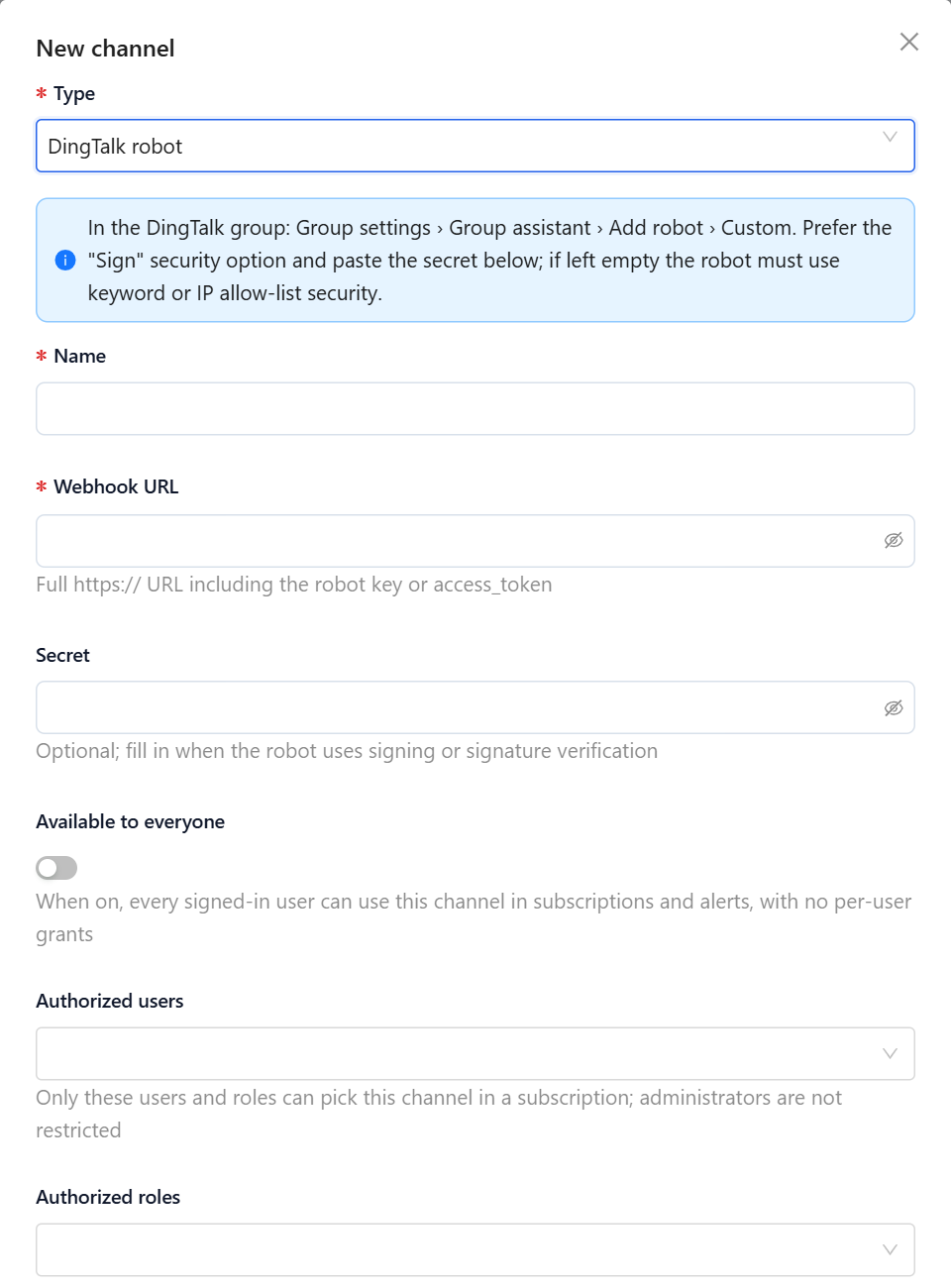
- Choose the Type. The dialog shows where the URL comes from.
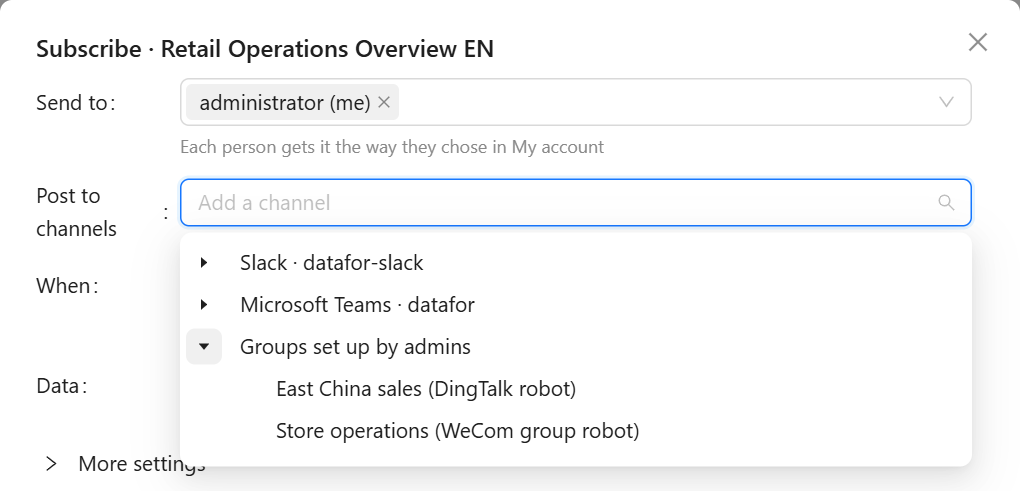
- Enter a Name. Users see it under Post to channels and in run results, so name it after the group, for example East China sales. The editor adds the type, as in East China sales (DingTalk robot).
- Paste the Webhook URL, and the Secret when the platform gives you one.
- Decide who may use the channel.
- Leave Enabled on and click Save, then click Test on the row. The group should receive This is a test message from the Datafor delivery channel "Name".
Users who may post to the channel then find it in the subscription and alert editors, under Post to channels › Groups set up by admins:
Datafor checks only the form of the URL when you save:
| Type | The URL must start with |
|---|---|
| WeCom group robot | https://qyapi.weixin.qq.com/cgi-bin/webhook/send?key= |
| DingTalk robot | https://oapi.dingtalk.com/robot/send?access_token= |
| Feishu robot | https://open.feishu.cn/open-apis/bot/v2/hook/, or https://open.larksuite.com/open-apis/bot/v2/hook/ for Lark |
| Teams Webhook | https:// on *.logic.azure.com, *.powerautomate.com, *.webhook.office.com or flow.microsoft.com |
| Slack Webhook | https://hooks.slack.com/ |
| Generic webhook | http:// or https:// |
The URL is the credential: anyone who has it can post to the group. It is stored encrypted and shown masked; when you edit a channel, leave a masked field unchanged to keep its value.
WeCom group robot
- In the WeCom group (desktop app), open the group settings, choose Group robots, then Add robot and create a new robot.
- Copy its Webhook address.
- In Datafor, choose WeCom group robot and paste it into Webhook URL. There is no secret.
A WeCom robot accepts about 20 messages a minute. One subscription run sends up to three kinds of message to the group: the text, the screenshot, and one message per file.
DingTalk robot
- In the DingTalk group, open Group settings › Group assistant › Add robot, and choose Custom (the robot added by webhook).
- Choose a security setting:
- Sign (recommended). Copy the secret, which starts with
SEC, into Secret. Datafor signs every message with it. - Custom keywords. DingTalk rejects any message that does not contain one of the keywords. The test message always contains Datafor, but subscription and alert messages contain only what the message templates produce. Add the keyword to the message body of both templates under Settings › Notifications › Subscriptions & alerts › Settings › Message templates, or Test succeeds while real deliveries fail.
- IP address range. Enter the public address from which the Datafor server reaches the internet.
- Sign (recommended). Copy the secret, which starts with
- Copy the Webhook address and finish.
- In Datafor, choose DingTalk robot, paste the webhook into Webhook URL and, for Sign, the secret into Secret.
A DingTalk robot accepts 20 messages a minute; when exceeded, DingTalk refuses its messages for a while. Datafor sends at most 18 a minute per channel.
Feishu robot
- In the Feishu group, open Settings › Group bots › Add bot and choose Custom bot.
- Copy the webhook address.
- Choose a security setting: Signature verification (recommended; copy the secret into Secret), Custom keywords (same caution as for DingTalk), or an IP whitelist with the Datafor server's public outgoing address.
- In Datafor, choose Feishu robot, paste the webhook and, with signature verification, the secret.
Feishu checks the signature against the time it was made, so the Datafor server's clock must be correct.
Teams Webhook
Use this only when no Teams app is set up under IM platforms; with an app, users pick Teams channels directly and the screenshot needs no public address.
- In Teams, open the channel, choose ⋯ › Workflows, and pick the template Post to a channel when a webhook request is received.
- Name the workflow, confirm the team and channel, and click Add workflow.
- Copy the URL it shows.
- In Datafor, choose Teams Webhook and paste the URL.
URLs of the old Office 365 Incoming Webhook connector, which Microsoft has retired, do not work; create a workflow instead. Treat the workflow URL as a password.
Slack Webhook
Use this only when no Slack app is set up under IM platforms; with an app, users pick Slack channels directly, and screenshots and files are uploaded.
- At
api.slack.com/apps, create an app for your workspace (or open an existing one) and open Incoming Webhooks. - Turn on Activate Incoming Webhooks, click Add New Webhook to Workspace, pick the channel and allow it.
- Copy the
https://hooks.slack.com/…URL. Each URL posts to one channel. - In Datafor, choose Slack Webhook and paste the URL.
Generic webhook
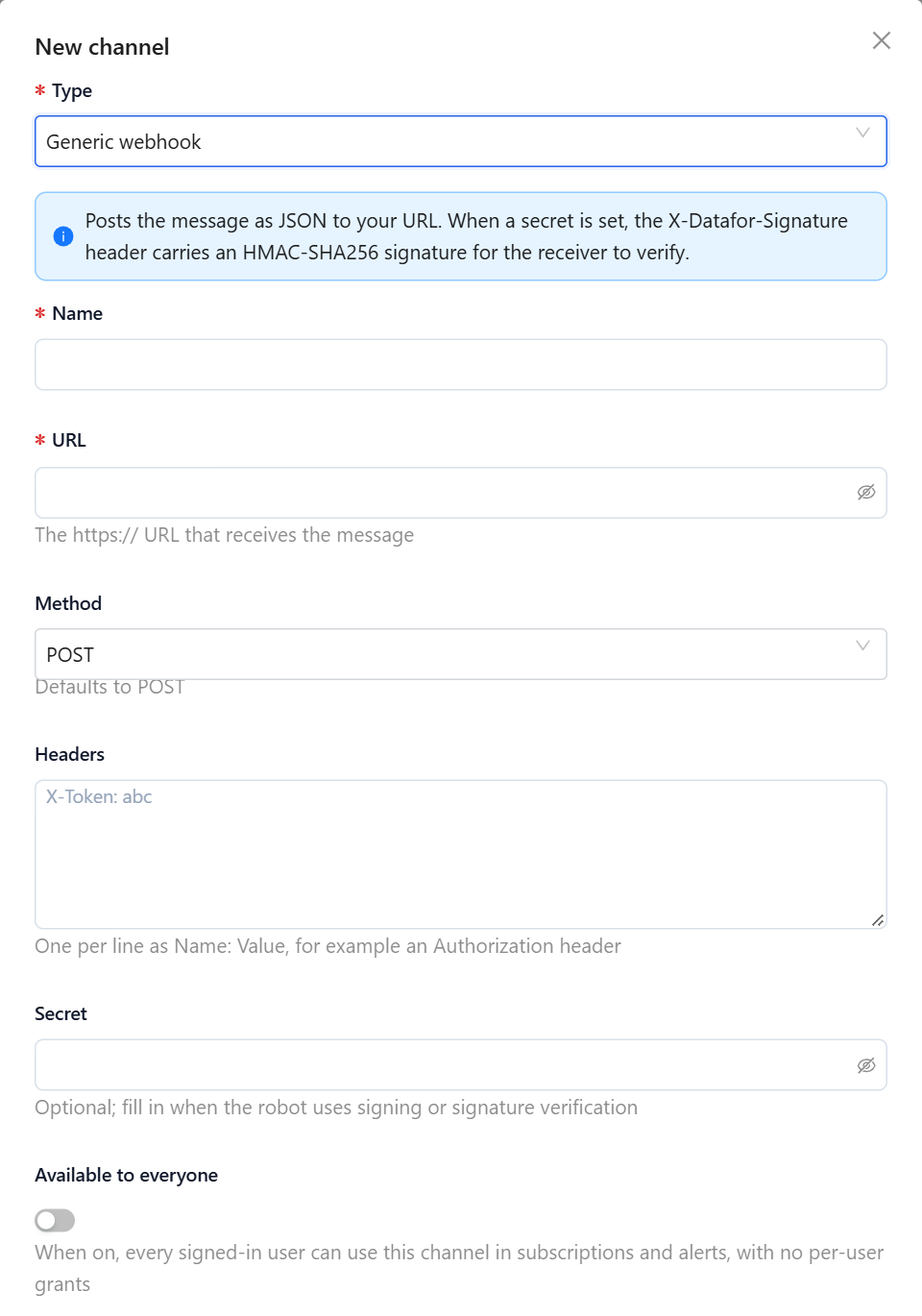
| Field | Use |
|---|---|
| URL | Your endpoint, http:// or https:// |
| Method | Leave it at POST; messages are sent as POST. |
| Headers | Extra request headers, one Name: Value per line, for example Authorization: Bearer … |
| Secret | Optional. With a secret, the X-Datafor-Signature header carries sha256= followed by the hex HMAC-SHA256 of the raw request body, keyed with the secret. Verify it before trusting the message. |
The body is JSON with Content-Type: application/json. A subscription delivery looks like this:
{
  "event": "subscription.delivered",
  "sentAt": "2026-11-16T00:00:05Z",
  "subscription": { "id": "sub_01…", "name": "Retail Operations Overview EN · Weekly on Mon at 08:00", "owner": "admin" },
  "report": { "path": "/public/demo/Retail Operations Overview EN.datafor", "title": "Retail Operations Overview EN", "link": "https://bi.example.com/datafor/…" },
  "recipient": { "kind": "channel" },
  "filters": { "Region": "East China", "Year": "2026" },
  "summary": [ { "title": "Net Sales", "formatted": "5.09M" } ],
  "insight": { "level": "standard", "markdown": "…" },
  "assets": [ { "kind": "png", "label": "View screenshot", "url": "https://…", "bytes": 482113, "expiresAt": "2026-11-23T00:00:05Z" } ],
  "runId": "run_01…"
}
An alert sends "event": "alert.fired" or "alert.recovered" with alert (id, name, owner, severity, metric), outcome, evaluation (period, value, comparison, matched conditions, members), filters, condition, and the AI analysis when there is one. Test sends "event": "channel.test" with a message. Read the event from the body's event field.
Answer with any 2xx status. Other answers count as failures; 5xx and 429 are retried as described below. Datafor waits 10 seconds for an answer.
Direct-message channels
- Slack and Teams. Saving a Slack or Teams app under IM platforms creates its Slack direct message or Teams direct message channel; there is nothing to add here.
- WeCom, DingTalk and Feishu. Click New channel, choose WeCom app message, DingTalk app message or Feishu app message, and pick the IM app. The list is empty until an app for that platform exists under IM platforms.
Every user then sees the channel under My account › Subscriptions & alerts › How I receive, marked Linked or Not linked. A person receives direct messages only once their account is linked to the app; see How people get linked. The default for people who never chose is set by Default delivery, see Setting Up Delivery. The availability settings below apply only to group channels.
Who can post to a group channel
- Available to everyone: every signed-in user who can create subscriptions or alerts sees the channel under Post to channels.
- Otherwise, only the Authorized users and the members of the Authorized roles. With nobody authorized, the Authorized to column shows Nobody authorized and only administrators can use the channel.
- Administrators can always use every channel. Readers never see group channels: they can only subscribe for themselves.
Authorize with care: a message posted to a group is rendered with the permissions of the person who created the subscription or alert, and everyone in the group reads it.
Test, health and failures
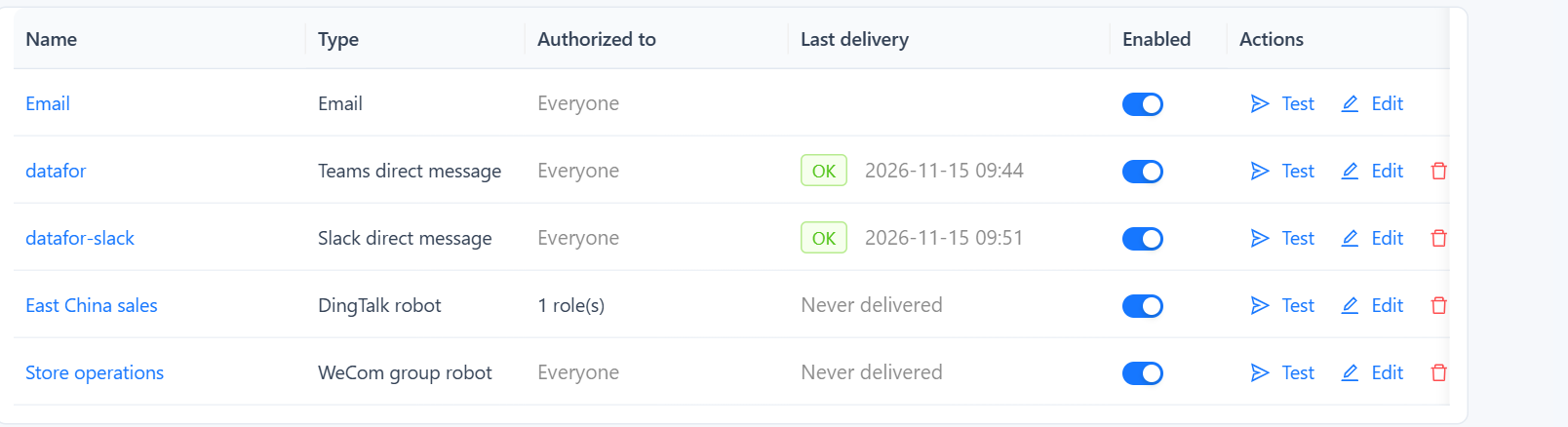
- Test sends the test message and shows the result, with the platform's own error text when it fails. It does not change Last delivery.
- Last delivery shows whether the most recent real message went through, and when; a failure shows the error, in full when you hover it.
- Retries. A delivery that fails for a reason that may pass (timeout, platform busy, rate limit) is retried twice, after 10 seconds and after 1 minute. Errors such as a wrong signature are not retried.
- Repeated failures. After 3 failed deliveries in a row, the row shows a ×3 tag (Failed 3 times in a row; no longer retried): each delivery is then tried once, without retries, until one succeeds. Fix the channel and run Test, then run an affected subscription.
- Rate limit. Datafor sends at most 18 messages a minute to each channel and queues the rest. A message that waits more than 2 minutes fails with Channel rate limit; queued too long. Spread subscriptions that post to the same group over different times.
- Turning a channel off with Enabled stops all messages to it; runs record Channel missing or disabled for that destination.
- Deleting is refused while subscriptions or alerts still post to the channel; the message says how many. Remove the channel from them first.
The built-in Email channel uses the mail server and cannot be deleted.
Troubleshooting
| Test or run shows | Cause | What to do |
|---|---|---|
| The URL is refused when you save | It does not start with the platform's address (see the table under Add a channel) | Copy the complete webhook address again |
| The endpoint did not respond in time, Connecting to the endpoint timed out, The endpoint refused the connection | The Datafor server cannot reach the platform | Allow outgoing HTTPS from the server to the platform, or configure the proxy |
| DingTalk or Feishu error mentioning the sign or signature | The secret is wrong or missing, or the server clock is off | Paste the secret again; check the server time |
| DingTalk or Feishu error mentioning keywords | Keyword security is on and the message lacks the keyword | Add the keyword to the message templates, or switch the robot to signing |
| DingTalk or Feishu error mentioning the IP or whitelist | The robot accepts only listed addresses | Add the server's public outgoing address to the robot |
| WeCom error about an invalid webhook | The robot was removed from the group, or the key changed | Create the robot again and update the URL |
| The message arrives without the screenshot (DingTalk, Feishu, Teams Webhook, Slack Webhook) | Temporary links are off or blocked, or the site address is not reachable from the internet | Check Temporary links on the Overview tab and the site address |
| The screenshot or file link answers link expired or invalid | The link is older than Link validity | Open the report instead, or raise Link validity (at most 30 days) |
| Channel rate limit; queued too long | Too many messages to one group at the same time | Spread the schedules |
| Channel missing or disabled | The channel was turned off or deleted | Turn it on, or remove it from the subscription |
Example: a dashboard in a DingTalk group every morning
- In the DingTalk group East China sales, add a custom robot named Datafor with Sign, and copy the webhook and the secret.
- Under Delivery channels, click New channel, choose DingTalk robot, name it East China sales, paste the webhook and the secret, and add the role East China managers to Authorized roles. Save, then Test: the group shows the test message.
- On the Overview tab of Subscriptions & alerts, check that Temporary links is Available, so the screenshot shows in the card.
- A member of East China managers opens the dashboard, sets Region to East China, clicks Subscribe, adds East China sales (DingTalk robot) under Post to channels › Groups set up by admins, sets When to Workdays at 08:00 and saves.
- To see the result without waiting, they click Run now in the subscription list. Send me a test does not post to channels.
The group's card shows the dashboard as that member sees it, because channel messages use the creator's permissions.