
Appearance
Connect AI Clients (MCP)
Datafor offers an MCP (Model Context Protocol) server, so you can ask about your data from the AI assistant you already use: Claude Desktop, Claude Code, claude.ai, ChatGPT, Codex, Cursor, VS Code, Cherry Studio, or any agent that supports MCP. Each question runs as a governed query in Datafor under your own account. The AI client sees only the analysis models and data you can see in Datafor.
By default Datafor returns the result rows, the query behind them and any disclosures, and the AI client writes the answer from those rows. Datafor instructs the client never to change a value and to label anything it calculates itself as its own work.
This page applies to Datafor 10.00 and later.
To try Datafor quickly in Claude or ChatGPT, start with Try Datafor in Claude and ChatGPT.
1. What the AI client can do
Once connected, the client has four Datafor tools:
| Tool | What it does |
|---|---|
list_models | Lists the analysis models you may query, with search and paging. |
explore_model | Describes one model as you may see it: its metrics, dimensions and time fields. |
generate_sample_questions | Suggests one to five questions (three by default) that the model can answer, built from its own metrics and dimensions. |
ask_datafor | Asks one question in natural language and returns the result rows, the query behind them, the disclosures and an analysis_context_id for follow-ups. It is also used to answer a clarification. |
- Same permissions as in Datafor. A model you cannot open in Datafor is not listed, and row-level policies apply as usual.
- Read only. The tools run queries and change nothing in Datafor. Building indexes, editing models and other administration are not available.
- No raw access. The client gets no SQL, MDX, back-end payloads or other users' data.
- Answers are written by the client. The wording therefore differs from an answer on the AI Agent page. If you want Datafor's own written analysis, say so; the client then asks with
detail: "insight"(see section 5).
2. Create your personal token
An AI client signs in to Datafor with a personal token. The token stands for you and your permissions: it contains only your user name and an expiry date, not your roles, so signing in with it gives you the permissions you have in Datafor at that moment. It never contains your password, it expires, and you can revoke it on its own.
- In the portal, open the account menu at the top right and choose My account, then the Personal tokens tab.
- Note the MCP address at the top of the page. "This address only works on the computer Datafor is installed on…" means the server listens on that computer only; to connect from another computer, your administrator must publish an address (section 8.2). "No public address is configured…" means the administrator opened the server to the network without naming a public address; if it does not connect, ask for the public MCP address.
- Click New token, give it a name (for example the client it is for), choose how long it stays valid, and confirm.
- The token is shown once. Copy it now and paste it into your client as described in section 3.
The page lists every token you have created: name, creation and expiry time, last use and status. When a token expires, when you change computers, or when it may have leaked, click Revoke on that row and create a new one. A revoked token stops working at once, and the sessions opened with it end. An AI client connected over MCP can keep working for up to a minute, because the MCP server caches token checks for 60 seconds; other nodes of a cluster also follow within a minute.
| The page says | What it means |
|---|---|
| "Your administrator has not turned on personal tokens." | Self-service tokens are off on the server. Ask your administrator to enable them (section 8.1). Without them the AI client cannot connect. |
| "This session was signed in with a token…" | You opened the portal with a token. Sign in with your account to create or revoke tokens. |
| No MCP address | The AI Agent service is not reachable from the portal, or the MCP channel is switched off (section 8.4). |
In the sections below, <MCP address> and <token> stand for these two values.
3. Set up your AI client
Claude Desktop
Claude Desktop reaches Datafor through the Datafor extension, datafor.mcpb. Node.js 18 or later must be installed, because the extension runs npx. On its first start, npx downloads the mcp-remote package.
Download datafor.mcpb. The same file is in every Datafor installation, at
bi-server/ai-agent/claude-extension/datafor.mcpbon the Datafor computer; if you cannot download it, ask your administrator for that copy. One file serves Windows and macOS.In Claude Desktop, open Settings › Extensions › Advanced settings › Install extension and choose the file. You can also drag the file into the Claude window.
Fill in the extension settings:
Field Value URL <MCP address>. Defaulthttp://127.0.0.1:38081/mcp.Personal token <token>.npx path Usually empty. Fill in the full path only when Claude cannot find npx.Open a new conversation (open conversations do not load a new extension) and ask: "Use Datafor to list the analysis models I can access."
If Claude Desktop starts before Datafor is up, the extension keeps retrying for about two and a half minutes on its first connection. Without a token the extension does not start and writes the reason to its log. To upgrade the extension, uninstall the old version first, then install the new one.
Claude Code
Run this command in a terminal with your two values, then reopen Claude Code:
claude mcp add --transport http datafor "<MCP address>" --header "Authorization: Bearer <token>"claude mcp list should show the server as connected. Claude Code and Claude Desktop keep separate configurations: a server added with claude mcp add does not appear in Claude Desktop conversations, and the other way round.
Codex and the ChatGPT desktop app (desktop app, CLI and IDE extension)
Open your Codex user configuration:
~/.codex/config.tomlon macOS and Linux,%USERPROFILE%\.codex\config.tomlon Windows, orconfig.tomlin$CODEX_HOMEwhen that is set.Add this section and keep the rest of the file. If a
dataforserver is already there, update its section instead of adding a second one.[mcp_servers."datafor"] url = "<MCP address>" tool_timeout_sec = 600 [mcp_servers."datafor".http_headers] "Authorization" = "Bearer <token>"Save, restart Codex, open a new conversation and ask: "Use Datafor to list the analysis models I can access."
The desktop app, the CLI and the IDE extension on one computer share this configuration, and so do the ChatGPT desktop app's MCP servers (Settings › Plugins › MCP). Write the header value as Bearer followed by the token; the token alone is also accepted. Codex connects to the HTTP server directly: no extension, Node.js or codex mcp login is needed. tool_timeout_sec = 600 leaves time for slower analyses. In the CLI, codex mcp list shows the configuration and /mcp the connection status. Codex cloud tasks do not read the configuration on your computer.
claude.ai custom connectors and ChatGPT apps
claude.ai (and its custom connectors in the Claude desktop and mobile apps) and ChatGPT on the web connect from Anthropic's and OpenAI's cloud, not from your computer. They cannot send a fixed request header for each user, so they sign in through OAuth instead:
- You add Datafor with
<MCP address>. This works only when the address is published on the internet over HTTPS (section 8.3). - The app registers itself with Datafor and opens a Datafor page in your browser that names the app and asks for a personal token.
- You paste a token created on My account › Personal tokens and click Connect. Datafor checks the token and hands it to the app, which then sends it with every call like any other client. Cancel aborts the connection.
The app holds the token until the token expires, then asks you to connect again with a new one. Revoking the token disconnects the app.
- claude.ai: Customize › Connectors › + Add › Add custom connector, URL
<MCP address>, authentication Sign in now, OAuth client Register automatically (Datafor does not accept Claude's published identity), no request headers. On Team and Enterprise plans an owner adds the connector under Organization settings › Connectors, and each member connects with their own token. - ChatGPT: an app in developer mode, available in Business, Enterprise and Edu workspaces: Apps › Create, MCP server URL
<MCP address>, authentication OAuth, then Scan Tools and Create. An admin publishes it for the workspace, and each member connects with their own token.
Step-by-step instructions are in Try Datafor in Claude and ChatGPT.
Cursor, VS Code, Cherry Studio and other clients with a JSON configuration
Paste this into the client's MCP configuration file (see the client's own documentation for where it is), then restart the client:
{
  "mcpServers": {
    "datafor": {
      "type": "http",
      "url": "<MCP address>",
      "headers": { "Authorization": "Bearer <token>" }
    }
  }
}
If the client cuts tool calls off after a short time, raise its tool timeout. A question usually takes under a minute; with Datafor's written analysis it can take about three minutes.
Any agent that supports MCP
Any client that speaks MCP over Streamable HTTP can connect: the server address is <MCP address> and the request header is Authorization: Bearer <token>. Write the token only into the client's configuration or secret store, never into a chat. Once connected, Datafor hands the agent its own usage notes as server instructions (settle the model first, explore an unknown model, ask one step at a time, pass the context for follow-ups, keep Datafor's numbers), so no prompt needs to be pasted.
4. Check the connection
Ask these three questions in order. When all three return results, the connection works end to end:
- "Use Datafor to list the analysis models I can access."
- "Use Datafor to show the metrics and dimensions of the model "model name", then suggest a few questions I could ask."
- "Use Datafor to analyze: a business question you care about."
Back on My account › Personal tokens, the token's Last used time updates.
5. Asking from an AI client
- One step at a time. Ask a question that one query can answer: a metric, the dimensions and the time range. The client should split a complex question into such steps itself.
- The model is optional. Name it when you know it. Otherwise Datafor picks one from your models and the Metrics Library bindings, or asks you to choose; the client should tell you which model answered (
data.resolved_model). - Follow-ups keep the context. "Now by month" or "only East" continues the earlier analysis; the client passes back the
analysis_context_idof the step you build on, which can be any earlier step. - Answer clarifications. When Datafor needs a choice, the client shows the options; pick one and the analysis continues.
- Disclosures are relayed. Assumptions, member mappings, omitted parts and truncation come back as disclosures, and the client must tell you each one.
- Forecasts and causes go to Datafor first. The client relays what Datafor answers and computes beyond it only if you ask, labelled as its own work.
- Data or insight. The default (
detail: "data") returns rows, the query and disclosures, and Datafor writes no analysis or follow-ups. Withdetail: "insight", Datafor also writes its own analysis, may run several queries for a complex question and can take about three minutes. Ask for it explicitly. - Row limit. A result returns up to 200 rows by default. Ask for more and the client passes
max_rows, up to 1000. - Long analyses come back later. If the answer is not ready within the wait time (200 seconds by default), the call returns
pendingwith arun_id, and the client collects the answer by calling again with thatrun_idalone. The analysis keeps running in the meantime. - Metrics Library notes such as "draft" or "definition drift" are not returned in the default data mode.
What a response can say
| Status | Meaning | What the client should do |
|---|---|---|
ok | The query ran and returned its rows. | Write the answer from the rows and relay the disclosures. |
partial | Part of the question could not be answered, for example a comparison that could not be computed. | Answer with what is there and say what is missing. |
clarification_needed | Datafor needs a choice from you, such as the model or a member. | Show the message and the options, then reply with your choice. |
needs_split | The question needs several dependent queries. This is not a failure. | Split it and ask the parts one at a time. |
unsupported | The question is outside what the model can answer. | Relay Datafor's message; do not answer from general knowledge. |
pending | The answer was not ready within the wait time (MCP_ASK_TIMEOUT_SECONDS, 200 seconds by default). The analysis is still running. | Call ask_datafor again with only the run_id from the response, not the question. |
error | The call failed. | Retry once only if the response says it is retryable; otherwise report the failure. |
6. Troubleshooting
| Symptom | Cause and fix |
|---|---|
| Personal tokens shows "Your administrator has not turned on personal tokens." | Self-service tokens are off. The administrator enables them in the JWT configuration (section 8.1). |
| Claude Desktop shows no Datafor tools | Open a new conversation; check that the extension is enabled and that a token is filled in. If Claude started before Datafor and the retries ran out, turn the extension off and on in Settings › Extensions, or restart Claude. |
Claude Desktop cannot find npx | Install Node.js 18 or later, or enter the full path in the extension's npx path. |
| Codex shows no Datafor tools | Check that the section is in the user config.toml that Codex actually uses, save, restart Codex, and check that the MCP address is reachable. |
| Codex reports a duplicate section | A server name may appear only once. Update the existing datafor section and keep the other servers. |
Missing Datafor MCP authentication or Unsupported Authorization scheme | No usable credential reached the server: the token is missing, or the header has a word other than Bearer in front of it. Send Authorization: Bearer <token>. |
| claude.ai or ChatGPT cannot reach the server when Datafor is added | The MCP address is not published on the internet over HTTPS, or the reverse proxy does not forward the sign-in paths (section 8.3). |
| claude.ai reports an error about the OAuth client | The connector was added with Use Claude's published identity. Remove it and add it again with Register automatically. |
| Datafor's sign-in page says the link is invalid or has expired | The page is valid for 15 minutes, and only in the browser it opened in. Start the connection again from the app. |
| Datafor's sign-in page does not accept the token | The token was copied incompletely, has expired or was revoked: create a new one. If the page says Datafor could not be reached, the MCP server cannot reach Datafor at DATAFOR_URL. |
| 401 or a sign-in failure on a tool call | The token has expired, was revoked or is wrong, or the account is disabled. Create a new token and update the client configuration. |
password_auth_disabled | The client still sends user name and password headers. Switch it to a personal token (section 8.4). |
421 Invalid Host header | The server is reached under a host name that is not in MCP_ALLOWED_HOSTS (section 8.2). |
| Cannot connect, or the call times out | The MCP server is not running, or the address only works on the Datafor computer. Ask your administrator. |
| A question about a specific store or region loses its filter or cannot be answered | The model's knowledge index is not built or out of date. See Preparing Data for AI. |
| The answer says Datafor cannot answer this | A capability limit, not a fault. Rephrase, or split the question. |
The Claude Desktop extension writes its log to %LOCALAPPDATA%\Claude\logs\mcp-server-Datafor.log (in some versions under %APPDATA%\Claude\logs\). Check its last lines first when the connection fails. The server log is ai-agent/logs/mcp-server.log (and mcp-server-err.log) on the Datafor server.
7. Security
- A personal token stands for you and all your permissions. Keep it only in your own AI client's configuration; do not paste it into a chat, commit it to a repository or forward it. On a shared computer, remove the configuration when you are done.
- Use a separate token for each client and each computer, so that a leak costs you one token, not all of them.
- Paste a token into Datafor's sign-in page only during a connection you started yourself from claude.ai or ChatGPT, and check that the page names that app. The app receives the token and acts with your permissions until the token expires or you revoke it.
- If a token may have leaked, revoke it on My account › Personal tokens and create a new one. Revocation takes effect at once and ends the sessions opened with the token; MCP clients and other nodes of a cluster follow within a minute. An administrator can also invalidate every token of a configuration at once by changing its secret (section 8.1).
8. For administrators
8.1 Turn on personal tokens
AI clients connect with personal tokens, and users create them for themselves once you allow it. On Settings › Access & Integration › Embed tokens (JWT), create a configuration for this purpose:
| Field | Value |
|---|---|
| Name | For example ai-connect. |
| Algorithm | An HMAC algorithm such as HS256, with a Secret of at least 32 random characters. |
| Expiration time | The longest validity a user may choose, in seconds; 7776000 is 90 days. The Personal tokens page offers shorter choices up to this value. |
| Initialize user | Off. |
| Allow users to issue personal tokens | On. |
See JSON Web Token (JWT) for the other fields. A token created on this configuration carries only the user name and an expiry; the user's roles and row-level permissions are read from Datafor at every sign-in.
Changing the Secret of the configuration invalidates every token issued from it at once. Users revoke individual tokens themselves on My account › Personal tokens.
8.2 Let other computers connect
By default the MCP server listens on 127.0.0.1:38081, so only AI clients on the Datafor computer can connect. It accepts the host names in MCP_ALLOWED_HOSTS, and sends each ask_datafor call under the user's own sign-in through Datafor's /datafor/ai:
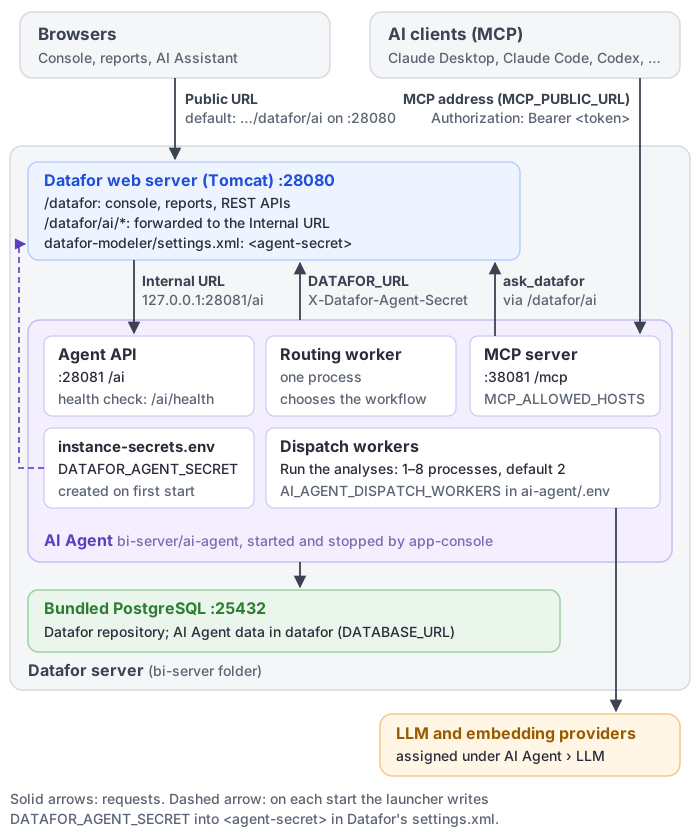
Set these keys in .env in the AI Agent folder (bi-server/ai-agent/.env):
| Key | Default | Purpose |
|---|---|---|
MCP_HTTP_HOST | 127.0.0.1 | Listen address. Set 0.0.0.0 to listen on the network, or keep 127.0.0.1 behind a reverse proxy on the same computer. |
MCP_HTTP_PORT | 38081 | Listen port. |
MCP_ALLOWED_HOSTS | empty | Comma-separated Host header values accepted besides the local addresses, for example bi.example.com,bi.example.com:*. Any other host name gets 421 Invalid Host header. If MCP_HTTP_HOST is a network address and this key is empty, the server does not check the Host header at all and logs a warning; list your names to keep the check. |
MCP_ALLOWED_ORIGINS | empty | Comma-separated Origin values accepted besides the local ones, for browser-based clients. |
MCP_PUBLIC_URL | empty | The address shown on My account › Personal tokens, for example https://bi.example.com/mcp, and the address the MCP server gives cloud AI apps for signing in (section 8.3). When it is empty, the page shows http://127.0.0.1:<port>/mcp for a local listen address, or builds the address from the host name the user opened Datafor with. |
Then restart the AI Agent from its folder with app-console.bat restart (Windows) or ./app-console.sh restart (Linux). Without a target this restarts the AI Agent and the MCP server, which both read these settings.
Behind a reverse proxy, forward /mcp to the MCP server, use HTTPS, list the public host name in MCP_ALLOWED_HOSTS and set MCP_PUBLIC_URL to the public address. For claude.ai and ChatGPT also forward the sign-in paths listed in section 8.3. Allow responses of up to five minutes. The server keeps no session between calls, so the proxy needs no sticky sessions, and connected clients keep working after Datafor or the AI Agent restarts or is upgraded.
8.3 Let cloud AI apps sign in
claude.ai custom connectors and ChatGPT apps connect from Anthropic's and OpenAI's cloud and sign in through OAuth (section 3). The MCP server is its own OAuth authorization server for this: it lets the app register itself, sends the user's browser to a page of its own where the user pastes a personal token, checks the token with Datafor and gives it to the app. Datafor itself needs no change, and clients configured with a token keep working as before.
Sign-in is on by default when the AI Agent is started with app-console.bat or app-console.sh, because the launcher provides the shared secret it needs. For the cloud apps to reach it:
- Publish the MCP server over HTTPS on the internet, usually behind a reverse proxy, and set
MCP_PUBLIC_URLto that address, for examplehttps://bi.example.com/mcp(section 8.2). Without it, the server announces its local address and the apps cannot sign in. - Forward the sign-in paths too. Besides
/mcpand everything below it (the sign-in page is/mcp/oauth/connect), forward/.well-known/oauth-protected-resourceand/.well-known/oauth-authorization-server, including anything after them, from the root of the public host name to the MCP server. The apps look these up there to find out how to sign in. - Let the providers in. If a firewall restricts access, allow the IP ranges Anthropic and OpenAI publish for their connectors.
Key in ai-agent/.env | Default | Effect |
|---|---|---|
MCP_OAUTH_ENABLED | on | false turns OAuth sign-in off; only clients configured with a token can connect. |
DATAFOR_PUBLIC_URL | DATAFOR_URL | The Datafor address users open in their browser. The sign-in page links to it so users can create a token. |
On start, mcp-server.log says "MCP OAuth sign-in is on" with the public address, or "MCP OAuth sign-in is off" with the reason. The apps that registered and the one-time codes are kept in the AI Agent database, so every node of a cluster can serve any step of a sign-in. No refresh token is issued: when the token a user pasted expires, the app asks the user to connect again.
Restart with app-console.bat restart or ./app-console.sh restart after a change.
8.4 Switch the channel off, or allow password sign-in
| Key | Default | Effect |
|---|---|---|
AGENT_VNEXT_MCP_ENABLED | true | false switches the MCP channel off. The Personal tokens page then shows no MCP address. |
MCP_PASSWORD_SESSION_AUTH_ENABLED | false | true also accepts the X-Datafor-Username / X-Datafor-Password headers. Off by default: a password in a client configuration file cannot be revoked on its own, and accounts that sign in through SSO have none. Use it only as a bridge for an installation that has not turned on personal tokens yet. |
Restart with app-console.bat restart or ./app-console.sh restart after a change.
8.5 Wait time and time zone
| Key | Default | Effect |
|---|---|---|
MCP_ASK_TIMEOUT_SECONDS | 200 | Seconds one ask_datafor call waits for the answer before it returns pending with the run_id. Keep it below the AI client's own tool-call limit (claude.ai: 240 seconds; Codex: 60 seconds unless tool_timeout_sec is raised). |
MCP_DEFAULT_TIMEZONE | empty | IANA time zone, for example Europe/Berlin, in which relative dates such as "last month" resolve when the AI client sends none. Empty: the current UTC offset of the server, or UTC if that offset is not a whole number of hours. |
Set them in ai-agent/.env and restart with app-console.bat restart or ./app-console.sh restart.
8.6 Prepare the models and the server
- Build the knowledge index of each model users will ask about (older versions called it the vector index). Without it, questions that name specific members can lose their filter. See Preparing Data for AI.
- Assign the Question Suggestions stage on the LLM page. Without it,
generate_sample_questionscan only use the LLM configured in Datafor whose ID is set asAGENT_DEFAULT_LLM_IDinai-agent/.env, and for users who are not administrators only with the shared secret. With neither, it returns no questions. - Users of Claude Desktop download datafor.mcpb themselves. Where they cannot reach this site, hand them the copy that ships with the installation,
bi-server/ai-agent/claude-extension/datafor.mcpb.
8.7 After upgrading
- Claude Desktop users reinstall the extension: uninstall the old version first, then install the new datafor.mcpb (also in
bi-server/ai-agent/claude-extension/of the upgraded installation). The current version takes only the personal token; user name and password fields are gone. - Clients that were set up with user name and password headers stop working unless
MCP_PASSWORD_SESSION_AUTH_ENABLED=trueis set. Turn on personal tokens (section 8.1) and let users switch their clients to a token instead. - Tokens generated by the former Connect AI panel keep working until they expire. They do not appear on My account › Personal tokens and cannot be revoked individually; users should create a new token there and update their clients.