
Appearance
Line
A line connects values in order, usually time, to show change and trend. It does not prove what happened between observations. Use a Clustered column or bar for an unordered ranking, an Area chart to emphasise magnitude, and a Combo for measures with different units.
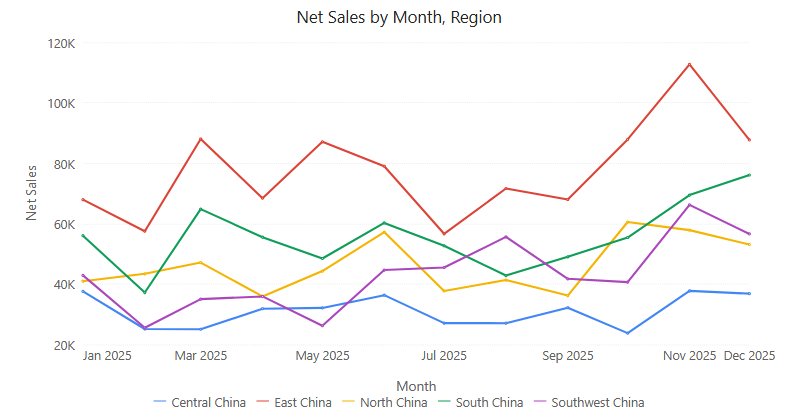
Build a sales trend
- In Components → Charts → Line & area, click Line, then click the canvas. A new chart is 400 × 300 px.
- In Data, choose an Analysis model and fill the field groups. Click Back after each selection.
- Set Filters to the required period. Use a year-month field or a year filter so January of different years is not combined.
- Check the order: a text month name can sort alphabetically. Use the field's More function menu to review sorting.
| Field group | Example | Purpose |
|---|---|---|
| X-axis | Month | The ordered positions along the line. |
| Legend | Region | Optional. One line per member. |
| Measures | Net Sales | One or more measures, one line each. |
| Tooltips | Order Count | Extra values in the tooltip; not drawn. |
| Color | Gross Margin Rate | Optional, single measure only. A measure here colours the line itself, segment by segment. |
| Time axis | Order Date | Optional. Lets a page Date filter set to Time axis filter the chart; see Date. Not drawn. |
- With several measures, Legend and Color are not available.
- With a measure in Color, each point takes a colour from that measure's value and the line changes colour halfway between adjacent points. This works on continuous and categorical axes and with zoom. No colour legend is shown. See Colors.
Line, points and labels
| Group → option | Effect | Default |
|---|---|---|
| Line → Line width | 0–10 px. | 2 |
| Line → Symbol size | Point marker size, 0–16 px. | 1 |
| Line → Line type | Straight: points joined by straight lines. Smooth: a curve, which may suggest values between recorded points. Step: the level changes halfway between two points. | Straight |
| Data labels → Show | Values above each point. | Off |
| Data labels → Font | Size, colour, bold, italic. | Grey |
| Data labels → Display units, Decimal places | Label number format. See Display Units. | Auto for new charts; Follow measure format in older reports |
- Labels are always placed above the points (there is no position option), and space is kept at the top so the highest label is not cut off.
- A point without neighbours, such as the only point left after a filter or a point between empty values, is drawn as a 6 px circle (or larger if Symbol size is larger), so it does not disappear with the default 1 px symbol.
- Keep the number of series low enough to follow each line. With too many labels, shorten the period range or turn on Zoom on a continuous time axis.
Axes
- The Y axis follows the data range; unlike column charts it is not forced to start at 0. A restricted range makes small changes look larger: use consistent Y-axis min value / Y-axis max value across charts readers compare. If the minimum is not less than the maximum, both are ignored.
- Y axis → Scale sets the tick unit (Auto, K, M, B, T, %); a % axis is used only when every measure is a percentage. See Value axis units.
- X axis → Type switches between Categorical and Continuous for a date or time field (text and numeric fields always use categorical spacing); see X axis type. Show all labels, when never set, is on for Categorical and off for Continuous.
- On a continuous time axis, each period is labelled once, the first label starts at the axis origin, and the number of labels follows the plot width and the longest label. After zooming, partial-window ticks are hidden and labels are thinned evenly.
- Category labels that do not fit are rotated 30°, 45°, 60° or 90° automatically unless Rotate labels is set.
- Hiding a series in the legend rescales the Y axis to the remaining data; fixed bounds are kept.
Zoom slider
| Option | Effect | Default |
|---|---|---|
| Zoom slider → Zoom | Adds sliders for zooming into an axis range. | Off |
| Zoom slider → Zoom direction | Both, Horizontal only or Vertical only: which axes get a slider. | Horizontal only for new charts, Both in older reports |
Sliders exist only on continuous axes: a date or time X axis set to Continuous, and the value axis. With a categorical X axis (a text or numeric field, or X axis → Type = Categorical), Horizontal only shows no slider at all; long category axes get the automatic scrollbar instead. Use Both or Vertical only to zoom the value axis. The horizontal slider sits below the X-axis name.
Tooltip
Line tooltips always list one row per series, under a header such as Month 2025-11. In Style → Tooltip, Sort, Show total, Show percentage and Highlight hovered series also apply to lines with several measures; total and percentage need series of one measure (a Legend field). The highlighted row is the line nearest the pointer. See Tooltips.
Opening reports made before 10.00
- Labels that had no saved colour are now drawn in the default grey instead of black.
- Isolated points are now visible, a measure in Color now colours the line, and Highlight hovered series now has an effect.
Related: Area · Combo · Reference lines · Legends · Component filters