
Appearance
The Lineage Page
Open Data › Lineage in the console. The page is for the people who look after models and data sources: it shows at a glance what is broken, what is unused, and what depends on what. It is available to users who can create content and to administrators.
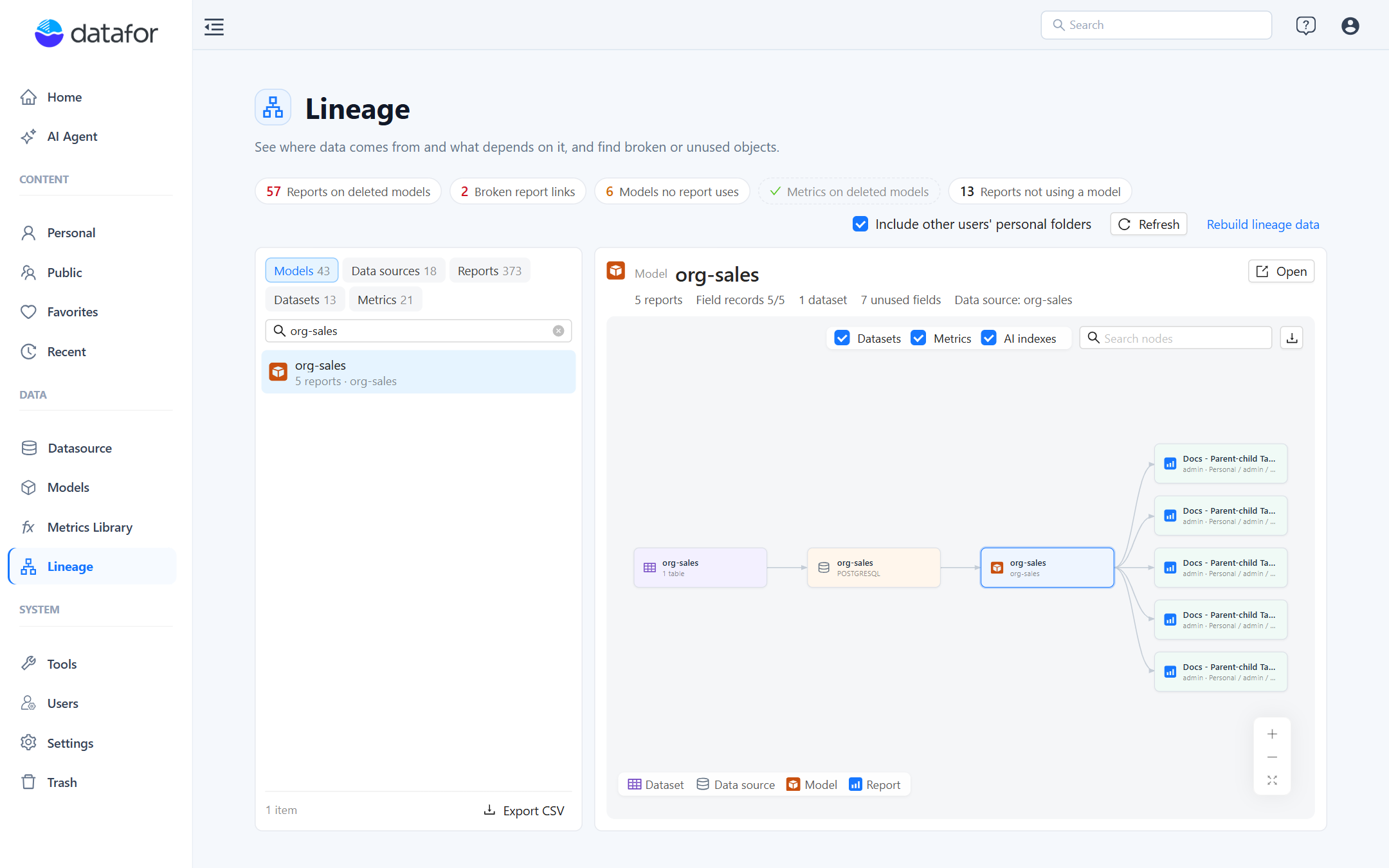
The page has three parts:
- Health bar. One chip per kind of problem, with a count. Click a chip to filter the list to the affected objects; click it again or the × on the filter tag to clear.
- Object lists. Tabs for Models, Data sources, Reports, Datasets and Metrics, each with its count, a search box and Export CSV.
- Detail and focus graph. The selected object's key figures, its actions, and a lineage graph centred on it.
Health bar
| Chip | Meaning | Where it filters |
|---|---|---|
| Reports on deleted models | Reports whose query uses a model that no longer exists. They open with errors. Hover for the number of deleted models involved. | Reports, label Deleted model |
| Broken report links | Drill-through or embedded-page links that point to a report that was deleted or moved without being saved again. Hover for the number of reports. | Reports, label Broken link |
| Models no report uses | Models that no visible report queries. Shown only to administrators with Include other users' personal folders on, because only then is the answer reliable. | Models, label Unused |
| Metrics on deleted models | Metrics Library metrics whose binding points to a deleted model. | Metrics, label Deleted model |
| Reports not using a model | Reports with no querying component: empty pages, navigation or embedding pages, text-only pages. This is information, not a problem, and the chip stays grey. | Reports, label No model |
A chip with a green check means that count is zero.
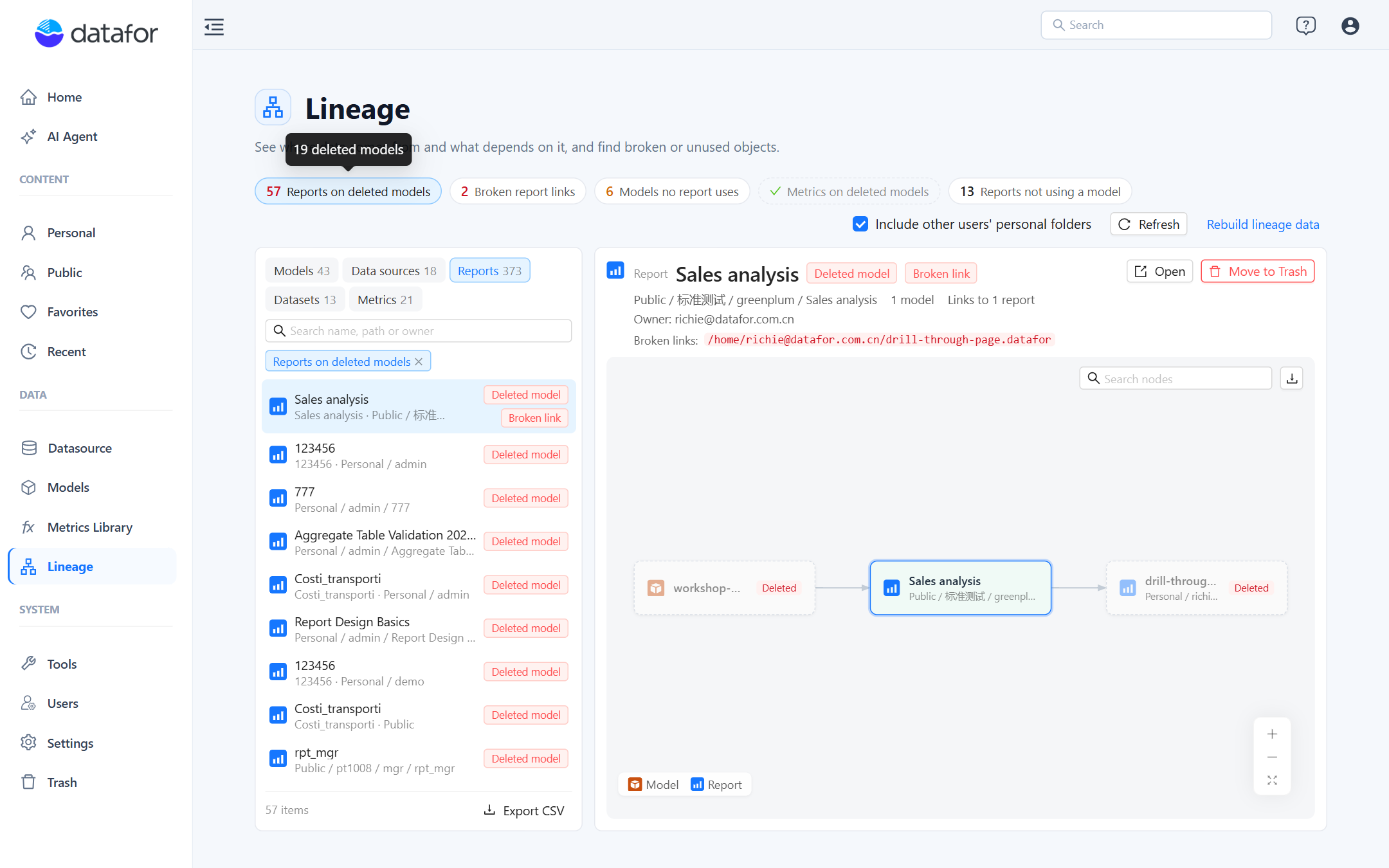
Object lists
Every row shows the name and a second line with what matters for that kind of object:
| Tab | Second line | Labels |
|---|---|---|
| Models | Number of reports, data source | Deleted, No permission, Unused |
| Data sources | Number of models and reports | Deleted, No permission |
| Reports | Folder path and owner (file name when two reports share a title) | Deleted model, Broken link, No model |
| Datasets | Number of tables and models | Unused |
| Metrics | Number of models, status | Deleted model |
Rows are sorted by how much depends on them (reports first), then by name; rows with problems sort first in the Reports and Metrics tabs. The search box matches name, path and owner. Export CSV writes the current list, with its filter and search applied, including the issue column.
Two controls above the lists change what the whole page covers:
- Include other users' personal folders (administrators only). On by default. Turn it off to see only Public and your own folder; the Models no report uses chip disappears, because it cannot be judged on a partial view.
- Refresh re-reads the snapshot. The page also refreshes itself after you move a report to Trash from it.
Detail panel
Select a row to see its summary, for example for a model: 5 reports · Field records 5/5 · 1 dataset · 7 unused fields · Data source: org-sales.
- Field records n/m says how many of the reports using this model have a field-level usage record (see Understanding Lineage). When the two numbers differ, run Rebuild lineage data to complete them.
- Unused fields counts the measures, calculated members and attributes that no recorded report uses. The modeler shows which ones; see Usage and Impact Analysis.
- A report shows its path, owner, the number of models, Links to n reports, Linked from n reports, and the Broken links paths in red.
- A data source shows its database type and the models, reports and datasets on it.
Actions in the panel:
| Button | On | What it does |
|---|---|---|
| Open | Any existing object you may read | Opens the report, the model in the modeler, or the Datasource, Metrics Library or Datasets page in a new tab. Double-clicking a node in the graph does the same. |
| Move to Trash | Reports with a Deleted model or Broken link label | Moves the report to Trash after the usual confirmation. It can be restored from Trash. Needs delete permission on the file. |
| Handle these n reports | A deleted model that reports still use | Switches to the Reports tab filtered to that model, so you can open each report to repoint it or move it to Trash one by one. |
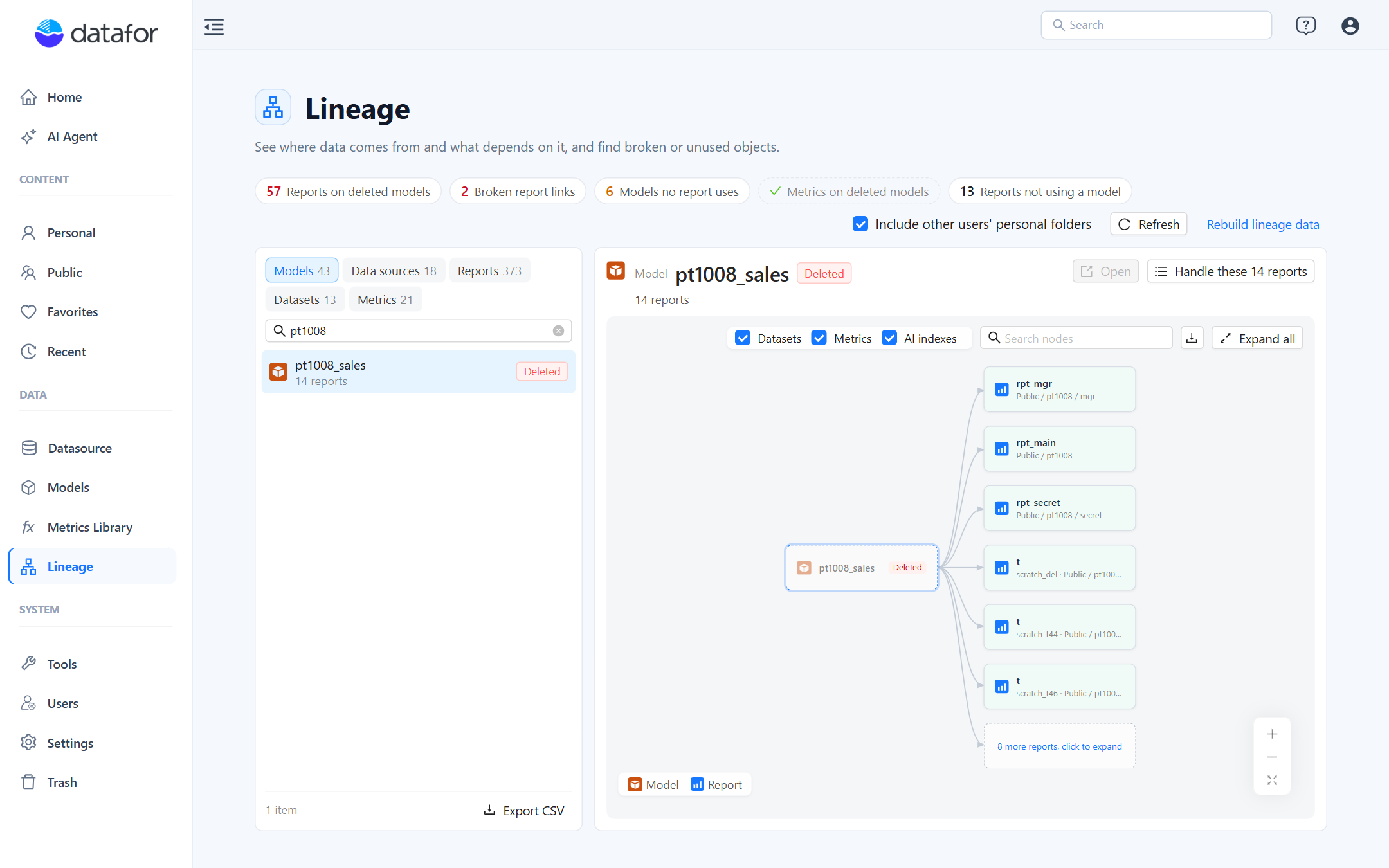
Focus graph
The graph under the details is the same lineage graph as View item lineage, centred on the selected object: datasets and data sources to the left, models in the middle, reports and the reports they link to on the right. The checkboxes add or hide Datasets, Metrics and AI indexes; Search nodes highlights matches; Expand all opens collapsed groups; the download button saves the graph as a PNG. How to read it is described in Viewing an Item's Lineage.
Rebuild lineage data
Rebuild lineage data (administrators only) scans every report on the server and writes, for each, the models it uses, the fields behind its charts and the reports it links to. Run it:
- once after upgrading to 10.00 or later, so reports saved by older versions get a field-level record;
- when the page shows Field records below the number of reports for a model;
- when a lineage looks wrong, for example after restoring files from a backup.
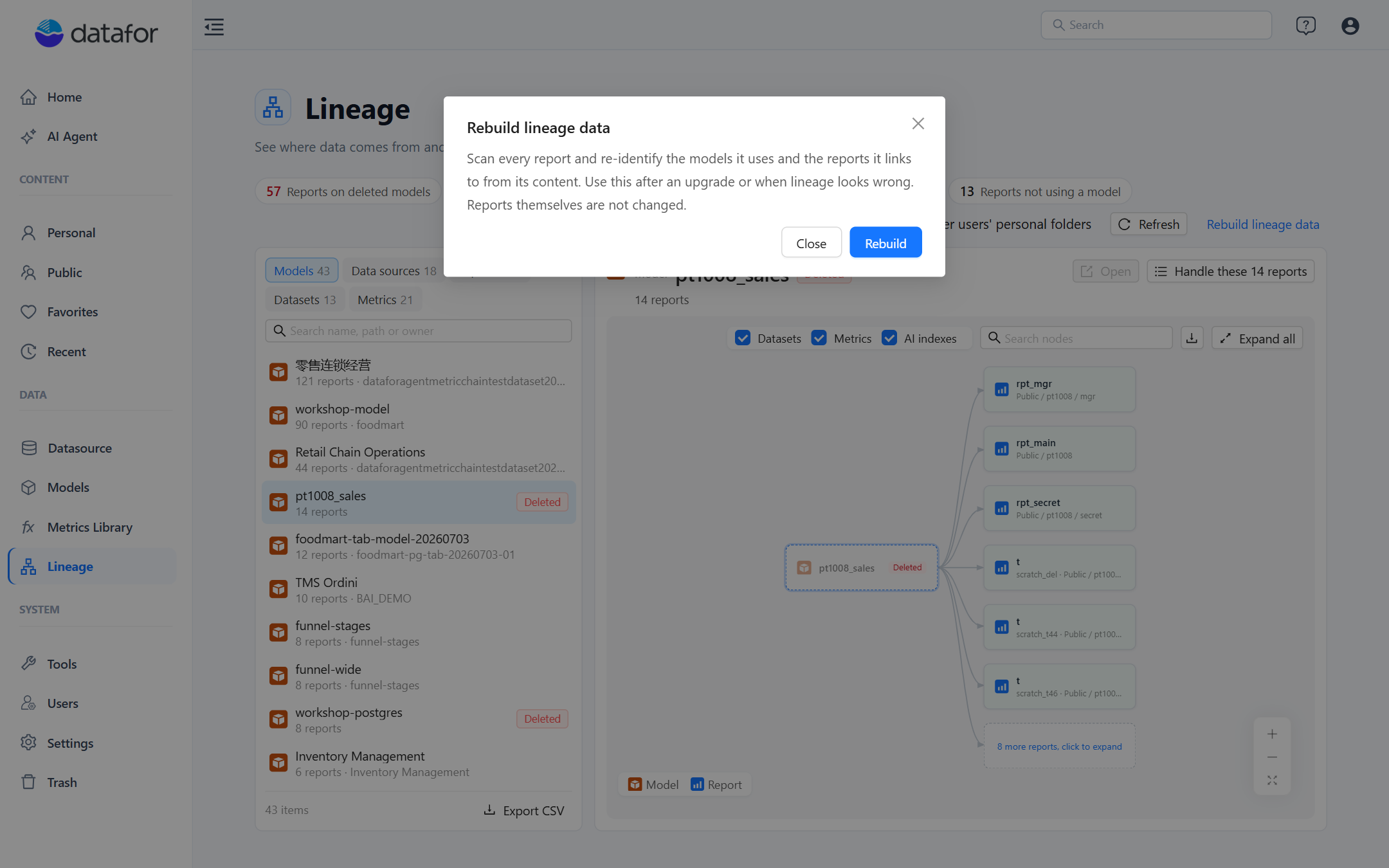
The rebuild runs in the background and reports Scanned n of m reports; you can close the dialog and come back. Only one rebuild runs at a time. Reports that cannot be parsed are listed under Unparsable reports and can be exported as a list. Reports themselves are not modified, and the rebuild does not change permissions.
Typical tasks
- Before deleting or replacing a model: select it, read the report count, then Open the reports that matter or use the model's graph to find their owners.
- After a model was deleted by mistake: click Reports on deleted models, select the model's reports and either restore the model from Trash or move the orphaned reports to Trash with Handle these n reports.
- Cleaning up a server: with Include other users' personal folders on, work through Models no report uses and the Unused datasets; export the Models tab to CSV to review the list with the model owners.
- Fixing drill-through after a move: click Broken report links, open each source report, repoint the drill-through and save it. Saving writes the new link.