
Appearance
Date
The Date component filters by a single period or a date range. It replaces the four separate date components of earlier versions; those still work in older reports.
Set up the data
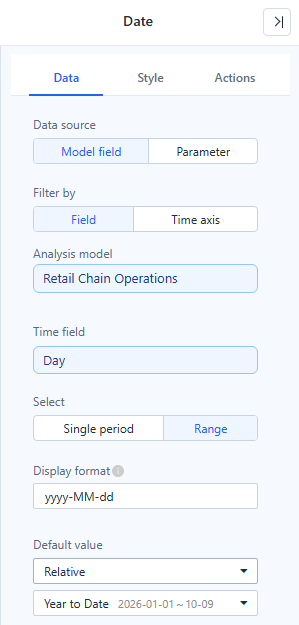
| Setting | Options | Notes |
|---|---|---|
| Data source | Model field, Parameter | Parameter writes the date into a parameter instead of filtering. Only with Filter by → Field. |
| Filter by | Field, Time axis | Field: pick an Analysis model and a Time field. Time axis: pick a Granularity (Day, Week, Month, Quarter, Year) and filter every component through its Time axis field. |
| Select | Single period, Range | One day, week, month… or a start and end. |
| Display format | Formats of the chosen granularity | Shown as an example in your language. Time-of-day formats are not offered. |
| Default value | All (no filter), Relative, Fixed, Parameter | New Date components start with All (no filter). |
Changing Filter by or Select converts the component in place: it keeps its links and references, converts the default value, and can be undone in one step.
Until a time field is chosen, the component shows Choose a date field in edit mode and nothing in view mode.
Filter by time axis
With Filter by → Time axis, the Date component is not tied to one model field. It filters each component through that component's own Time axis field (Data → Time axis), so one Date can filter charts built on different date fields, such as Sales Date and Purchase Date, or on different time levels.
The selected period is applied to each time axis at its own level, provided that level is as detailed as the Date's Granularity or more. For example, with Granularity → Year and 1998 selected:
| Component's time axis | Condition applied |
|---|---|
| Sales Month | January 1998 to December 1998 |
| Purchase Year | 1998 |
A less detailed time axis is not filtered: with Granularity → Month, a component whose time axis is a Year field is listed greyed in Interactions as Time axis less detailed than the date – not filtered yet.
Default values
- All (no filter): no date condition. The box shows All dates and has a clear button; Reset to default returns to no filter.
- Fixed: the dates in the box below. Picking a date on the canvas while editing also sets a fixed default, rounded to the granularity. A reader's choice in view or preview mode never changes the saved default, so Refresh and Reset to default return to it.
- Relative: a period computed from the viewer's date every time the report opens. The list is grouped into Current period, Previous period, Recent and Custom, and each entry shows the range it resolves to today.
- Parameter: the value of the parameter chosen in Parameter name. When the parameter has no value, the current period is used.
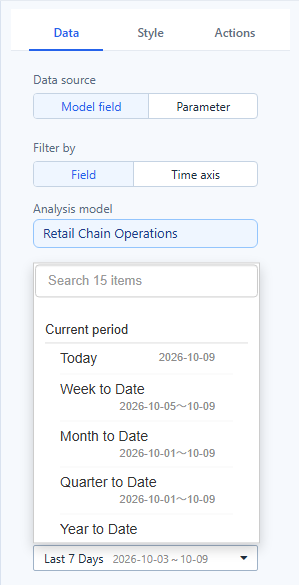
Last N days, Last N months and Last N years include today: Last 7 Days on 9 October 2026 is 3–9 October.
Custom rules
Custom… at the end of the relative list builds a rule from a direction (Last, Next, This, or Current, Back, Ahead for a single period), a number and unit, Rolling or Calendar, Include today or Exclude today, and More → Shift back. See Custom rules for each part and examples.
Interactions
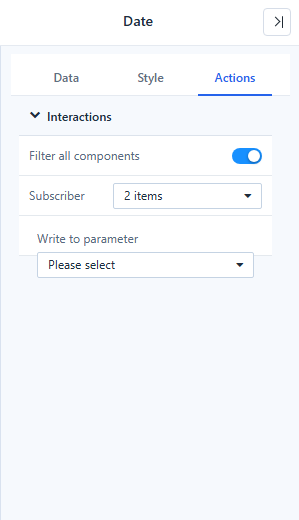
- Filter all components (on by default) filters every component that can be filtered by the date, including components added later. Turn it off and check components in Subscriber to choose them yourself.
- Components that cannot be filtered yet are listed greyed, for example No time axis – not filtered yet or Time axis less detailed than the date – not filtered yet. You can still check them.
- With Filter by → Field, components that use another model can be filtered too; they are listed separately.
- Write to parameter also writes the selected date to a report or global parameter:
YYYY-MM-DDfor a single date,["start","end"]for a range.
Bind the Date component to a parameter
With Data source → Parameter and a Date parameter with Any value, the component sets the parameter instead of filtering. See Bind Filters to Parameters.
Style
| Group | Styles |
|---|---|
| Title | Show and Position (Top or Left). |
| Content | Content alignment (where the input box sits in a taller component) and Control size (Compact, Standard or Spacious padding). |
| Component frame | Background, border, radius and shadow of the whole component. Transparent by default, so the page theme shows through. |
| Input box | Background, border, radius and shadow of the date box itself. Settings made in the Effects group before 10.00 are kept here. |
Weeks
This Week, Last Week and week ranges start on the day set in Settings › General › System configuration › Modeling › First day of the week (Monday by default). Match it to the week definition of your model.
Troubleshooting
| Symptom | Check |
|---|---|
| The charts show No data under the current filters. | The relative period may lie after the last loaded date. Use View conditions on the chart to see the date range. |
| A component is not filtered. | In Time axis mode it needs a Time axis field at the Date's granularity or finer; see Filter by time axis. |
| Last 7 Days differs from an older report by one day. | Since 10.00 the Last N presets include today. |
Related: Filters · Relative Date Filtering · Time Semantics and Default Time Settings