
Appearance
Action button
An Action button is a button that does one thing when clicked: open a report page, open a link, switch a tab, reset filters, export the page and more. It needs no data. The data-bound Image Button of earlier versions is now the Data button (legacy).
Add a button
- In Components → Assists, click Action button, then click the canvas. A new button is 120 × 36 px with the text Button.
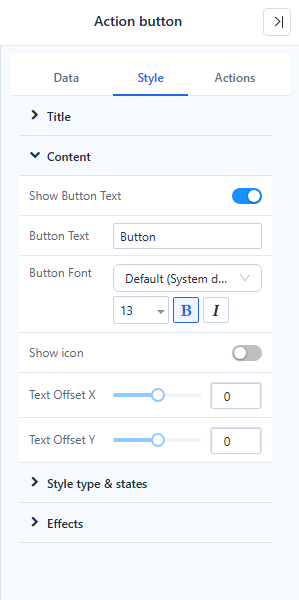
- On Style → Content, set the Button text, font and an optional icon.
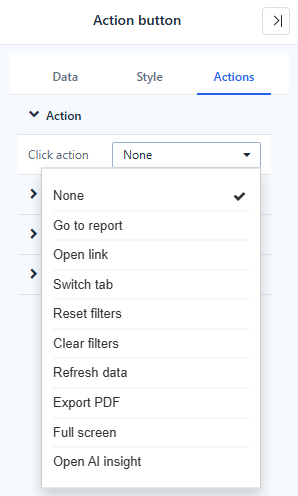
- On Actions → Click action, choose the action and fill its settings.
- Click the button to try it, also in the editor: report pages and links open in a new tab there; Reset filters and Clear filters work in Preview or when viewing the report.
Style
| Group | Settings |
|---|---|
| Content | Button text with Insert dynamic value ({{filter.Region}}, {{param.Year}}, {{date}}, {{user.name}}, see Dynamic Values), Font, Show icon, Icon (from the icon library), Icon position (Left, Right, Top, Bottom), Icon size |
| Appearance | Style type: Fill, Outline, Text or Image. Main color is the fill, or the text and border of Outline and Text buttons; new buttons take the first colour of the report palette. With Auto colors on, the hover, pressed and disabled colours are derived from it. Turn it off to set Background, Text color and Border for each State: Default, Hover, Pressed, Disabled. The Image type adds Button image (file, fit, opacity), Show text and Text offset X/Y. |
| Effects | Background, border, corner radius, shadow, Opacity, Hover effect |
Actions
| Group | Settings |
|---|---|
| Click action | None, Go to report, Open link, Switch tab, Reset filters, Clear filters, Refresh data, Export PDF, Full screen, Open AI insight |
| Disable condition | Never, By report parameter |
| Visibility | Always, Hidden in preview, by report parameter, user or role |
| Custom script | Run script on click: runs on click; return false to cancel the action |
Details of each action and rule: Click Actions and Visibility.
Pass filters to the target report
Go to report → Jump settings opens the target report page with the current selections of the page's filters and the report parameters:
- Pass filters by matching field names (on by default): every filter on the page is passed to the field with the same name in the target report, so a target that uses the same analysis model needs no mapping. For another model, pick the target field for each page filter in the table, or choose Do not pass.
- Pass report parameters (on by default): the current values of the report parameters go to the parameters with the same names in the target report.
- Members the reader has selected in a chart on the page (cross-filtering, for example a bar clicked in a column chart) are passed too, so a button can carry the value the page is currently filtered by. Chart fields are listed in the table marked (cross-filter) and can be mapped or set to Do not pass; drill-down levels are not passed.
- Date filters pass their start and end; hierarchy tree filters with several selected paths, numeric ranges and advanced filter expressions are not passed.
Data button (legacy)
Buttons that were bound to an analysis model field in earlier versions keep working as Data button (legacy): the button text shows the first value of the field, the value can be mapped to an image and is passed to the target report through the field's drill-through settings. The legacy button is no longer in the palette. A legacy button without data binding can be switched to the new component with Style → Content → Convert to Action button; its style and actions are kept. To show a value from the model on a clickable tile, use a Dimension card (Charts → Cards & KPI) with drill-through instead.