
Appearance
Deploying Datafor Behind Nginx
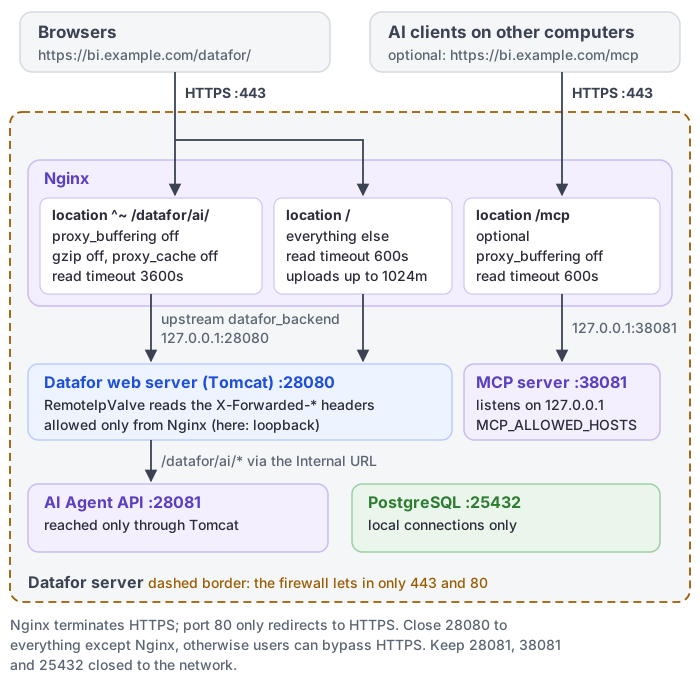
Datafor serves the console, reports, and the AI Agent from its built-in Tomcat server on port 28080 over plain HTTP. In production you usually place Nginx in front of it to terminate HTTPS, publish a friendly host name, and keep the internal ports off the network. This guide provides a complete Nginx configuration, explains the settings Datafor depends on, and shows how to verify the result.
One setting deserves special attention: the AI Assistant reports its progress through a long-lived streaming response. If Nginx buffers that response, the progress title stays at Understanding your question and the whole answer appears at once when the analysis ends. Section 2 shows how to keep the stream real time.
The examples use the host name bi.example.com, a Datafor server on the same machine as Nginx, and Nginx 1.18 or later. Replace the host name, certificate paths, and addresses with your own values.
1. Before you begin
- Install Datafor and confirm that
http://<server-ip>:28080/datafor/opens in a browser. See Installation Guide (RHEL-compatible Linux), Installation Guide (Ubuntu), Installation (Windows), or Deploying Datafor Using Docker. - Install Nginx on the Datafor server, or on a host that can reach port 28080 of the Datafor server.
- Prepare a DNS name for the site and a TLS certificate and private key for that name.
- Obtain administrator access to the server, because the procedure edits Nginx and Tomcat configuration files and restarts services.
Datafor listens on these ports:
| Port | Service | Proxy it through Nginx? |
|---|---|---|
| 28080 | Datafor web server (Tomcat): console, reports, REST APIs, and the AI Agent API under /datafor/ai/ | Yes. This is the only upstream Nginx needs. |
| 28081 | AI Agent service | No. Browsers reach the AI Agent through Datafor at /datafor/ai/; Datafor forwards the requests internally. |
| 38081 | AI Agent MCP server, for AI clients such as Claude Desktop | Only if AI clients on other computers connect, through location /mcp (section 2). It listens on 127.0.0.1 by default. |
| 25432 | Built-in PostgreSQL database | No. Never expose it. |
2. Add the Nginx site configuration
Create /etc/nginx/conf.d/datafor.conf with the following content. On distributions that use sites-available, create the file there and enable it with a symbolic link in sites-enabled.
# Datafor behind Nginx
upstream datafor_backend {
    server 127.0.0.1:28080;
    keepalive 32;
}

# Redirect plain HTTP to HTTPS
server {
    listen 80;
    server_name bi.example.com;
    return 301 https://$host$request_uri;
}

server {
    listen 443 ssl http2;
    server_name bi.example.com;

    ssl_certificate     /etc/nginx/ssl/bi.example.com.crt;
    ssl_certificate_key /etc/nginx/ssl/bi.example.com.key;
    ssl_protocols       TLSv1.2 TLSv1.3;

    # Datafor exchanges large session headers; the Nginx defaults (4k/8k) can reject them
    large_client_header_buffers 4 64k;
    proxy_buffer_size           64k;
    proxy_buffers               8 64k;
    proxy_busy_buffers_size     128k;

    # File datasets can be large
    client_max_body_size 1024m;

    # Tell Tomcat who the real client is and that the request arrived over HTTPS
    proxy_http_version 1.1;
    proxy_set_header Host              $host;
    proxy_set_header X-Real-IP         $remote_addr;
    proxy_set_header X-Forwarded-For   $proxy_add_x_forwarded_for;
    proxy_set_header X-Forwarded-Proto $scheme;
    proxy_set_header X-Forwarded-Port  $server_port;
    proxy_set_header Connection        "";

    # Reports and exports can run for a while
    proxy_connect_timeout 60s;
    proxy_send_timeout    600s;
    proxy_read_timeout    600s;

    # AI Agent: real-time progress stream. It must not be buffered or compressed.
    location ^~ /datafor/ai/ {
        proxy_pass         http://datafor_backend;
        proxy_buffering    off;
        proxy_cache        off;
        gzip               off;
        proxy_read_timeout 3600s;
        proxy_send_timeout 3600s;
    }

    # AI Agent MCP server (optional): only for AI clients on other computers
    location /mcp {
        proxy_pass         http://127.0.0.1:38081;
        proxy_buffering    off;
        proxy_cache        off;
        gzip               off;
        proxy_read_timeout 600s;
    }

    # Everything else: console, reports, APIs, static resources
    location / {
        proxy_pass http://datafor_backend;
    }
}
HTTP-only deployments
If you cannot use HTTPS yet, keep a single server { listen 80; ... } block with the same headers, buffers, and both location blocks. Add HTTPS later without changing the rest of the file.
What the important settings do
| Setting | Why Datafor needs it |
|---|---|
proxy_set_header Host, X-Forwarded-Proto, X-Forwarded-Port | Tomcat builds redirects and absolute links from these values. Without them, users are redirected to http://bi.example.com:28080/... after signing in. Section 3 configures Tomcat to trust the headers. |
proxy_buffer_size, proxy_buffers, large_client_header_buffers | Datafor responses and requests carry session headers and cookies that can exceed the Nginx defaults, which produces 502 Bad Gateway or 400 Request Header Or Cookie Too Large. |
client_max_body_size | Sets the upload limit for file datasets and other uploads. Datafor itself does not limit the request size. |
proxy_read_timeout in location / | Long-running reports and exports keep the connection open while the query executes. Raise it if users see 504 Gateway Time-out. |
location ^~ /datafor/ai/ | Disables response buffering, caching, and compression for the AI Agent API and allows analyses to run for up to an hour. See the next section. |
location /mcp | Forwards AI clients to the MCP server on port 38081 and lets one call run for several minutes. Omit it if no AI client outside the server connects. See Publish the MCP server. |
Why the AI Agent location is special
The AI Assistant shows what it is doing stage by stage: Understanding question, Generate query model, Validate query, Executing query, Generating insight, and so on. These updates travel over one long-lived HTTP response, a Server-Sent Events stream at /datafor/ai/api/v2/runs/<run-id>/events/stream, and each stage is sent as soon as it finishes.
By default Nginx buffers responses from the upstream server (proxy_buffering on). It forwards data to the browser only when a buffer fills up or the response ends. A progress stream is small and stays open for the whole analysis, so with buffering enabled the browser receives nothing until the analysis is complete. The stage title remains Understanding your question for the entire wait, and the result appears all at once.
The location ^~ /datafor/ai/ block fixes this:
proxy_buffering offforwards every event to the browser as soon as Datafor sends it.gzip offkeeps the compression filter from holding data back. Datafor already compresses its regular responses, so nothing is lost.proxy_cache offguarantees that no cache configured elsewhere innginx.confapplies to AI responses.proxy_read_timeout 3600skeeps the connection open while a long analysis runs.
Datafor's own Tomcat server never buffers this stream, which is why the problem appears only after a reverse proxy is added. If another reverse proxy, WAF, CDN, or cloud load balancer sits in front of Datafor, apply the equivalent settings there: response buffering and compression must be off for /datafor/ai/, and the idle timeout must allow several minutes.
Publish the MCP server
AI clients such as Claude Desktop connect to the AI Agent's MCP server at /mcp (see Connect AI Clients). The MCP server rejects requests whose Host header it does not know, so with the location /mcp block also set these keys in bi-server/ai-agent/.env:
MCP_ALLOWED_HOSTS=bi.example.com,bi.example.com:*
MCP_PUBLIC_URL=https://bi.example.com/mcp
Keep MCP_HTTP_HOST at its default 127.0.0.1 when Nginx runs on the same machine. Then restart the AI Agent from its folder with ./app-console.sh restart (Linux) or app-console.bat restart (Windows). Without MCP_ALLOWED_HOSTS, clients get 421 Invalid Host header. MCP_PUBLIC_URL is the address shown to users on My account › Personal tokens.
3. Tell Tomcat about the proxy
Nginx terminates HTTPS and forwards plain HTTP to port 28080. Unless Tomcat is told otherwise, it assumes that users arrived over HTTP on port 28080 and builds redirects and absolute links accordingly. Two settings correct this. Both files are under the Datafor installation directory, in bi-server/. On Windows the same paths use backslashes, for example <install-dir>\bi-server\tomcat\conf\server.xml.
3.1 Enable RemoteIpValve in server.xml
Open bi-server/tomcat/conf/server.xml, find the <Host name="localhost" ...> element, and add the following valve next to the existing <Valve .../> entries inside it:
<Valve className="org.apache.catalina.valves.RemoteIpValve"
       remoteIpHeader="X-Forwarded-For"
       protocolHeader="X-Forwarded-Proto"
       portHeader="X-Forwarded-Port" />
With this valve, Tomcat uses the forwarded scheme, port, and client address: redirects point to https://bi.example.com/..., and access logs and security features see the real client IP instead of the Nginx address.
By default the valve trusts the forwarded headers only when they come from loopback or private addresses (127.0.0.1, 10.x.x.x, 172.16–31.x.x, 192.168.x.x). If Nginx runs on a host with a different address, add an internalProxies attribute that matches it, for example internalProxies="203\.0\.113\.10".
3.2 Set the public server URL
Open bi-server/pentaho-solutions/system/server.properties and set the fully qualified server URL to the address users type in the browser, including the context path and the trailing slash:
fully-qualified-server-url=https://bi.example.com/datafor/The platform uses this value when it needs an absolute address on the server side.
Then set the same address in the console. Sign in as an administrator, open Settings › Access & Integration › Site address, enter it in Site URL (for example https://bi.example.com/datafor/) and save. Datafor builds tenant addresses and the default AI Agent address (Site URL followed by ai) from it; share links come from the address in the browser. The setting is saved in the repository and needs no restart. See Site Address.
3.3 Restart Datafor
Restart the Datafor service with the stop and start scripts described in the installation guide for your platform. For Docker deployments, edit the two files inside the container (for example after docker exec -it datafor-ee bash) or mount them from the host, then run docker restart datafor-ee.
4. Enable and verify the Nginx configuration
Check the syntax and reload Nginx:
sudo nginx -t
sudo systemctl reload nginx
Then verify each part of the deployment:
HTTPS and redirects. Open
https://bi.example.com/datafor/and sign in. The browser must stay onhttps://bi.example.com. A jump tohttp://or to port28080means that section 3 is incomplete.Proxy path from the command line. Run the following command from any machine. The response must carry
Server: nginxand return either200or a302whoseLocationstarts withhttps://bi.example.com.curl -sS -o /dev/null -D - https://bi.example.com/datafor/console/Real-time AI progress. Open AI Agent in the left navigation, select a model, and ask a question. The progress title must move through several stages within seconds of submitting the question. If it stays at Understanding your question until the answer appears, the
/datafor/ai/location is not taking effect. To see the stream itself, open the browser developer tools before asking, select the Network tab, click the request whose name containsevents/stream, and open its EventStream tab: events must appear one by one while the analysis runs.Uploads and long reports. Upload a file dataset and open a report that runs a slow query to confirm that the size and timeout settings are sufficient.
5. Check the AI Agent endpoint settings
Go to Settings › AI Agent › AI service (see How to Enable the AI Feature).
- If Public URL is empty, browsers use Site URL followed by
ai, for examplehttps://bi.example.com/datafor/ai. Nothing needs to change once Site URL is set as in section 3.2. - If it is set explicitly, it must be the public HTTPS address, for example
https://bi.example.com/datafor/ai. Browsers block anhttp://address on an HTTPS page as mixed content, and the AI Assistant will not load. - Internal URL is used by the Datafor backend only and does not go through Nginx. Leave it as configured.
6. Restrict direct access to the internal ports
Once Nginx is in place, allow port 28080 only from the Nginx host, or only on the loopback interface when both run on the same machine, using your firewall or cloud security group. Otherwise users can bypass HTTPS and the proxy rules by opening http://<server-ip>:28080/ directly. Keep 28081, 38081 and 25432 closed to the network as well; the AI Agent API on 28081 listens on all network interfaces by default.
7. Troubleshooting
| Symptom | Cause | Fix |
|---|---|---|
| The AI Assistant shows Understanding your question until the complete answer appears at once. | The progress stream is buffered by Nginx or by another proxy layer. | Confirm that the location ^~ /datafor/ai/ block with proxy_buffering off and gzip off is present and loaded (nginx -T prints the active configuration). Check every proxy, WAF, CDN, or load balancer in front of Datafor. |
| AI answers stop with a connection error after about a minute. | proxy_read_timeout is too short for the AI Agent location. | Set proxy_read_timeout 3600s inside location ^~ /datafor/ai/. |
502 Bad Gateway, and the Nginx error log says upstream sent too big header. | The response headers exceed the proxy buffer size. | Set proxy_buffer_size 64k and proxy_buffers 8 64k as in the example. |
400 Request Header Or Cookie Too Large. | The request headers exceed the client header buffers. | Set large_client_header_buffers 4 64k. |
413 Request Entity Too Large when uploading a file dataset. | client_max_body_size is too small. | Increase client_max_body_size. |
After signing in, the browser goes to http://bi.example.com:28080/..., or the page shows mixed-content warnings. | Tomcat does not know that the request arrived over HTTPS. | Complete section 3: forwarded headers, RemoteIpValve, and fully-qualified-server-url. If you cannot edit server.xml immediately, add proxy_redirect http://$host:28080/ https://$host/; to location / as a temporary workaround. |
AI clients get 421 Invalid Host header from https://bi.example.com/mcp. | The public host name is not in MCP_ALLOWED_HOSTS. | Add it as in Publish the MCP server and restart the AI Agent. |
504 Gateway Time-out on long reports or exports. | The query runs longer than proxy_read_timeout. | Increase proxy_read_timeout for location /. |
Access logs and security rules see 127.0.0.1 for every user. | Tomcat does not read X-Forwarded-For. | Enable RemoteIpValve as described in section 3.1 and check internalProxies when Nginx is on another host. |