
Appearance
Creating SQL Views
A SQL View adds a query result to an Analysis Model as a model table. Use one when the required row set or fields are easier to define in SQL than with a physical table and individual calculated columns. It is stored in the model definition; it does not create a view in the source database.
Create a SQL View
- In the modeler toolbar, click SQL.
- Enter a unique View Name. Do not reuse another table or SQL View name in the model.
- Enter the SQL Expression using syntax supported by the selected datasource.
- Click Check and preview.
- Verify that the first 50 rows contain the expected fields, types, and representative values. Do not continue until a failed preview is understood.
- Click Ok to add the SQL View to the modeler draft.
- Review the generated table and semantic objects. Add the required relationships, Dimensions, Measure Groups, and business metadata.
- Click the modeler's Save button to persist the model.
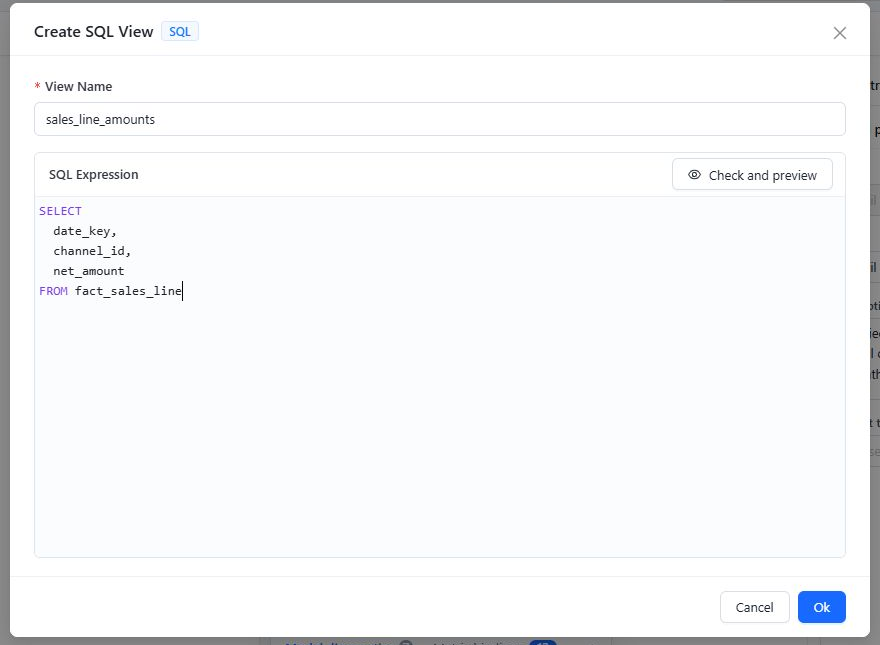
The screenshot illustrates the editor; preview success still depends on the selected connection's raw-SQL permission. Clicking Ok changes the current modeler draft; it does not replace the model-level Save step or prove that the query is valid.
Raw SQL permission
Check and preview requires permission to execute raw SQL on the connection. Administrators always have it. Other users need:
- Full control on the connection;
- a connection that is not sensitive: not an engine running inside Datafor (DuckDB, uploaded datasets and similar), not JNDI, and not a connection on the database server that holds the Datafor repository whose account can reach the repository;
- SQL that does not call blocked server-side functions such as
dblink,pg_read_file,load_file,sleeporxp_cmdshell.
Otherwise the check fails with SQL_EXECUTE_FORBIDDEN:<connection>, and saving a model with the view fails with SQL_FRAGMENT_FORBIDDEN:<connection>. See Data connections: targets and custom SQL.
The generic message The table fields are empty, the table may not exist can also represent a permission or SQL execution failure. Check the connection type and raw-SQL policy before concluding that the referenced table is missing.
Edit an existing SQL View safely
Open the SQL View table's menu and select Edit. Editing is a rebuild operation, not an in-place SQL text update. When you confirm the dialog, the modeler replaces the model table and regenerates default semantic objects from the current output fields. This removes the SQL View's existing relationships, Dimensions, and Measure Groups from the draft.
Before confirming an edit:
- Record the existing relationships and semantic objects that must be recreated.
- Check for calculated measures that reference Measures from the SQL View.
- Check Metric bindings for Measures linked to Metrics Library.
- Keep output field names and types stable unless the downstream model changes are intentional.
After confirming:
- Recreate and verify the required relationships.
- Rebuild the required Dimensions, Measure Groups, and business metadata.
- Repair calculated measures that reference removed Measures.
- Review Metric bindings. The modeler can request unbinding when bound Measures are removed.
- Run Model diagnostics and validate representative totals before saving.
An unbind request can fail independently of the editor change. Verify the binding state rather than relying on the editor notification.
Confirming an unchanged SQL expression still performs the rebuild. If you opened the dialog only to inspect the SQL, close it with Cancel or the close control.
SQL View or calculated column?
| Requirement | Use |
|---|---|
| Add one row-level expression to an existing physical table | Calculated column |
| Define a reusable query result with its own output fields | SQL View |
| Join, filter, or reshape source data before modeling it | SQL View |