
Appearance
Setting Up Delivery
This page is for administrators. Everything here is under Settings › Notifications, in the order you usually set it up: Email, IM platforms, Delivery channels, then Subscriptions & alerts for the defaults and templates.
Checklist
| What | Where | Without it |
|---|---|---|
| Mail server | Settings › Notifications › Email, see Mail Server Configuration | No email is delivered, and owners do not get failure notices |
| Site address | Settings › Access & Integration › Site address, see Site Address | Open report, Ask the AI assistant, Silence and file links point to an address people cannot reach |
| Render service | Runs with the AI Agent, see below | Subscriptions send only text and the report link |
| Temporary links | A rule in the platform security file, see below | DingTalk, Feishu, webhook, Slack Webhook and Teams Webhook messages carry no images or files |
| AI service and budgets | AI service; budgets on the Settings tab | No AI brief in subscriptions, no AI analysis in alerts |
| IM apps | Settings › Notifications › IM platforms, see IM Platforms | No direct messages, no Slack or Teams channels |
| Group robots and webhooks | Settings › Notifications › Delivery channels | No WeCom, DingTalk or Feishu group messages, no webhooks |
| System time zone | Subscriptions & alerts › Settings | Times follow the server's zone, which may not be your business zone |
Check the result on the Overview tab of Subscriptions & alerts: the status line shows the render service, temporary links and the scheduler. See Monitoring and Limits.
Render service
The render service (ai-agent-render) opens dashboards in a headless Chromium as each recipient and returns the screenshot, PDF, figures, Excel exports and AI brief. It is part of the AI Agent installation, listens on 127.0.0.1:38082 only, and starts with the AI Agent:
./app-console.sh start            # AI Agent, MCP server and render service
./app-console.sh start render     # the render service only
./app-console.sh restart render
curl http://127.0.0.1:38082/health
On Windows use app-console.bat in the ai-agent folder. /health answers {"ok":true,...} when the browser is up. Logs are in ai-agent/logs/render.log.
Plan about 1 GB of memory for it: two pages render at a time and each Chromium page takes 300–500 MB. A dashboard takes 10 to 60 seconds to render.
Linux needs browser libraries and fonts. Chromium ships with the installation, but its system libraries do not. Without a CJK font, Chinese and Japanese text renders as boxes.
# Debian 12 / Ubuntu 22.04 (on Ubuntu 24.04 several packages end in t64)
apt-get install -y libasound2 libatk-bridge2.0-0 libatk1.0-0 libatspi2.0-0 libcairo2 \
  libcups2 libdbus-1-3 libdrm2 libgbm1 libglib2.0-0 libnspr4 libnss3 libpango-1.0-0 \
  libx11-6 libxcb1 libxcomposite1 libxdamage1 libxext6 libxfixes3 libxkbcommon0 libxrandr2 \
  fonts-noto-cjk fonts-liberation
# RHEL / Rocky / openEuler
dnf install -y alsa-lib at-spi2-atk atk at-spi2-core cairo cups-libs dbus-libs libdrm mesa-libgbm \
glib2 nspr nss pango libX11 libxcb libXcomposite libXdamage libXext libXfixes libxkbcommon libXrandr \
google-noto-sans-cjk-ttc-fonts liberation-fontsThe render service and Datafor share the AI Agent secret (DATAFOR_AGENT_SECRET, see AI Agent Shared Secret). Alerts do not use the render service.
Temporary links
DingTalk and Feishu robots, generic webhooks and Slack or Teams webhooks cannot receive uploaded files, so their messages link to the screenshot and files instead. These links work without signing in, carry a signature and expire after 7 days by default (Link validity on the Settings tab; at most 30 days).
They require one line in pentaho-solutions/system/applicationContext-spring-security.xml, placed before the \A/plugin/.*\Z rule, followed by a restart:
<sec:intercept-url pattern="\A/plugin/datafor-notify/api/asset/.*\Z" access="Anonymous,Authenticated" />When the rule is missing, the Overview tab shows Temporary links: Blocked. If you do not want files reachable without sign-in at all, switch Temporary links off on the Settings tab; those destinations then get the text and the Open report link only. Email, Slack and Teams apps, WeCom robots and the IM apps' direct messages upload files and do not need temporary links.
The links must be reachable from the IM platform's servers: a server that only has an intranet address can send images to WeCom robots and IM apps, but not to DingTalk or Feishu robots.
IM apps
Settings › Notifications › IM platforms connects a WeCom, DingTalk, Feishu, Slack or Microsoft Teams app to Datafor. One app serves several purposes: sign-in from the IM, directory sync, asking the AI assistant in chat, and delivery. Creating the apps, the addresses to enter in each platform and linking people are described in IM Platforms. For subscriptions and alerts an app provides:
- Direct messages to each person. Saving a Slack or Teams app creates its Slack direct message or Teams direct message channel. For WeCom, DingTalk and Feishu, create a delivery channel of type WeCom app message, DingTalk app message or Feishu app message and pick the app. From then on every user sees it under How I receive. People must be linked to the app: through directory sync, by opening Datafor from the IM app once, or by an administrator with IM accounts on the user's row under Users. Slack and Teams also match people by email address.
- Slack and Teams channels, which users pick directly in Post to channels from the app's channel list. No delivery channel is needed. For a private Slack channel, invite the bot into it first. Teams lists standard channels and installs the app into the team when the subscription is saved.
Delivery channels
Settings › Notifications › Delivery channels lists the destinations that subscriptions and alerts can use besides Slack and Teams channels.
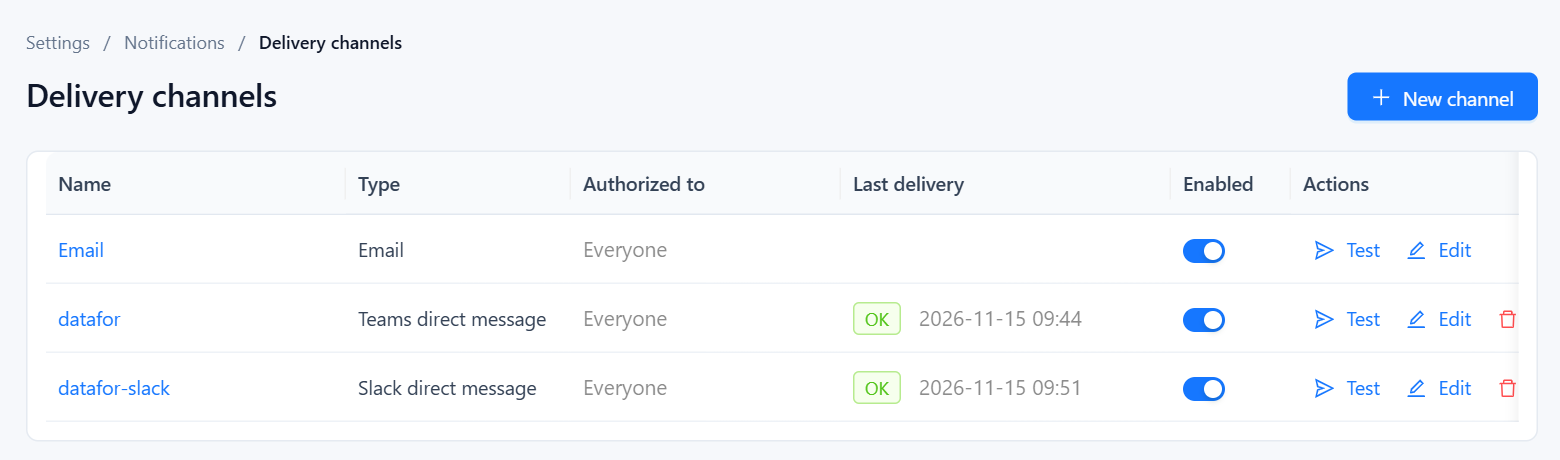
The built-in Email channel uses the mail server and cannot be deleted. New channel adds one of these types:
| Type | Where the URL or credentials come from |
|---|---|
| WeCom group robot | In the WeCom group: Group settings › Group robots › Add robot; paste the webhook URL. |
| DingTalk robot | In the DingTalk group: Group settings › Group assistant › Add robot › Custom. Prefer the Sign security option and paste its secret; without a secret the robot must use keyword or IP allow-list security. |
| Feishu robot | In the Feishu group: Settings › Group bots › Add bot › Custom bot. If Signature verification is on, paste the secret. |
| Teams Webhook | In the Teams channel: Workflows › Post to a channel when a webhook request is received; paste the URL it generates. |
| Slack Webhook | In your Slack app, turn on Incoming Webhooks, pick the channel and paste the https://hooks.slack.com/… URL. |
| Generic webhook | Your own endpoint, see below. |
| … direct message, … app message | An app from IM platforms; delivers to each person, see IM apps. |
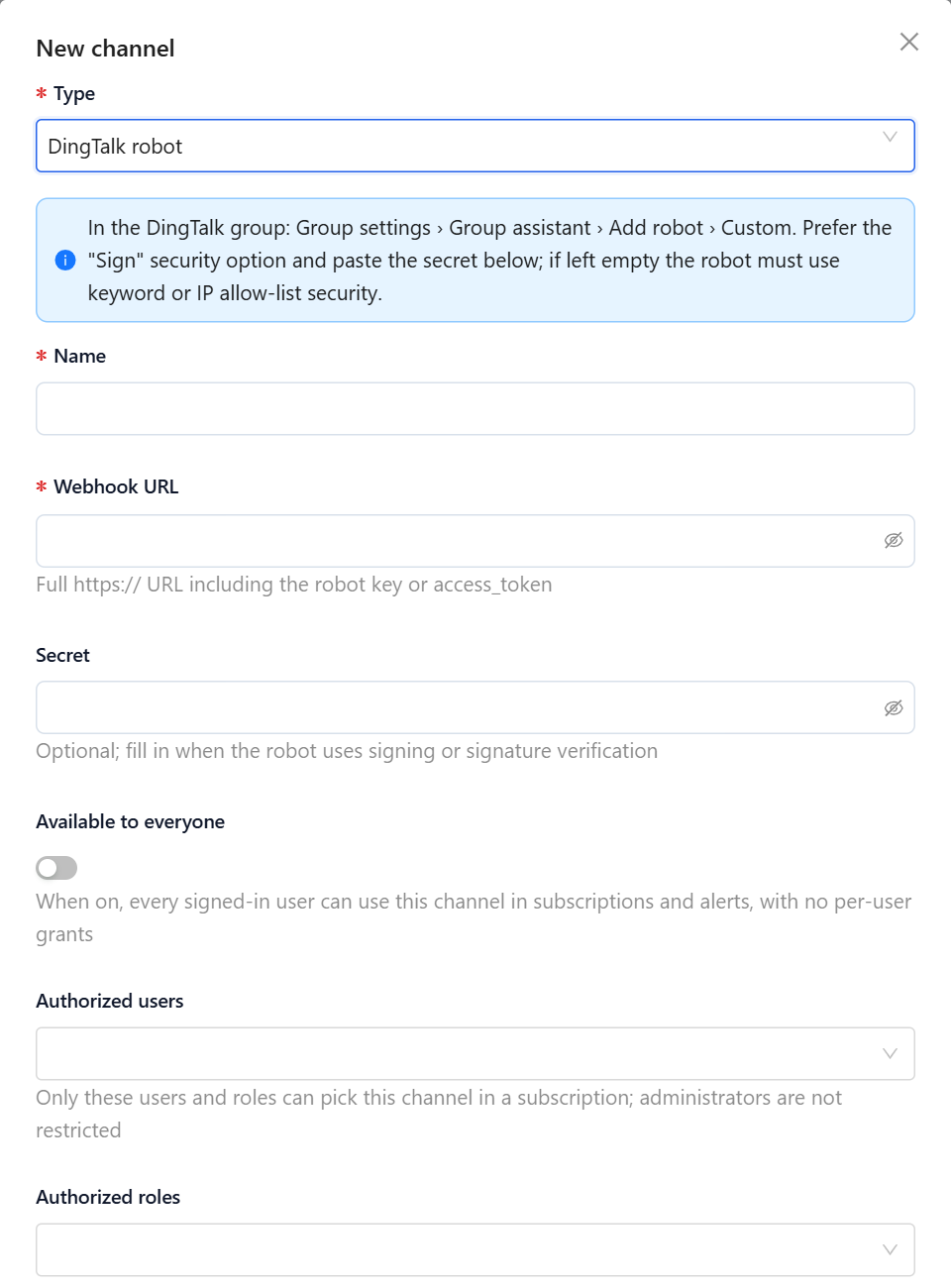
Webhook URLs and secrets are credentials; they are stored encrypted and shown masked. When editing, leave a masked field unchanged to keep its value.
Who can use a group channel. Turn on Available to everyone, or list Authorized users and Authorized roles. Only they see the channel under Post to channels; administrators can always use it, and Readers never can. Remember that messages posted to a channel are rendered with the permissions of the person who created the subscription or alert.
Test posts a short test message. Last delivery shows whether the most recent message went through. A channel used by a subscription or alert cannot be deleted; the error tells you how many use it. Robots are limited to 18 messages per minute each, below the platforms' own limit of 20, and messages over the limit wait in a queue.
Generic webhook
Datafor sends an HTTP POST (or the Method you set) with a JSON body to the URL, adding any Headers you list, one Name: Value per line, for example an Authorization header. With a Secret, the X-Datafor-Signature header carries sha256= followed by the hex HMAC-SHA256 of the raw body, keyed with the secret; verify it before trusting the message. A response other than 2xx counts as a failure and is retried for 5xx and 429.
A subscription delivery looks like this:
{
  "event": "subscription.delivered",
  "sentAt": "2026-11-16T00:00:05Z",
  "subscription": { "id": "sub_01…", "name": "Retail Operations Overview EN · Weekly on Mon at 08:00", "owner": "admin" },
  "report": { "path": "/public/demo/Retail Operations Overview EN.datafor", "title": "Retail Operations Overview EN", "link": "https://bi.example.com/datafor/…" },
  "recipient": { "kind": "channel" },
  "filters": { "Region": "East China", "Year": "2026" },
  "summary": [ { "title": "Net Sales", "formatted": "5.09M" } ],
  "insight": { "level": "standard", "markdown": "…" },
  "assets": [ { "kind": "png", "label": "View screenshot", "url": "https://…", "bytes": 482113, "expiresAt": "2026-11-23T00:00:05Z" } ],
  "runId": "run_01…"
}
An alert sends "event": "alert.fired" or "alert.recovered" with alert (id, name, owner, severity, metric), outcome, evaluation (period, value, comparison, matched conditions, members), filters, condition and the AI analysis when there is one. Test sends "event": "channel.test". Read the event from the body's event field.
Defaults for everyone
These are on Settings › Notifications › Subscriptions & alerts › Settings, in the Delivery group.
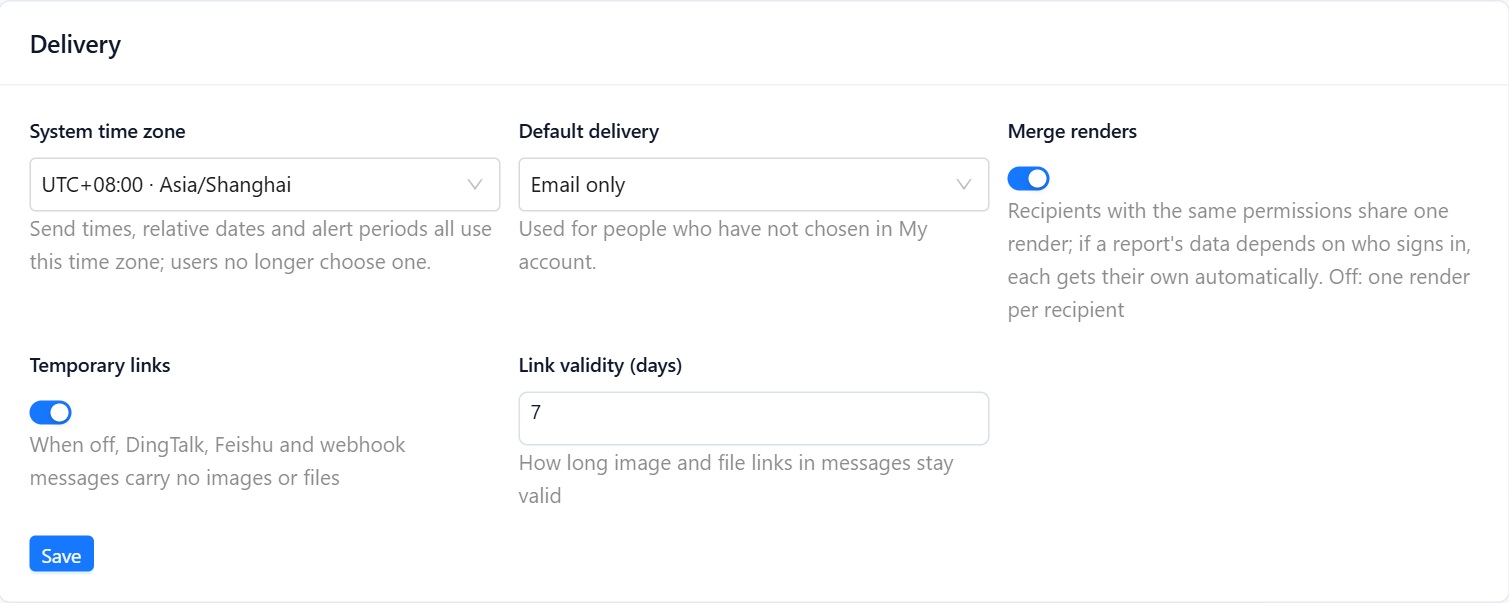
| Setting | Effect |
|---|---|
| System time zone | The zone for every schedule, relative date and alert period. Pick a region name such as Asia/Shanghai or Europe/Berlin rather than a fixed offset, so daylight saving time is handled. Changing it recalculates all next run times. |
| Default delivery | How people who have not chosen in My account receive messages: Email only (the default), IM when linked, otherwise email, or Both email and IM. |
| Merge renders | On (default): recipients with the same permissions share one render, and reports whose data depends on who is signed in are still rendered per person. Off: one render per recipient, slower but never shared. |
| Temporary links, Link validity (days) | See Temporary links. |
Message templates
Every subscription and alert message uses the templates in Message templates on the same tab; users do not write their own. Leave a field blank to use the built-in default, shown in grey. Preview shows the result as an email or as a group chat card with sample data; Restore defaults clears your changes.
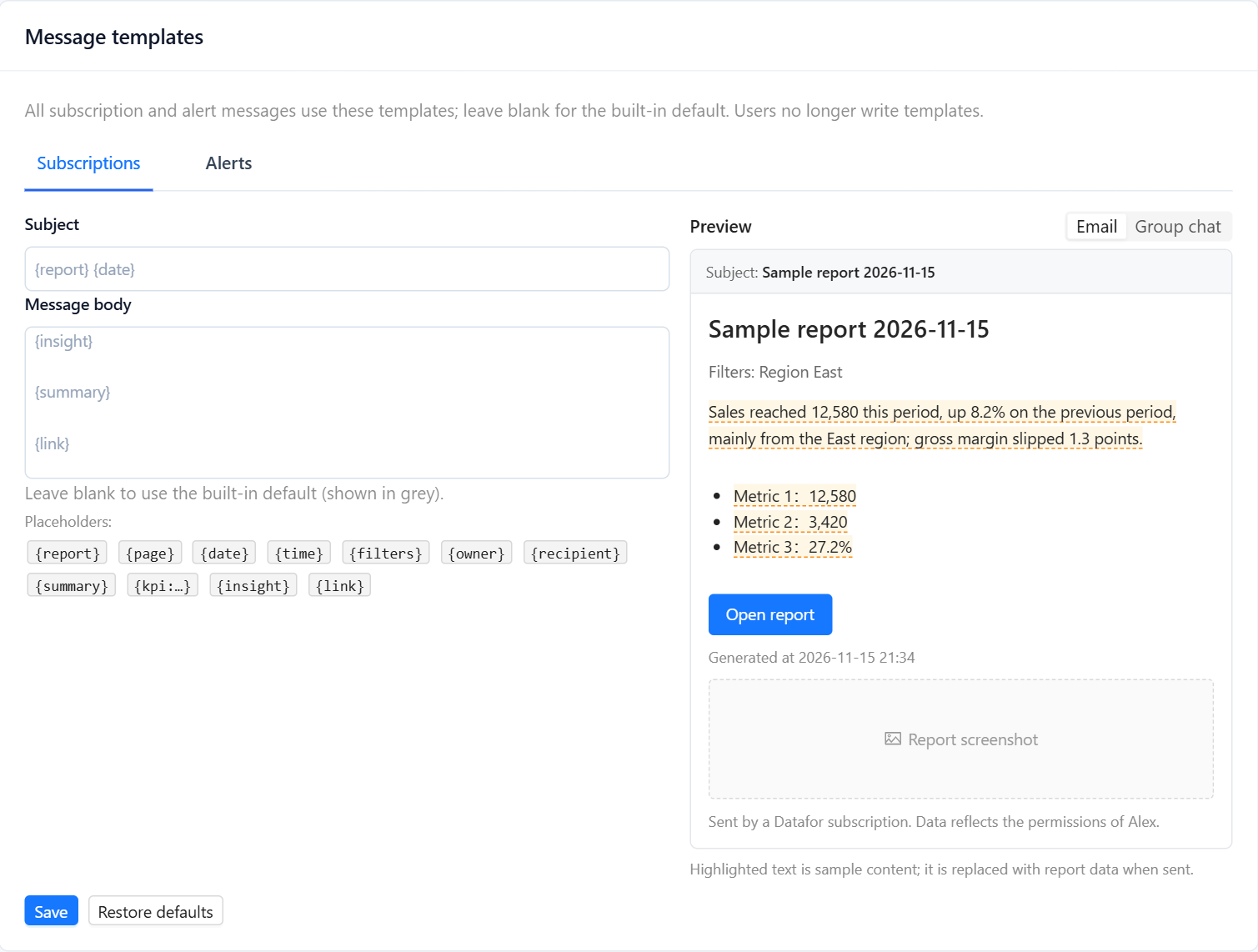
Subscriptions (default subject {report} {date}, body {insight}, {summary}, {link}):
| Placeholder | Becomes |
|---|---|
{report} | Report name |
{page} | Tab name; the report name when no tab is chosen |
{date}, {time} | Send date and time in the system time zone |
{filters} | Filter values used for this run (already shown under the title automatically) |
{owner} | The owner, whose permissions apply to channel messages |
{recipient} | The recipient's name; empty in channels |
{summary} | The figures summary, one metric: value per line |
{kpi:Title} | One figure, by the title of its card, for example {kpi:Net Sales} |
{insight} | The AI brief |
{link} | The Open report link; in email it becomes the button at that position |
Alerts (default subject [{severity}] {metric} {status}, body {summary}, {attribution}, {link}, {ask}): {metric}, {value}, {baseline}, {change}, {changePct}, {period}, {baselinePeriod}, {condition}, {severity}, {status}, {members}, {filters}, {owner}, {attribution} (the AI analysis), {link} (Open report), {ask} (Ask the AI assistant) and {summary} (the standard block of value, comparison, change and condition).
Placeholders without a value are removed together with their empty line. Paginated report subscriptions use the subscription template, with the report parameters in {filters}.