
Appearance
Adding Components
Everything on a report page is a component: charts and tables, assist components such as text and images, and filters. They are in the Components tab of the Page panel; click an empty part of the canvas to see it.
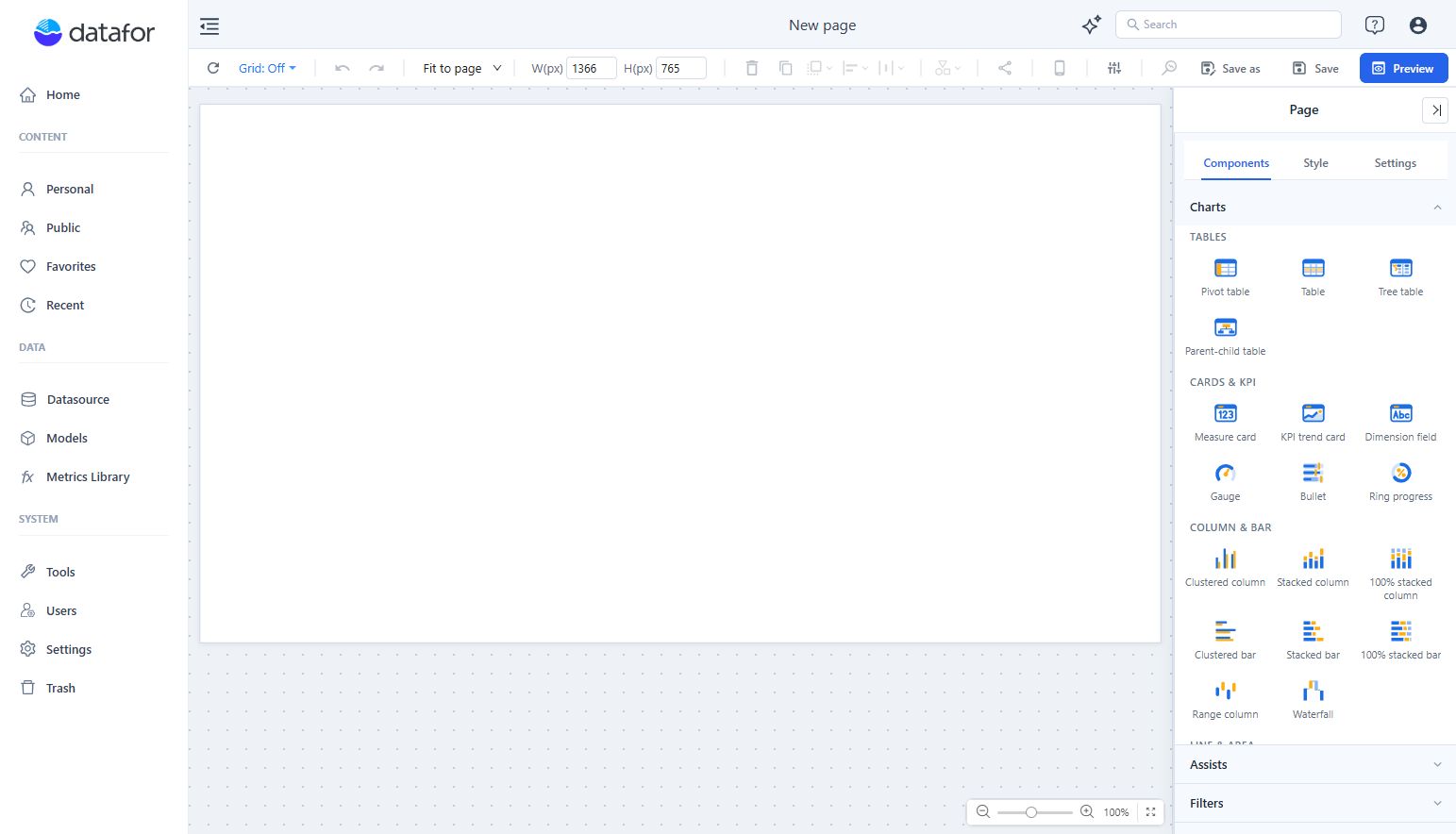
The palette
The palette has three sections, Charts, Assists and Filters. One section is open at a time. Hover a tile to see what the component is for.
| Charts group | Components |
|---|---|
| Tables | Pivot table, Table, Tree table, Parent-child table |
| Cards & KPI | Measure card, KPI trend card, Dimension field, Gauge, Bullet, Ring progress |
| Column & bar | Clustered column, Stacked column, 100% stacked column, Clustered bar, Stacked bar, 100% stacked bar, Range column, Waterfall |
| Line & area | Line, Combo, Area, Stacked area, 100% stacked area |
| Proportion | Pie, Grouped donuts, Treemap, Sunburst |
| Distribution & correlation | Scatter, Box plot, Histogram, Heat matrix, Calendar chart |
| Flow & breakdown | Funnel, Sankey, Decomposition tree |
| Maps | Filled map, Marker map, Image map, GIS marker map, GIS heat map, Mapbox/Amap |
| Other | Radar, Word cloud, Dynamic image |
Assists: Text, Rich text, Image, Icon, Shape, Action button, Web page, AI insight, Tabs. Filters: Dropdown, List box, Button group, Radio/Checkbox, Hierarchy table filter, Date, Numeric slider, Paginate, Search, Filter button.
Place a component
| To | Do this |
|---|---|
| Place it at its default size | Click the tile, then click the canvas. |
| Place it at a size you choose | Click the tile, then drag a rectangle on the canvas. |
| Place it at the next free position | Double-click the tile. |
| Cancel | Click the tile again. |
With the keyboard, Tab moves between tiles and Enter or Space selects one.
Each type has its own default size, for example 400 × 300 px for most charts, 480 × 300 px for tables, 260 × 160 px for a Measure card and 240 × 60 px for a Dropdown. A component placed near the right edge is moved inside the page.
Fill the fields
- Select the component and open Data.
- Under Analysis model, click +, select a model and click Back.
- Click + under each field group, select fields and click Back. A Clustered column, for example, needs X-axis and Measures; Legend splits the bars into series.
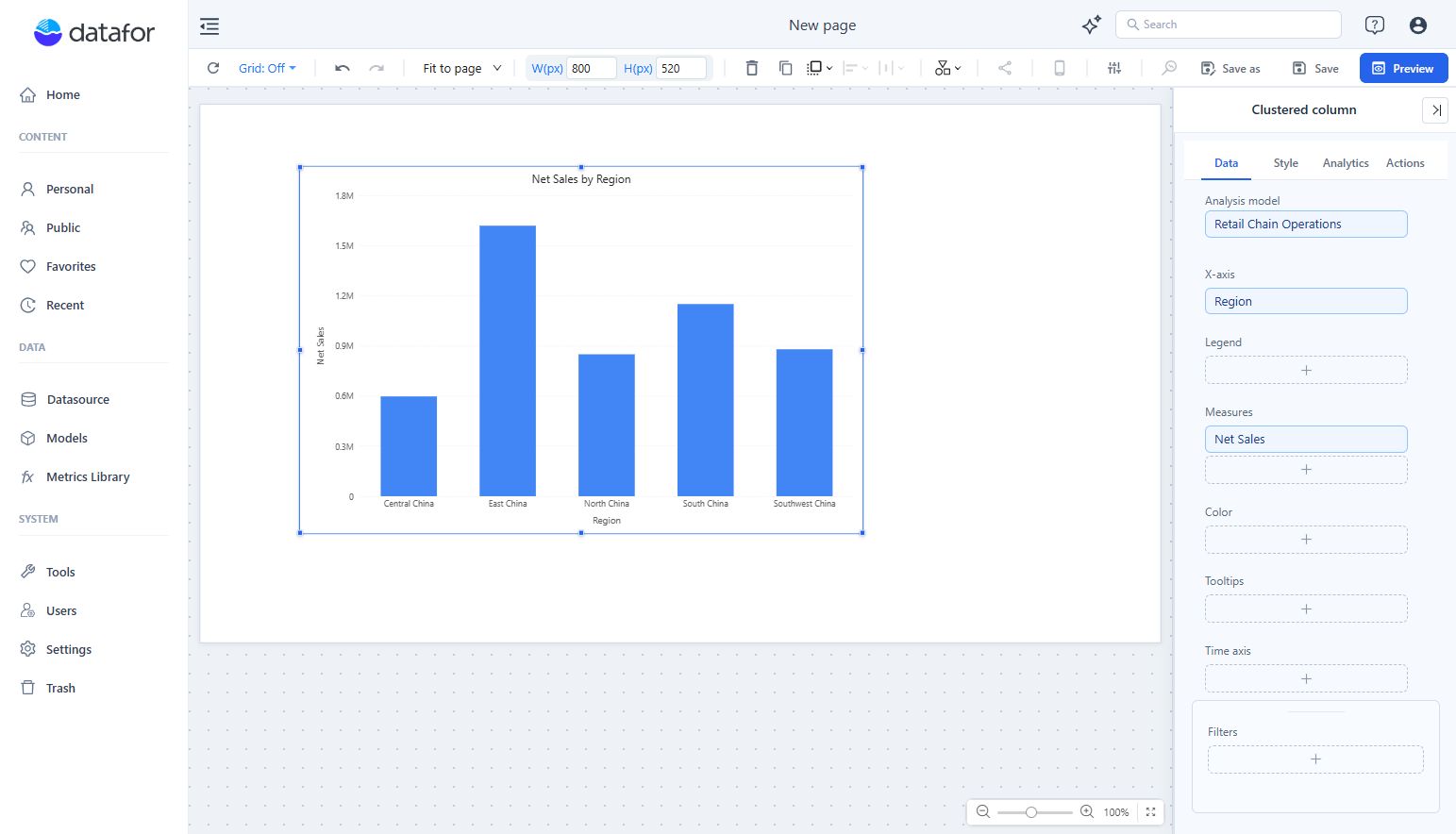
The title fills in automatically as {measures} by {dimensions}, for example Net Sales by Region, and follows your field changes until you type your own title. Renamed fields appear in it under their new names.
Hover a field and click ⋮ for its options: rename, sort, row limit, aggregation, format, drill through and more. The options depend on the field and the component.
Move a field to another group
Drag a field from one group to another, for example from X-axis to Legend, or from Rows to Columns in a pivot table. The field keeps its settings (format, rename, sort, row limit, conditional formatting). Dropping it on a one-field group that is already filled swaps the two fields. Groups that can take the field are outlined while you drag.
Change the chart type
Select a chart and open Chart switch in the toolbar. The list has the same order as the palette.
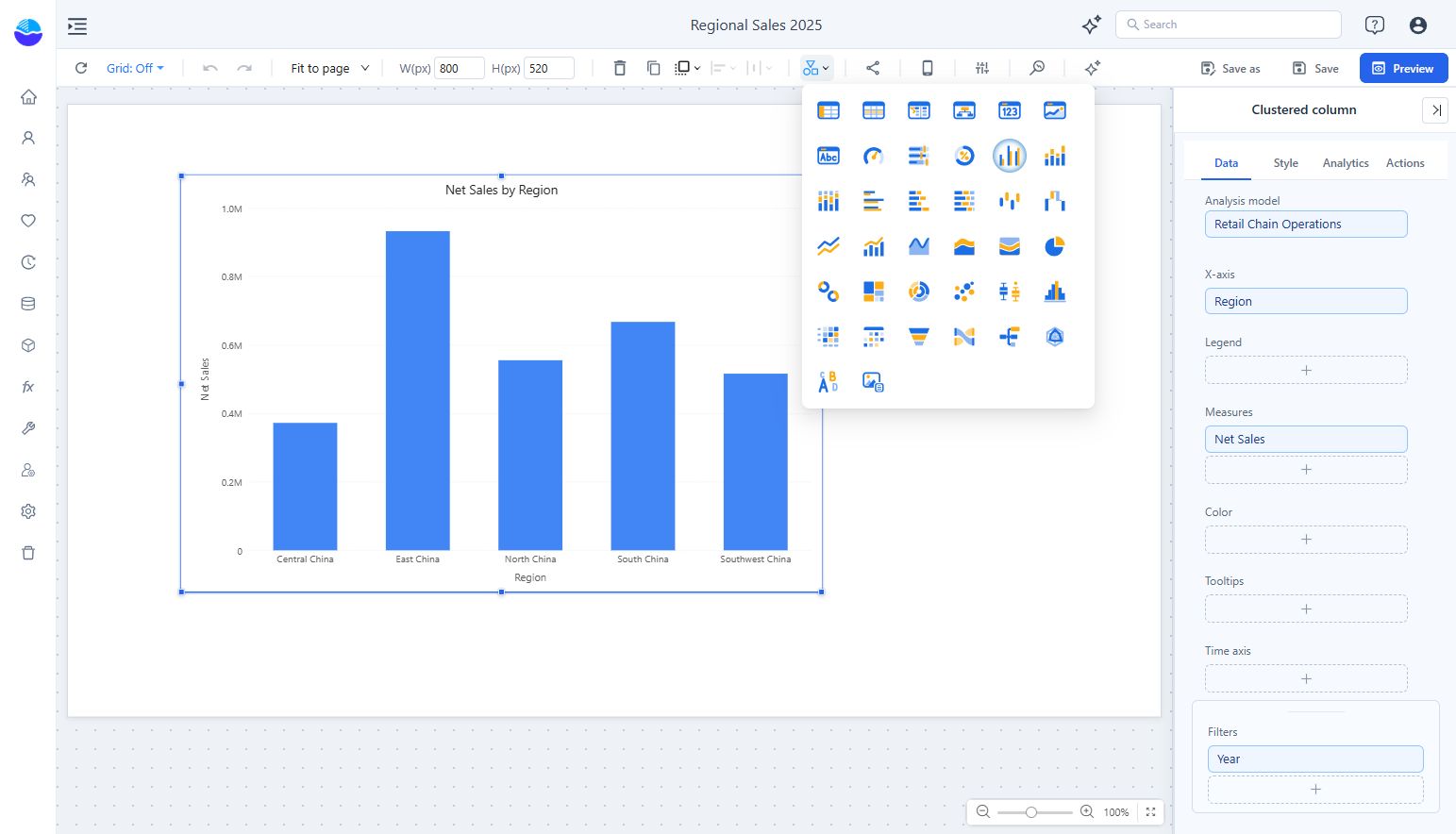
The fields move to the new chart's groups where they fit. Check the Data tab afterwards; some settings exist only for one chart type.
Choose a chart
| Question | Start with |
|---|---|
| Compare categories | Clustered column or Clustered bar |
| Follow a trend | Line or Area |
| Show composition | Stacked or 100% stacked charts, Pie, Treemap |
| Show one number | Measure card or KPI trend card |
| Relate two measures | Scatter |
| Show a distribution | Histogram or Box plot |
| Explain a flow or breakdown | Sankey, Funnel or Decomposition tree |
Blank chart? Choose a model and fill the required groups; on the Data tab they are outlined in red until filled. Unexpected totals? Check the filters and the measure's aggregation before changing the formatting.
Related: Report Editor Basics · Page Settings · Display Units and Decimal Places