
Appearance
Chart Reference Lines
Reference lines and bands mark targets, thresholds, and statistics on a chart, so readers can compare each data point with them at a glance. You add and edit them in the Analytics tab of the property panel.
Add a target line
- Select the chart and open Analytics.
- Click + Line and name it Target.
- Choose Direction → Horizontal and Value from → Fixed value.
- Enter 600000 for the example sales chart. Move focus out of the input to apply it.
- Enable Show label, check the rendered line, then save.
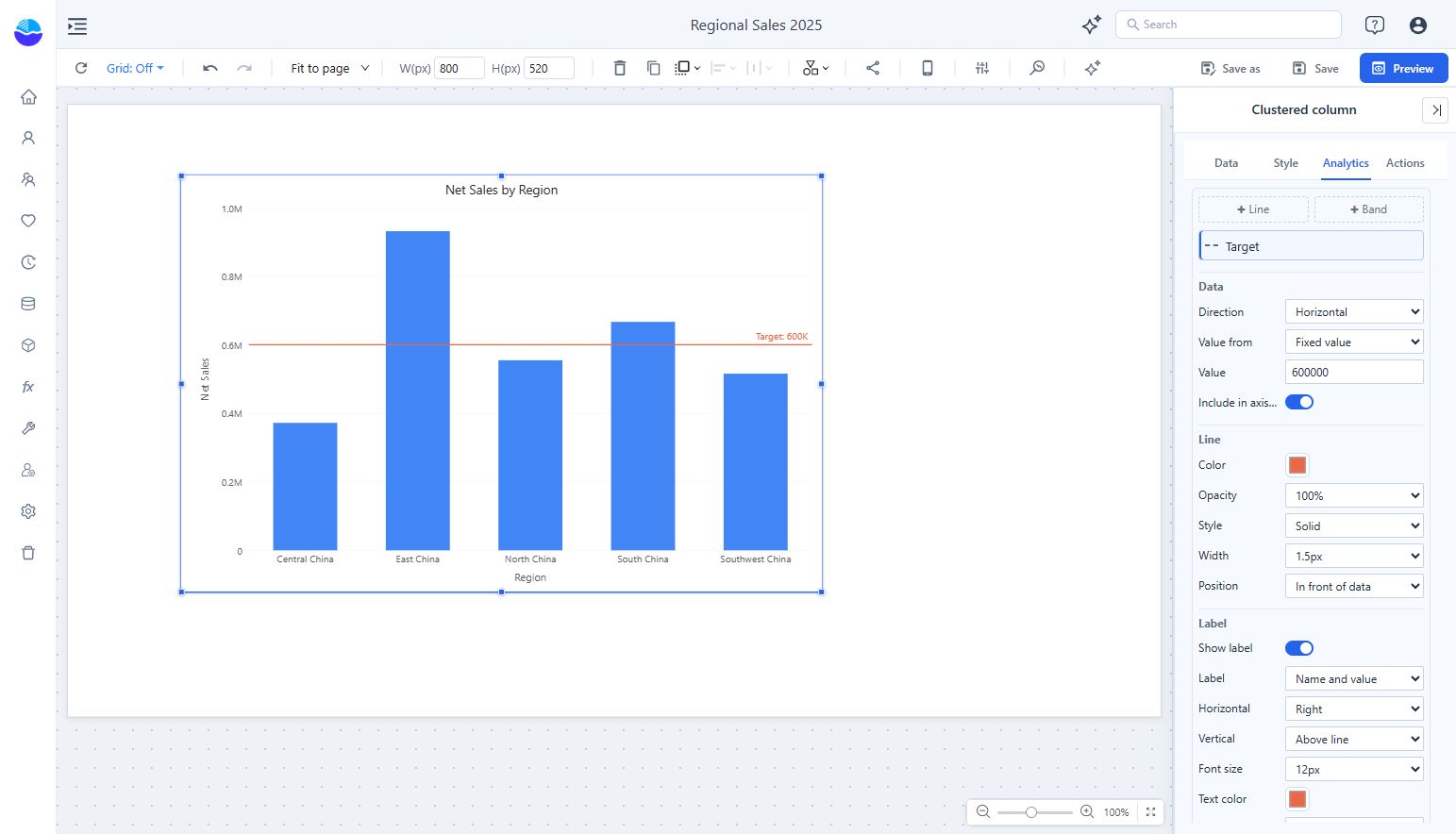
The Analytics tab
Charts that can't use reference lines (Heat matrix, Bullet, KPI trend card, pie charts and others) have no Analytics tab. It is also not shown in the mobile layout designer: lines are shared with the desktop layout.
The tab has:
- + Line, + Band, and, for scatter charts, + Diagonal at the top.
- A list of the lines on this chart. Hover a row to show or hide the line, or delete it. Click the name to rename it. Hover a line on the chart to see its value.
- The settings of the selected line below the list. Changes apply right away. Use Undo to revert them.
Reference lines
A reference line takes its value from Value from:
| Value from | Value |
|---|---|
| Fixed value | A number you type, such as a sales target |
| Average, Median, Minimum, Maximum | Calculated from the data points shown in the chart, for the chosen measure |
| Percentile | The Pth percentile (1–99) of the data points, for the chosen measure |
Notes on calculated values:
- Empty values are ignored. The "Others" group created by a Top N limit is ignored.
- The value is recalculated after filtering, cross-filtering, and drilling.
- Calculate over appears when the chart has a legend or stacked series:
- All data points: one line over every point (default for non-stacked charts).
- Category totals: add up each category first (default for stacked charts).
- Each series: one line per series, in the series color.
- An average is the simple average of the points in the chart. For a ratio measure such as margin rate, it is not the same as the overall rate.
Direction: a fixed-value line can also be drawn across the category axis, for example at a month or a product category. On a continuous date axis you pick a date; on a scatter chart, a value of the X measure.
Include in axis range: extends the value axis so that a fixed-value line outside the data range is still visible. It is on for new lines.
Axis (combo charts only): whether a fixed-value line or band belongs to the bar axis or the line axis. Lines calculated from a measure follow that measure's axis.
Bands
A band shades the area between a lower and an upper bound. Each bound is a fixed value or a statistic of a measure, for example Percentile 25 to Percentile 75 for the middle half of the data. Bands are drawn behind the data by default.
Style and labels
| Group | Settings |
|---|---|
| Line | Color, opacity, style (solid, dashed, dotted), width, in front of or behind the data |
| Label | Show label; content (name, value, name and value, or custom text with {name} and {value}); horizontal (left, center, right) and vertical (above, below) position; font size; text color; display units; decimal places; background |
| Shade | None, above the line, or below the line; color and opacity |
New lines write their label value with Display units → Auto (for example 600K); lines from older reports keep Follow measure format. Display units and decimal places apply to lines, not bands, and not on 100% charts. Hover a line or band to see its name and value; for calculated lines the tooltip also says how many points the value is based on.
Supported charts
| Chart | Fixed value | Statistics | Across category axis | Band |
|---|---|---|---|---|
| Column, bar (clustered and stacked) | Yes | Yes | Yes | Yes |
| Line, area, stacked area | Yes | Yes | Yes | Yes |
| Combo | Yes | Yes | Yes | Yes |
| 100% stacked column, bar, area | Yes (0–100) | No | Yes | Yes |
| Scatter | Yes | Yes (X or Y measure) | Yes (X value) | Yes |
| Box plot | Yes | No | No | Yes |
| Waterfall | Yes | No | Yes | Yes |
| Range column | Yes | Yes (min or max measure) | Yes | Yes |
| Histogram | Yes (count or percentage) | Yes (sample values, estimated) | Yes (sample value) | Yes (sample values) |
Scatter charts can also show a diagonal (y = x).
Range column: statistics use the original minimum and maximum measures, over all data points.
Histogram: horizontal lines mark a count (or percentage). Lines across the X axis, statistics, and bands use sample values. The histogram only receives bin counts, so the average, median, and percentiles are estimated from the bins and shown with "≈"; the error is at most half a bin width. Minimum and maximum come from the data.
Reference lines are kept when you switch between chart types that support them. Lines a chart type can't draw are hidden and come back when you switch back.
Opening reports made before 10.00
- The old component menu ⋮ → Analysis (constant, average, median and ratio lines) is gone. Existing lines appear in the Analytics tab automatically; the ratio line is now the Diagonal.
- The median is now a true median. Before 10.00 it was the midpoint between minimum and maximum, so old median lines can move.
- Averages ignore empty values, so old average lines can move slightly.
- Lines are no longer listed in the data tooltip; hover the line itself instead.