
Appearance
Ring progress
Show one measure's progress toward a target as a ring. Use it for a completion or achievement question with a meaningful denominator. Use Gauge when readers also need a scale with tick values.
Set actual and target
- Add Components → Charts → Cards & KPI → Ring progress (a new ring is 260 × 240 px, one ring and a name line) and choose an Analysis model in Data.
- Put the actual amount in Progress measure and the target in Target measure.
- If you use a fixed target instead of a target measure, enter it in Style → Plot area → Target value.
- Set Filters so actual and target cover the same period and population.
For example, 75 completed items against a target of 100 represents 75% achievement. A decimal rate of 0.75 must be compared with a target of 1, not 100. Avoid a zero target: a meaningful progress percentage needs a valid denominator.
The automatic title names only the Progress measure, not the target.
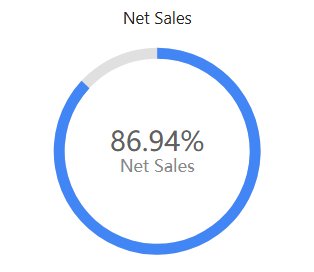
Make the meaning visible
| Option (Style) | Effect | Default |
|---|---|---|
| Plot area → Diameter | Size of the ring, 10–100%. | 95% |
| Plot area → Ring thickness | Thickness of the ring, 1–30%. | 10% |
| Plot area → Inner padding | Inner padding of the ring, as a percentage of the ring width (−50 to 100%). | 0% |
| Plot area → Corner radius | Rounded ends of the progress ring. | Off |
| Plot area → Ring background | Color of the unfinished part of the ring. | #E0E0E0 |
| Plot area → Target value | Fixed target, used when no Target measure is bound. | Empty |
| Plot area → Progress direction | Clockwise or Counterclockwise. | Clockwise |
| Data colors → Conditional color | Ring color by condition; see below. | |
| Data labels → Label contents | Hidden, Value or Percentage in the center. | Percentage |
| Data labels → Percentage precision | Decimals of the percentage. | 2 |
| Data labels → Show name, Name, Name font | A name line under the value. If Name is empty, the Progress measure's name is shown. | Show name on for new rings; off in reports from earlier versions |
| Data labels → Sub-label, Sub-label font | Adds the Progress measure and/or the Target measure value, so readers can see the amounts behind the percentage. | None |
Use a concise name such as Order completion. The ring has no Show Tooltip switch.
Conditional color opens a dialog where you choose the Configuration type, Value or Percentage, and add ranges with a Start value, an End value (blank means −∞ or +∞) and a Color. A percentage condition and a value condition are different: check the selected type and test the boundary values. Use conditional colors only when the thresholds have a clear meaning.
Above target, empty values and clicks
Above 100% the ring is simply full, so it cannot show how far a result exceeds the target. Read the numeric label, and show the amounts with Sub-label when that matters.
If the percentage is unexpected, check units, zero or missing targets and whether the target measure repeats at a finer grain.
When the actual value is empty, the ring shows the empty-data message instead of 0.00%, also with a fixed target. Style → Empty data only changes the text; see Empty data and error messages.
Clicking the ring does not filter, drill or highlight anything, but a script under Actions → Events → Plot area click runs.
Opening reports made before 10.00
- Ring background is now applied. Earlier versions drew the unfinished part in the palette's second color (often red), so such rings look different.
- A ring without an actual value shows the empty-data message instead of 0.00%.
- The automatic title no longer includes the target measure.