
Appearance
Stacked column and bar
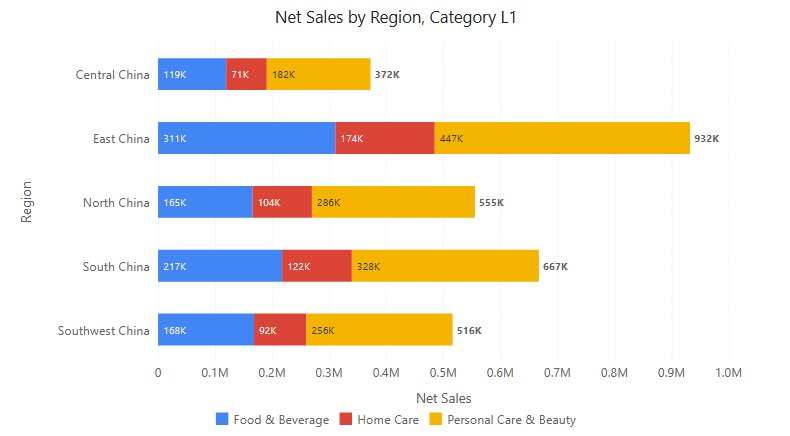
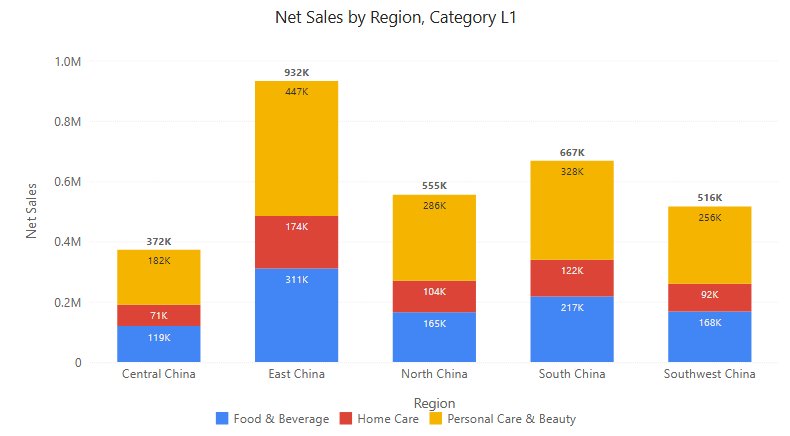
Columns or bars whose segments add up to the category total. Read the overall heights (or lengths) first, then the mix of segments. Only the segment next to zero has a shared baseline; to compare one series across categories, use a Clustered column or Clustered bar. For shares instead of amounts, use a 100% stacked column or bar.
Column or bar
Both are in Components → Charts → Column & bar and work the same way apart from the orientation. Use the bar when category names are long or there are many categories.
| Stacked column | Stacked bar | |
|---|---|---|
| Category field group | X-axis | Y-axis |
| Value axis | Y axis: Scale, Y-axis min value, Y-axis max value | X axis: Scale, X-axis min value, X-axis max value |
| Data label Position | Inside top (default), Center, Inside bottom | Inside left (default), Center, Inside right |
| Show total | At the top of each column | At the right end of each bar |
| Round corners | Top of a positive stack, bottom of a negative one | Right end of a positive stack, left end of a negative one |
| Bar-only settings | – | Bar → Space (%) (5–90, default 50), Bar → Right margin, Y axis → Label width (40–800 px, default 50 px) |
Build a sales breakdown
- In Components → Charts → Column & bar, click Stacked column or Stacked bar, then click the canvas. A new chart is 400 × 300 px.
- In Data, choose an Analysis model and fill the field groups. Click Back after each selection.
- Set Filters to a defined period, such as Year = 2025. Keep months in chronological order and include the year when comparing several years.
| Field group | Example | Purpose |
|---|---|---|
| X-axis (column) or Y-axis (bar) | Month | One column or bar per member. |
| Legend | Region | One segment per member. |
| Measures | Net Sales | The amount that is stacked. |
| Tooltips | Order Count | Extra values in the tooltip; not drawn. |
Use either one measure split by a Legend field, or several measures that are separate parts of one total. Do not stack a total together with its own components: that counts the same value twice, and the total looks too large. With several measures, Legend and Color are not available and the measure names identify the segments.
Totals and segment labels
Open Style → Data labels and turn on Show:
| Option | Effect | Default |
|---|---|---|
| Position | Where the label sits in each segment; see Column or bar. | Inside top / Inside left |
| Show total | Sum of the segments at the end of each column or bar. When the category's net value is negative, the total is drawn beyond the negative part of the stack (below the column, left of the bar). Needs Show. | On for new charts, off in older reports |
| Hide labels below (%) | Hides the label of a segment whose share of its column or bar is below this value (0–20). The share is the segment divided by the sum of the absolute segment values in that category. | 0 (all labels) |
| Display units, Decimal places | Format of segment labels and totals. | Auto for new charts |
- The total is the net value: positive and negative segments are added. A positive net total always sits at the end of the positive part of the stack, even when the last series is negative.
- Totals use the measure format with the label's Display units and Decimal places. With a unit and Auto decimals, labels and totals share about three significant digits (1.85M, 0.97M, 0.50M).
- No total is shown when the stacked measures have different formats, for example an amount and a percentage.
- Series hidden in the legend are left out of totals and shares.
- Space is kept above the columns, or to the right of the bars, so the longest total is not cut off. On the bar, a value typed into Bar → Right margin replaces this automatic space, so a long total can then be clipped; clear the box to return to automatic. 0 removes the margin.
- An Average reference line label can overlap a total label; move the line label or turn off Show total.
Inside labels that do not fit their segment are hidden; see Data labels.
Axis, negative values and corners
- Mixed signs. The value axis includes 0 and covers, per category, the sum of the positive segments on one side of 0 and the sum of the negative segments on the other. With +100, +80 and −50 in one column the axis reaches 180, not the net 130, so no stack is cut off. The column height or bar length is then not the total: read the total label, which shows the net value, and inspect both sides of zero.
- Percentage measures. A measure formatted as a percentage gets a percentage axis whose ticks match the tooltips (for example 0%–300%).
- Round corners (Style → Bar) rounds only the outer end of each stack; inner segments stay square. If the outermost series is hidden in the legend, the segment below it is not rounded.
- Hiding a series in the legend rescales the axis and recalculates totals and the Hide labels below (%) shares.
- In Analytics, statistic lines default to Calculate over → Category totals on stacked charts; see Reference lines.
- On the bar, category names longer than Y axis → Label width are cut off; increase the width.
Fixed axis bounds, Scale, tooltips and switching between column and bar work as on the Clustered column.
Opening reports made before 10.00
- Axes now start at 0 and cover the positive and negative sums, so some axes change when the report is opened.
- Percentage axes were 100 times too small (0%–3% while the tooltip showed 54%); they now match the values.
- Labels inside segments that do not fit are now hidden.
- Stacked bar: X axis → Scale now takes effect, and Right margin = 0 removes the margin.
Related: Clustered column · Clustered bar · 100% stacked column and bar · Display Units · Component filters