
Appearance
Show Items with No Data
Keep dimension members visible when they have no measure result in the current query, for example months without sales or products that did not sell.
- Select the chart or table and open Data.
- Hover a dimension field and choose ⋮ → Show items with no data.
The field in Data then shows an icon whose tooltip reads Data settings changed: Show items with no data. The item is in the ⋮ menu of the category, row and column fields of charts and tables; where a field group does not support it, the item is greyed out.
The switch applies to the whole axis
Normally the query drops empty rows and columns. Show items with no data turns this off for the whole axis the field is on, not for that field alone: switching it on for one row field also shows empty members of the other row fields, and the item shows as checked on all of them.
With two or more fields on the axis, every combination of their members is returned, including combinations that never occur together. For example, Region × Product with 8 regions and 2,000 products gives 16,000 rows even if most products sell in only one region. Such a query can stop at the page's Max query records (Page → Settings → Performance, default 5,000) and show Showing the first … of … rows. Use it with one field on the axis, or narrow the other fields with filters. See Page Settings.
A filter on the field itself still applies: an excluded member does not come back. A filter on another field, such as Year = 2025, only empties the values, so members without 2025 data are shown. The switch also cannot add members that do not exist in the model, such as a month missing from the date table.
In this chart a component filter keeps Region = East China, and Show items with no data is on for City: the cities of other regions stay on the axis without columns.
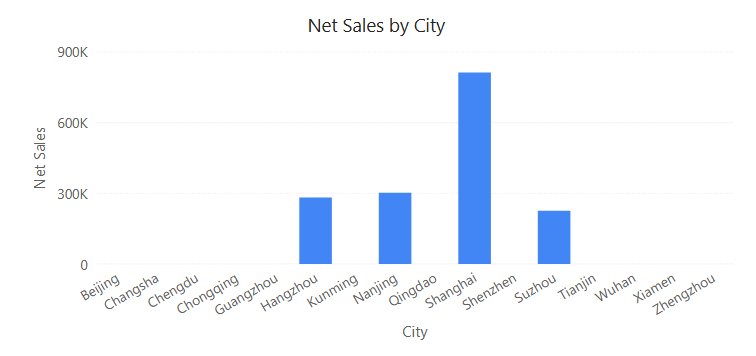
What empty members look like
- In a chart, the member appears on the axis or in the legend without a column, bar or point. The value is empty, not zero.
- In a table or pivot table, the row or column appears with empty cells.
| Setting | Applies to |
|---|---|
| Show items with no data (dimension) | Members without results stay in the chart or table. |
| Empty values as (measure, Table, Pivot table and Measure card) | Empty cells show a placeholder such as -. |
| Empty data message (Style → Empty data) | The whole result is empty. See Empty Data and Error Messages. |
| Show blank main value as (Measure card) | The card has no value. |
On a continuous date axis, missing periods are already visible as gaps; see X Axis Type Settings.