
Appearance
Measure card
Display one aggregated result prominently, with up to two comparisons. Use it for a total, rate or average whose scope is clear, for example net sales for the selected year. Use a KPI trend card when readers also need the trend over time.
Build an actual-versus-target card
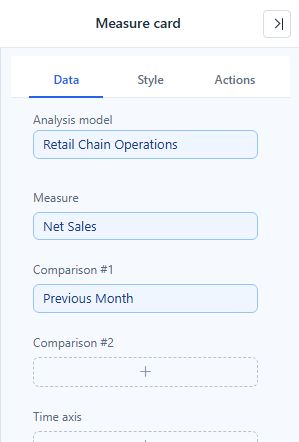
- Add Components → Charts → Cards & KPI → Measure card (a new card is 260 × 160 px) and choose an Analysis model in Data.
- Put Net Sales in Measure.
- Optionally put Sales Target in Comparison #1 and a prior-year sales measure in Comparison #2.
- Set Filters to the intended period and population.
- Check each measure on its own before formatting the comparison.
| Field group | Holds |
|---|---|
| Measure | The main value. The automatic title names only this measure. |
| Comparison #1, Comparison #2 | Reference measures. Each one is compared with the main value. |
| Time axis | Optional date field. A page Date filter set to filter by Time axis filters the card through this field; see Date. It does not create a comparison. |
| Filters | Component filters. |
Comparisons come only from the measures in the comparison slots. A measure in Comparison #2 is "last year" only if the model measure calculates last year. Actual and reference must have compatible units and scope.
Choose what each comparison shows
Open Style → Comparison #1 settings or Comparison #2 settings:
| Option | Effect | Default |
|---|---|---|
| Show name | Shows the comparison measure's caption after the value. | On |
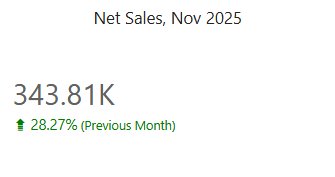
| Value type | Value: the reference value. Change: main value − reference. Growth%: (main value − reference) ÷ |reference|. | Growth% |
| Display units, Decimal places | Format of the comparison number. Growth% uses only Decimal places. | Same as Main value |
| Font, Align | Text style and horizontal alignment. | – |
Growth% divides by the absolute reference, so a negative reference keeps the sign meaningful: −50 against −100 is +50%. When the reference is 0, no growth rate is shown.
Format the main value
| Option (Style → Main value) | Effect | Default |
|---|---|---|
| Font | Size, colour, bold, italic. | 28 px |
| Align | Horizontal alignment. | Left |
| Display units | Unit for the number, for example 5.09M. | Auto for new cards, Follow measure format in older reports |
| Decimal places | Auto or 0–4. | Auto |
A comparison whose Display units and Decimal places were never set uses the main value's settings, so a main value of 5.09M is not followed by −1,193,942.21. Once you set either one for a comparison (even to Follow measure format), its own setting applies. Percentages are never scaled, and the hover tooltip still shows the full formatted value. See Display units and decimal places.
Set favorable direction
In Style → Comparison color:
| Option | Effect | Default |
|---|---|---|
| Comparison direction | Higher is better (sales), Lower is better (cost, response time, defect rate), Follow measure, Neutral (no judgement). | Follow measure for new cards, Higher is better in older reports |
| Favorable change color | Colour of a favorable change. | Green |
| Unfavorable change color | Colour of an unfavorable change. | Red |
- The arrow shows the numeric direction; the colour shows whether that change is favorable. A downward arrow is green for a lower-is-better metric.
- Follow measure uses the measure's Direction in the model (see Measures). A measure without a direction is treated as Higher is better.
- Equal values are grey with no arrow. Neutral shows grey with an arrow.
- If the status colour looks wrong, check Comparison direction and the measure's Direction in the model before swapping the colours.
Layout, colour rules and empty values
| Setting | Effect |
|---|---|
| Layout → Layout | Default, Right (comparisons beside the main value) or Bottom (comparisons side by side below it). In Right and Bottom, a comparison name that does not fit wraps to the next line; numbers stay on one line. |
| Data colors → Color | Colour rules for the main value, including a value of 0. The rules have no value/percent switch because the card has a single value. See Conditional colors. |
| Empty data → Show blank main value as | Text shown when the main value is blank, such as — or 0, also when the query returns no rows. The card is then drawn with this text and blank comparisons instead of the empty-data message. Leave it empty to show the message. It is the same setting as Empty values as in the measure's field menu. |
The other Empty data options are described in Empty data and errors.
Opening reports made before 10.00
- Growth% against a negative reference now shows the correct sign, and equal values are grey instead of favorable.
- An automatic title that was never edited now names only the main measure.