
Appearance
Treemap
Show the contribution of categories as rectangles. Rectangle area represents the measure; nesting provides context. Treemaps fit more categories than a pie, but close values are easier to compare in a bar chart.
Build a category breakdown
- Add Components → Charts → Proportion → Treemap (a new treemap is 400 × 300 px), then choose an Analysis model in Data.
- Put a broad category, such as Product Category, in Series.
- Put the next level, such as Product, in Detail. Start with fewer members before adding a dense level.
- Put Net Sales in Measure. Add optional Color and Tooltips fields only when they help explain the rectangles.
- Set a period in Filters and inspect the hierarchy and values.
You can drag a field between Series and Detail; dropping it on a filled group swaps the two fields. Use non-negative, additive values. Rectangle size is not a suitable representation of a mixture of percentages, currencies and counts. If a parent and its children appear inconsistent, inspect their field relationships and measure aggregation in a table.
Make the hierarchy readable
| Option (Style) | Effect | Default |
|---|---|---|
| Series → Font | Font of the parent (series) labels. | 12 px |
| Data labels → Label | None, Name or Name and value on each block. Parent blocks show the name only. | Name and value for new treemaps; Name in reports from earlier versions |
| Data labels → Display units, Decimal places | Unit and decimals of the values in the labels; see Display units and decimal places. | Auto for new treemaps; Follow measure format in reports from earlier versions |
| Data labels → Color by parent | Child blocks use shades of their parent's color, from darker to lighter, so you can see which group they belong to. Off: each block takes the next palette color. | On for new treemaps; off in reports from earlier versions |
| Data labels → Font | Font of the block labels. | 10 px, white |
| Tooltip → Show Tooltip | Hover tooltip with the exact value; see Tooltips. | On |
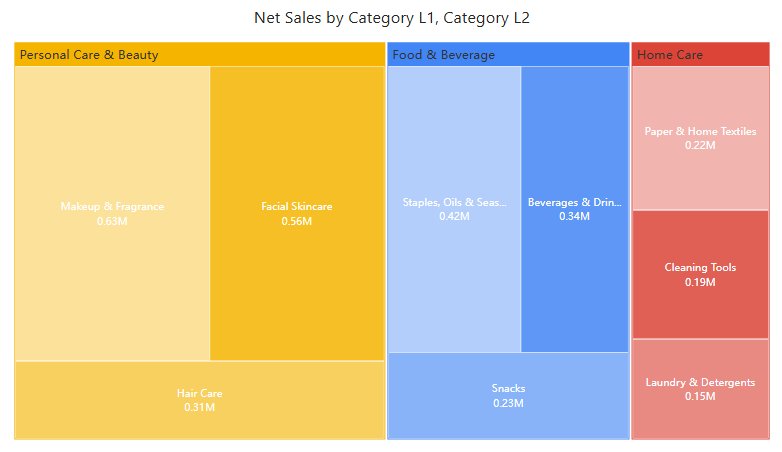
There are no settings for block spacing or a minimum block size. Choose Name and value only when the blocks have room for two lines, and keep exact values in the tooltip. Resize the component before hiding labels. A large parent containing many tiny children may need a filter or a separate detail view.
If many rectangles have similar sizes, use a sorted bar chart for ranking. Use Sunburst when the sequence of hierarchy levels is more important than packing many values into the available space.