
Appearance
Text
Text shows a heading, label or note in one style. For mixed formatting, lists or measure values inside the text, use Rich text.
Add and edit
- In Components → Assists, click Text, then click the canvas.
- Select the component, then double-click it to type. An empty Text shows Type text here in the editor.
- Click outside to finish.
Style → Content
| Setting | Options |
|---|---|
| Alignment, Vertical alignment | Left / centre / right; Top / Middle / Bottom |
| Font, Decoration | Font, size, colour, bold, italic; None / Underline / Strikethrough |
| Line height, Letter spacing | 1–3 (default 1.4); 0–10 px |
| Wrap text | On for new Text components; text in older reports does not wrap |
| Overflow | Scroll bar (default), Cut off, Ellipsis |
| Insert dynamic value | Today's date, Current user, Report name, a report parameter value or a filter selection |
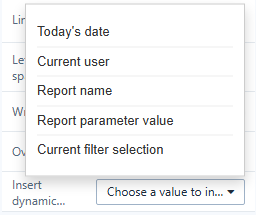
The inserted value goes where the cursor was, as a placeholder such as {{filter.Region}} or {{date:YYYY-MM-DD}}. Readers see the current value, updated when filters or parameters change. See Dynamic Values.
Style → Effects sets the background (solid or gradient), border, padding (default 5 px), opacity and hover effect.
Actions
Visibility: show the text only for some parameter values, users or roles. Text has no click action; to make text clickable, use a Rich text link or an Action button.
See Click Actions and Visibility.
Text is shown as written: HTML in the text is not run.