
Appearance
Permission Evaluation Overview
A user can be allowed to open a report but see only some rows, have a column hidden, or be unable to edit the report. These are different permission decisions, not contradictory results.
This guide connects the standard Console permission controls and database Data Security rules. Use it to design access, explain an unexpected result, and review a permission change. For individual configuration screens, see User Types, Access Control List, and Data Security.
There is no single “deny always wins” rule. File ACLs combine grants, matching RLS policies combine with OR, and OLS exclusions accumulate after each object policy is evaluated. Unmatched RLS subjects are not denied by default.
1. What each layer decides
| Layer | Question it answers | What it does not do |
|---|---|---|
| User Type | Can this account use reader, authoring, or administrator capabilities? | Making someone a Creator does not grant access to every shared resource. |
| Business Role | Which business groups does this user belong to, such as North Sales or Finance? | Membership alone does not define access. The role must be referenced by a resource grant or data policy. |
| File/folder ACL | May this user view, edit, delete, or manage permissions on this resource? | Opening a report does not establish row or column restrictions. |
| RLS — Row access | Which records from this datasource, schema, and table may a governed query return? | RLS does not grant access to a report or reveal an OLS-hidden object. |
| OLS — Table & column access | Which tables, views, or columns are excluded from governed access? | OLS does not grant editing rights or replace row filtering. |
For an ordinary account, use this reasoning sequence when diagnosing access. It is a checklist, not a claim that every endpoint performs checks in this exact order:
- Identify the authenticated user, User Type, and all resolved roles.
- Check that the account has the capability needed for the action.
- Check the resource ACLs required by that workflow, including relevant folders and dependent resources.
- For governed data access, evaluate OLS visibility and the effective RLS condition on the actual datasource and physical objects.
- Apply the report's ordinary filters to the permitted data.
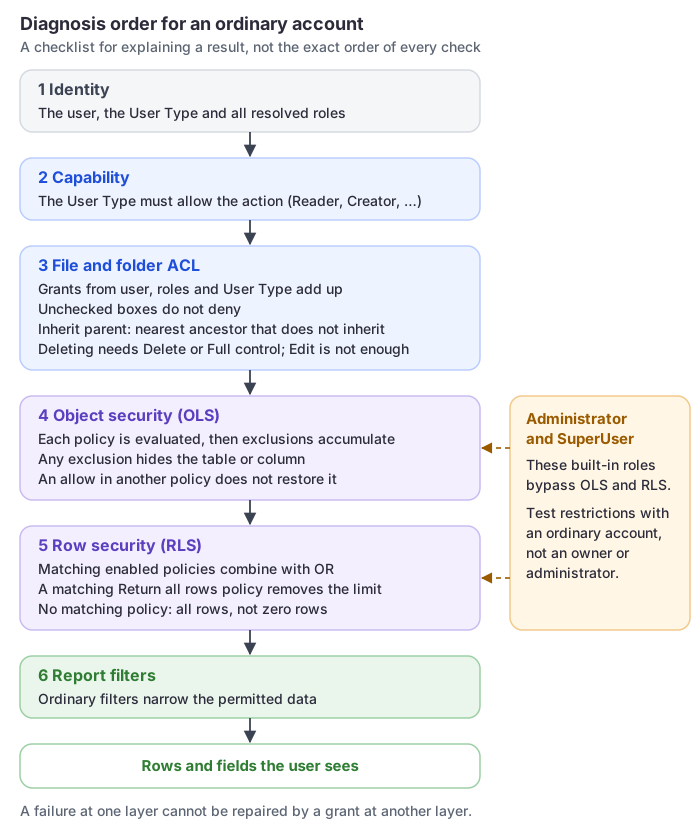
A failure at one required layer cannot be repaired by granting permission at a different layer. An RLS full-row exception cannot open an inaccessible report; a report's Full control cannot make a hidden column visible.
User Types and Business Roles are different
- Reader: views granted content; a role with Edit permission does not turn a Reader into a Creator.
- Creator: can create content and edit resources where access permits it. For shared content, check the relevant ACL.
- Administrator: manages the system and has privileged access. Do not use this account to test business-user restrictions.
Use Business Roles for audiences and responsibilities. A user can belong to several roles, and all relevant memberships participate in evaluation. There is no “primary business role” whose permissions automatically replace the others.
Granting access to a User Type targets a broad class of accounts. For example, a Read grant to Reader may reach people outside the business role you intended to authorize. Review User Type grants alongside user and Business Role grants.
2. File and folder ACLs: grants and inheritance
Grants add access; unchecked boxes do not deny it
The Console ACL editor provides Read, Edit, Delete, and Full control. Its permission levels are cumulative: higher levels include the lower levels shown in the editor. Full control includes permission management; reserve it for resource custodians.
For an ordinary non-owner, matching grants from the user, Business Roles, and User Type contribute access. A lower grant does not cap a higher grant from another matching subject.
For example, suppose Alice is a Creator:
- Alice has a direct Read grant on a report.
- Her
Report Authorsrole has Edit on that report. - Alice can edit it. The direct Read grant is not a denial of Edit.
Removing Alice's direct entry still leaves the role grant. To revoke access, inspect every matching grant in the effective ACL. An unchecked permission means that entry does not grant it; the Console does not create an explicit deny entry to cancel other grants.
Inheritance selects the ACL to use
When Inherit parent is enabled, the resource follows its parent's effective ACL. If that parent also inherits, continue upward to the nearest non-inheriting ACL.
When inheritance is disabled, configure the resource's own entries. Do not think of this as adding a local deny on top of the parent's Read/Edit grants. Re-enabling inheritance clears its existing local authorization entries and returns the resource to parent authorization; record those entries and review the confirmation before saving.
This has two operational consequences:
- A parent permission change affects descendants that continue to inherit, but not a descendant with its own ACL.
- Creating, moving, or deleting content can involve folder permissions as well as permissions on the item. When one of these operations fails, check the source and destination folders, not only the report's permissions.
Use Public for reports and folders that need shared ACL authorization. Public is a content location, not a promise that everyone can open everything in it. Personal content is not the place to configure shared file/folder ACLs.
Owner and administrator exceptions
The resource owner receives owner access, and administrators have privileged repository access. Removing an ordinary ACL entry is not a way to deny the owner or an administrator. For deletion, however, ownership alone is not enough: the check looks for a Delete or Full control entry (see below). Use an ordinary non-owner account for ACL acceptance tests.
Owner access or datasource Full control is not, by itself, the Data Security bypass. The built-in Administrator and SuperUser roles bypass RLS and OLS. Do not assign an administrator role merely to give a manager unrestricted rows.
Deleting requires Delete or Full control
Deleting a report, file, or folder (moving it to the Trash) or an analysis model requires Delete or Full control in the item's effective ACL. The grant can be made to the user, one of their roles, their User Type, or Authenticated, and it can be inherited from the folder. Edit does not allow deleting, including Edit on the parent folder. Before 10.00, Edit on a folder let a user delete other users' reports in it.
- Batch delete of files and folders is all-or-nothing. If one selected item lacks Delete, nothing is deleted and the error names that item (
no delete permission: <path>). - Models: a model the user may not delete stays in place and the deletion is reported as failed (
Delete Denied: <model>), also in a batch. A model that no longer exists counts as deleted. - Authors: reports created in the report editor, or saved with Save as, give their creator Full control, so the author can delete them. The check reads ACL entries only; for older content that only inherits a folder ACL, grant Delete explicitly to the people who must remove it.
- Administrators are not affected.
Analysis models: default ACL and data source Read
- A model created through the API without an ACL is available only to its creator (Full control, not inherited). Before 10.00 it inherited Full control for all signed-in users. Models created, saved with Save as, cloned, or uploaded in the Console carry their own ACL as before.
- Publishing a new model, or changing the data source of an existing one, requires Read on that data source. Otherwise the save fails with
Connection READ permission is required: <data source>. Re-saving or renaming a model that keeps its data source is not checked. Administrators are exempt. - A user without the Create content capability who creates a model gets
Create Denied.
Check what grantees still need
A grant on a model is not usable without Read on its data source, and a report grant is not usable without Read on the models and data sources the report uses. After you save a grant, Datafor checks these dependencies for the users and roles you just granted. If any of them lack Read, the notice Permissions saved lists them.
| Where you granted | The notice lists grantees without Read on |
|---|---|
| A model's Access setting in the Models list, or Users / Roles → Model permissions | The model's data source |
| A report's or folder's Permissions in the content list, or Users / Roles → File permissions | The models and data sources those reports use |
Each entry is headed Model or Data source with the item's name and lists the users and roles concerned. Grant their Read in the Models and Datasource lists, then click Got it. The notice is a hint only; it changes no permissions.
- For a folder, only reports that inherit this grant are checked, and at most 200 ("The folder contains many reports; only the first 200 were checked.").
- A user counts as having Read when a grant to the user, one of their roles, their User Type, or Authenticated provides it. Roles and User Types you grant are checked for their direct grants only; if their members have access through another role, ignore the entry.
- Reports saved before Datafor recorded which models they use, and resources you cannot read, are listed as not checked. Saving such a report again fixes this.
Data connections: targets and custom SQL
Read on a data connection lets a user build models and reports on it, but not on every kind of connection. Administrators are not restricted.
| Connection target | Ordinary users can use it (Read) | Ordinary users can create it | Custom SQL by ordinary users |
|---|---|---|---|
| A database server other than the one holding the Datafor repository | Yes | Yes (with the Create capability) | Allowed |
| The database server holding the Datafor repository | Yes | No | Blocked when the connection's account can reach the repository |
| An engine running inside Datafor (DuckDB, SQLite, MS Access, CSV) | Yes | No | Blocked |
| An uploaded file dataset | Yes | Through File datasets | Blocked |
| JNDI, or a target Datafor cannot identify | No | No | Blocked |
A connection on the repository's server is sensitive when its account can reach the repository, for example a PostgreSQL superuser, a MySQL account with global privileges or one that can see the repository database, a SQL Server sysadmin, or an Oracle DBA. Use an account without those rights for reporting connections.
On a sensitive connection, an ordinary user cannot submit custom SQL: SQL views and SQL preview, where conditions, column expressions, row access conditions, or SQL inside a model. Publishing or validating such a model fails with SQL_FRAGMENT_FORBIDDEN:<connection> or SQL_EXECUTE_FORBIDDEN:<connection>. The schemas of the Datafor repository are hidden from them.
On any connection, raw SQL from an ordinary user needs Full control on the connection, and SQL that calls functions that run on the database server or reach other databases, such as file access, remote connections or command execution, is rejected. Saving or deleting legacy data permissions and query configurations through the API also needs Full control on the connection, and copying permissions is limited to administrators.
3. RLS: matching policies form a union
Each row policy belongs to one datasource and targets one schema and one physical table or view. Only enabled policies participate.
- Within one policy: conditions follow its All (AND) / Any (OR) groups.
- Across matching policies for the same table: conditions combine with OR, whether the match comes from a user, role, or User Type.
- A matching Return all rows policy: removes the RLS row restriction for that table, even if other policies are restrictive.
- No matching enabled row policy: RLS adds no restriction. This is All rows, not zero rows.
If a user matches both region = NORTH and department = SALES in separate policies, the result is North or Sales. To require both conditions, put them in the same All (AND) policy and check that no other matching policy broadens access.
Adding a row policy for North does not protect the table from users outside North. Likewise, disabling or deleting someone's only matching restrictive policy can increase their access to all rows. Review policy coverage before granting access to the analysis.
4. OLS: evaluate each policy, then combine exclusions
OLS controls whole objects or individual columns. It does not mask a value while leaving the column available. Hiding a column that an analysis depends on can make that analysis unavailable or cause its query to fail.
Hiding a whole table removes its fields and its dimension from an analysis model, but keeps the join it provides, so tables reached through it remain available. A hidden table on which the user has a row policy is kept as well, so its row condition still applies. See Hidden tables in a model join path.
Choose the visibility mode carefully
Only selected subjects can view is an allow-list for the selected objects. Within that policy, an explicitly selected user or a matching selected role/User Type remains eligible to see them; subjects outside the selection are excluded. Other policies can still exclude the same object.
Selected subjects cannot view needs particular care with role selections in the current evaluator:
- An explicitly selected user is excluded by that policy.
- For role/User Type selections, a match to just one selected role is not sufficient. In a deny-only policy, the role-based exclusion takes effect when the subject has a nonempty resolved role list and all of those roles are in the exclusion list. The resolved list also includes the User Type.
- An additional unselected role or User Type can therefore leave the object visible under that policy. Testing one role alone is not equivalent to testing a real user with several roles.
For example, a user resolves to North Sales and Reader. A deny-only policy selecting only North Sales is not a reliable way to hide salary from that user. Prefer Only selected subjects can view with a clearly defined Payroll audience, then test actual users inside and outside that audience. Do not maintain an expanding list of every other role as a substitute for an allow-list.
An allow in one policy does not undo another policy's exclusion
After individual object policies are evaluated, excluded tables and columns accumulate. If one enabled policy excludes salary for Alice, another policy that allows Alice does not restore it. A whole-table exclusion also cannot be repaired with a column-level allowance.
When changing an exception, revise the policy that causes the exclusion. Do not keep adding “allow” policies until the editor appears to grant the desired access.
RLS and OLS remain separate: Return all rows means all rows of an otherwise accessible object, not all tables and columns.
5. Conflict reference
These results assume ordinary accounts unless a privileged role is explicitly named.
| Configuration | Effective result |
|---|---|
| Reader + a role's Edit ACL grant | No Creator capability; the ACL grant does not upgrade the User Type. |
| Creator + direct Read + role Edit on the same resource | Edit is granted; direct Read is not an Edit denial. |
| A user's ACL entry is removed, but a matching role or User Type still grants Read | Access remains through that grant. |
| Edit on a folder or report, no Delete or Full control | The user cannot delete the report, including other users' reports in that folder. |
| Batch delete where one selected file lacks Delete | Nothing is deleted. |
| Model granted, but no Read on its data source | The grant is saved; Permissions saved lists the grantee, who cannot use the model until Read on the data source is granted. |
| Child has inheritance enabled | Use the parent's effective ACL, not independent local entries. |
| Child has inheritance disabled | Use its own ACL; also check folder rights for structural operations. |
| North RLS + South RLS on the same table | North OR South rows. |
| Restrictive RLS + matching Return all rows | No RLS row restriction on that table. |
| No matching enabled RLS | All rows, subject to other controls and query filters. |
| One OLS policy allows an object; another actually excludes it | Object remains excluded. |
| Deny-only OLS selects one of several resolved roles | Do not assume exclusion; the all-roles condition described above matters. |
| ACL Full control or Return all rows + effective OLS exclusion | The object remains excluded. |
| Row policy on a table that OLS hides | The table's fields stay hidden; the table stays in the query as a hidden join, so its row condition still restricts the data. Older-format models refuse the query with DATA_POLICY_CONFLICT. |
| Built-in Administrator or SuperUser | Data Security bypass; unsuitable for restriction tests. |
6. Typical access designs
The names below are illustrative, not built-in roles.
Regional readers sharing one report
- Assign Reader and a regional Business Role, such as
North Sales. - Grant the intended audience Read on the shared report and the resource access required by its workflow. If Permissions saved lists missing model or data source access, grant it. Check for broader User Type grants.
- Enable a North row policy on each relevant physical table. Keep Apply data security enabled in the analysis model.
- If some fields are sensitive, use an OLS allow-list for their permitted audience.
- Test a North user, a South user, a user in both regions, and a user with no regional role. The dual-region user receives the union; the unassigned user must not accidentally receive access with unrestricted rows.
Report authors without system administration
Assign Creator and an authoring role. Grant Edit on the intended shared folder/resources. Grant Full control only where the person must manage permissions or datasource policies. Keep ordinary business data policies in place and test with a non-owner account as well as the author.
Executives with all rows but restricted sensitive fields
Assign Reader or Creator according to whether authoring is needed. Give the executive role the appropriate report ACL and a Return all rows policy for each intended table. Keep sensitive columns behind an OLS allow-list. Do not use Administrator or SuperUser for this design: those roles also bypass OLS.
Embedded or shared access
Confirm the identity used by the actual request. A shared technical account has its own permissions, not those of each human viewer. A client-side region or tenant filter is not RLS.
Share links can use the sharer's data permissions; do not assume they enforce per-recipient RLS. Validate the chosen mode using the Share Link guide and test the real embedded, SSO, or API workflow separately.
7. Troubleshoot in a repeatable order
- Capture the failing action. Record the account, timestamp, report path, model, datasource, expected result, and actual result. Distinguish “cannot open,” “cannot edit,” “missing field,” and “wrong rows.”
- Resolve identity. Check the User Type and all Business Roles under Users. Check for Administrator/SuperUser, resource ownership, and a different identity used by sharing or embedding. After membership or User Type changes, sign out and back in before retesting; do not rely on an old session.
- Check capabilities and ACLs. Inspect the resource's Permissions, inheritance source, direct entries, role grants, and User Type grants. For create/move failures, inspect the relevant folders. For a delete failure, look for an entry that grants Delete or Full control; Edit is not enough. A role's details page alone is not a complete calculation for a multi-role user.
- Check the data path. Identify the actual datasource, schema, physical tables/views, and model's Apply data security setting. A policy on one datasource does not protect another connection to the same database.
- Run Data Security → Test access. Select the actual user as Simulated subject, then the schema and tables. Check Resolved subject, Row access, Effective condition, Field visibility, and Policies in effect. Saved drafts and unsaved edits do not participate.
- Explain unexpected access using all policies. For excess rows, look for missing coverage, additional matching roles, or Return all rows. For a visible sensitive field, check the OLS visibility mode and full resolved role list. For a missing field, inspect every policy that actually excludes it.
- Verify the real workflow. Preview data is a sample of up to 50 rows, not full sign-in impersonation or an ACL test. Run the report as the ordinary user, including prohibited rows/fields and editable report filters. Test the actual integration if applicable.
8. Audit permission changes
Row and object security policy changes and system settings changes can be recorded in the audit log; file and folder ACL edits, role memberships and User Type changes have no equivalent entries. See Audit Log.