
Appearance
Filters
Filter components let readers change what a report shows. A filter either filters linked components by a model field (for example, Region is East China) or sets a parameter that formulas, titles and text read (for example, GrowthRate = 0.15).
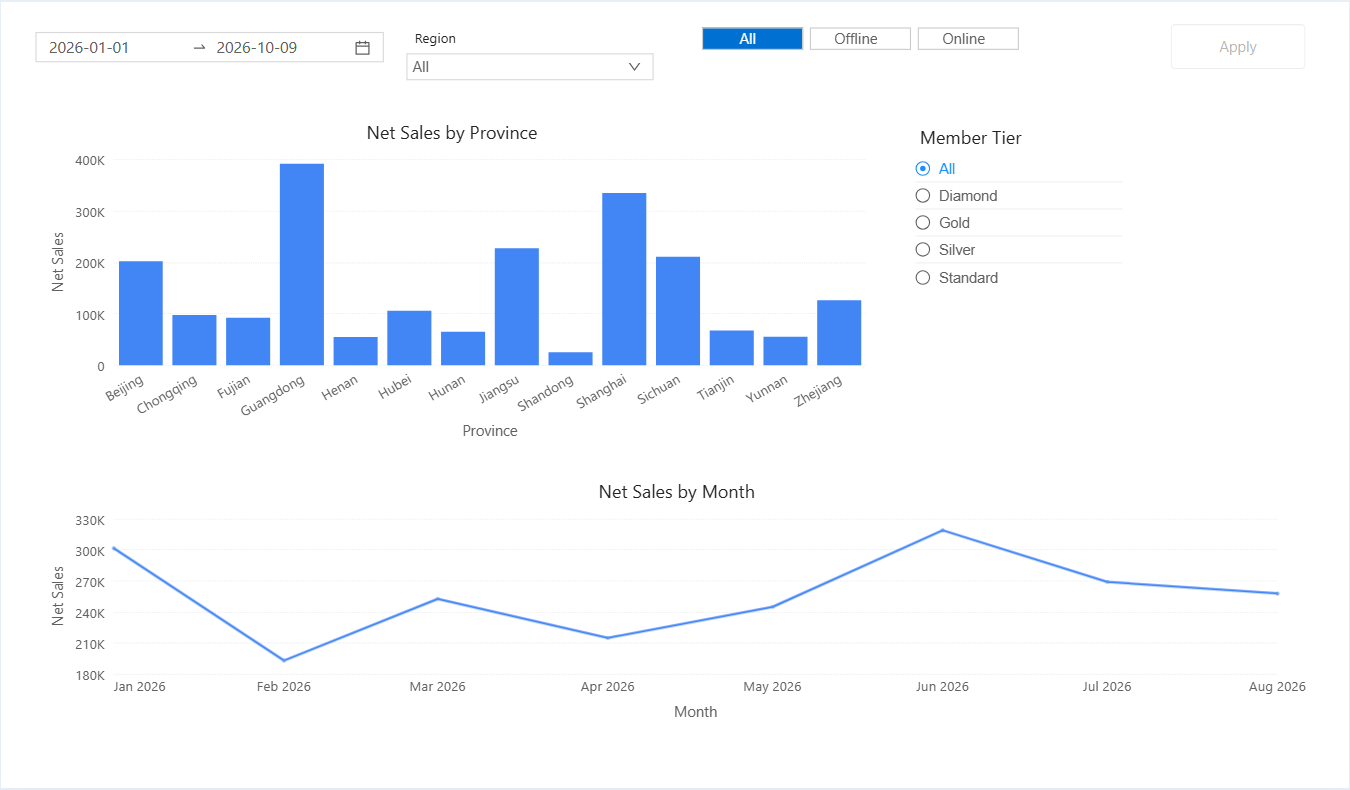
Choose a filter
All filters are in Components → Filters.
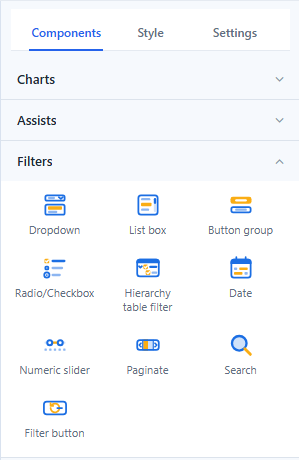
| Component | Use it for | Can bind a parameter |
|---|---|---|
| Dropdown | A compact single or multiple selection, with search. | Yes |
| List box | A list that stays visible, with search and keyboard navigation. | Yes |
| Button group | A few values shown as buttons, such as Online / Offline. | Yes |
| Radio/Checkbox | A few values as radio buttons or check boxes. | Yes |
| Hierarchy table filter | Selecting members in a hierarchy, such as Category › Subcategory › Product. | No |
| Date | A single period or a date range, fixed or relative. | Yes, with Filter by → Field |
| Numeric slider | A range of a numeric field, or a numeric what-if input. | Yes |
| Paginate | Stepping through members one at a time with arrows. | No |
| Search | Typing a keyword to match member names. | No |
| Filter button | Resetting or clearing all filters, or applying several changes at once. | – |
Older reports can still contain the separate parameter controllers, range filter and date components of earlier versions. They keep working; new filters use the components above.
Model field or parameter
Every list filter, the Date component and the Numeric slider start with Data → Data source: Model field or Parameter.

- Model field filters the components listed under Actions → Interactions → Linked components. The filter adds a condition to their queries.
- Parameter writes the selection into a report or global parameter. It adds no filter condition; only components whose query, title or text uses the parameter re-query. See Bind Filters to Parameters.
Add a filter
- In Components → Filters, click a tile and then click the canvas, or double-click the tile to place the filter at the next free position. A new filter uses the analysis model you used last on the page.
- In Data, keep Data source → Model field, then choose the Field (or Time field for Date).
- Set the Default value, Multiple selection and Show 'All' (list filters).
- In Actions → Interactions, check the targets under Linked components. Turn on Cascade other filters if the other filters on the same model should show only the values that remain available.
- Click Preview and test a selection, an empty result and the way back to the full data.
Default values
| Default value | Available in | Behaviour |
|---|---|---|
| Fixed | List filters, Hierarchy table filter, Paginate, Date | The members or dates you pick. Pick nothing to start with All. |
| Relative | List filters, Date | On a year, quarter, month, week or day field: a period such as Last Month, computed from the viewer's current date every time the report opens (see Relative Date Filtering). On other fields: the First or Last member. |
| All (no filter) | Date | No date condition. New Date components start with it. |
| Parameter | List filters, Date | The current value of a parameter. |
When a filter ends up with no selection, for example because a cascading filter removed its last value, it filters the way it looks: a multiple selection or a filter with Show 'All' filters nothing; a required single selection takes its first item.
What readers can do
| Action | Where | Effect |
|---|---|---|
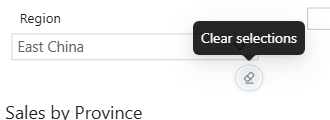
| Clear selections | Filter toolbar (eraser icon), shown on hover | Sets the filter to All. Not offered for a required single selection. |
| Reset to default | Date toolbar, in view mode | Returns the date to its value when the page opened. |
| × | Inside a Dropdown | Clears the selection. |
| Refresh | Report toolbar | Restores every filter to its opening value and clears links and drill-downs. |
| Reset filters / Clear filters / Apply | Filter button | Resets or clears all filters, or applies several changes at once. |
| Conditions | Chart toolbar (funnel icon with a count) | Lists the link, filter and passed-in conditions applied to that chart. |
A value passed in the report URL as default_<component title or id>=value1;value2 is applied on the first load and wins over Relative, First and Last defaults. Refresh returns to it.
Long lists and missing values
List filters load at most 1,000 members (type in the search box to search them all), and a saved value that is no longer in the data stays applied, shown in red with a strikethrough. See Long member lists and Values that are no longer in the data.
When a chart does not react, is empty, or a value shows in red, use Diagnose an unexpected result.
Layout
- Style → Title → Position: Top or Left, on Dropdown, Button group, Radio/Checkbox, Search, Date and Paginate. List box, Hierarchy table filter and Numeric slider always show the title on top. A left title takes at most half the width and shows an ellipsis when it is longer.
- Dropdown and Date have an input box of fixed height (from the font size) that no longer stretches with the component. Style → Content → Content alignment (Top / Middle / Bottom) places it in a taller component, and Control size (Compact / Standard / Spacious) sets its padding. In the editor these components cannot be made shorter than the input box.
- New filters start with the title on top and Content alignment Top. Filters from reports made before 10.00 keep a left title, and their box stays where the text was: Middle for a single-selection Dropdown and for Date, Top for a multiple-selection Dropdown.
- New filters get a size that fits their type, for example Dropdown 240×60, Date 320×48, List box 200×240 and Filter button 120×40.
Related
- Dropdown, List Box, Button Group and Radio/Checkbox
- Date · Numeric Slider · Hierarchy Table Filter · Search and Paginate · Filter Button
- Linking and Cascading Filters
- How Filters, Clicks, Drilling and Parameters Combine: what a chart shows when several conditions apply, and what each reset undoes
- Component-Level Filtering for conditions that belong to one chart