
Appearance
User Creation and User Types
Administrators create users and assign each one a User type. The user type sets the account's basic capabilities, not its complete access to resources or data.
For how User Types, Business Roles, file/folder ACLs, RLS, and OLS combine, including conflict rules and audit guidance, see Permission Evaluation Overview.
1. Opening the user form
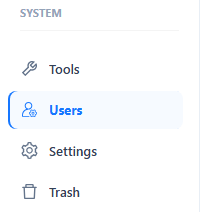
- In the left navigation, click Users.
- On the Users tab, click + (New) to create a user. To edit an existing user, click the login name in the list.
2. Filling in the user form
The form has three sections.
Account information
- Login name: the unique sign-in name. It cannot be changed after the user is created.
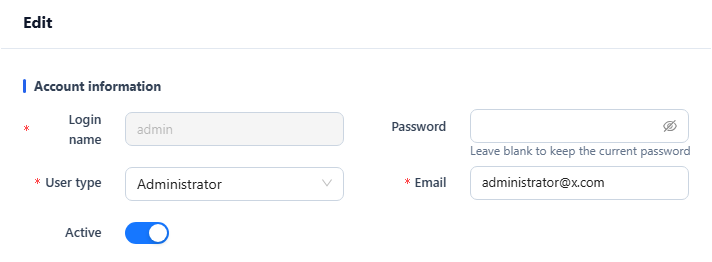
- Password: required when creating a user. When editing, the help text under the field reads "Leave blank to keep the current password"; enter a value only to reset it.
- User type: required. See Selecting a user type.
- Email: required; used for system notifications.
- Active: on by default. Turn it off to deactivate the account without deleting it.
Permissions
- Business roles: optional. See Assigning business roles.
- Enable AI Agent: gives the user access to the AI Agent. The number of active users with this switch on is limited by the AI users capacity in your license; enabling one more than the license allows fails with "AI user limit exceeded".
Profile
- Name, Mobile, Company, Department, Title: optional.
3. Selecting a user type
Choose the user type from the User type dropdown:
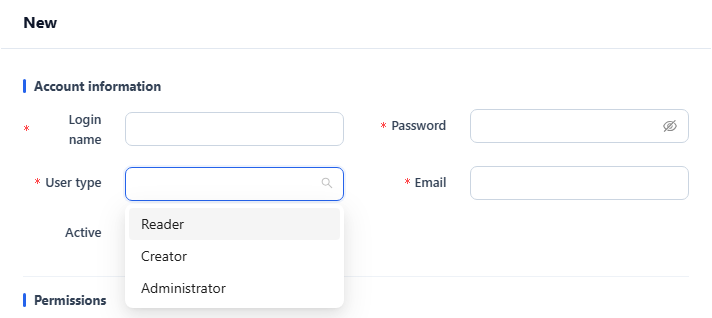
| User type | Permission scope | Typical users |
|---|---|---|
| Reader | Can view granted content: reports, dashboards, files and models shared with the user. Cannot create or edit content. | Business users, executives |
| Creator | Can create content and edit content they own or have been granted edit access to; shared-resource ACLs and Data Security still apply. | Data analysts, report designers |
| Administrator | Has full system administration permissions, including users, permissions and settings. | IT admins, system operators |
The User Type tab on the Users page lists the same types with their permission scope. An administrator can change a user's type at any time by editing the user.
4. Assigning business roles (optional)
- Business roles group users into business audiences. Reference those roles in resource ACLs and Data Security policies to define access.
- All relevant memberships participate in evaluation. Adding a role can broaden access; a restrictive role is not automatically a denial of another role's grants. See the conflict reference.
5. Saving
Click Submit to save.
6. Resetting a password
Administrators reset another user's password in the user form. To change your own password, use Change password on the My Account page.
In the left navigation, click Users.
On the Users tab, click the login name of the user whose password you want to reset.

In the Edit form, enter the new password in Password. The field is empty, and the help text under it reads "Leave blank to keep the current password"; leave it empty if you are changing other fields only.
Click Submit.