
Appearance
GIS Map Settings
Map components that draw an online basemap or turn place names into coordinates need a map service. An administrator configures the services in Settings → Data → Maps; report authors then choose a service in each map component.
Which component uses which service
| Component | Service | Chosen in |
|---|---|---|
| GIS marker map, GIS heat map | OpenStreetMap or Google (basemap tiles and geocoding) | Actions → Map Type Options → Type |
| Mapbox/Amap | Mapbox or Amap(Gaode) | Actions → Map Type Options → Type (default Mapbox) |
| Filled map, Marker map | None. They draw GeoJSON maps maintained in GeoJSON Map. | Data → Map |
| Image map | None. It draws a PNG or SVG image you upload. | Style → Map settings → Background image |
Service settings
| Service | Fields | Notes |
|---|---|---|
| Mapbox | Geocoding URL, API key | Used by Mapbox/Amap when Type is Mapbox. |
| OpenStreetMap | Tile URL, Geocoding URL, Geocoding request interval (ms) | No key. The public geocoding service is rate-limited; the interval (default 1200 ms) spaces the requests. |
| Google Maps | Tile URL, Geocoding URL, API key | Place-name lookup needs a key that is authorised for the Google Geocoding API. |
| Amap (Gaode) | Tile URL, Geocoding URL, API key, Web service key, Security key | Used by Mapbox/Amap when Type is Amap(Gaode). |
Default values on a new installation:
| Setting | Default |
|---|---|
| OpenStreetMap Tile URL | https://tile.osm.org/{z}/{x}/{y}.png |
| OpenStreetMap Geocoding URL | https://nominatim.openstreetmap.org/search |
| Google Maps Geocoding URL | https://maps.googleapis.com/maps/api/geocode/json |
| Amap (Gaode) Geocoding URL | https://restapi.amap.com/v3/geocode/geo |
| Mapbox Geocoding URL | https://api.mapbox.com/geocoding/v5/mapbox.places/ |
Tile URLs contain the placeholders {z}, {x} and {y} for zoom level and tile position. Keys are entered in password fields. Use endpoints and keys that belong to your organisation; do not reuse keys copied from examples.
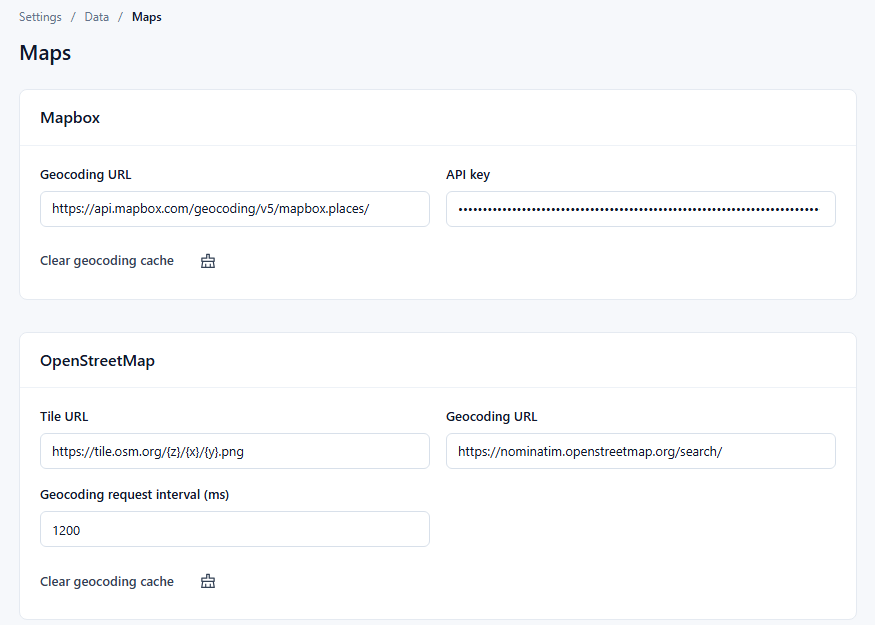
- Open Settings → Data → Maps with an administrator account.
- Fill in the card of the service you intend to use.
- Click Save. The button is enabled only after a change.
- Open a report with a few known locations and check the basemap and the marker positions.
Default basemap of new GIS maps
A new GIS marker map or GIS heat map starts with the system default map, which is OpenStreetMap on new installations. Only OpenStreetMap and Google are accepted as defaults; any other value gives Google. The default is stored with the GIS settings and has no field on this page.
Existing maps keep the Type they saved. Maps from earlier versions that never saved a Type stay on Google, so upgrading does not change their basemap.
Geocoding and its cache
Geocoding converts the values of a Geographic field (countries, cities, addresses) into coordinates through the service chosen in the component. Maps bound to Longitude and Latitude fields need no geocoding.
- Server cache: successful results are cached per service, so later queries do not call the service again. Failed lookups are not stored on the server.
- Browser memory of failures: a browser remembers a place that could not be located for 24 hours. During that time the place is not requested again, but it is still listed in the error message. After 24 hours it is retried; a later success clears the record.
- OpenStreetMap results: an administrative boundary is preferred, then a named place, then the first result, so landmarks and street addresses can be located. Names containing
&,#or+are sent in full. - Clear geocoding cache (on each card) deletes the server cache of that service after a confirmation (After clearing, geocoding will be requested again when viewing GIS maps.). On the Amap (Gaode) card it clears both Amap caches. Use it after changing a key or URL, or when a cached location is wrong. It does not reset the 24-hour failure memory in the browser.
Failure records written by earlier versions need no clean-up: they are retried the first time the map is opened after the upgrade.
Troubleshooting
Geocoding messages appear in edit mode only, as a red notification; people viewing the report see none of them.
| Message | Cause and fix |
|---|---|
| Places that could not be located ({count}): {list} | The service found no result for these names (up to 10 are listed). Check the spelling, put a higher level such as the country in the data, or use Longitude and Latitude fields. |
| The geocoding service is unavailable, so place names could not be converted to coordinates. Check the map service key configuration, or use longitude/latitude fields instead. | The service refused the request, for example because the key is not authorised or the quota is used up. The provider's original message is in the browser console. |
| Points whose longitude/latitude is not a number or out of range are not shown ({count}): {list}. … | Longitude/Latitude mode: some coordinates are invalid. See coordinate rules. |
| Bad request url | The Geocoding URL returns "not found". Check the URL. An old OpenStreetMap URL ending in /search/ is accepted. |
| permission denied | The service rejected access (HTTP 403). Check the key and its restrictions. |
| Map service is not responding, please contact the administrator. | The service could not be reached. Check the network, firewall and proxy access to the service URL. |
| Map API Key not found, please configure it in "Settings > Data > Maps". | The selected service has no key. Enter it on this page. |
| Geocoding failed / There are {count} geocoding failures, which are {details} | Mapbox/Amap only: names that could not be located. |
| The key for the map is invalid | Mapbox/Amap only: the Mapbox or Amap key was rejected. |
If the basemap is empty, check the selected Type, the Tile URL and whether the browser can reach the tile server. If the basemap loads but a marker is in the wrong place, check the location values, the coordinate fields and the geocoding configuration, then clear the geocoding cache and retest.