
Appearance
Row Limit: Top and Bottom N
Row limit keeps the members with the highest or lowest values of a measure, for example the top 5 provinces by Net Sales. On a dimension it can also add one Others item for everything else, so totals and shares stay complete.
Set a row limit
- Select the component and open Data.
- Hover the dimension (for example Province) and choose ⋮ → Row limit. You can also set it on a measure; the Sort measure then defaults to that measure.
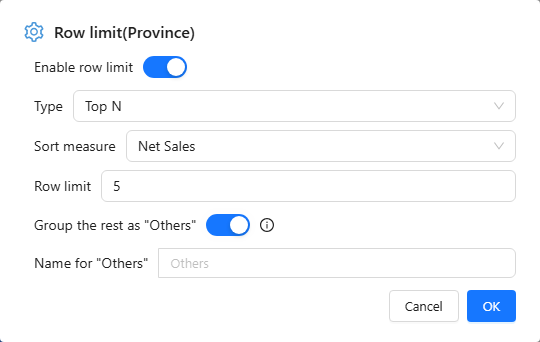
- Turn on Enable row limit.
- Choose Type (Top N or Bottom N), the Sort measure and the Row limit, for example 5.
- To keep the rest, turn on Group the rest as "Others" and, if you like, change Name for "Others" (up to 50 characters).
- Click OK.
A field with a row limit shows a check mark next to Row limit in its menu, and a sliders icon on the field chip.
How "Others" behaves
- It is one extra item, always shown last and in grey, whatever the sort.
- Its value is re-aggregated with the measure's own aggregation, so an average or a ratio is correct for the group, not a sum of averages.
- Totals and percentage shares include it, so shares add up to 100%.
- With several fields on the axis, the limited field must be the last one; each outer group then gets its own Others. Otherwise no Others item is added.
- It cannot filter other charts, drill or jump; right-click offers only Copy value. Reference-line statistics leave it out.
- It is not available on Funnel, Sankey, maps, Calendar chart, filter components, or on a measure's row limit.
"Others" needs the 10.00 query engine on the server; with an older server the option is ignored and only the top N appear.
Ranking and filters
The ranking follows the current filters, links and drill level, so it can change when readers filter. For a table that must show the whole list but highlight the top items, use conditional formatting instead.
Related: Sorting · Quick Calculated Measures