
Appearance
Bullet
Compare actual performance with a target and qualitative ranges in a compact display. The value bar shows actual performance; a marker identifies the target; background ranges provide context.
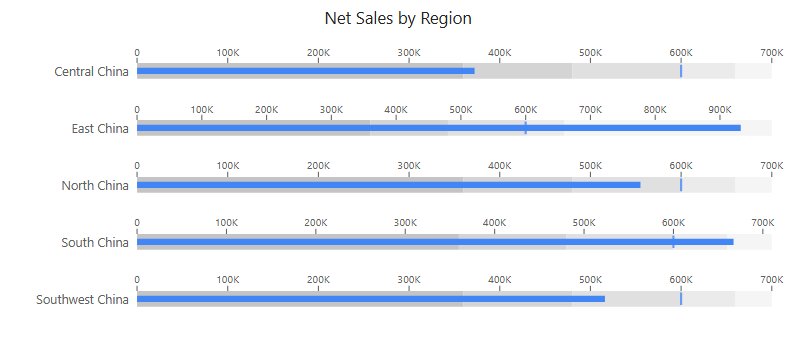
Build actual versus target by region
- Add Components → Charts → Cards & KPI → Bullet (a new bullet is 400 × 240 px) and choose an Analysis model in Data.
- Put Region in Category, Net Sales in Value, and Sales Target in Target value.
- If your model supplies range boundaries, bind Minimum, Normal, Satisfactory, Good, Excellent, and Maximum as needed.
- Set Filters to the same period for actual, target and thresholds.
Thresholds are boundary values, not extra performance bars. Keep them ordered and in the same units as actual and target. A model target repeated for every transaction can aggregate incorrectly; check the returned target per category.
Rows follow the data order from top to bottom; sort the Category field to change it. The automatic title names only the Value measure.
Use fixed targets and relative thresholds
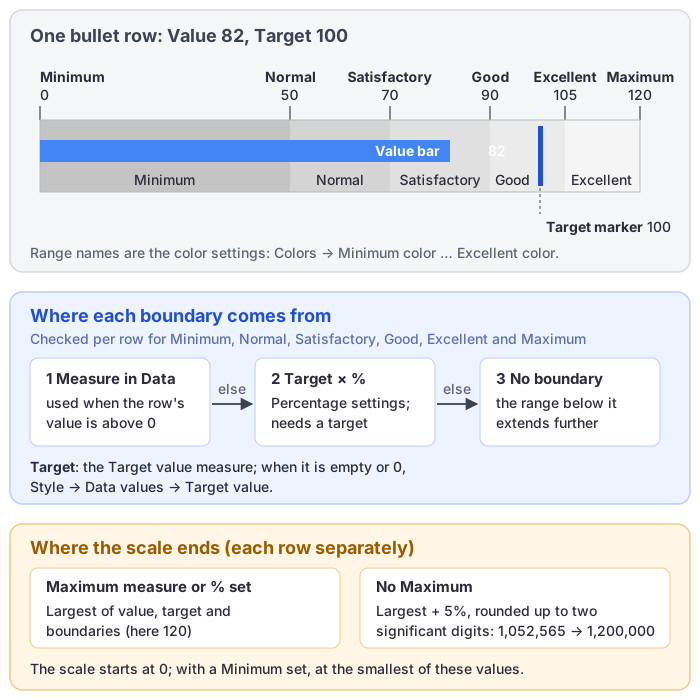
If no usable target measure is supplied, Style → Data values → Target value provides a fixed target. It is also used for categories whose Target value measure is empty or 0.
Under Percentage settings (Based on target value), enter percentages as whole numbers: 80 means 80% of the target. Each field (Normal %, Satisfactory %, Good %, Excellent %, Minimum %, Maximum %) is used only when the corresponding measure in Data is not bound or its value for the row is empty or not above 0. Percentage thresholds have no effect without a target.
For a target of 100, the boundaries 0, 50, 70, 90, 105 and 120 below define an increasing set of ranges. Choose boundaries appropriate to your business; the labels Normal, Good and Excellent do not determine the numeric thresholds for you.
The scale
- Each row has its own scale range. Bar lengths are not comparable between rows; compare each bar with its own target and ranges.
- Without a Maximum (measure or percentage), a row's scale ends at least 5% above its largest value, rounded up to two significant digits (for example 1,052,565 → 1,200,000), so the target marker never sits on the right edge. The last range extends to the end of the scale.
- Tick labels pick K, M or B automatically from the tick interval, with one unit for the whole chart, chosen from its largest tick; percent-formatted measures get percentage ticks. Chinese interfaces use
万and亿. - The number of ticks follows the component's width. To reduce crowded ticks, widen the component or hide the scale.
Format the comparison
| Option (Style) | Effect | Default |
|---|---|---|
| Direction | Horizontal or Vertical bullets. | Horizontal |
| Colors → Value color, Target value color | Actual bar and target marker. | Blue (#4285F4) |
| Colors → Minimum color … Excellent color | One color per range. | Greys from dark to light for new bullets; grey, red, orange, green and dark green in reports from earlier versions |
| Scale → Show scale | Scale ticks and values. | On |
| Scale → Scale color | Font size, color and family of the scale text. | 10 px, grey |
| Category labels | Show labels, font, and Label width (maximum width of a category name). | On, 12 px, 70 |
| Tooltip labels | Names used in the tooltip for each threshold, the target and the value, in business terms. | |
| Tooltip → Show Tooltip | Hover tooltip; see Tooltips. | On |
Keep the actual bar and target marker easy to see against the ranges. In horizontal bullets the right margin grows so that the last tick label, such as 100%, is not cut off, unless you set the right padding yourself.
When ranges or the target look wrong
Check that a higher value really is better for the chosen metric; range labels should not imply success for rising defect counts.
If ranges look wrong, inspect the data-bound threshold first, then the fallback percentage. If the target marker is missing, check for a missing or zero target.
Opening reports made before 10.00
- Rows are drawn in data order; earlier versions put the first row at the bottom.
- Without a Maximum, the scale now ends just above the largest value, so bars and the target marker move.
- Tick labels use K, M or B and one unit for the chart instead of long raw numbers.