
Appearance
Backup and Restore
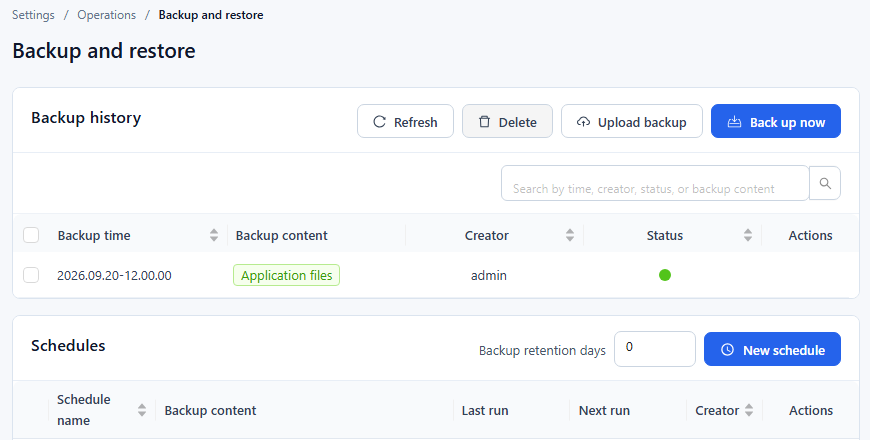
Go to Settings › Operations › Backup and restore. The page has two panels: Backup history (all backups, manual, scheduled and uploaded) and Schedules (automatic backups and the retention period).
1. Backup content
Each backup contains one or more of these parts:
| Backup content | What it holds |
|---|---|
| Content and settings | Reports, models, users and system settings: the data directory of the bundled PostgreSQL database. The AI Agent stores its data in the same database, so this also includes AI conversation history, LLM profiles and their encrypted API keys. |
| Uploaded data files | Data files uploaded to Datafor, such as Excel and CSV datasets. |
| Application files | Only the Datafor program, its plugins and JDBC drivers. It does not include the AI Agent program. |
When Content and settings is not selected, the backup dialog warns "This backup leaves out reports, models and users."
Backups are stored as .zip files in the backup/ folder of the Datafor installation directory (the folder that contains tomcat and pentaho-solutions).
What backups do not include
No backup includes the ai-agent/ folder, and in particular not ai-agent/instance-secrets.env. That file holds MODEL_PROFILE_ENCRYPTION_KEY, the key that encrypts the LLM API keys stored in the database.
- Restoring on the same server: nothing extra to do; the key file is still there.
- Restoring on a new server: copy
ai-agent/instance-secrets.envfrom the old server to the new one as well. Without the original key, the stored LLM API keys cannot be decrypted and must all be entered again. - Keep a copy of
instance-secrets.envin a safe place together with your downloaded backups.
2. Back up now
- In Backup history, click Back up now.
- In the New backup dialog, select the Backup content. Content and settings is selected by default.
- Click OK. "Backup task has been successfully created." appears and the backup is added to the list.
The Status column shows a green dot when a backup succeeded, a red dot when it failed (hover over it for the error), and a spinner while it is running; the list refreshes itself while a backup runs. Use Refresh to reload the list, and the search box to find backups by time, creator, status or backup content.
3. Upload a backup package
Click Upload backup and select a backup package (.zip), for example one downloaded from another Datafor server. The upload starts as soon as you select the file; the package then appears in Backup history and can be restored. If the server refuses the upload, for example because the package is already there, "The file already exists" appears.
4. Row actions: restore, delete, download
Hover over a row in Backup history to show its actions in the Actions column:
| Action | What it does |
|---|---|
| Restore | Restores the system from this backup. Available only for successful backups. See below. |
| Delete | Deletes the backup permanently. |
| Download | Downloads the backup package. |
To delete several backups at once, select their check boxes and click Delete in the panel header.
Restore a backup
- Click Restore on the backup row.
- Read the message: restoring deletes all changes made to the system after this backup.
- Type
RESTOREin the box ("Type RESTORE to confirm."). - Click Restore and restart the system. Datafor restores the backup and restarts.
Warning
Restoring overwrites everything made after the backup was taken. Back up the current state first if you may need it again.
5. Schedules
The Schedules panel lists automatic backups with Schedule name, Backup content, Last run, Next run and Creator. Hover over a row to Edit or Delete a schedule.
To add a schedule:
- Click New schedule.
- Enter a Schedule name and select the Backup content.
- Choose Repeat: Run once, Daily, Weekly, Monthly, Yearly or Cron (then enter a Cron string).
- Set the Start time (not for Cron) and the Start date. For repeating schedules, choose No end date or Ending with an end date.
- Click Save.
Backups created by a schedule appear in Backup history.
Backup retention days
Backup retention days in the panel header sets how long backups are kept. The value is saved automatically about a second after you change it.
0keeps all backups.- A value above 0 deletes backups older than that number of days, together with their files. The clean-up runs once a day and applies to all backups in Backup history, not only those created by schedules.
6. Keep a copy off the server
Backups are stored on the same server as Datafor. Download important backups and keep them outside the Datafor server, so that they survive a disk or server failure.