
Appearance
Bind Filters to Parameters
Any list filter, the Numeric slider and the Date component can set a parameter instead of filtering by a model field. This replaces the separate parameter controllers of earlier versions; reports that still contain them keep working.
Bind a filter
- Create the parameter (see Creating Parameters), or create it from the filter in step 3.
- Add the filter and choose Data → Data source → Parameter.
- Select the parameter in the list. The list shows Report parameters and Global parameters; + New parameter at the end opens the parameter dialog with a matching type.
- Save, preview and change the value. Check the formula, title or text that uses the parameter.
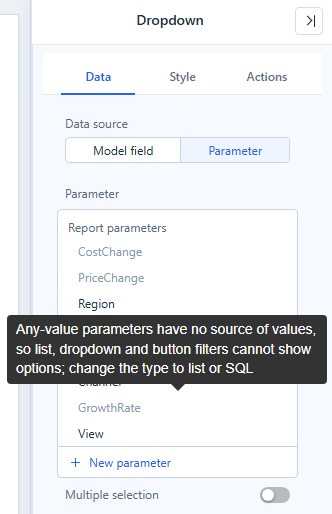
Which parameters a filter can use
Parameters that a filter cannot use are greyed out, not hidden. Hover one to see why.
| Filter | Parameter it needs | Reason shown otherwise |
|---|---|---|
| Dropdown, List box, Button group, Radio/Checkbox | List of values or SQL, any type | Any-value parameters have no source of values, so list, dropdown and button filters cannot show options; change the type to list or SQL |
| Numeric slider | Numeric with Any value | A numeric slider can only bind an any-value parameter of number type… |
| Date (Filter by → Field) | Date with Any value | A date component can only bind an any-value parameter of date type… |
Hierarchy table filter, Search and Paginate cannot bind parameters. System variables are not listed: they are read-only.
What changes when a filter is bound
- The options come from the parameter's list or SQL query; the initial selection is the parameter's default. Default value and Show 'All' are hidden.
- The title defaults to the parameter name.
- The selection writes the parameter. It adds no filter condition to other components; only components whose query, title or text references the parameter re-query.
- Multiple selection writes a JSON array such as
["Base","Optimistic"]. Only${name}in a model's SQL expands it to a list;ParamRef()and titles receive the text. - Several controls bound to the same parameter stay in sync.
- When nothing is selected, the parameter's default is used.
- If the parameter is deleted, the filter shows Parameter … no longer exists. Pick another parameter on the Data tab.
Switching back to Data source → Model field restores the field box and keeps the analysis model; you choose the field again.
For a worked example, a Numeric slider bound to a GrowthRate parameter that drives a scenario measure, see What-if Analysis; the slider's own range and step settings are in Numeric Slider.
Write a Date component's value to a parameter
A Date component that filters by a field can also copy its value into a parameter: Actions → Interactions → Write to parameter. A single date is written as YYYY-MM-DD, a range as ["start","end"].
Troubleshooting
| Symptom | Check |
|---|---|
| The parameter is greyed out. | Hover it; adjust its type or value source, or use the filter that matches it. |
| The value changes but nothing re-queries. | No component references the parameter, or the reference name differs in case or spelling. |
| A multiple selection breaks a formula. | ParamRef() receives a JSON array text; use a single selection, or use the parameter in model SQL. |
Related: Filters · Parameters in component titles