
Appearance
100% stacked column and bar
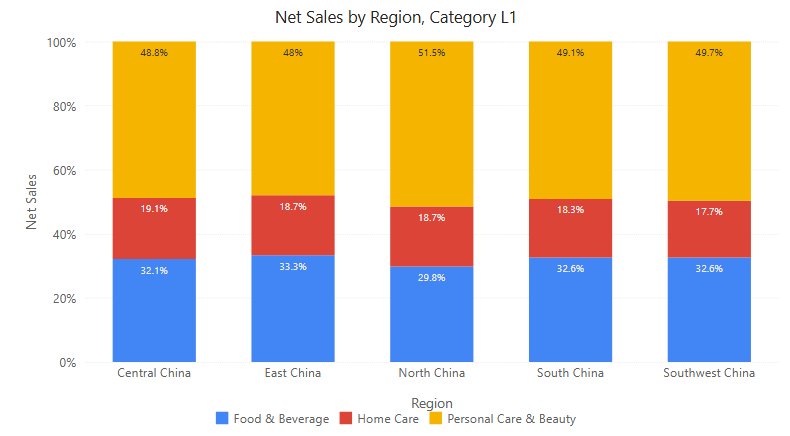
Columns or bars normalised to a whole: each segment is a share of its category total. Use them to compare the mix across categories whose totals differ. Equal heights or lengths do not mean equal sales; use a Stacked column or bar when absolute totals matter.
Column or bar
Both are in Components → Charts → Column & bar and work the same way apart from the orientation. Use the bar for categories with long names.
| 100% stacked column | 100% stacked bar | |
|---|---|---|
| Category field group | X-axis | Y-axis |
| Data label Position | Inside top (default), Center, Inside bottom | Inside left (default), Center, Inside right |
| Value axis | Y axis, fixed 0–100% | X axis, fixed 0–100%; X axis → Show axis name shows its title (the measure name), on for new charts, off in older reports |
| Bar-only settings | – | Bar → Right margin (empty = automatic, 0 = no margin), Y axis → Label width (40–800 px, default 50 px) |
Bar → Space (%) (default 20) and Round corners (default None) are available on both.
Build a sales-mix chart
- In Components → Charts → Column & bar, click 100% stacked column or 100% stacked bar, then click the canvas. A new chart is 400 × 300 px.
- In Data, choose an Analysis model and fill the field groups. Click Back after each selection.
- Set Filters to a defined period, such as Year = 2025. Keep months in chronological order and include the year when comparing several years.
| Field group | Example | Purpose |
|---|---|---|
| X-axis (column) or Y-axis (bar) | Month | One column or bar per member. |
| Legend | Region | One segment per member. |
| Measures | Net Sales | Value used to calculate each share. |
| Tooltips | Order Count | Extra values in the tooltip; not drawn. |
Use either one measure split by a Legend field, or several measures that are separate parts of one total. Do not stack a total together with its own components. With several measures, Legend and Color are not available.
Read each segment as a share of its category: 30 out of 100 and 300 out of 1,000 both fill 30%. Normalisation deliberately removes volume differences, so every category can look equally important. Keep the raw value in the tooltip, or add a separate total chart, when volume matters.
Labels, tooltips and copied values
| Option | Effect | Default |
|---|---|---|
| Data labels → Show | Labels on the segments. | Off |
| Data labels → Content | Percent (share of the column or bar) or Value (the measure value). | Percent |
| Data labels → Position | See Column or bar. | Inside top / Inside left |
| Data labels → Font | Size, colour, bold, italic. | – |
| Tooltip → Show Tooltip | Turns the data tooltip on or off. | On |
- There is no Display units, Decimal places, Show total or Hide labels below (%). Format raw values through the measure's Format.
- The tooltip shows the share followed by the value, for example 34.5% (334,626.13).
- Right-click → Copy value copies what the label shows: the share by default, the value when Content is Value.
- Labels inside segments that do not fit are hidden; new charts choose dark or light label text by segment colour. See Data labels.
Negative values and zeros
- Shares are calculated on the sum of the absolute values in the category. Negative segments are drawn on the other side of 0 (below the column, left of the bar) and the axis extends to the most negative category. Without negative values the axis is 0–100%.
- The tooltip of a negative segment reads, for example, -33.3% of the absolute total (-50). A category whose values are all 0 shows All values are 0 (0).
- This also works with a date field on a continuous X axis.
- If a share is unexpected, check the included series, empty values and whether some values are negative.
Axis and legend
- The value axis is fixed at 0–100% (extended past 0 for negative values) and has no minimum or maximum inputs.
- Hiding a series in the legend does not renormalise the others: the remaining segments keep their share of all series and no longer fill the column or bar. Show all series to compare full columns.
- Round corners (Style → Bar) rounds only the outer end of each stack.
- Analytics offers fixed lines (0–100) and bands, but no statistic lines; see Reference lines.
- Switching between the column and the bar keeps axis and label settings on the matching axis; see Switch between column and bar charts.
Opening reports made before 10.00
- Negative segments used to be hidden; they are now drawn on the other side of 0 and the axis extends.
- Labels inside segments that do not fit are now hidden.
- 100% stacked bar: the category field group is now called Y-axis (was X-Axis); the field itself is unchanged.
Related: Stacked column and bar · Clustered bar · Tooltips · Component filters