
Appearance
Creating a Paginated Report
Create the file
Open the folder where the report should live (Personal or Public) and choose New › Paginated Report. The designer opens in a new tab with the folder preselected; the file is created when you first save.
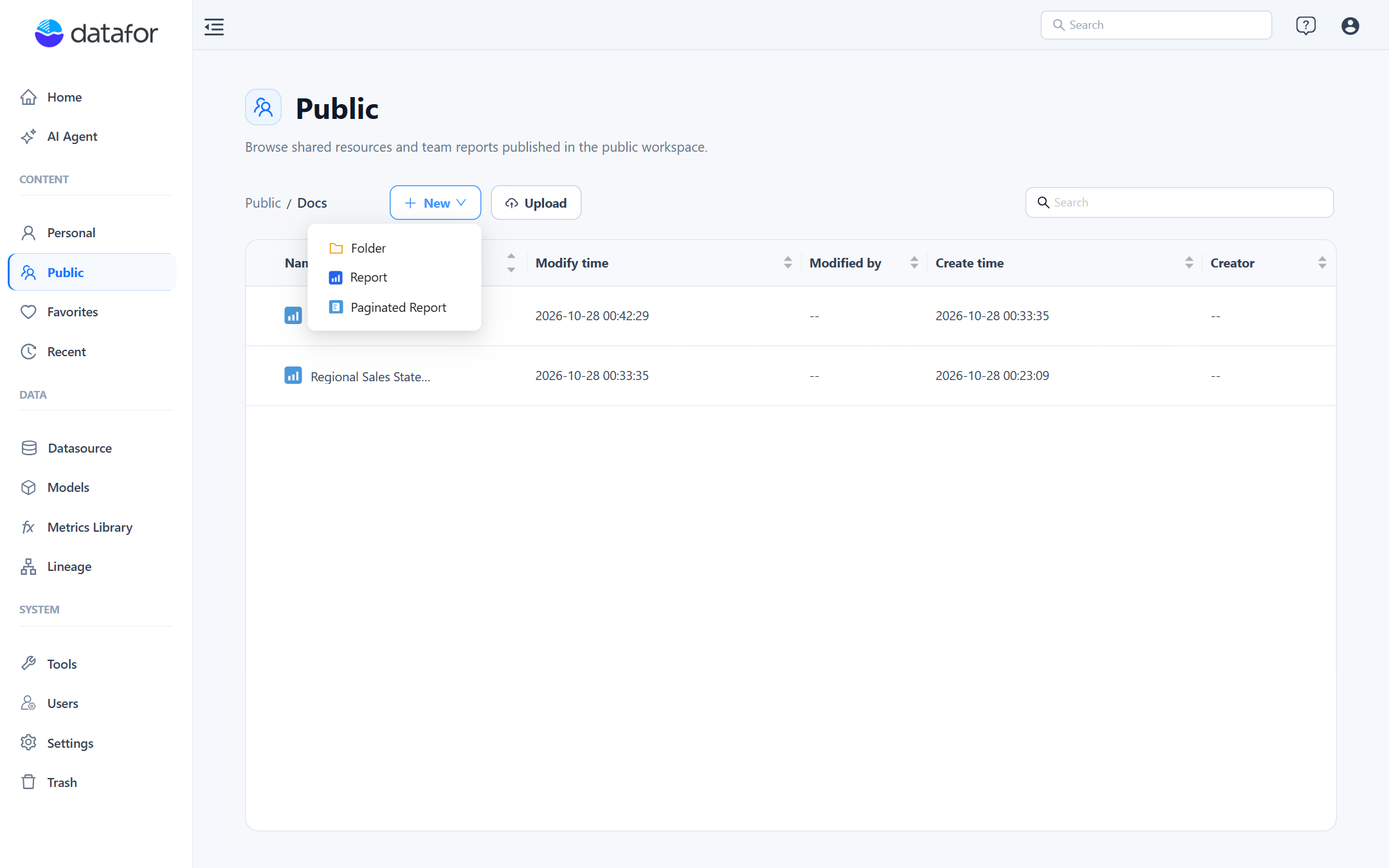
You need write permission on the folder. To edit an existing report later, use the row menu › Edit or the Edit button in the viewer.
Build the first table with the wizard
A new report opens with the wizard. It builds a complete table or crosstab in three steps; everything it produces can be changed afterwards.
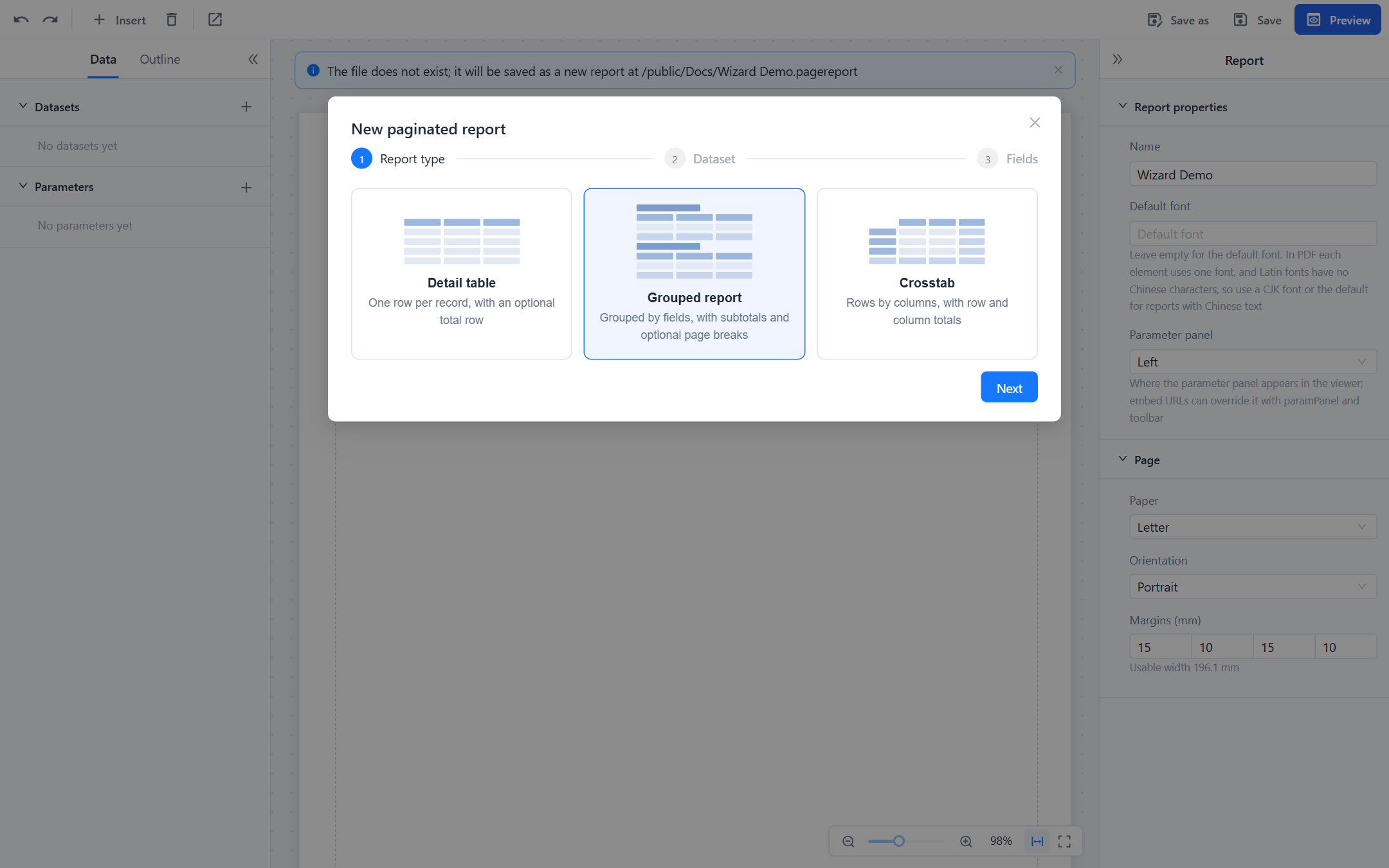
- Report type. Detail table lists one row per record with an optional total. Grouped report groups rows by one or more fields with subtotals and optional page breaks. Crosstab puts one field on rows, one on columns and measures in the cells.
- Dataset. Pick a dataset the report already has, or click New dataset and choose a Model dataset (an analysis model and its cube) or an SQL dataset (a connection and a query). See Datasets and Parameters.
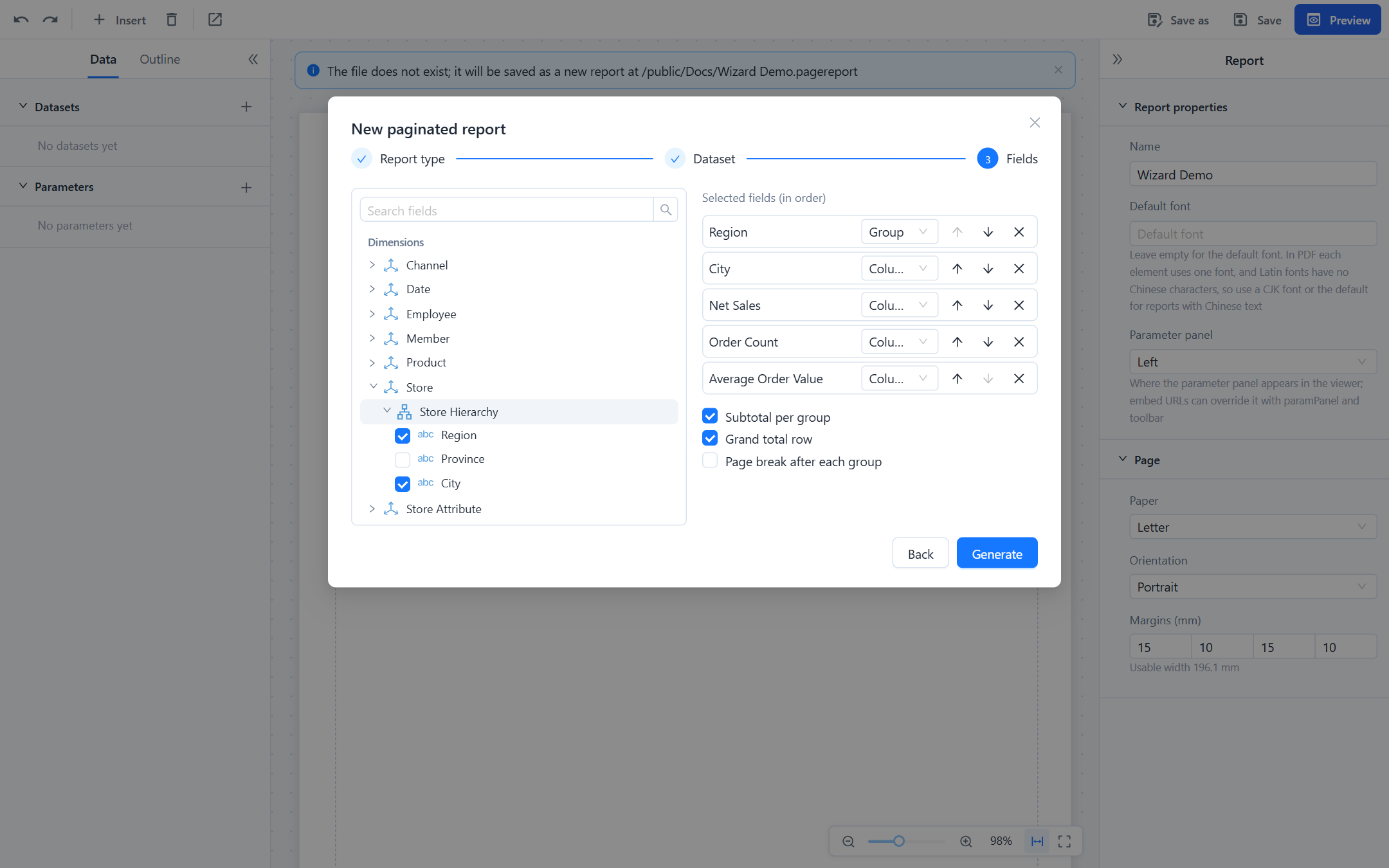
- Fields. Tick the fields in the order you want them. For a model dataset, expand a dimension to reach its hierarchy levels and attributes; measures and calculated measures are listed below. Each selected field gets a role: Group or Column for a grouped report, Row, Column or Value for a crosstab. The first dimension becomes the group (or the row), the rest become columns; change roles in the drop-down and reorder with the arrows. Options below the list add a Subtotal per group, a Grand total row, a Page break after each group or, for crosstabs, Row and column totals.
Generate replaces the body with the table and fills it with sample rows. Numeric measures that are sums or counts in the model are totalled; averages, distinct counts and calculated measures are set to By model, so their subtotals come from the model rather than from adding rows. If the result is not what you wanted, Undo (Ctrl+Z) returns to the empty report; Use the wizard on an empty body opens it again.
The designer
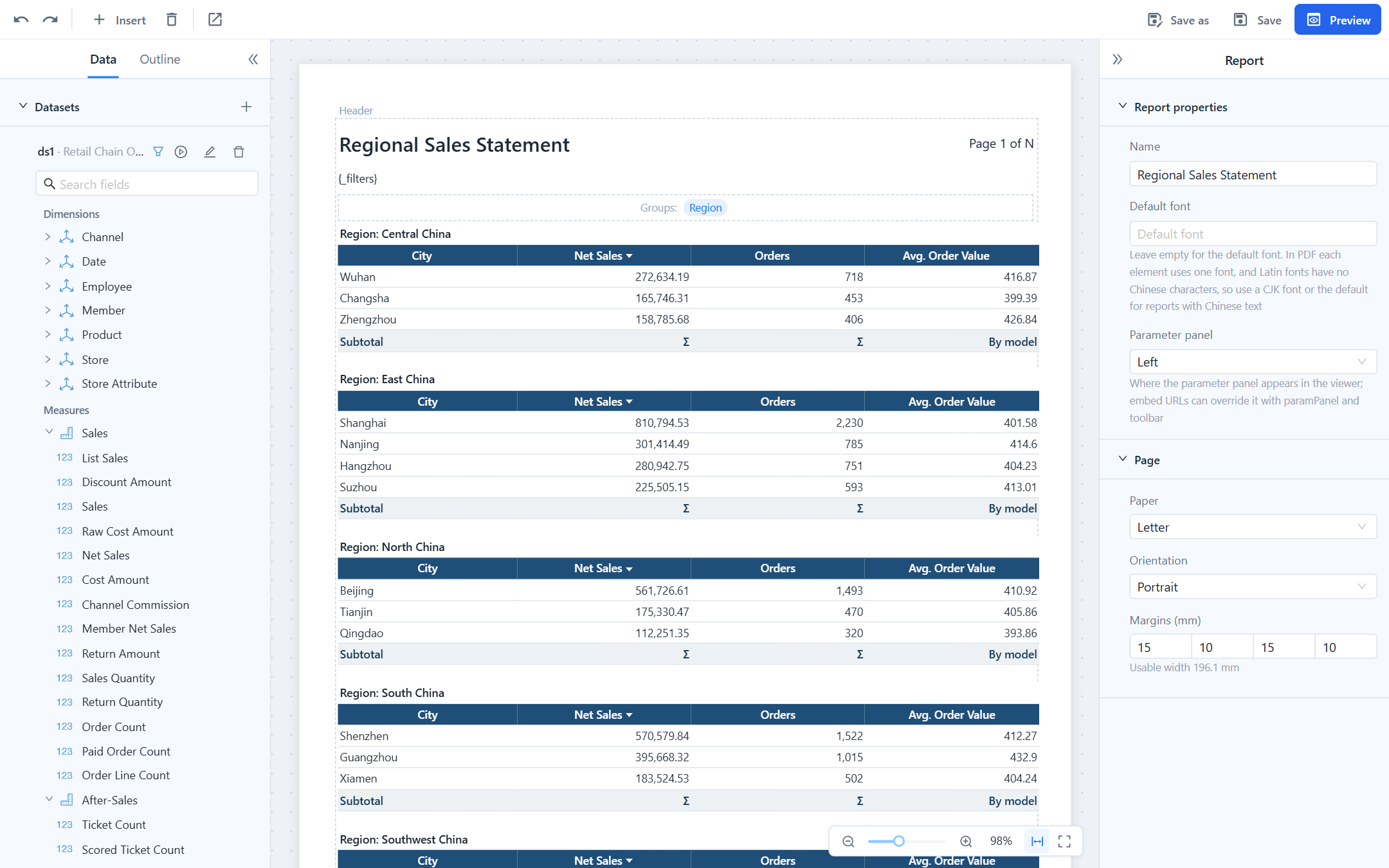
| Area | What it holds |
|---|---|
| Toolbar | Undo, Redo, Insert (Text, Image, Page number, Table, Crosstab), Delete selection, Open viewer; on the right Save as, Save, Preview. |
| Data tab | Datasets with a filter, run, edit and delete button each, the field tree of the selected dataset, and Parameters. |
| Outline tab | The report structure: header elements, body blocks with their groups and columns, footer elements. Clicking an item selects it on the canvas. |
| Canvas | The page at its real proportions. Header and Footer bands, the body with its blocks. The table shows real sample rows, group titles, subtotals and the grand total. The zoom bar sits at the bottom right. |
| Property panel | Properties of the selected element: the report (nothing selected), a band element, the table or crosstab, a column, a parameter. |
The canvas is live:
- Drag a field from the tree onto the table to add a column, or onto the Groups strip above the table to add a group. The field's context menu offers the same (Add as column, Add as group) plus Filter by parameter.
- Drag the right edge of a column header to change its width; a tooltip shows the width and the millimetres left on the page. Drag a header left or right to reorder columns. Double-click a header to rename it. Click the sort mark on a header to cycle no sort, ascending, descending.
- Click a header to select the column, the Groups strip to select the table, a header or footer element to select it, and empty paper to return to the report properties.
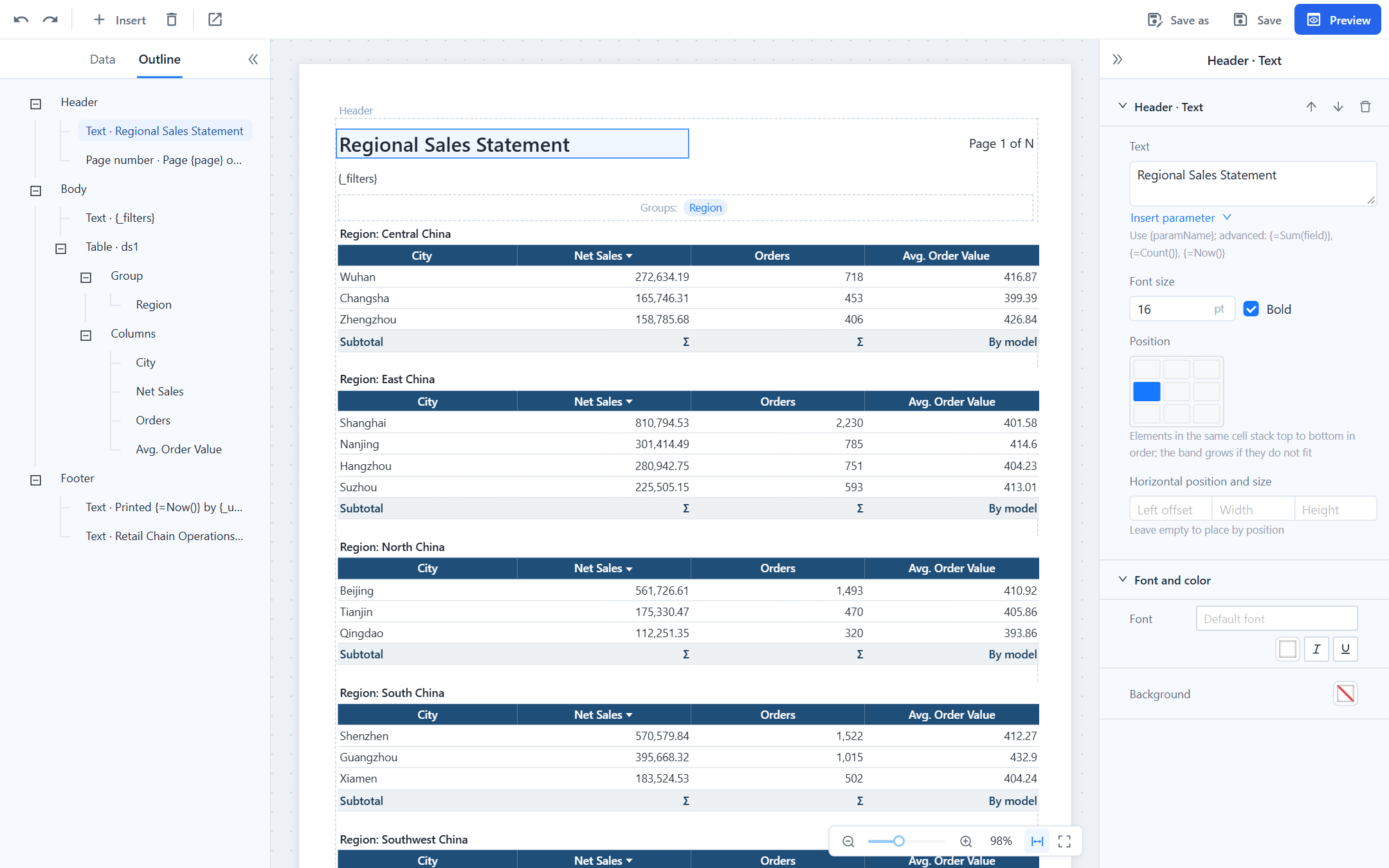
Report properties
With nothing selected, the property panel shows the report:
| Property | Notes |
|---|---|
| Name | Shown in the header by default and used as the file name on the first save. |
| Default font | Leave empty to use the server's default font (a CJK font, so Chinese text renders in PDF). See Page Layout, Header and Footer. |
| Parameter panel | Left or Top in the viewer. Readers can collapse it but not move it. |
| Paper, Orientation, Margins (mm) | A3, A4, A5, B5, Letter, Legal or Custom width and height. The Usable width under the margins is the space your columns must fit in. |
| Table style | Template, accent colour and density that tables and crosstabs inherit; see Tables and Crosstabs. |
Save, validate, preview
- Save writes the file to its path. The first save of a new report, and Save as, open the save dialog: pick Personal or Public, a folder, and a file name. Saving over an existing name asks for confirmation.
- Every save validates the report. Errors (a column wider than the page, a missing field, a bad expression) stop the save and are listed at the bottom with Locate, which selects the offending element. Warnings (a dataset nothing uses, a header element that does not line up with a column edge) let the save go through. The toolbar shows No errors, No errors, n warnings or n errors at all times.
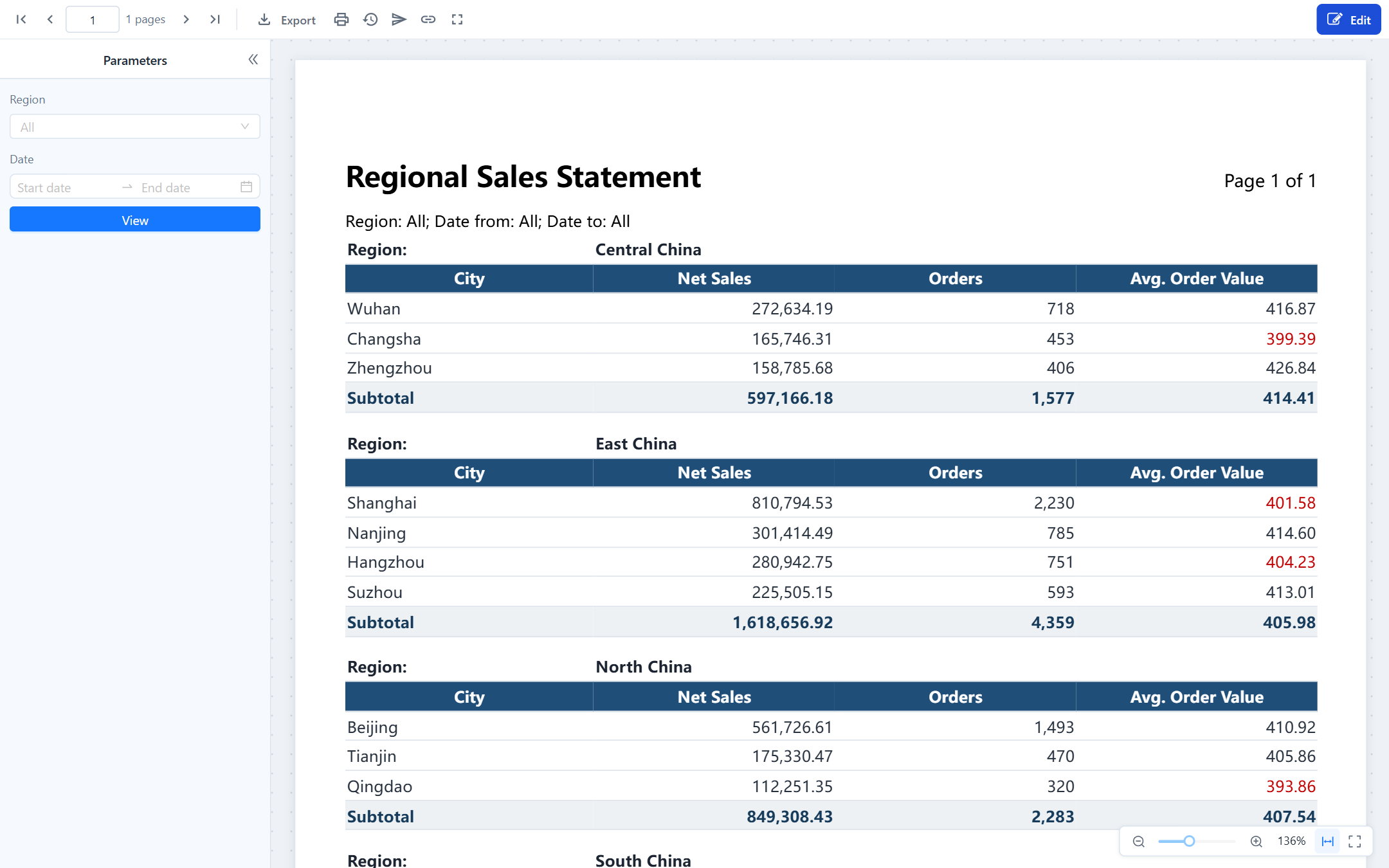
- Preview renders the report with the real engine, including parameters, page breaks and totals, without leaving the designer. Design returns to editing.
- Open viewer opens the saved report in the viewer in a new tab.
Unsaved changes are protected: closing the tab asks for confirmation.
What to do next
- Add parameters so readers can narrow the data: Datasets and Parameters.
- Format columns, groups and totals, or switch to a crosstab: Tables and Crosstabs.
- Arrange the header and footer: Page Layout, Header and Footer.
- Check how it exports and prints: Viewing, Pagination and Export.