
Appearance
Scatter
Compare two numeric measures to find clusters, unusual observations and possible relationships. Each point represents a member of the Marker field.
Build sales versus margin
- In Components → Charts → Distribution & correlation, add Scatter and select an Analysis model in Data.
- Map the fields below, then set a common period in Filters.
| Slot | Example | Purpose |
|---|---|---|
| Marker | Store | Defines what one point represents. |
| X Axis | Net Sales | Horizontal position. |
| Y Axis | Gross Margin Rate | Vertical position. |
| Size | Optional order count | Bubble size as a third measure. |
| Legend | Optional Region | Separates groups of points by colour. Not drillable. |
| Tooltips | Optional context | Extra values shown when hovering a point. |
| Time axis | Optional date field | Lets a page Date filter that filters by time axis filter this chart; see Date. |
Use a store identifier that tells apart stores with the same name. Without the intended Marker grain, the chart shows a few aggregated points instead of individual stores. Measures can be dragged between X Axis, Y Axis and Size.
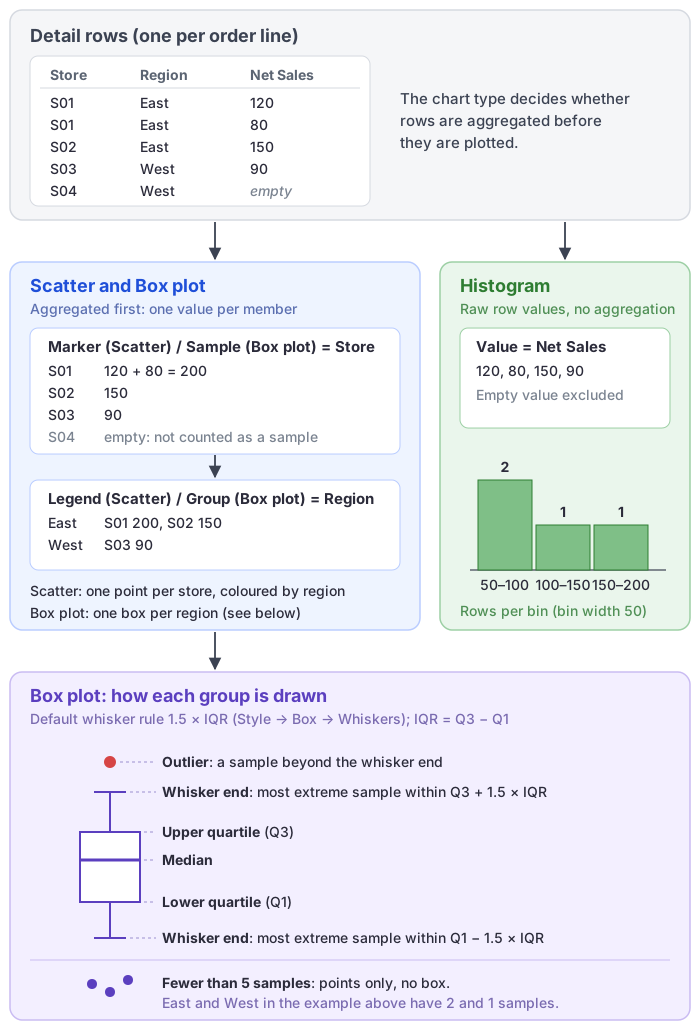
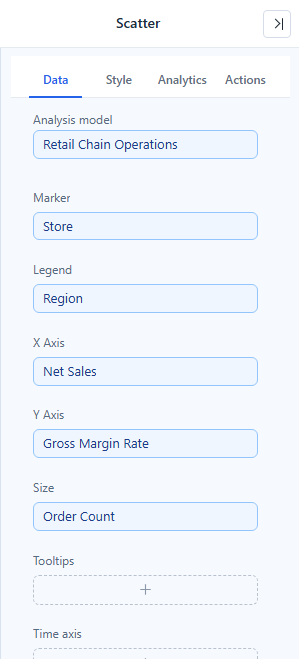
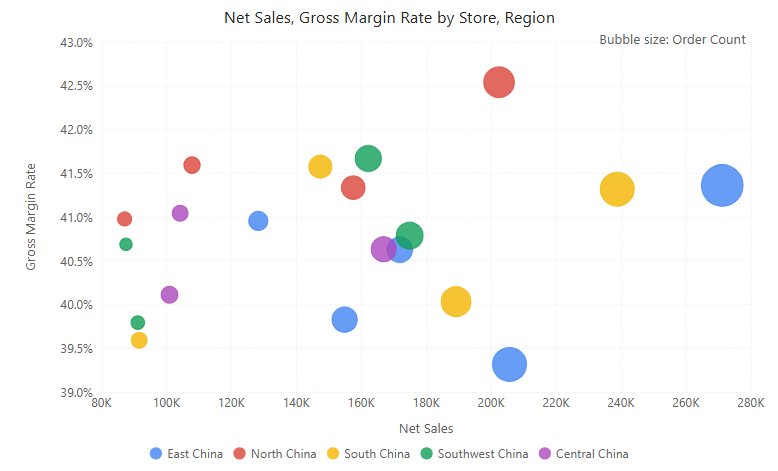
The default title lists the X and Y measures but not the Size measure, for example Net Sales, Gross Margin Rate by Store, Region. A new Scatter is placed at 400 × 300 px.
Settings that matter
All in the Style tab.
| Setting | Effect | Default |
|---|---|---|
| Data labels → Show, Font | Shows each point's Marker name. Labels are placed where they cover no other bubble and stay inside the plot. | Off |
| Bubble → Size type | How the Size measure maps to bubble size: Linear, Square or Logarithmic. | Linear |
| Bubble → Size | Overall bubble scale, 2–90%. | 10% |
| Bubble → Show bubble dimension | Note in the top-right corner naming the Size measure, for example Bubble size: Orders. | On |
| X axis, Y axis | Labels, names and bounds of the two value axes. The automatic range follows the data and does not have to include 0. | — |
| Gridlines | X and Y gridlines and their style. | On |
| Zoom slider → Zoom | Zoom into a dense area. | Off |
| Tooltip → Show Tooltip | Turns the hover tooltip on or off. | On |
Scatter has no Display units setting; format the axes with the measure's Format. In the Analytics tab you can add lines (fixed or statistic; a statistic of the X measure gives a vertical line), bands and one Diagonal (y = x). See Reference lines.
How labels are placed
Each label tries the left, right, top and bottom of its point, then the four diagonals, and takes the first position that overlaps no other bubble or label and stays inside the plot. If none is free, it takes the least crowded position. With more than 400 points, labels are only kept inside the plot. Labels that still overlap other labels are hidden. Use labels sparingly in a dense plot and keep identity and values in the tooltip.
Read the plot
Start with the overall spread, then inspect individual outliers. A store can have high sales but a low margin rate; that is a different finding from a high margin amount. If Size is bound, explain what it represents in the title or supporting text, and do not read bubble diameter as a precise value.
If points overlap, reduce Size, narrow the filters or enlarge the component. If many points share one coordinate, check the measure aggregation and missing values before concluding that the relationship is real.
Opening reports made before 10.00
- A ratio line added with the old Analysis menu appears in the Analytics tab as a Diagonal.