
Appearance
Quick Calculated Measures
A quick measure is a calculated measure made from a template: choose a calculation, pick the measure, and Datafor writes the formula.
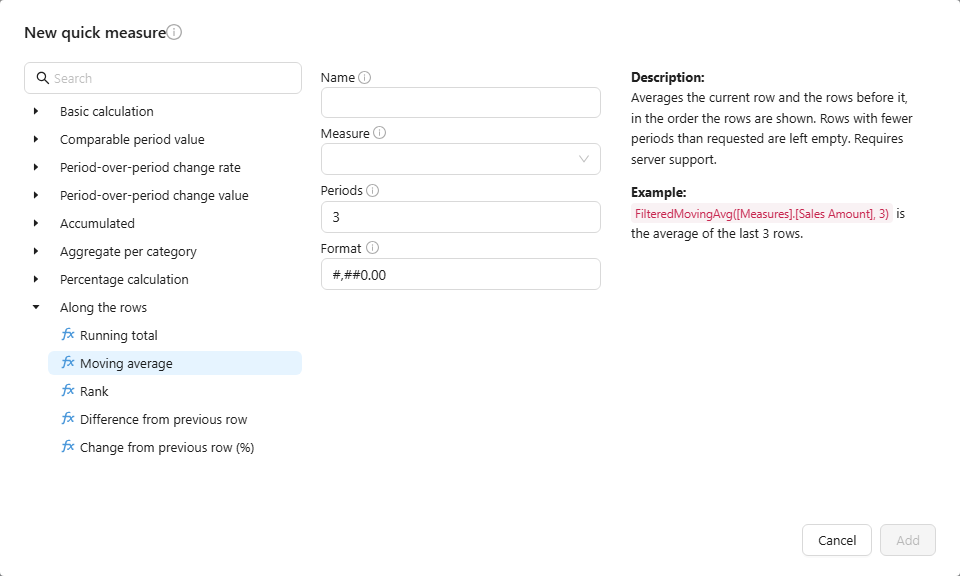
Create one
- Select a component, open Data and click + under a measure group.
- At the bottom of the picker click New measure ▾ → New quick measure.
- Choose a template from a group, or search for it.
- Enter a Name, pick the Measure and fill the template's options.
- Check Format. Rate and share templates start as
0.0%, the others as#,##0.00; a format you type is kept when you switch templates. - Click Add. The new measure is added to the component and saved with the report.
Template groups
| Group | Templates |
|---|---|
| Basic calculation | Addition, Subtraction, Multiplication, Division |
| Comparable period value | Yearly, Quarterly, Monthly and Weekly comparable period value; Sequential comparable value |
| Period-over-period change rate | YOY, QOQ, MOM, WOW; Period-over-period change rate |
| Period-over-period change value | ΔYOY, ΔQOQ, ΔMOM, ΔWOW; Period-over-period absolute change value |
| Accumulated | YTD, QTD, MTD, WTD |
| Aggregate per category | Aggregate, Average, Sum, Max and Min per category; Category correlation; Overall and Sample covariance |
| Percentage calculation | Percentage, Row Percentage, Column Percentage |
| Along the rows | Running total, Moving average, Rank, Difference from previous row, Change from previous row (%) |
Period templates need a time hierarchy in the model; see Time Semantics and Default Time Settings.
Which period a comparison uses
| Situation | Compared with |
|---|---|
| No date filter | Each row's own period, shifted: with months on rows, every month is compared with the same month a year earlier (YOY) or the month before (MOM). |
| A date range filter and a finer time level on rows | Each row's part of the range, shifted. Before 10.00 every row was compared with the shifted total of the whole range. |
| A date range filter and no time level on rows | The whole range, shifted. |
| Sequential and Period-over-period templates | The window just before the current one, of the same length in calendar periods: Apr–Aug is compared with Nov–Mar. |
| A window of whole months | Whole months: February is compared with all of January, not January 1–28. |
A row with no comparable period gets an empty value. See MDX Functions → Period comparisons for the functions behind the templates.
Along the rows
These templates work on the rows in the order they are shown, after sorting, filters and row limits:
| Template | Result | Options |
|---|---|---|
| Running total | Adds up the measure from the first row to the current row. | – |
| Moving average | Average of the current row and the rows before it. | Periods (default 3). The first rows with fewer periods stay empty. |
| Rank | Position of the row by the measure. Ties share a rank: 1, 2, 2, 4. | Order: Descending (default) or Ascending |
| Difference from previous row | Current row minus the row above. | – |
| Change from previous row (%) | Change against the row above, in percent. Empty when the row above is empty or 0. | – |
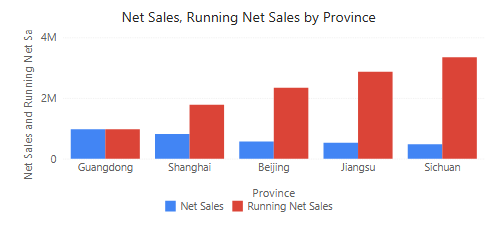
- With several row fields, the calculation restarts in each outer group.
- Total and subtotal rows stay empty for these measures.
- Previous row is the row above on screen, not the previous calendar period. For month-over-month growth use the period templates.
- Sort by value in descending order and add a share template to build a Pareto (80/20) chart from a running total.
- Set Rank's Format to
#,##0, otherwise ranks show as 1.00.
These templates need the 10.00 query engine on the server.
Measures needed in many reports belong in the model; see Measures and Calculated Measures.
Related: Calculated Measures · Row Limit