
Appearance
Understanding Paginated Reports
A paginated report is a report laid out on paper pages: a fixed paper size, a header and footer on every page, and one table or crosstab that runs across as many pages as its rows need. It is made to be printed, exported to PDF or Excel, and sent on a schedule, where a dashboard is made to be looked at on a screen and filtered.
Paginated reports are a separate content type, .pagereport, with their own designer and viewer. They sit next to dashboard reports (.datafor) in the same folders and lists.
In short
Use a dashboard when people explore numbers on a screen. Use a paginated report when they need the same numbers as a document: a monthly statement, a store-by-store listing, a signed-off PDF, a spreadsheet to pivot.
Dashboard report or paginated report?
| Dashboard report | Paginated report | |
|---|---|---|
| Layout | Free canvas, one screen, components of any size | Paper pages with header, body and footer; content flows from page to page |
| Content | Charts, tables, cards, maps, filters, tabs | Text, images, page numbers and one table or crosstab per report |
| Data | Analysis models | Analysis models, or your own SQL on a connection |
| Filtering | Filter components, cross-filtering, drill down | Parameters set before the report runs |
| Output | Screen; PDF of the page; Excel or CSV of one component | Viewer pages; PDF, Excel, Word; flat Excel and CSV; print |
| Delivery | Share links, embedding | Also scheduled email and repository folders, one copy per recipient or parameter value |
| Best at | Interactive analysis, monitoring | Documents, long listings, statements, batch delivery |
A paginated report can be the target of a dashboard's drill-through, so the two work together: the dashboard shows the trend, and a click opens the detailed statement for the clicked region or month. See Drill Through to a Paginated Report.
How a report is put together
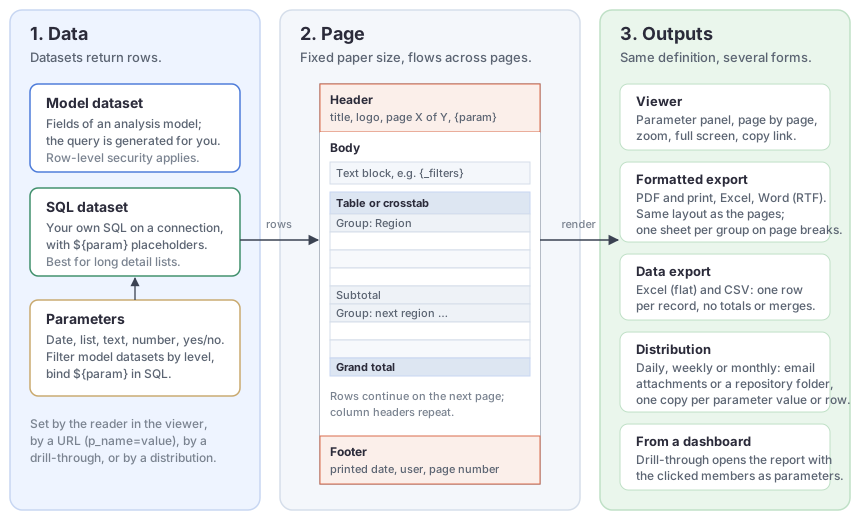
Datasets return rows. A model dataset takes fields from an analysis model, in the same way a dashboard chart does, and the query is generated from the fields you place on the report; row-level security applies as usual. An SQL dataset runs SQL you write on a database connection, with ${parameter} placeholders bound as query parameters. Model datasets suit summaries; SQL datasets suit long detail lists.
Parameters are the values a reader sets before the report runs: a date range, a region, a customer. A parameter filters a model dataset by a level, or is bound in SQL. It can offer a list of choices from a dataset, cascade from another parameter, be hidden and set only by a URL or a distribution, or come from a global parameter in Parameter Management.
The page has a fixed paper size, orientation and margins. The header and footer bands repeat on every page and hold text, images, page numbers and field values. The body holds text blocks and the data block: a table (columns, groups with subtotals, a grand total) or a crosstab (row and column dimensions with measures and totals). Tables and crosstabs take their look from a style template, the same templates as the dashboard pivot table.
Outputs are produced from the same definition. Readers page through the report in the viewer, export it, or print it. Exports come in two groups: formatted (PDF, Excel, Word) keep the page layout, data only (flat Excel, CSV) give one row per record for further work in a spreadsheet. A distribution generates the report on a schedule and emails it or saves it to a folder.
Where paginated reports appear
- Create: New › Paginated report in a folder of the console (Personal or Public). The designer opens in a new tab with a wizard.
- Open: click the report in a folder, Recent, Favorites or search results. The viewer opens inside the console; Open in new tab gives it the full window.
- Edit: the report's row menu › Edit, or Edit in the viewer toolbar.
- Manage: rename, move, copy, share, set permissions and delete like any other file. Deleted reports go to Trash and can be restored.
- Downloads: files generated in the background wait under My account › Report downloads.
Permissions follow the folder: you need write permission on a folder to save a report there, and read permission on a report to view or export it. Readers also need read permission on the model or connection a dataset uses; otherwise the report fails to run for them. Creating distributions needs the platform's manage schedules permission.
Limits in this release
- One table or crosstab per report. Several text and image blocks are fine. Reports that need two data blocks are planned; until then, split them into two reports.
- No charts, barcodes or sub-reports yet.
- A crosstab does not split across pages horizontally; wide crosstabs are compressed or cut at the page edge (see Viewing, Pagination and Export).
- Word export is RTF.
- The preview shows at most 5,000 rows; exports stop at 200,000 rows for SQL datasets and 100,000 rows for model datasets. Administrators can change these limits in the plugin's
settings.xml. - Paginated reports are an optional plugin (
datafor-pagereport). If it is not installed, the New › Paginated report entry and.pagereportfiles are not offered. Model datasets also need the dashboard plugin to be installed.