
Appearance
Tabs
The Tabs component holds several pages of content in one area of the report. Readers switch between them with the tab bar, or with buttons and rules you set up.
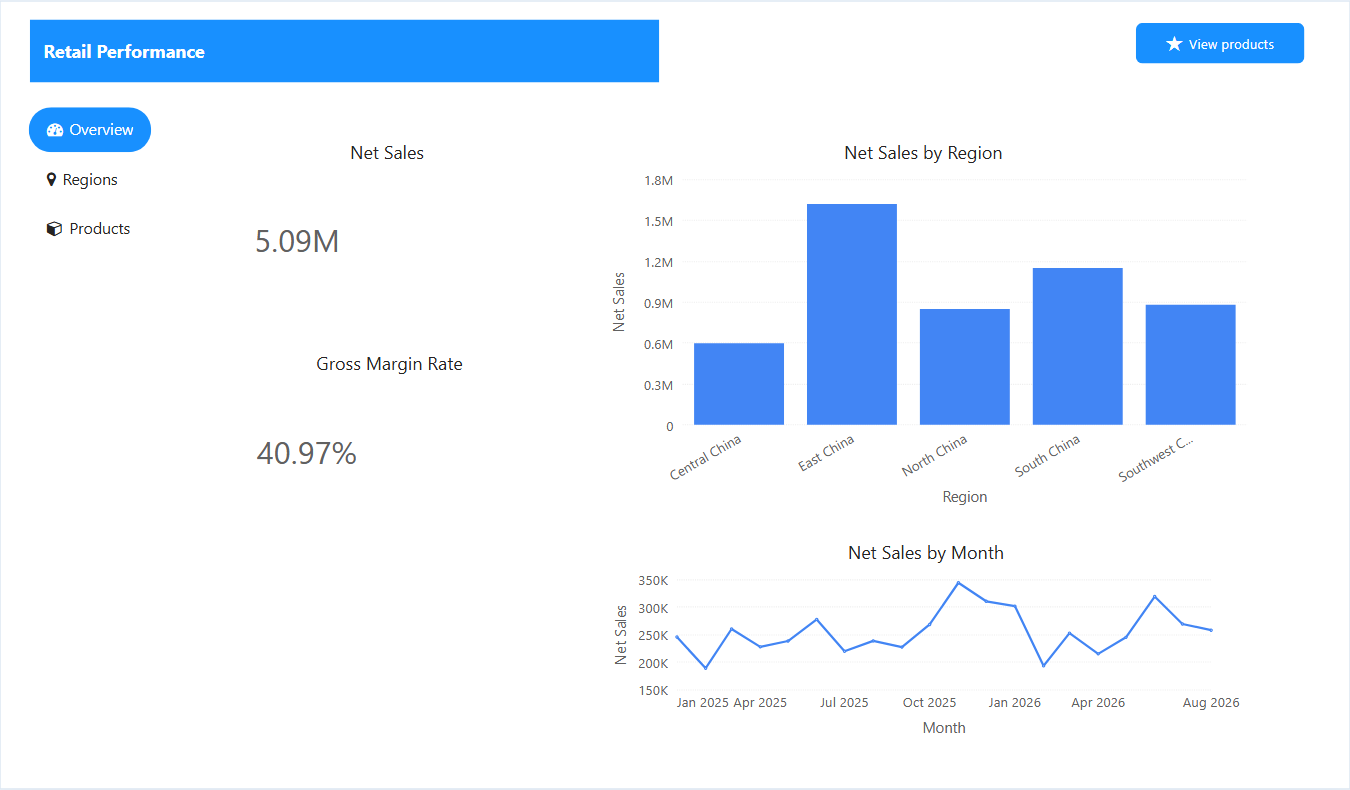
Create the tabs
- In Components → Assists, click Tabs and click the canvas. Resize the component to the area it should fill.
- On Data → Tabs, click Add tab for each tab. New tabs are named Tab 2, Tab 3…
- Click a name to rename it; Enter keeps the change, Esc cancels it.
- Drag a row by its handle to change the order.
- For the selected tab, under Current tab, set an Icon, a Tooltip, or Hide this tab.
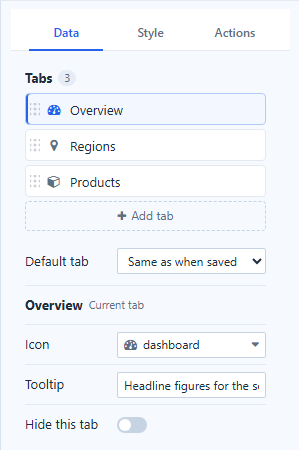
Hover a row for the eye (hide) and trash (delete) buttons. A Tabs component needs at least one tab, and at least one visible tab. Deleting a tab that holds components asks first and says how many components will be deleted with it.
Selecting a row shows that tab on the canvas, and clicking a tab on the canvas selects its row.
Put components on a tab
| To | Do this |
|---|---|
| Add a new component to a tab | Show the tab, pick a component in the palette and click inside the tab's content area. |
| Move a component into a tab | Drag it over the content area until Drop into "{tab}" appears, then release. Hover a tab header for a moment while dragging to switch to that tab. |
| Move it out | Drag it beyond the edge of the tab until Move out to page appears. |
| Move without dragging | Right-click the component and choose Move to tab and a tab, or Move out to page. With several components selected, they move together. |
| Place it on top of the tabs without putting it inside | Hold Alt while clicking or dropping. |
| Paste into a tab | Select the Tabs component, then paste: the copy goes onto the current tab. |
While you work inside a tab, a bar Editing "{tab}" with Done appears above the component. Click Done, click outside, or press Esc to return to the page. Undo returns a moved component to where it was.
Tabs can be nested: a tab can hold another Tabs component.
Which tab opens
When the report opens, the first match wins:
- Default tab rules (by user, role or parameter), under Actions → Default tab rules.
- Data → Default tab: a named tab, or Same as when saved.
- The tab that was showing when the report was saved (hidden tabs are skipped).
- The first visible tab.
Default tab rules
A default tab rule opens a tab by the signed-in user, by role, or by the value of a report or global parameter.
- Add and name the tabs under Data.
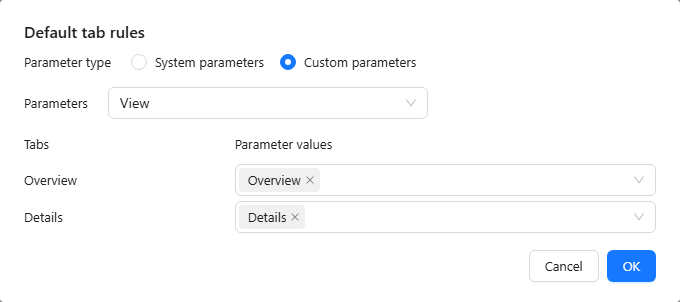
- Open Actions → Default tab rules and click the ellipsis button next to Settings. The dialog Default tab rules opens.
- Choose Parameter type → System parameters (User or Role) or Custom parameters.
- Select the parameter under Parameters.
- For each tab, enter its Parameter values, then click OK.
- Preview with the intended user or value, and save the report.
How the values are matched:
| Parameter | The tab that opens |
|---|---|
| User | The tab whose values contain the signed-in user's login name. |
| Role | The first tab whose values contain one of the user's roles. |
| Custom parameter | The tab whose values contain the value of the filter bound to that parameter; with nothing selected, the parameter's Default value. When the reader changes the filter, the report switches to the matching tab. |
If a filter bound to the parameter allows a multiple selection, only the first selected value is matched. For navigation, use a Text parameter with a list such as Overview and Details, bind a Dropdown or List box to it with a single selection, and give each tab distinct values.
Rules and Hide tab header control navigation only; use resource permissions to control who can see the data.
Style
Style → Tab controls the tab bar:
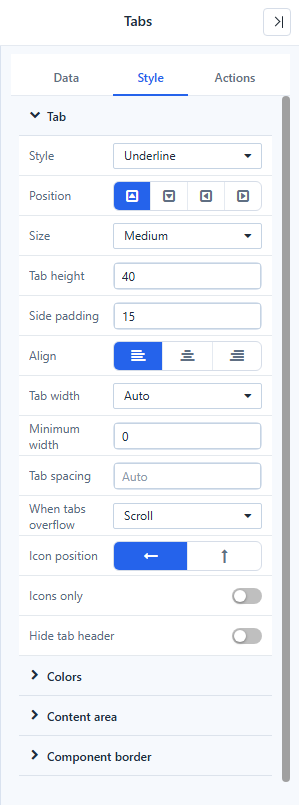
| Setting | Options and defaults |
|---|---|
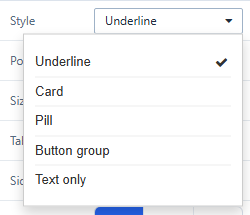
| Style | Underline (default), Card, Pill, Button group, Text only |
| Position | Top (default), bottom, left or right. Left and right stack the tabs; Vertical bar width (0 = fit the longest name, at most 40% of the component). |
| Size | Small, Medium (default), Large, Custom. Tab height (default 40) and Side padding (default 15); editing either switches to Custom. |
| Align | Left, centre or right |
| Tab width | Auto (with Minimum width), Fill equally, Fixed (with Fixed width; long names are cut) |
| Tab spacing | Empty = the style's default |
| When tabs overflow | Scroll (arrows and mouse wheel) or Wrap |
| Icon position, Icons only | Icon left of or above the name; Icons only hides the names of tabs that have an icon and shows them as a tooltip. |
| Hide tab header | Hides the tab bar in the report. In the editor it stays visible, semi-transparent, marked Hidden in preview. |
Colors sets the font, Accent color, active and hover colours, tab and bar backgrounds, Tab bar line, Indicator thickness and Corner radius. With Auto active text color on, Pill and Button group pick white or dark text to suit the accent. Content area sets the content background and padding; Component border frames the whole component, including the tab bar.
Opening reports made before 10.00
- Tabs keep their look: the old White theme becomes Card, Blue transparent and Red transparent become Underline in blue or red.
Switch tabs without the tab bar
With Hide tab header on, readers need another way to change tabs:
- an Action button, Text, Image, Icon or Shape with the click action Switch tab;
- default tab rules driven by a parameter that readers change with a filter.
In the report, readers can also use the keyboard on the tab bar: arrow keys, Home and End.
Mobile layout
On phones the tab bar is always at the top, only the style type and colours apply, and Tabs cannot be nested. See Mobile Layout View.
Related: Creating Parameters · Bind Filters to Parameters · Click Actions and Visibility