
Appearance
Measures and Calculated Measures
A Measure aggregates a source field. A calculated measure is evaluated at query time and can reference Measures in a reusable model-level expression. Use a calculated column instead when the calculation must run row by row in the data source SQL layer.
Configure a Measure
When a table is added, eligible numeric fields are initially created as Sum measures. The generated Measure Group also contains Fact Count.
To add or remove a source field as a Measure, open the field menu and toggle Set as measure. If the table has no Measure Group, the modeler creates one when you add the Measure. A nonnumeric field is initially assigned Count rather than Sum. There is no setting for the default aggregation: new measures always start with Sum for numeric fields and Count for other fields.
Select a Measure in the Analysis model tree and configure its properties.
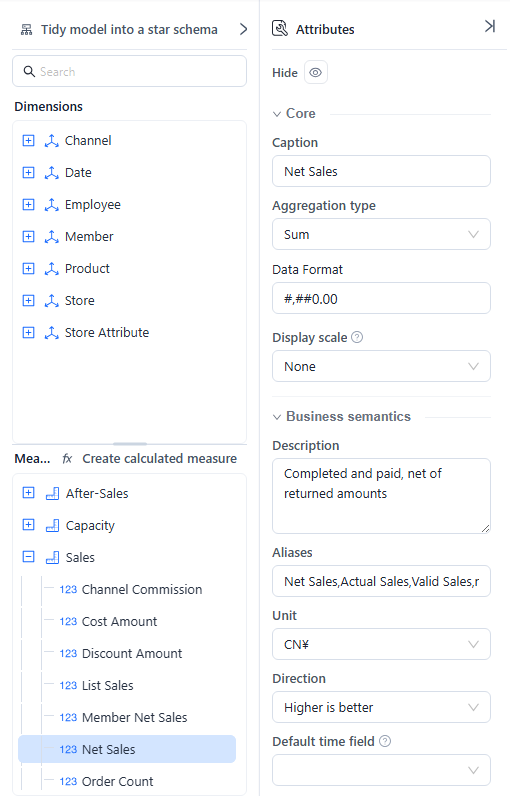
| Property | What to set |
|---|---|
| Caption | The business-facing name shown to report authors. |
| Aggregation type | How source values combine at query time. |
| Data Format | Display format for the result. |
| Description | What the measure represents and how it is calculated. |
| Aliases | Other terms users or AI may use for the same measure. |
| Unit | Currency, percentage, quantity, duration, or another business unit. Stored as a language-neutral code and shown in each user's language. |
| Display scale | Default magnitude (K, M, B; 万, 亿) in which reports show the measure. See Units and Display Scale. |
| Direction | Higher is better, Lower is better, or Neutral. Besides guiding the Agent, it colours comparisons on Measure card and KPI trend card when the card's Comparison direction is Follow measure: with Lower is better a decrease uses the favorable colour, with Neutral changes are grey. |
| Default time field | Date context the Agent should use for this Measure. |
| Recommended dimensions | Dimensions normally used to analyze the measure. |
Available aggregation types include Sum, Average, Min, Max, Count, Distinct Count, population or sample standard deviation, and population or sample variance. Choose the method from the business meaning: for example, a unit price usually needs Average rather than Sum.
Median is not offered in the modeler, because several databases cannot compute it. Report authors can still choose it for one component field with More → Aggregation → Median in the report designer; see Aggregation for Measures.
Default format of new measures
New measures start with the Number format of Settings › General › System configuration › Default measure format, which is #,##0.00 unless an administrator changed it (choices #,##0, #,##0.0, #,##0.00). The same applies to a calculated measure created with New measure. Fact Count always starts with #,##0.
The setting also has a Percentage format (#,##0.00% by default; choices 0%, 0.0%, #,##0.00%) for measures whose unit is %.
- The modeler reads these defaults when it opens. After an administrator changes them, reopen the modeler.
- Existing measures keep their format. Change it per measure under Data Format.
See System Configuration.
Create a calculated measure
Click Create calculated measure, then choose:
- New measure to write a formula.
- New quick measure to generate a formula from a template.
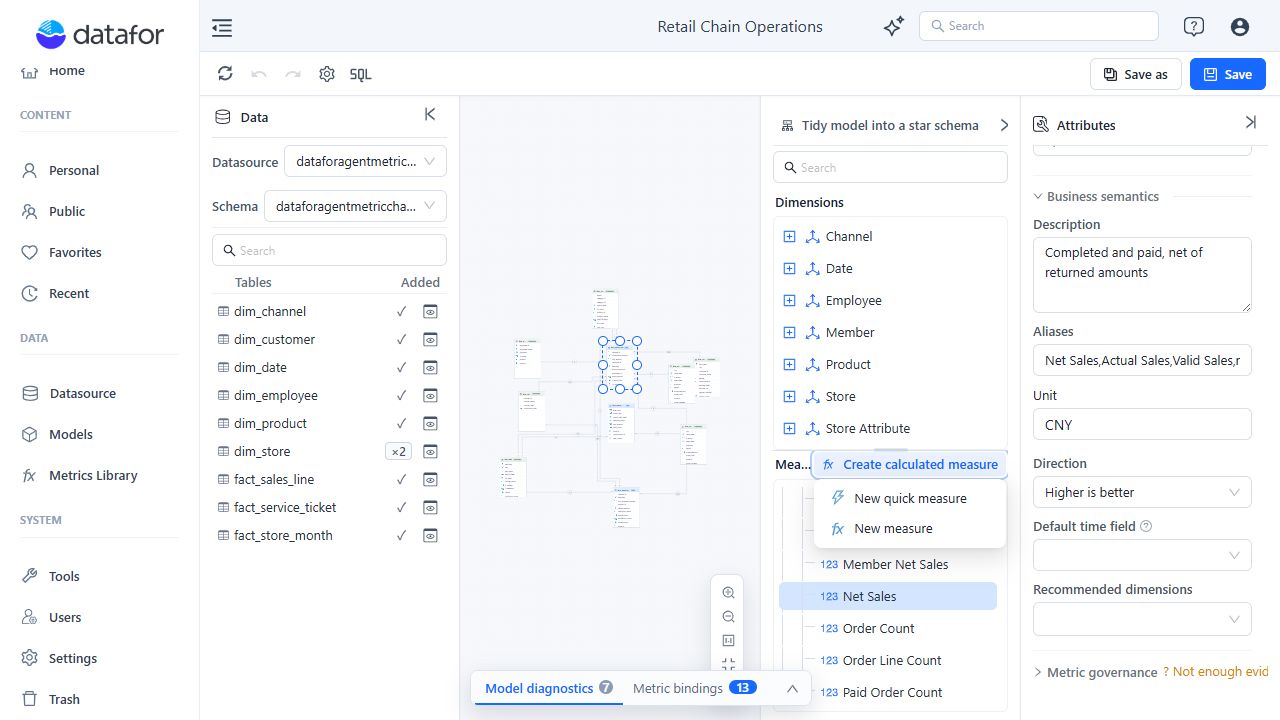
For a standard calculated measure:
- Enter a Caption.
- Enter the Formula.
- Select a Format.
- Click Add.
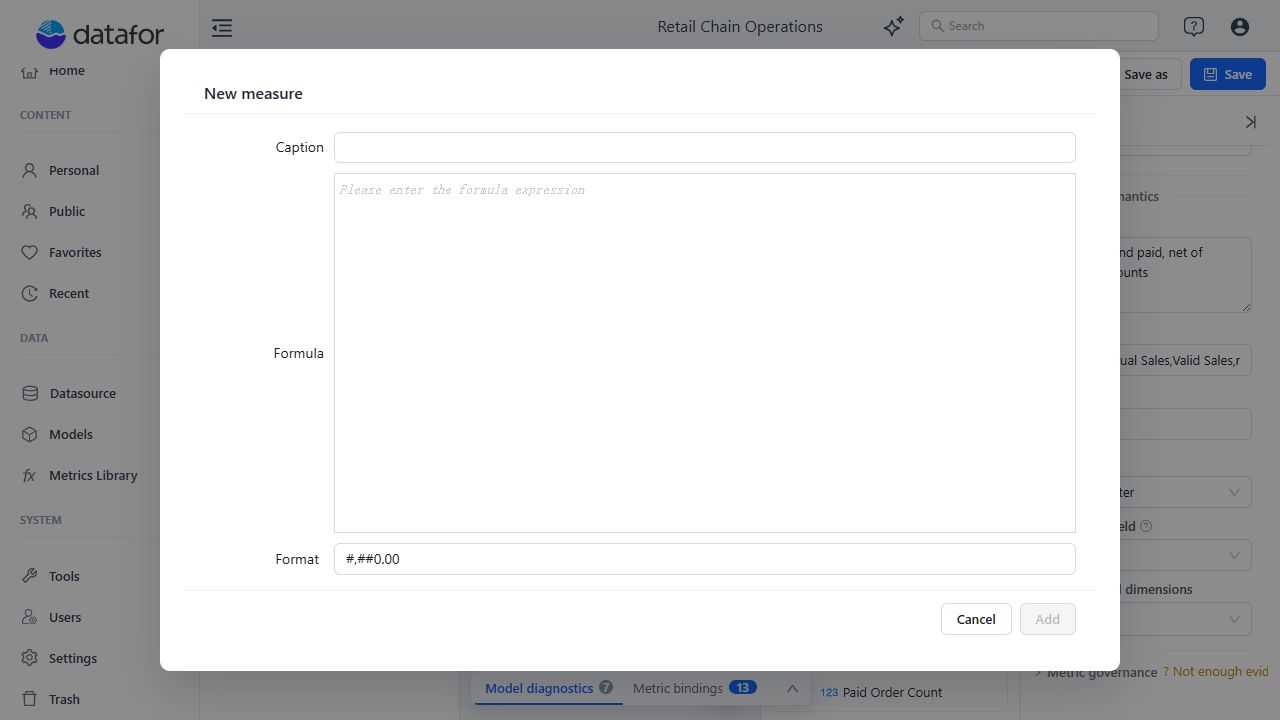
Reference a model Measure with syntax such as:
[Measures].[Net Sales]An unknown Measure reference produces a diagnostic warning.
Use a quick measure
Quick measures generate formulas for common patterns. Current template groups include:
- Basic calculation
- Comparable period value
- Period-over-period change rate
- Period-over-period change value
- Accumulated
- Aggregate per category
- Percentage calculation
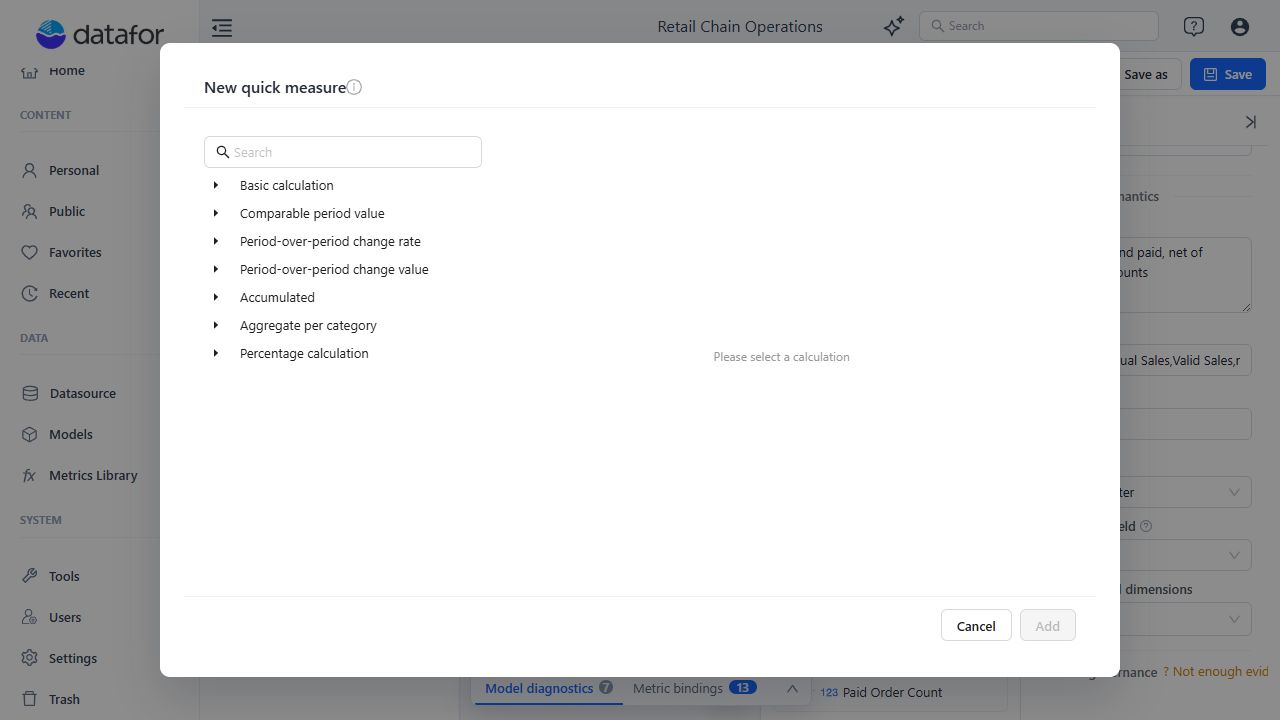
After creating a quick measure, inspect the generated formula and confirm that its time hierarchy, comparison period, aggregation, and denominator match the business definition. See Time Semantics and Default Time Settings before using a time-intelligence template.
Change or remove Measures safely
- Renaming or deleting a Measure can break calculated-measure references.
- Fact Count cannot be deleted individually.
- Deleting a Measure or calculated measure is immediate; deleting a Measure Group requires confirmation.
- Deleting a bound Measure attempts to remove its enterprise metric binding. Undo can restore the editor object but not an external registry update.
Always review Model Diagnostics after changing Measure names, formulas, groups, or source fields.