
Appearance
Numeric Slider
Numeric slider has two jobs, chosen in Data → Data source:
| Data source | Job | Handles | Filters linked components |
|---|---|---|---|
| Model field | Filter by a range of a numeric field, such as order value. (This was the Range filter in earlier versions.) | Two, or one for ≤ / ≥ | Yes |
| Parameter | Change a numeric input that formulas read, such as a growth rate. | One | No |
Filter by a numeric field
- Add Components → Filters → Numeric slider.
- In Data, keep Data source → Model field, choose the Analysis model and a Numeric field.
- In Style → Options → Style, choose Range, Less than or equal or Greater than or equal.
- In Actions → Interactions, check the Linked components.
The Numeric field list contains only dimension fields that the model defines as numeric (quantitative). Measures such as amounts cannot be range-filtered here; the list says Empty when the model has no such field. To filter by a measure value, use a component filter with a condition instead.
Less than or equal and Greater than or equal filter by the chosen end only. Values beyond the data range seen when you set the filter, for example larger orders loaded later, are included.
The step is derived from the data range, and the input boxes show thousands separators. Clear selections in the toolbar returns to the full range.
Drive a parameter
Choose Data source → Parameter and a Numeric parameter with Any value, for example GrowthRate with default 0.1; binding rules are in Bind Filters to Parameters. Then set Minimum value, Maximum value and Step, for example -0.2, 0.2 and 0.01.
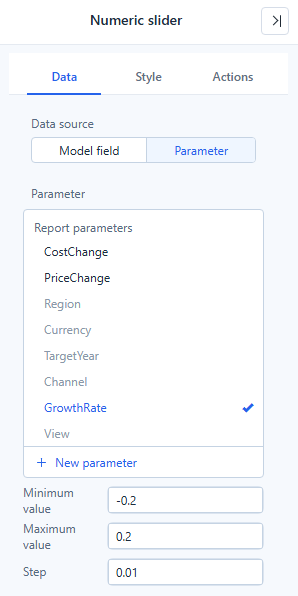
If you leave the range empty, it is derived from the parameter's default: a positive value v gives 0 to 2v, a negative value 2v to 0, and 0 gives 0 to 20. The step follows the default's decimals (0.1 → 0.1, 0.05 → 0.01, an integer → 1).
For a worked example, see What-if Analysis.
Related: Filters · Bind Filters to Parameters