
Appearance
Tables and Crosstabs
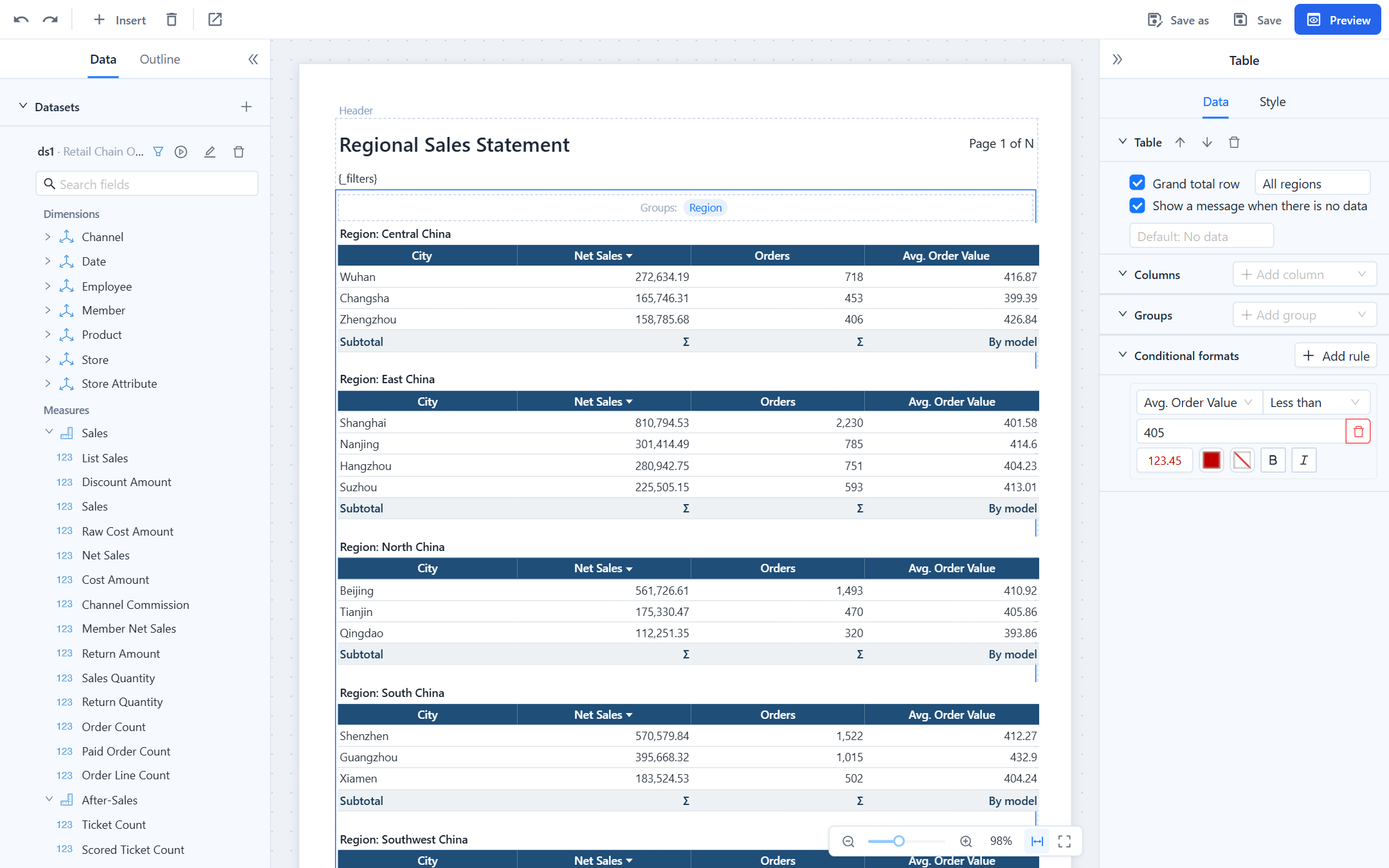
The body of a paginated report holds one data block: a table (a list of rows, optionally grouped) or a crosstab (rows by columns with measures in the cells). Select it by clicking a data cell on the canvas; its properties have a Data tab and a Style tab.
Table
Columns
Add a column by dragging a field onto the table, with Add column in the panel, or with the field's context menu. Click a column header to edit it:
| Property | Notes |
|---|---|
| Field, Title | The dataset field and the header text. Double-clicking the header on the canvas renames it too. |
| Width (mm) | Leave empty to share the remaining width equally with the other automatic columns. The sum of all widths must stay within the usable page width, or the save fails. |
| Align | Left, center or right. Numbers default to right. |
| Format | A number pattern such as #,##0.00 or 0.0%, or a date pattern such as yyyy-MM-dd. |
| Sort | None, ascending or descending. Rows are sorted inside their group; several sorted columns apply in column order. |
| Total | How the column is summed in subtotals and the grand total; see Totals. |
| Font and color | Font, size, bold, italic, underline, text colour and background of the detail cells. |
Arrows in the panel header move the column; the trash icon removes it. On the canvas, drag a header to reorder, drag its right edge to resize, and click the sort mark to change the sort.
Groups
A group breaks the rows by a field, in the order of the Groups strip above the table. Each group has:
| Property | Notes |
|---|---|
| Group title row | A row Region: East China before the group's rows. The colon follows the interface language. |
| Subtotal row, Subtotal label | A row after the group with the totals of the columns that have a Total setting. Default label Subtotal. |
| Page break after group | Each group starts a new page; in a formatted Excel export each group becomes its own sheet, named after the group value. |
| Restart page numbers for each group | With a page break: page numbers (and the total) count from 1 in every group. |
| Space after group | Blank space in millimetres after the subtotal row. |
A detail table without groups is simply a table with no entries in the strip.
Grand total and no-data message
- Grand total row adds a final row with the totals of the whole table; Grand total label changes its text (default Total). When the first column itself has a total, the label and the value share the first cell.
- Show a message when there is no data prints a text instead of an empty table when the dataset returns no rows; the default text follows the interface language.
- Repeat header on each page is on for every table: column headers are printed at the top of each page the table continues on.
Totals
The Total setting of a column (and the aggregate of a crosstab measure) decides how subtotals and the grand total are calculated:
| Setting | Calculation |
|---|---|
| None | No value in total rows. |
| Sum, Count, Average, Min, Max | Calculated by the report engine over the detail rows of the group or the whole table. Text columns can only be counted. |
| By model | Model datasets only. The report asks the analysis model for the value at the group level, so the model's own aggregation applies. Blank on an SQL dataset. |
Use By model for measures that cannot be added up: averages, distinct counts, ratios and other calculated measures. Summing an Average Order Value column would give a meaningless number; By model returns the average over all orders in the region, the same figure a dashboard pivot table shows. The designer chooses the default when you add a model field (Sum for sums and counts, Min and Max as in the model, By model for the rest) and warns when you pick Sum, Count or Average for such a measure. The canvas shows Σ for engine totals and the setting's name for the others.
Conditional formats
Add rule under Conditional formats colours cells by value: choose the field, a condition (Less than, Less or equal, Greater than, Greater or equal, Equals, Not equals, Between, In, Contains, Is empty), the value(s), and the look: text colour, background, bold, italic, with presets such as Red text or Light green fill. Rules apply to detail cells; the first matching rule wins.
Crosstab
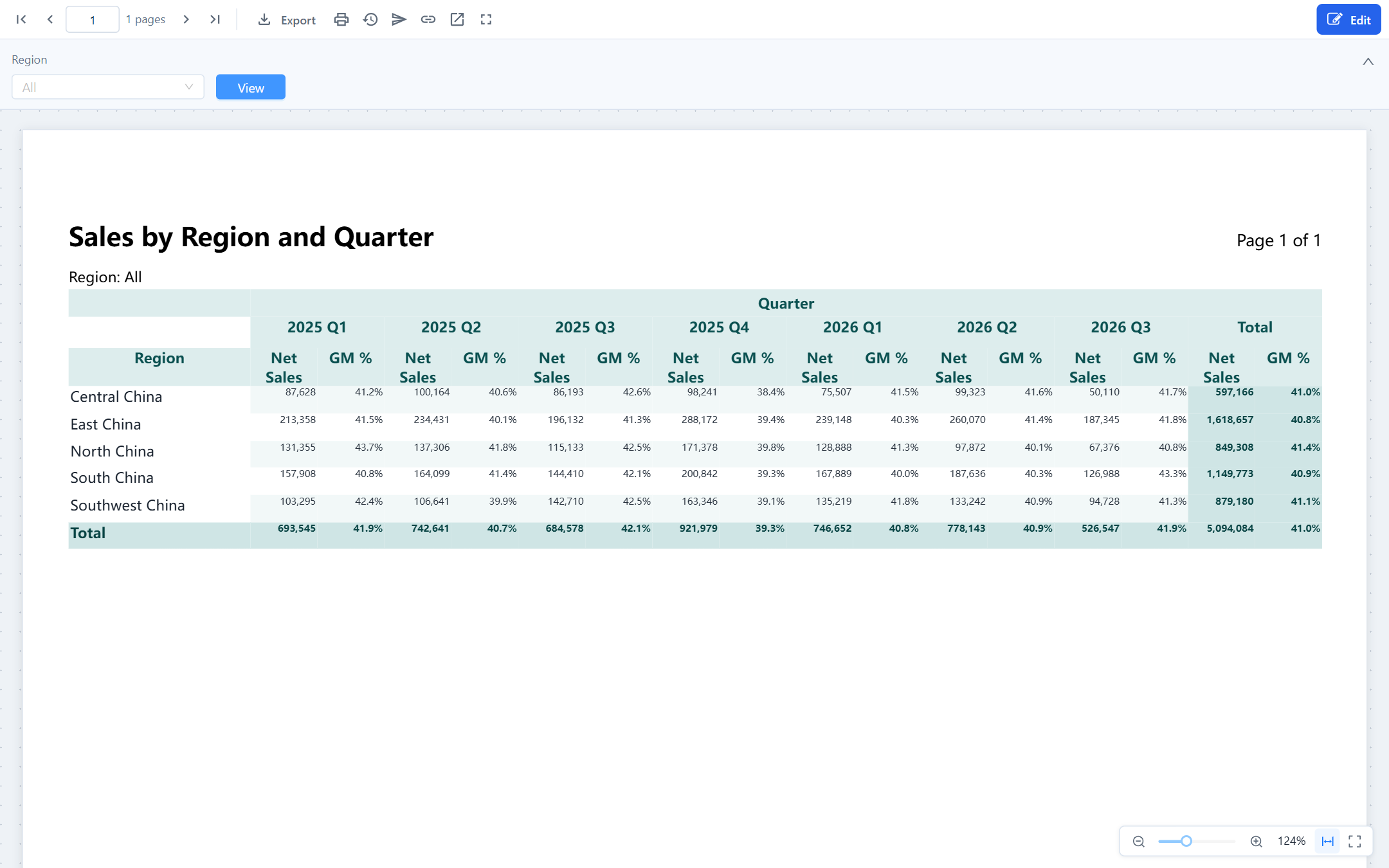
A crosstab has Row dimensions, Column dimensions and Measures. Drop fields onto the three zones on the canvas or add them in the Data tab.
| Setting | Notes |
|---|---|
| Total on a row or column dimension | Adds a Total row or column for that level; inner levels get Subtotal. |
| Aggregate of a measure | Sum, Count, Average, Min, Max or By model, with the same meaning as for table columns. Totals of ratios should be By model. |
| Format of a measure | Number pattern. |
| Row header width (mm) | Minimum width of the row dimension columns. |
| Cell width (mm), Fit to page width | Value columns share the page width equally and never exceed twice the cell width. With Fit to page width on, they shrink down to 8 mm when there are many columns; off, they keep the cell width and anything beyond the page edge is cut. |
| Row height | Overrides the density of the style template. |
Things to know:
- A crosstab never breaks horizontally across pages. Reduce the number of column members (filter the column dimension, use landscape or a larger paper, or swap rows and columns) when it does not fit.
- The dimension values on the column axis repeat at the top of every page; the column dimension title is printed once.
- With one measure, its title is not repeated under every column member. With several, each column member gets one sub-column per measure.
- Dimension members sort naturally:
2,10,11rather than10,11,2; dates from a date hierarchy sort chronologically. - In the formatted Excel export every cell is kept; the flat export writes one row per row member × column member × measure.
Table style
The Style tab gives tables and crosstabs the same look system as the dashboard pivot table: a template, an accent colour and a density, followed by the individual style items.
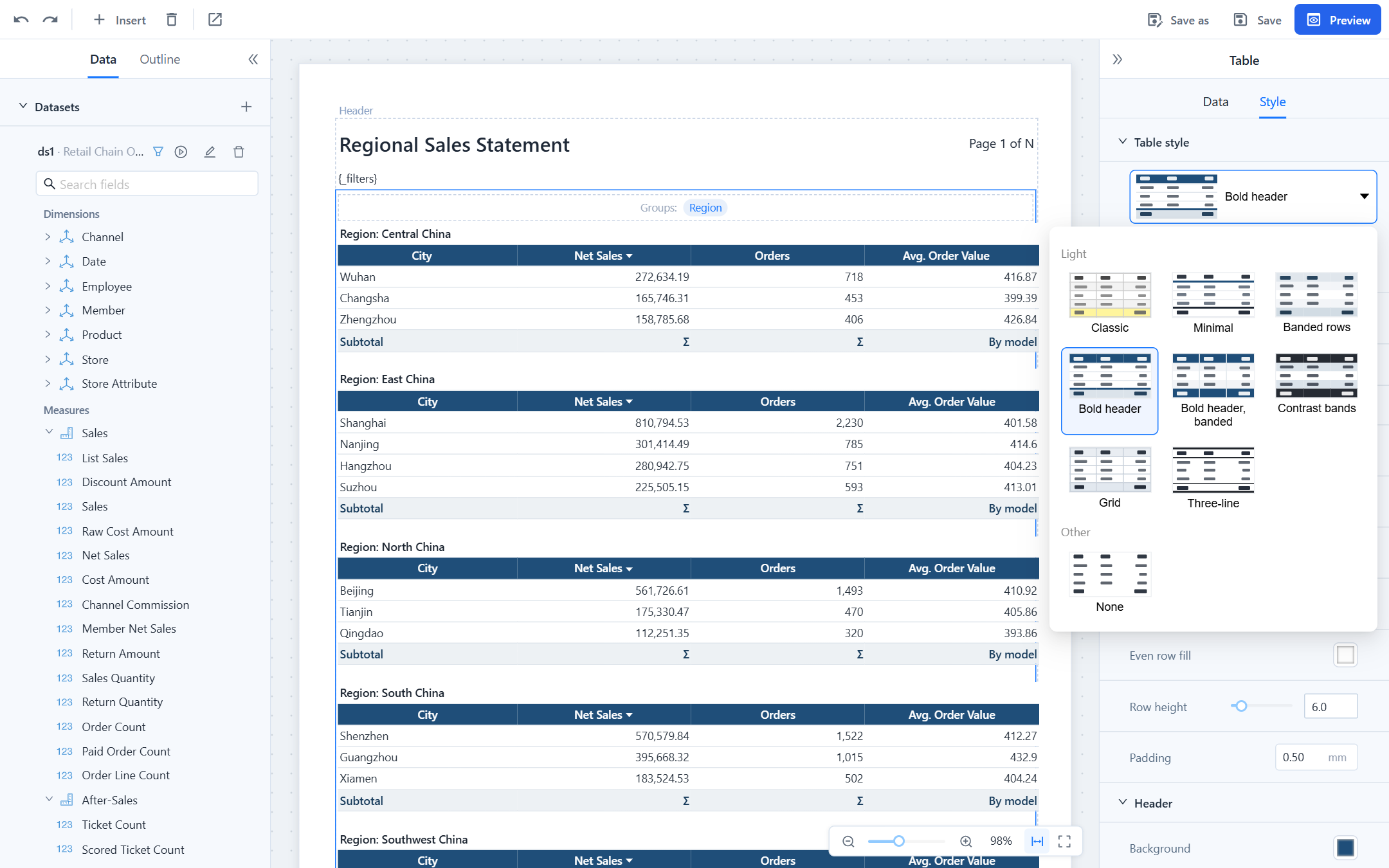
- Templates: Classic, Minimal, Banded rows, Bold header, Bold header banded, Contrast bands, Grid, Three-line, None. New reports start with Minimal.
- Accent: eight presets (navy, blue, teal, green, amber, red, violet, graphite) or a custom colour. Classic, Three-line and None ignore it.
- Density: Compact, Standard or Spacious, which set the row height (5, 6 or 7.5 mm).
- The sections below (Grid, Header, Body, Group header row or Row headers, Subtotal, Total) show the values the template produces. Change any of them: grid line width and colour, direction (all, horizontal only, vertical only, none), top and bottom rules, odd and even row fills, header background, font size, colour, bold, italic and alignment, the dividers under the header and above the total, row height and padding. A changed item shows ↺ to return to the template value; Reset to template style clears all of them.
- Report-level defaults for template, accent and density are set in Report properties › Table style; a block inherits them unless it chooses its own.
Templates affect colours, lines and row height only. Column widths, alignment, number formats, fonts and conditional formats are kept when you switch templates. The same look is written to the formatted Excel export.